Group Sets#
The Group Set feature is available for the CSIRT plan to manage multiple groups centrally.
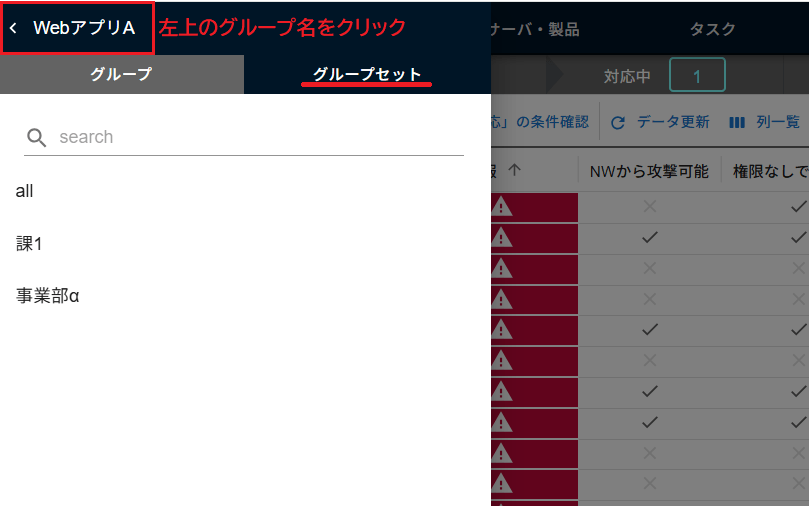
On pages such as the list view, click the group name in the top-left corner to display the Group/Group Set list. Click the "Groupset" tab and select the desired group set to switch the view.
For permissions required to view group sets, please see "here".
Vulnerability List#
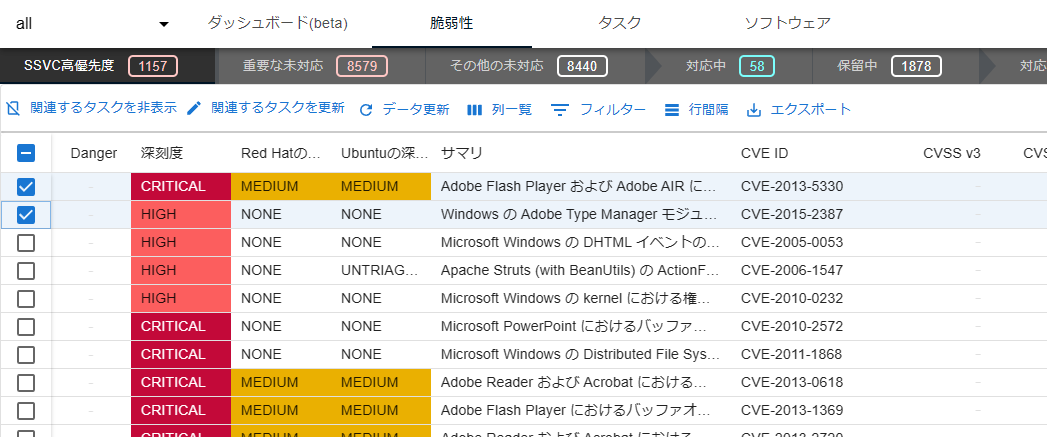
You can view all vulnerabilities for every group within the group set.
- By adding a topic from the "Topic" tab in the second pane of the vulnerability detail view, you can raise alerts for high-risk vulnerabilities. (Topics are managed at the organization level.)
- You can select multiple vulnerabilities to update their task priority, scheduled date, due date, etc.
- Vulnerabilities that do not require action can be hidden in bulk, allowing for simultaneous triage across multiple groups.
Server/Product List#
You can view information for all servers and products within the group set. After opening the server details, you can click the server name to navigate to the corresponding server/product details screen within that group.
*As of April 2025, only server detail information is viewable. The implementation of tabs such as Vulnerabilities x Tasks and Software is under consideration.
- You can sort by the number of "Immediate" tasks or unresolved tasks to identify and address servers with delayed responses.
- You can see a list of servers that do not have a Default Assignee set.
Task List#
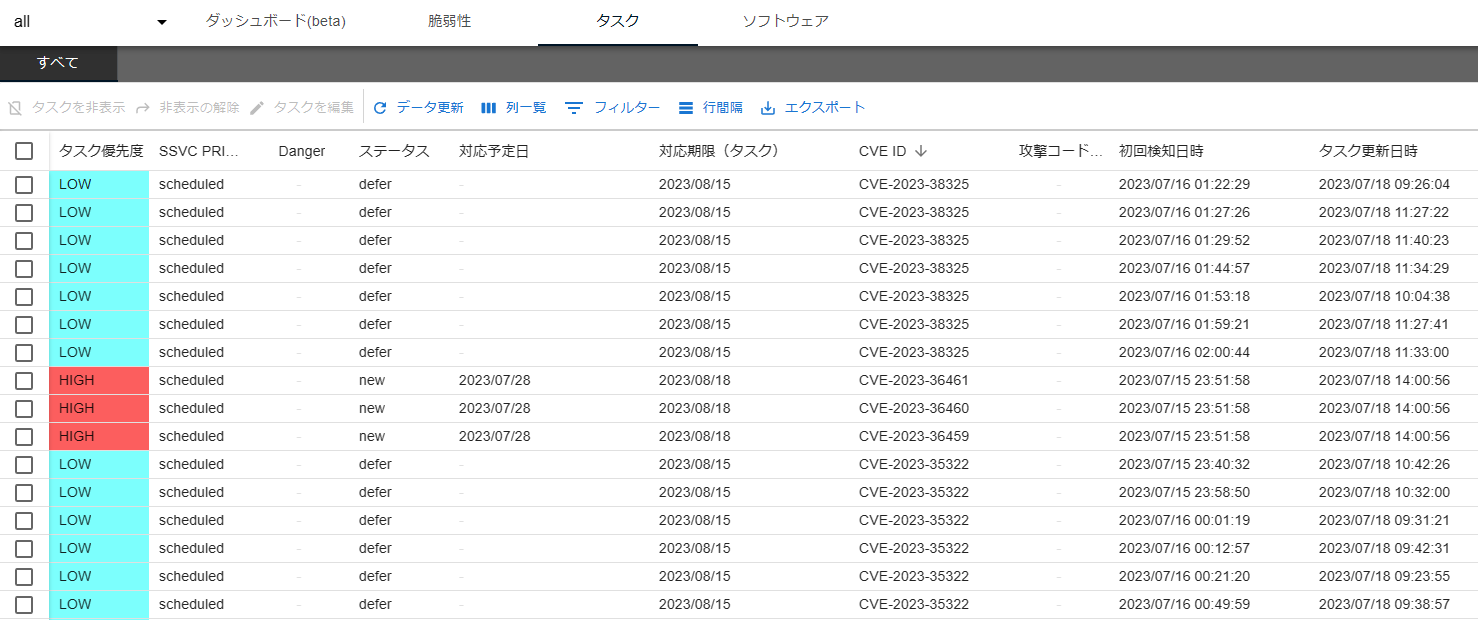
You can view all tasks for every group within the group set.
- This list uses paginated display.
- You can select tasks in bulk and update their task priority, scheduled date, due date, etc. You can also leave comments at the same time, which is useful for communicating remediation plans and providing supplementary information. You cannot update the status or assignee from the Group Set's task list.
- Vulnerabilities that do not require action can be hidden in bulk, allowing for simultaneous triage across multiple groups.
- Bulk operations can target not only the selected tasks but also all rows matching the current filter (Bulk Operations on All Filtered Rows).
Software List#
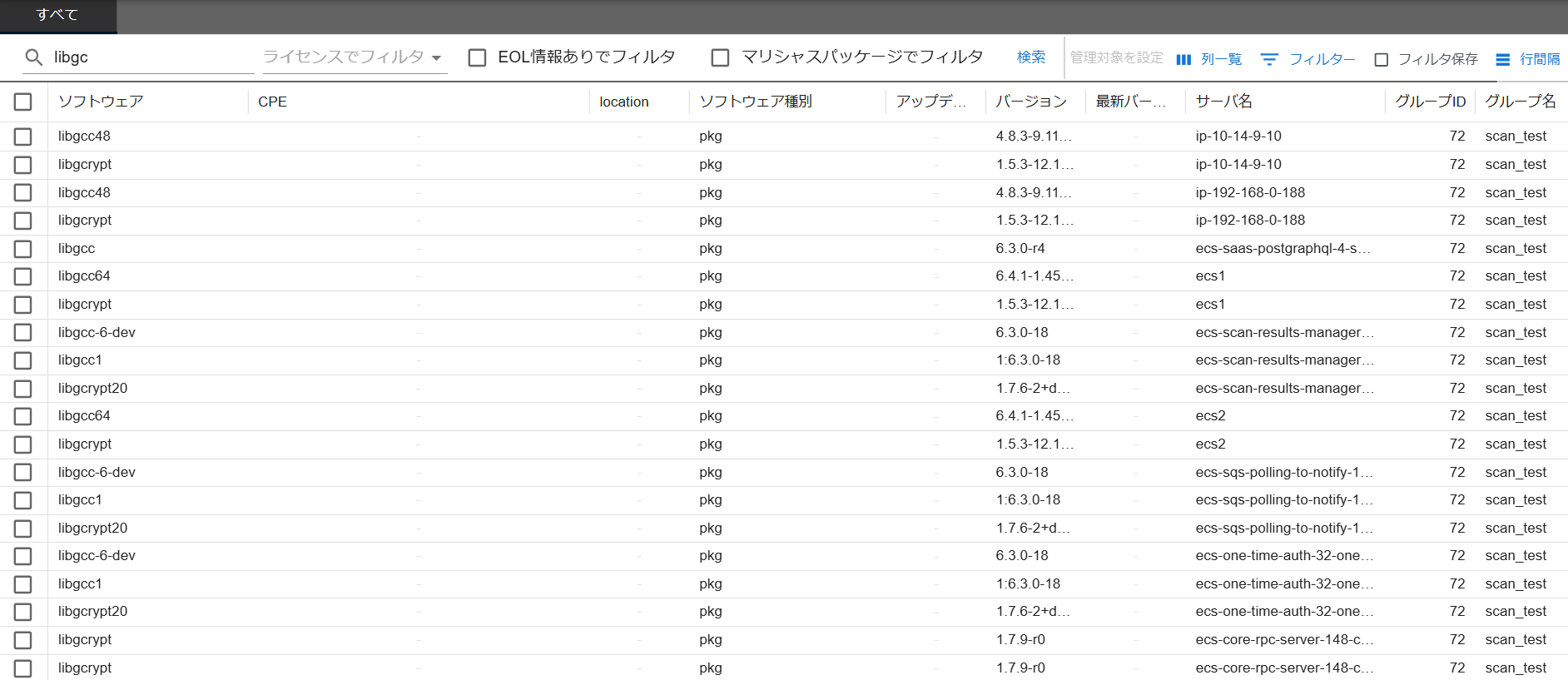
You can list all software for every group within the group set. Use the "Vulnerability Detection" column to check and filter whether vulnerabilities can be detected for each software entry. This list uses paginated display.
Cross-Group Search for GPL-family OSS Licenses in a Group Set#
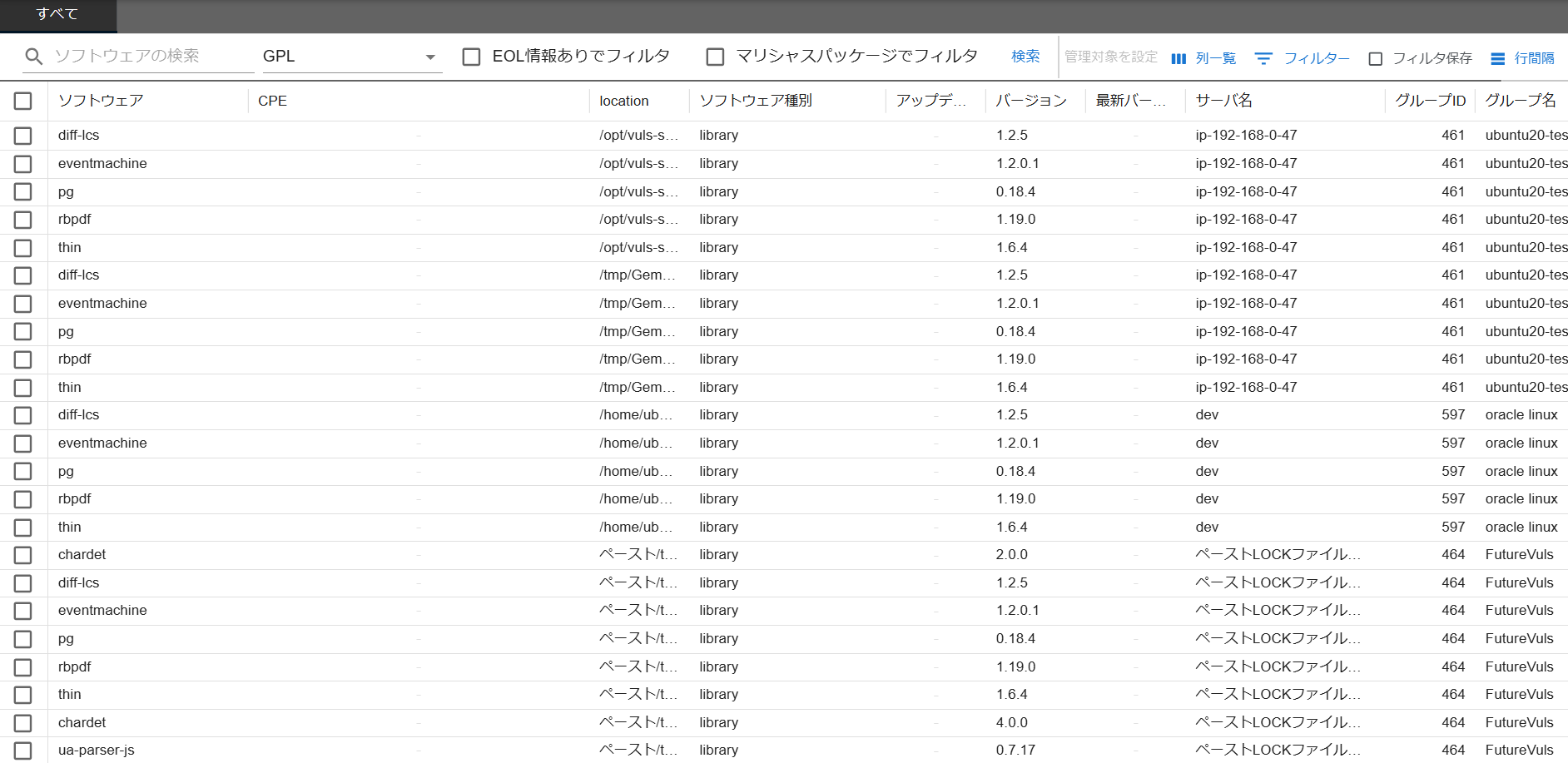
You can search for GPL-family software by specifying "AGPL License" or "GPL License" in the filter on the "OSS License" column. This is useful for performing a cross-group search for GPL and AGPL software among all dependency libraries used in your organization's applications. For more details on licenses, please see "Software Details > OSS Licenses".
Cross-Group Search for Library EOL in a Group Set#
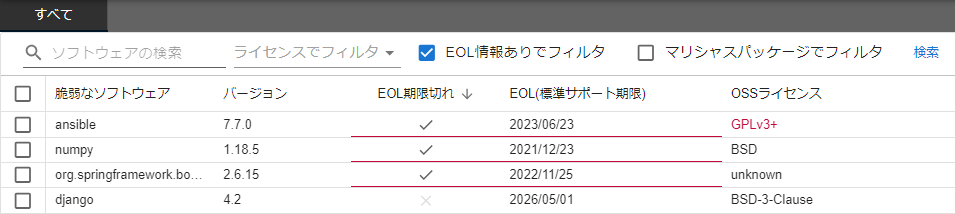
You can perform a cross-group search for EOL software under the group set.
When you specify EOL-Confirmed (software confirmed to be EOL) or EOL-Effective (software that is effectively EOL) in the filter on the "Maintenance Status" column, the matching software is displayed in the list.
This allows security personnel such as CSIRT members to gain a cross-organizational view of EOL risks lurking throughout the organization.
Bulk Configuration for Unmanaged Software#
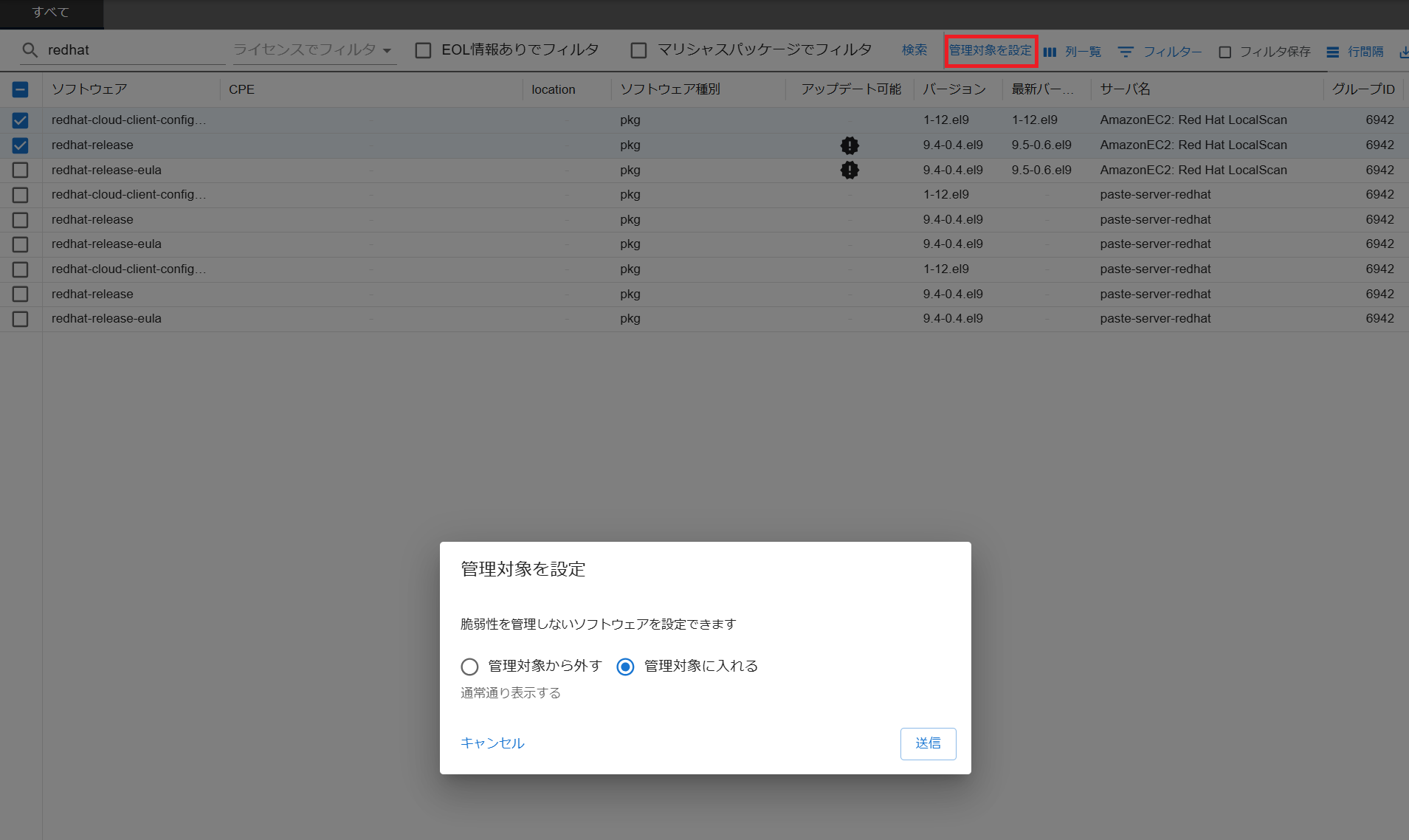
FutureVuls allows you to "set software to be excluded from vulnerability management". When software is set to unmanaged, newly detected vulnerability tasks and existing tasks with a "NEW" status are automatically hidden.
You can search for software across groups and set it as unmanaged in bulk from "Configure managed software". This can target not only the selected software but also all rows matching the current filter (Bulk Operations on All Filtered Rows).
Group Set Settings#
Changing the group set name, managing members, and managing affiliated groups are done in "Group Set Settings".