Task Ignore Settings#
Task Ignore Settings is a feature that allows you to ignore tasks. By using the ignore feature effectively, you can manage tasks and vulnerabilities efficiently.
For patch_applied status
Tasks that have had a patch applied and whose status has changed to patch_applied will not be automatically ignored.
Types of Ignore Settings#
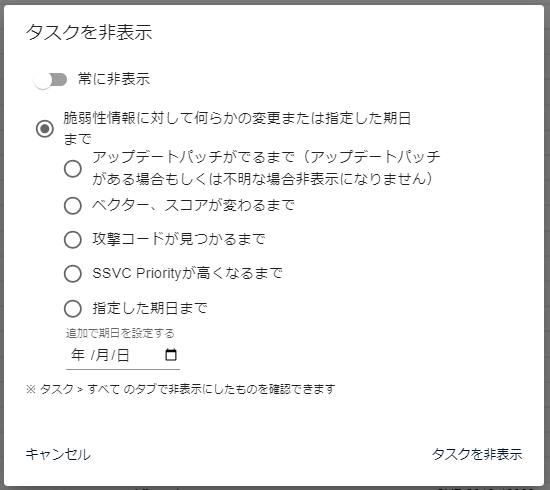
The following methods are available for ignoring tasks.
Hide always#
This will always ignore the task. The task will remain ignored until you manually unignore it.
Set this for tasks where a vulnerability has been found, but you do not plan to address it, or it cannot be addressed.
Until anything changes#
This is used when there are no plans to address the task in its current state.
When a scan is executed, the ignore setting will be removed if "any" of the following updates occur.
flowchart TD
    A["Ignored Task"] --> B["Next Scan Execution"]
    B --> C{"① Update patch<br>provided?"}
    C -- Yes --> R["Unignore"]
    C -- No --> D{"② Vector/Score<br>changed?"}
    D -- Yes --> R
    D -- No --> E{"③ Exploit code<br>found?"}
    E -- Yes --> R
    E -- No --> F{"④ SSVC Priority<br>increased?"}
    F -- Yes --> R
    F -- No --> G{"⑤ Specified date<br>has passed?"}
    G -- Yes --> R
    G -- No --> H["Continue Ignoring"]
Until update patch is released (items will not be hidden if there is an update patch or if it is unknown)Until vector or score is changedUntil exploit code is foundUntil SSVC Priority becomes higherUntil a specified due date
The "unignore conditions" from 1 to 5 can also be specified individually.
① Until update patch is released#
This is used when no patch is currently available and there are few effective countermeasures. When a scan is executed and an update patch is found, the ignore setting will be removed.
This option cannot be applied to tasks for which a patch is already available.
You can check the patch availability in the Patch Availability column of the Task List.
This will take effect at the next scan. Please note that even if an update patch becomes available, the ignore setting will not be removed until a scan is actually performed in FutureVuls.
② Until attack vector and score are changed#
This is used when the score is low and there are currently no plans to address it.
When a scan is executed and there is a change in the vector or score, the ignore setting will be removed.
This will take effect at the next scan. Please note that even if the vector or score of a related vulnerability changes, the ignore setting will not be removed until a scan is actually performed in FutureVuls.
③ Until exploit code is found#
This is used when the current risk of attack is low and there are no plans to address it.
When a scan is executed and new exploit code is found, the ignore setting will be removed.
This option cannot be selected for tasks where exploit code is already available.
This will take effect at the next scan. Please note that even if exploit code becomes available, the ignore setting will not be removed until a scan is actually performed in FutureVuls.
④ Until SSVC priority becomes higher#
The SSVC feature is only available for the CSIRT plan.
This is used when the SSVC Priority is low and there are no plans to address it. When a scan is executed and the SSVC Priority increases, the ignore setting will be removed. This option cannot be selected for tasks where the SSVC Priority is Immediate.
⑤ Until the target date#
This sets the task to be ignored until a specified date. When the specified date has passed, the task will no longer be ignored.
How to Set Ignore Settings#
Ignoring a single task#
Navigate to the task details and click the Hide Flag to set the ignore settings.
You can also unhide a hidden task with the Unhide Tasks button displayed at the top of the task details.
Ignoring all tasks related to selected vulnerabilities#
In the vulnerability list, you can select multiple vulnerabilities and then use Hide Related Tasks to ignore all tasks associated with those vulnerabilities at once.
If the number of tasks to be updated exceeds 10,000, the update cannot be performed. Please perform the update in smaller batches.
About Notifications
When tasks are ignored in bulk, an email notification will be sent to the primary and secondary assignees of each task. The person who performed the action will be included in the CC.
Ignoring all tasks related to selected software#
In the software list, you can select multiple software packages and then use Hide Related Tasks to ignore all tasks associated with those software packages at once.
If the number of tasks to be updated exceeds 10,000, the update cannot be performed. Please perform the update in smaller batches.
About Notifications
When tasks are ignored in bulk, an email notification will be sent to the primary and secondary assignees of each task. The person who performed the action will be included in the CC.
Management Settings#
By configuring management settings for software, tasks that are created for the first time during a scan and existing tasks whose status remains NEW can be automatically created in the Always hide state.
If there is software that you will not address even if vulnerabilities are found, and which you cannot uninstall, you can set it as unmonitored to always ignore it.
How to view ignored tasks#
In the task list, by viewing All, you can display tasks that have been ignored or tasks that are already PATCH_APPLIED.