User Management#
Introduction#
This page explains the concepts of organizations (orgs), groups, and users. Please also see Organization, Group.
graph TB
    %% Style Definitions
    classDef userStyle fill:#66bb6a88,stroke:#66bb6a,stroke-width:2px
    classDef orgStyle fill:#42a5f588,stroke:#42a5f5,stroke-width:3px,rx:10,ry:10
    classDef grpStyle fill:#ef535088,stroke:#ef5350,stroke-width:2px,rx:5,ry:5
    classDef containerStyle fill:#ffd54f88,stroke:#ffd54f,stroke-width:3px,rx:15,ry:15

    %% FutureVuls container
    subgraph FV["FutureVuls"]
        direction TB

        %% Top organization
        subgraph Org1["Organization"]
            direction LR
            Grp1["Group"]:::grpStyle
            Grp2["Group"]:::grpStyle
            Grp3["Group"]:::grpStyle
            Grp4["Group"]:::grpStyle
        end

        %% Bottom organization
        subgraph Org2["Organization"]
            direction TB
            subgraph Row1[" "]
                direction LR
                Grp5["Group"]:::grpStyle
                Grp6["Group"]:::grpStyle
            end
            subgraph Row2[" "]
                direction LR
                Grp7["Group"]:::grpStyle
                Grp8["Group"]:::grpStyle
            end
        end
    end

    %% User definitions (outside FutureVuls)
    User1["User"]:::userStyle
    User2["User"]:::userStyle
    User3["User"]:::userStyle
    User4["User"]:::userStyle
    User5["User"]:::userStyle
    User6["User"]:::userStyle

    %% Relationships between users and groups
    User1 --> Org1
    User2 --> Grp4
    User3 --> Grp3
    User4 --> Org2
    User5 --> Grp5
    User6 --> Grp8

    %% Apply Styles
    class Org1,Org2 orgStyle
    class FV containerStyle
    class Row1,Row2 fill:transparent,stroke:none
Structure of Users, Organizations, and Groups
- Groups can be created under an organization.
- A user belongs to one organization and can belong to multiple groups within that organization.
- A user belonging to a group will consequently belong to that group's organization.
- Some users may belong to an organization but not to any group.
- This occurs during initial registration, if they are removed from all groups, or if they leave all groups.
- Every user must belong to exactly one organization.
Limits on the Number of Groups/Users and Pricing Structure
- There is no limit on the number of groups. The number of groups does not affect the pricing calculation.
- There is no limit on the number of users. The number of users does not affect the pricing calculation.
User Permission Management#
Users can be assigned permissions according to their roles. The permissions and possible operations are as follows:
| Permission Type | CSIRT Plan Only | Permission Description |
|---|---|---|
| Owner | - | Can view and change everything. |
| CSIRT | ✓ | Can view and change everything except for billing and organization user management. |
| Groupset Admin | ✓ | Can view and change settings for the corresponding group set and the groups within it, as well as the basic interface. |
| Groupset Member | ✓ | Can view and change the basic interface for the corresponding group set and the groups within it. |
| Groupset Readonly | ✓ | Can view the basic interface for the corresponding group set and the groups within it. Exceptional modification operations allowed are "Post/Edit/Delete Task Comments" and "Leave Group Set". |
| Group Admin | - | Can view and change settings for the corresponding group and the basic interface. |
| Group Member | - | Can view and change the basic interface for the corresponding group. |
| Group Read-only | - | Can view the basic interface for the corresponding group. Exceptional modification operations allowed are "Post/Edit/Delete Task Comments" and "Leave Group". |
| Not in Group | - | A user who has been added to a group but has not yet signed up, or a user who has been added to a group but belongs to another organization. |
Setting User Permissions#
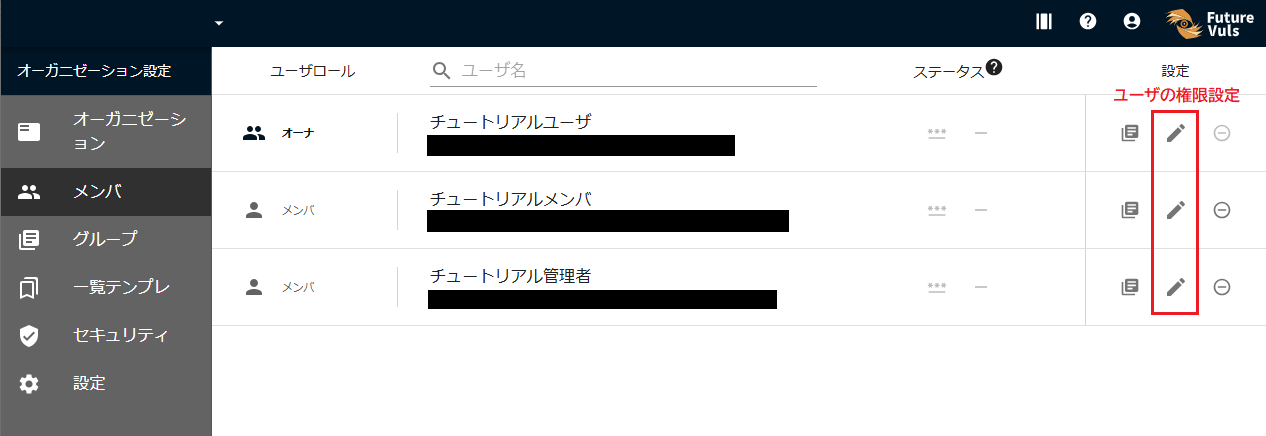
User permissions within an organization are set from "Organization Settings > Members". The members page displays all users belonging to the organization. You can set permissions by clicking the "Change User Info" button to the right of the user's name.
Owner Permission#
A user with Owner permission can change all settings within the organization, such as viewing organization settings, changing billing information, and managing membership in each group. With this permission, they can view, edit, and configure all group sets and all groups. The difference from the CSIRT permission is that they can manage all organization settings, including payment settings and organization information changes.
About Organization Settings
Within organization settings, only users with Owner permission can manage billing and change organization information. Other organization settings can also be managed by users with CSIRT permission.
CSIRT Permission#
The CSIRT permission can be described as Owner permission without the ability to manage billing or change organization information. Like an Owner, they can change user permissions, check membership in each group, and view data in group sets. With this permission, they can view, edit, and configure all group sets and all groups.
Unlike Owner permission, they cannot manage some organization settings, such as payment settings and organization information changes.
CSIRT Plan Exclusive
The CSIRT permission is a feature exclusive to organizations subscribed to the CSIRT plan.
Setting Group Permissions#
Group permissions (Group Admin permission) are set from the Members section of the group settings.
The Members page displays all users belonging to the group.
You can grant permissions by clicking "Change Permission" to the right of the user's name.
Setting Group Set Permissions#
CSIRT Plan Exclusive
Group Sets are a feature exclusive to organizations subscribed to the CSIRT plan.
Group Set permissions (Group Set Admin permission) are set from the Members section of the group set settings.
The Members page displays all users belonging to the group set.
You can grant permissions by clicking "Change Permission" to the right of the user's name.
Having permission for a group set allows viewing and editing of the configured group set and all groups belonging to it. Group Set Admin permission allows not only configuring the group set but also changing the settings of its member groups as a Group Admin.
When adding multiple users to multiple groups, you can create a group set and add them as members to grant permissions collectively.
About Permission Inheritance from Group Set to Group#
Basically, permissions granted at the group set level are inherited at the group level.
However, in some situations, it can be confusing to determine which permission is ultimately applied, such as when a user belongs to multiple group sets or also belongs directly to the group itself. Here, we explain the rules for determining permissions in such edge cases.
Pattern 1: A user belongs to multiple group sets that include a specific group, with different permissions#
A certain group (e.g., Group 1) is included in multiple group sets (e.g., Group Set 1, 2, 3). User A belongs to each of these group sets with different permissions.
In this case, User A's permission for Group 1 is the highest permission granted among the group sets they belong to.
For example, in the following case, User A's permission for Group 1 will be Admin permission (because the permission from Group Set 1 is the highest and is therefore applied).
- Group 1 is included in Group Set 1, 2, and 3.
- User A belongs to each group set with the following permissions:
- Group Set 1: Admin permission
- Group Set 2: Member permission
- Group Set 3: Read-only permission
graph TB
    %% Style Definitions
    classDef userStyle fill:#ff6b3588,stroke:#ff6b35,stroke-width:3px
    classDef grpSetStyle fill:#2196f388,stroke:#2196f3,stroke-width:2px,rx:10,ry:10
    classDef grpStyle fill:#03a9f488,stroke:#03a9f4,stroke-width:2px,rx:5,ry:5
    classDef adminStyle fill:#4caf5088,stroke:#4caf50,stroke-width:2px
    classDef memberStyle fill:#ff980088,stroke:#ff9800,stroke-width:2px
    classDef viewStyle fill:#9e9e9e88,stroke:#9e9e9e,stroke-width:2px
    classDef resultStyle fill:#f4433688,stroke:#f44336,stroke-width:3px

    %% Node Definitions
    UserA["User A"]:::userStyle

    subgraph GS1["Group Set 1"]
        GS1Label["Admin Permission"]:::adminStyle
    end

    subgraph GS2["Group Set 2"]
        GS2Label["Member Permission"]:::memberStyle
    end

    subgraph GS3["Group Set 3"]
        GS3Label["Read-only"]:::viewStyle
    end

    Grp1["Group 1<br>Result: Admin Permission<br>(Highest permission is applied)"]:::resultStyle

    %% Relationships
    UserA -.->|"Admin"| GS1
    UserA -.->|"Member"| GS2
    UserA -.->|"Read-only"| GS3

    GS1 --> Grp1
    GS2 --> Grp1
    GS3 --> Grp1

    %% Apply Styles
    class GS1,GS2,GS3 grpSetStyle
Pattern 2: A user belongs to both the group itself and a group set containing that group, with different permissions#
User A belongs to both a group itself (e.g., Group 1) and a group set that includes Group 1 (e.g., Group Set 1), and different permissions are set for each.
In this case, User A's permission for Group 1 will be the permission set directly on the group itself, which takes precedence regardless of the permission granted through the group set.
For example, in the following case, User A's permission for Group 1 will be Read-only permission (because the permission set directly on the group overrides the group set's permission).
- Group 1 is included in Group Set 1, 2, and 3.
- User A belongs to each group set with the following permissions:
- Group Set 1: Admin permission
- Group Set 2: Member permission
- Group Set 3: Read-only permission
- In addition, User A belongs to Group 1 itself with "Read-only permission".
graph TB
    %% Style Definitions
    classDef userStyle fill:#ff6b3588,stroke:#ff6b35,stroke-width:3px
    classDef grpSetStyle fill:#2196f388,stroke:#2196f3,stroke-width:2px,rx:10,ry:10
    classDef grpStyle fill:#03a9f488,stroke:#03a9f4,stroke-width:2px,rx:5,ry:5
    classDef adminStyle fill:#4caf5088,stroke:#4caf50,stroke-width:2px
    classDef memberStyle fill:#ff980088,stroke:#ff9800,stroke-width:2px
    classDef viewStyle fill:#9e9e9e88,stroke:#9e9e9e,stroke-width:2px
    classDef directStyle fill:#e91e6388,stroke:#e91e63,stroke-width:3px
    classDef resultStyle fill:#f4433688,stroke:#f44336,stroke-width:3px

    %% Node Definitions
    UserA["User A"]:::userStyle

    subgraph GS1["Group Set 1"]
        GS1Label["Admin Permission"]:::adminStyle
    end

    subgraph GS2["Group Set 2"]
        GS2Label["Member Permission"]:::memberStyle
    end

    subgraph GS3["Group Set 3"]
        GS3Label["Read-only"]:::viewStyle
    end

    Grp1["Group 1<br>Result: Read-only<br>(Direct setting takes precedence)"]:::resultStyle

    %% Relationships
    UserA -.->|"Admin"| GS1
    UserA -.->|"Member"| GS2
    UserA -.->|"Read-only"| GS3
    UserA ==>|"Direct: Read-only<br>(Takes precedence)"| Grp1

    GS1 --> Grp1
    GS2 --> Grp1
    GS3 --> Grp1

    %% Apply Styles
    class GS1,GS2,GS3 grpSetStyle
User Registration#
This section explains the process from signing up for FutureVuls without an account to creating an organization and a group.
graph LR
%% Style Definitions
classDef personStyle fill:#ff6b3588,stroke:#ff6b35,stroke-width:2px
classDef orgStyle fill:#2196f388,stroke:#2196f3,stroke-width:2px,rx:10,ry:10
classDef grpStyle fill:#03a9f488,stroke:#03a9f4,stroke-width:2px,rx:10,ry:10
%% Node Definitions
NewUser["Unregistered<br>👋"]:::personStyle
RegisteredUser["Registered<br>😊"]:::personStyle
OrgAdmin["Org Admin<br>👨💻"]:::personStyle
OrgGrpAdmin["Belongs to Org/Grp A<br>👥"]:::personStyle
%% Organization/Group Containers
subgraph FutureVuls["FutureVuls"]
direction LR
subgraph OrgA["Org A"]
direction LR
subgraph GrpA["Grp A"]
OrgGrpAdmin
end
OrgAdmin
RegisteredUser
end
end
%% Flow
NewUser ===>|"Sign Up + Create Org"| RegisteredUser
RegisteredUser ===>|"Grant Admin Permission"| OrgAdmin
OrgAdmin ===>|"Create Group"| OrgGrpAdmin
%% Apply Styles
class OrgA orgStyle
class GrpA grpStylePlease refer to the tutorials for instructions on how to sign up, create an organization, and create a group.
Adding a User#
This explains how to add users to organizations and groups on FutureVuls. The main flows are as follows:
- Add a user not yet registered with FutureVuls to a group.
- Add a user not yet registered with FutureVuls to an organization (requires being added to a group separately to view vulnerability information).
- Add a user who already belongs to an organization to another group.
Add an unregistered user to a group#
Approval Flow Removed (From July 14, 2025)
The approval flow for adding users has been removed. When an administrator adds a user, they are immediately joined.
graph LR
%% Style Definitions
classDef personStyle fill:#ff6b3588,stroke:#ff6b35,stroke-width:2px
classDef orgStyle fill:#2196f388,stroke:#2196f3,stroke-width:2px,rx:10,ry:10
classDef grpStyle fill:#03a9f488,stroke:#03a9f4,stroke-width:2px,rx:10,ry:10
classDef adminStyle fill:#ffa72688,stroke:#ffa726,stroke-width:2px
%% Node Definitions
NewUser["Unregistered<br>👋"]:::personStyle
TempUser["Pre-registered<br>👨💼<br>📧"]:::personStyle
RegisteredUser["Registered<br>😊"]:::personStyle
GroupAdmin["Grp A Admin<br>👨💻"]:::adminStyle
GroupMember["Belongs to Grp A<br>👥"]:::personStyle
%% Organization/Group Containers
subgraph FutureVuls["FutureVuls"]
direction TB
subgraph OrgA["Org A"]
direction LR
subgraph GrpA["Grp A"]
GroupAdmin
GroupMember
end
end
TempUser
RegisteredUser
end
%% Flow
GroupAdmin -.->|"Add User"| NewUser
NewUser ===>|"Addition Complete"| TempUser
TempUser ===>|"Log In"| RegisteredUser
RegisteredUser ===>|"Join Group"| GroupMember
%% Apply Styles
class OrgA orgStyle
class GrpA grpStyleThis explains how to add a user who has never logged into FutureVuls and have them join a group. There are two patterns for adding a user.
Add a user who logs in with ID/Password or Google Authentication#
The group admin of OrgA / GrpA in the diagram above goes to "Group Settings" > "Members" and adds the user via "Add a new user" > Add an external person. Do not check the "Invite as SSO user" box.
An email with a "temporary password" will be sent to the specified email address. The added person should use the information provided to log into FutureVuls.
Add a user who logs in with SAML to a group#
CSIRT Plan Exclusive
This operation requires SAML integration to be configured. SAML integration is only available with the CSIRT plan.
The group admin of OrgA / GrpA in the diagram above goes to "Group Settings" > "Members" and adds the user via "Add a new user" > Add an external person. Then, check the "Invite as SSO user" box.
An email with a login URL will be sent to the specified email address. The added person should access that URL to log in. It is recommended to bookmark this URL as it will be used for subsequent SSO logins.
Add an unregistered user to an organization#
This explains how to add a user who has never logged into FutureVuls to an organization. There are two patterns for adding a user.
graph LR
%% Style Definitions
classDef personStyle fill:#ff6b3588,stroke:#ff6b35,stroke-width:2px
classDef orgStyle fill:#2196f388,stroke:#2196f3,stroke-width:2px,rx:10,ry:10
classDef grpStyle fill:#03a9f488,stroke:#03a9f4,stroke-width:2px,rx:10,ry:10
classDef adminStyle fill:#ffa72688,stroke:#ffa726,stroke-width:2px
%% Node Definitions
NewUser["Unregistered<br>👋"]:::personStyle
TempUser["Pre-registered<br>👨💼<br>📧"]:::personStyle
RegisteredUser["Registered<br>😊"]:::personStyle
OrgOwner["Org Owner<br>👨💻"]:::adminStyle
OrgMember["Belongs to Org<br>👤"]:::personStyle
%% Organization/Group Containers
subgraph FutureVuls["FutureVuls"]
direction TB
subgraph OrgA["Org A"]
OrgOwner
OrgMember
end
TempUser
RegisteredUser
end
%% Flow
OrgOwner -.->|"Add User"| NewUser
NewUser ===>|"Addition Complete"| TempUser
TempUser ===>|"Log In"| RegisteredUser
RegisteredUser ===>|"Join Org"| OrgMember
%% Apply Styles
class OrgA orgStyleAdd a user who logs in with ID/Password or Google Authentication#
The owner of OrgA (organization administrator) adds a member to the organization from "Organization Settings" > "Members" via the "Add a new user" button > Invite member to organization.
An email with a "temporary password" will be sent to the specified email address. The invited person should use the information provided to log into FutureVuls.
Add a user who logs in with SAML to an organization#
CSIRT Plan Exclusive
This operation requires SAML integration to be configured. SAML integration is only available with the CSIRT plan.
The owner of OrgA (organization administrator) adds a member to the organization from "Organization Settings" > "Members" via the "Add SSO user" button > Invite member to organization.
An email with a login URL will be sent to the specified email address. The added person should access that URL to log in. It is recommended to bookmark this URL as it will be used for subsequent SSO logins.
Adding the user to a group
A user added to an organization is not assigned to any group and cannot view vulnerability information, etc. Please add the user to the appropriate groups as needed.
graph LR
    %% Style Definitions
    classDef personStyle fill:#ff6b3588,stroke:#ff6b35,stroke-width:2px
    classDef grpStyle fill:#03a9f488,stroke:#03a9f4,stroke-width:2px,rx:10,ry:10
    classDef linkTextStyle stroke-width:0,fill:transparent
    classDef orgStyle fill:#2196f388,stroke:#2196f3,stroke-width:2px,rx:10,ry:10

    %% Node Definitions
    OrgMember["Org User<br>(Not in any group)<br>👤"]:::personStyle
    LinkText["Needs to be<br>added to a group"]:::linkTextStyle
    subgraph Groups["Groups"]
        GrpA["Grp A"]:::grpStyle
        GrpB["Grp B"]:::grpStyle
        GrpC["Grp C"]:::grpStyle
    end

    %% Define relationships to align them horizontally
    OrgMember -.- LinkText -.-> Groups

    subgraph OrgA["Org A"]
      direction LR
      OrgMember
      LinkText
      Groups
    end

    class OrgA orgStyle
Add a user already belonging to an organization to another group#
This explains the flow for adding a user who is already registered with FutureVuls and belongs to an organization to another group.
graph TB
%% Style Definitions
classDef personStyle fill:#ff6b3588,stroke:#ff6b35,stroke-width:2px
classDef orgStyle fill:#2196f388,stroke:#2196f3,stroke-width:2px,rx:10,ry:10
classDef grpStyle fill:#03a9f488,stroke:#03a9f4,stroke-width:2px,rx:10,ry:10
classDef adminStyle fill:#ffa72688,stroke:#ffa726,stroke-width:2px
%% Node Definitions
OrgUser["Org User<br>(Belongs to Grp B only)<br>👤"]:::personStyle
GroupAAdmin["Grp A Admin<br>👨💻"]:::adminStyle
MultiGroupUser["Belongs to Grp A/Grp B<br>👥"]:::personStyle
%% Organization/Group Containers
subgraph OrgA["Org A"]
direction LR
subgraph GrpA["Grp A"]
GroupAAdmin
MultiGroupUser
end
subgraph GrpB["Grp B"]
OrgUser
end
end
%% Flow
GroupAAdmin -.->|"Add User"| OrgUser
OrgUser ===>|"Joins Immediately"| MultiGroupUser
%% Apply Styles
class OrgA orgStyle
class GrpA grpStyle
class GrpB grpStyleThe group admin of OrgA / GrpA in the diagram above goes to "Group Settings" > "Members", then selects and adds the user via "Add a new user" > Select from this organization.
A notification email will be sent to the added user.
Changing User Login Method#
This section explains the procedure to enable a user already registered with password authentication to log in via SSO. Please refer to one of the following two patterns according to your organization's policy.
- Allow both password login and SSO login
- Disallow password login and allow only SSO login
CSIRT Plan Exclusive
This operation requires SAML integration to be configured. SAML integration is only available with the CSIRT plan.
Allow both password login and SSO login#
In this case, after completing the SAML integration setup, please share the login URL displayed on the settings screen with each user. Each user will then be able to log in via SSO from that URL. It is recommended to bookmark this URL as it will be used for subsequent SSO logins.
Disallow password login and allow only SSO login#
After completing the SAML integration setup, follow these steps:
- Open Organization Settings > Security
- Under SSO settings, confirm that "Invite SSO users only" is enabled
- Open Organization Settings > Members
- Click the "Add SSO user" button
- Enter all email addresses of the users you want to restrict to SSO login and submit
An email with a login URL will be sent to the entered email addresses. The added users should access that URL to log in. It is recommended to bookmark this URL as it will be used for subsequent SSO logins. From this point on, the users with the submitted email addresses will only be able to log in via SSO.
Note that adding users not yet registered with FutureVuls can also be done on a per-group basis. To prevent cases where a group administrator, who is different from the organization administrator, unintentionally adds non-SSO users, you can enforce SSO-only login from the setting below. Please use it according to your organization's policy.
- Go to "Organization Settings" > "Security" and open "SSO settings"
- Turn ON the switch for "Invite SSO users only"
Deleting a User#
Remove a user from a group#
This explains the case where a user administrator removes a user from a group.
graph LR
%% Style Definitions
classDef personStyle fill:#ff6b3588,stroke:#ff6b35,stroke-width:2px
classDef orgStyle fill:#2196f388,stroke:#2196f3,stroke-width:2px,rx:10,ry:10
classDef grpStyle fill:#03a9f488,stroke:#03a9f4,stroke-width:2px,rx:10,ry:10
classDef adminStyle fill:#ffa72688,stroke:#ffa726,stroke-width:2px
classDef removedStyle fill:#ef535088,stroke:#ef5350,stroke-width:2px,stroke-dasharray: 5 5
%% Node Definitions
GroupAdmin["Grp A Admin<br>👨💻"]:::adminStyle
UserInGroup["User<br>(In Grp A)<br>👤"]:::personStyle
UserOrgOnly["User<br>(Org only)<br>👤"]:::personStyle
%% Organization/Group Containers
subgraph OrgA["Org A"]
direction LR
subgraph GrpA["Grp A"]
GroupAdmin
UserInGroup
end
UserOrgOnly
end
%% Flow
GroupAdmin -.->|"Remove Action"| UserInGroup
UserInGroup ===>|"Removed from group"| UserOrgOnly
%% Apply Styles
class OrgA orgStyle
class GrpA grpStyleThe group administrator removes the member from "Group Settings" > "Members". The removed user will be deleted from GrpA in the diagram above but will remain in OrgA.
If a group administrator removes a regular user from all groups in OrgA, that user will remain in OrgA but will not belong to any groups in OrgA. Since regular users cannot join groups on their own, the user should choose one of the following:
- Leave the organization
- Have a group administrator add them to a group
Remove a user from an Org#
The organization owner removes the member from "Organization Settings" > "Members". The removed user will be deleted from OrgA.
About removal from an organization
A user can only belong to one organization. When removed from an organization, the user is automatically deregistered from FutureVuls.
To continue using FutureVuls, you need to create a new account and organization, or be invited by an administrator of another organization.
Delete an account#
A user can delete their account from the person icon in the upper right > Profile > link in the lower right.
