Tasks#
About Tasks#
A task is a ticket for managing detected vulnerabilities.
1 Task = 1 Server x 1 Vulnerability
It allows you to manage the current status of a specific vulnerability on a specific server.
Vulnerabilities detected by a scan are automatically registered as new tasks.
If the vulnerability is resolved by the next scan, the task is automatically closed (PATCH_APPLIED).
New tasks cannot be created manually, nor can they be closed manually.
Tasks are automatically generated based on vulnerabilities detected on the server.
The relationship between vulnerabilities, servers, and tasks is as follows.
If only Vulnerability A is detected on Server A, and both Vulnerability A and B are detected on Server B, three tasks will be created.
graph LR
    %% Style Definitions
    classDef serverStyle fill:#4a90e288,stroke:#4a90e2,stroke-width:2px
    classDef cveStyle fill:#ff6b3588,stroke:#ff6b35,stroke-width:2px
    classDef task1Style fill:#42a5f588,stroke:#2196f3,stroke-width:2px
    classDef task2Style fill:#66bb6a88,stroke:#4caf50,stroke-width:2px
    classDef task3Style fill:#ffa72688,stroke:#ff9800,stroke-width:2px

    %% Node Definitions
    ServerA["Server A"]:::serverStyle
    ServerB["Server B"]:::serverStyle
    CVEA["Vulnerability A"]:::cveStyle
    CVEB["Vulnerability B"]:::cveStyle
    Task1["Task 1<br>(Server A × Vulnerability A)"]:::task1Style
    Task2["Task 2<br>(Server B × Vulnerability A)"]:::task2Style
    Task3["Task 3<br>(Server B × Vulnerability B)"]:::task3Style

    %% Relationships
    ServerA --> CVEA
    ServerB --> CVEA
    ServerB --> CVEB

    CVEA --> Task1
    CVEA --> Task2
    CVEB --> Task3
Task Status#
There are four statuses available for tasks that are unresolved or on hold.
| Status Name | State | Notes |
|---|---|---|
| NEW | A new vulnerability has been detected | Set when a vulnerability is detected (including when a PATCH_APPLIED task is redetected) |
| INVESTIGATING | Under investigation | Set when investigating a detected vulnerability |
| ONGOING | In progress | Set after investigation is complete, when considering or preparing a response |
| DEFER | Response to the task is on hold | Set for cases such as handling during scheduled maintenance |
There are five statuses available for tasks that have been resolved.
| Status | Summary | Representative Countermeasure Examples + CVE |
|---|---|---|
| PATCH_APPLIED | Vulnerability eliminated via vendor patch or software update | Update OS/application to the latest version |
| ALT_RESOLVED | Attack vector permanently eliminated through means other than a patch (designed so that settings cannot/will not be reverted) | ・HTTP/2 Rapid Reset → Disable mod_http2 └ CVE-2023-44487 ・Fortinet SSL-VPN → Completely disable SSL-VPN functionality └ CVE-2024-21762 fortiguard.fortinet.com ・Jenkins → Disable CLI (TCP / WebSocket) └ CVE-2024-23897 Jenkins ・PHP (Windows + CGI) → Disable PHP-CGI itself └ CVE-2024-4577 orca.security |
| NOT_AFFECTED | Not affected because the environment does not meet the vulnerability conditions | Target module is not in use / GUI vulnerability, but only the CLI is in operation |
| WORKAROUND | Risk reduced with temporary mitigation (vulnerability remains, settings may be reverted) | WAF rule / Port/IP restriction / Temporary registry change |
| RISK_ACCEPTED | The organization formally accepts the residual risk | Management decision to accept the impact on a low-use, closed-network system |
If a vulnerability associated with a PATCH_APPLIED task is redetected
If the same vulnerability (CVE) is detected again in a scan on the same server, a task with the PATCH_APPLIED status will automatically revert to the NEW status.
Possible reasons for a vulnerability being redetected include:
- The range of affected versions was changed due to an update in the vulnerability database (NVD, vendor advisories, etc.).
- A vulnerable version of the software was reinstalled due to an environment rebuild, etc.
Regarding the cause for 'Tasks are marked PATCH_APPLIED even without an update'
The PATCH_APPLIED status indicates that a CVE that was previously detected is no longer detected.
If a task status changes to PATCH_APPLIED without an update, the following reasons may apply.
- The corresponding CVE is no longer detected due to an upgrade of the managed server's version.
- The corresponding CVE is no longer detected due to a correction in a vulnerability database such as NVD.
- The corresponding CVE is no longer detected due to a false-positive fix in the FutureVuls service.
- The corresponding CVE is no longer detected because the vulnerable software was uninstalled.
- For Red Hat servers registered with the old paste scan command, unfixed CVEs are no longer detected.
For Red Hat OS, regarding the cause and countermeasures if PATCH_APPLIED tasks increase after April 2025
In the April 2025 release, we switched the vulnerability information used for detecting Red Hat Enterprise Linux from OVAL format data to VEX format data. Consequently, unfixed vulnerabilities may no longer be detected on Red Hat servers registered using the old paste scan command.
If a vulnerability is no longer detected, it will be evaluated as PATCH_APPLIED according to the specification in the note above. If you registered Red Hat servers using the old paste scan command, please perform a paste scan with the new command as soon as possible.
For details, please see "this release note".
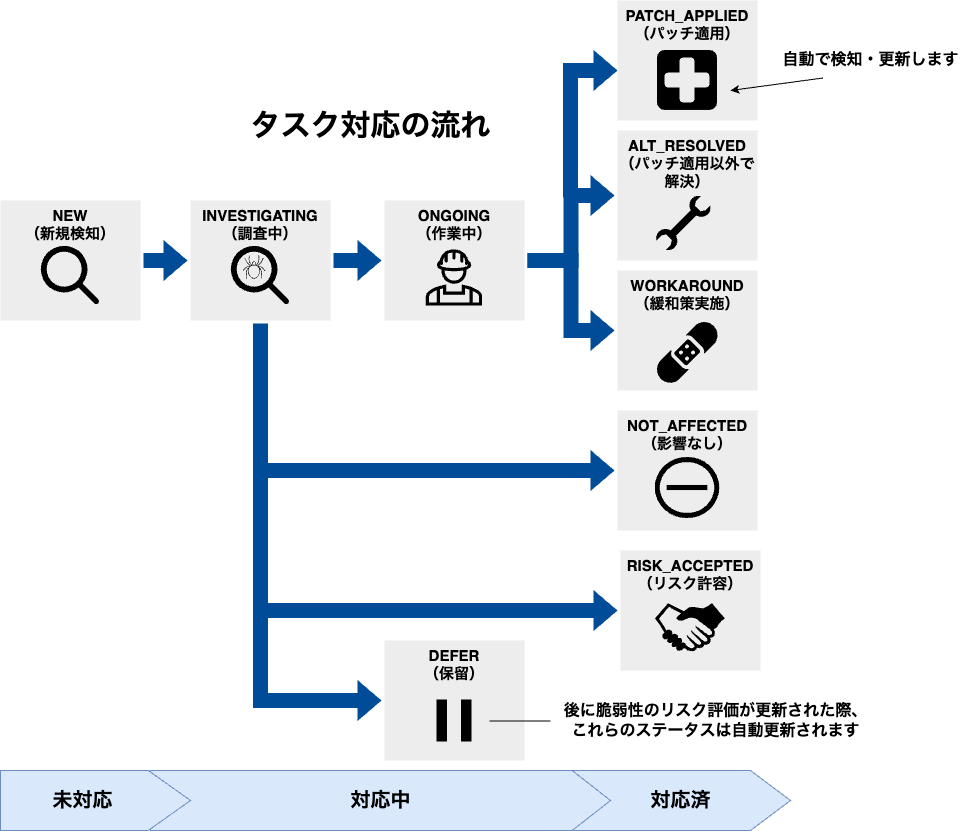
The task status and workflow are illustrated below.
stateDiagram-v2
    [*] --> NEW : Vulnerability Detected
    NEW --> INVESTIGATING : Start Investigation
    NEW --> DEFER : Defer
    INVESTIGATING --> ONGOING : Prepare Response
    INVESTIGATING --> NOT_AFFECTED : Not Affected
    INVESTIGATING --> RISK_ACCEPTED : Risk Accepted
    INVESTIGATING --> ALT_RESOLVED : Permanent Alternative
    ONGOING --> PATCH_APPLIED : Patch Applied
    ONGOING --> WORKAROUND : Mitigation Implemented
    ONGOING --> ALT_RESOLVED : Permanent Alternative
    DEFER --> ONGOING : Resume Response
    WORKAROUND --> ONGOING : Prepare for Patch
PATCH_APPLIED --> NEW : Redetected| Response Flow | Task Status Change Flow |
|---|---|
| Investigate, prepare, and then apply the patch | NEW → INVESTIGATING → ONGOING (Patch preparation) → PATCH_APPLIED |
| Implement mitigation and do not apply the patch | NEW → INVESTIGATING → ONGOING → WORKAROUND and set to Ignore |
| Temporarily respond with mitigation, then apply the patch later | ・Mitigation phase: NEW → INVESTIGATING → ONGOING (Mitigation preparation) → WORKAROUND (Mitigation implemented) ・Patch application phase: ONGOING (Patch preparation) → PATCH_APPLIED |
| After investigation, confirmed the vulnerability does not affect the environment, so no action is taken | NEW → INVESTIGATING → NOT_AFFECTED and set to Ignore |
| After investigation and deliberation, decided to accept the risk from the vulnerability, so no action is taken | NEW → INVESTIGATING → RISK_ACCEPTED and set to Ignore |
Additionally, with the CSIRT plan, you can automatically update the status of tasks based on the SSVC Priority. For details on the conditions for updates, please see "SSVC Triggers & Actions".
Task List#
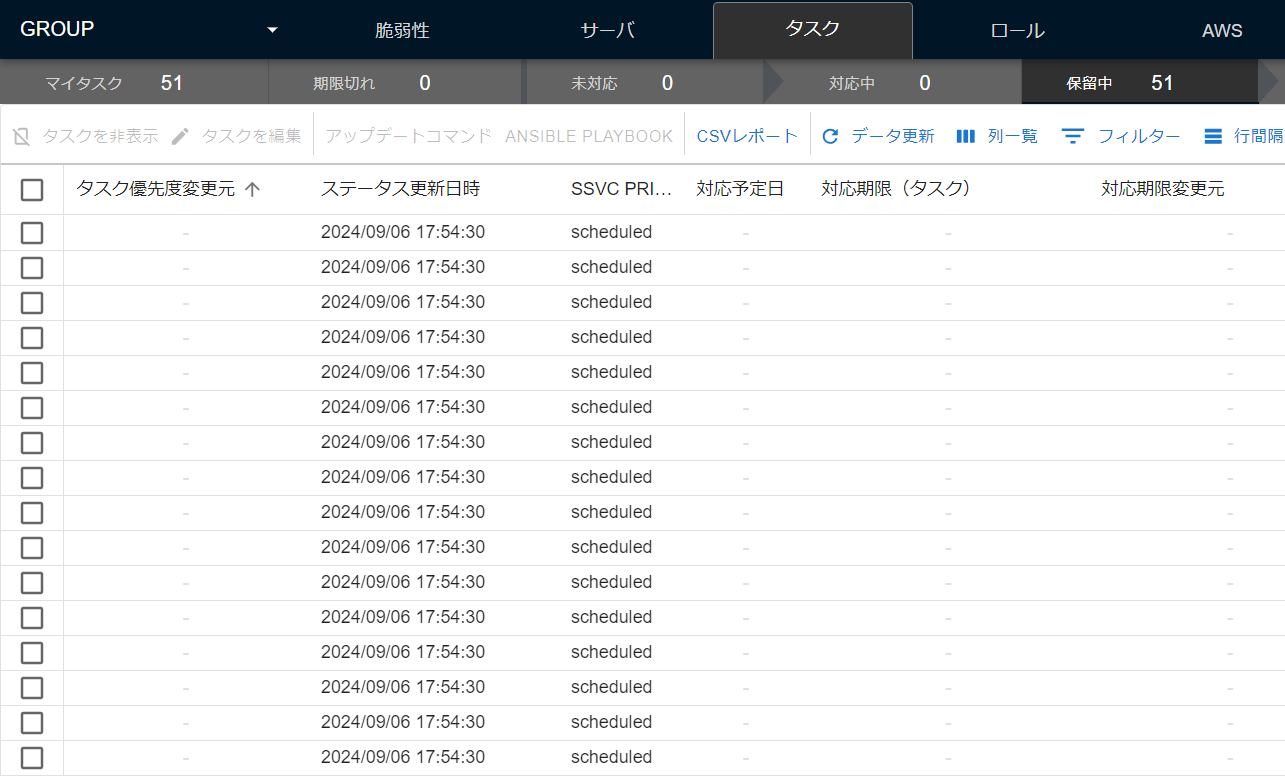
In the task list, you can view a list of all registered tasks. The task list uses paginated display. Some columns cannot be sorted or filtered.
| Item | Details | Update Timing |
|---|---|---|
| Task Priority | The priority of the task is displayed | During scan / During Task Update |
| Task Priority Changed From | The source of the Task Priority setting | When task priority is updated |
| Status | The status of the task is displayed. Automatically set statuses are NEW / PATCH_APPLIED (users cannot manually set the status to PATCH_APPLIED) |
During scan / During Task Update |
| Last Status Update | The date and time the status was last updated | During scan / During Task Update |
| SSVC Priority | The Priority from SSVC | During scan |
| Primary Assignee | The primary assignee for the task The primary assignee set by the user is displayed If a default assignee is set for the server, the default assignee is set when the task is created |
During Task Update |
| Secondary Assignee | The secondary assignee for the task The secondary assignee set by the user is displayed |
During Task Update |
| Scheduled Date | The scheduled resolution date for the task The scheduled resolution date set by the user is displayed |
During Task Update |
| Due Date | The deadline for the task is displayed based on the following sources 1. Automatic (Special Alert Tag) Deadline set by a Special Alert Tag If the alert tag has a deadline, it cannot be changed manually (as it is managed to be enforced organization-wide) If the alert tag has no deadline, the task deadline is left blank and can be set manually or by SSVC 2. Automatic (SSVC) Deadline automatically set by SSVC Triage 3. Manual Deadline set by the user via Task Update ※ The displayed deadline is determined by the priority order: "Special Alert Tag > Manual > SSVC" |
During Task Update / During Special Alert Tag Update / During SSVC Triage Update |
| Deadline On Changed From | Indicates the source of the task's deadline ・Special Alert Tag ・Manual ・SSVC |
During task update / During special alert tag update / During SSVC triage update |
| Patch Availability | Whether a patch is available for the vulnerable software related to the task ✓(entire): A valid patch is available for all related software ☓(none): No patch is currently available for any related software △(some): A mix of patched and unpatched software exists ?(unknown): Patch availability is unknown for some related software ー: Patches have been applied to all related software, and the vulnerability is resolved For AlmaLinux and Rocky Linux scanned in fast scan mode or paste scan, patch availability cannot be determined and will be "?" (fast-root scan mode will show one of "✓, ☓, △")The screen, CSV reports, and FutureVuls API use the same criteria. For example, an Amazon Inspector integration task without fixed-version information shows "?". |
During scan |
| Patch Availability Status | The patch availability status of the package related to the task. This indicates the patch status published by each vendor. ・Fixed: Patch available ・Affected: Affected but patch not yet available ・Fix deferred: Patch is planned ・Will not fix: No patch planned due to low impact ・Needs triage: Unknown whether it is affected ・Under investigation: Investigating whether it is affected ・Not affected: Not affected ※By design, FutureVuls does not detect vulnerabilities with patch statuses of "Will not fix," "Under investigation," or "Not affected" |
During scan |
| Active Process | Whether the related process is running on the server and listening on a port Process execution state is available when the scan target is a Linux-based OS scanned using the Vuls scanner and the task is related to an OS package. ・ー: Process execution state is unknown ・Play icon: Process is running, but no port is listening ・Radio wave icon: Process is running, and a port is listening |
During scan |
| Reachability | Whether the application's code has a path to the vulnerable function of a vulnerability in a Go application (reachability analysis) ・Reachable: A call path was found ・Partial: The analysis stopped partway and no verdict is possible (it can be reachable) ・Not reachable: Not reached within the analyzed scope ・-: No value (this does not mean unreachable) |
After analysis results are uploaded (it takes some time to be reflected) / During scan |
| CVE ID | The CVE-ID of the task | None |
| CVSS v4 | The highest CVSS v4 score is displayed | When DB information changes |
| CVSS v3 | The highest CVSS v3 score is displayed | When DB information changes |
| CVSS v2 | The highest CVSS v2 score is displayed | When DB information changes |
| Red Hat | The score published by Red Hat is displayed | When DB information changes |
| Microsoft | The score published by Microsoft is displayed | When DB information changes |
| EPSS Score | Represents the probability that the vulnerability will be exploited in the next 30 days. A higher value indicates a higher probability of exploitation and a greater threat (About EPSS) | When DB information changes |
| EPSS Percentile | Represents the percentage of vulnerabilities with a lower EPSS Score than this one. A higher value means this vulnerability has a higher threat level (About EPSS) | When DB information changes |
| Important CVE Conditions | Whether the task qualifies as an Important CVE and is open (its status is NEW and it is not hidden) | During scan / When the task comes to meet the conditions because the CVE priority is changed or a Special Alert Tag is added or updated (changes to status or hidden state are immediate; group sets and CSV reports are evaluated when displayed or generated) |
| CVE Priority | The priority of the vulnerability is displayed | During scan / During Vulnerability Priority Update |
| Exploit Reliability | Whether KEV information, attack code, or PoC is public ・HIGH (Active, high-reliability exploit code exists): SSVC Exploitation is Active, or attack code exists in the Metasploit-Framework or verified, highly reliable attack code exists (reliable exploit information exists) ・LOW (PoC exists): SSVC Exploitation is PoC ・ー: SSVC Exploitation is None |
When DB information changes |
| Security Alert | Whether alert information has been published by CISA KEV, VulnCheck KEV, ENISA KEV, JPCERT/CC-Alerts, or CISA-Alerts ・Exploited in ransomware campaigns: Information on exploitation in ransomware campaigns is registered in CISA KEV/VulnCheck KEV ・Critical: Other than the above, listed in CISA KEV/VulnCheck KEV/ENISA KEV ・Warning: Alert information exists in JPCERT/CC-Alerts or CISA-Alerts |
When DB information changes |
| Mitigation / Workaround | Whether mitigation or workaround information exists in Red Hat or Microsoft data sources | When DB information changes |
| Cloud One Status | Status of the Cloud One integration | During scan |
| Advisory Name | The name of the advisory associated with the vulnerability is displayed | When DB information changes |
| Reliability | The reliability of the information source is displayed ✓: High reliability !: Low reliability |
During scan |
| Vulnerable Software | Only packages with remaining vulnerabilities are displayed | During scan |
| Vulnerable Software Tags | A tag that can be set for software registered via CPE | During CPE registration / CPE edit |
| Server Name | The server name of the task | During Server Update |
| Server UUID | The UUID of the server | None |
| Role Name | The role the server belongs to If not set, it is assigned to the Default Server Role |
During Server Update |
| Server Tag | Tags set on the server | During Server Update |
| Task ID | The ID of the task | None |
| SSM Integration | Status of the AWS SSM integration | During scan |
| Hide Flag | The ignore flag status of the task If the task is set to be ignored, ○ is displayed |
During scan / During Ignore update |
| Hide Type | The condition for ignoring | During scan / During Ignore update |
| External Scan | Whether any vulnerabilities associated with the task are exposed externally | During Add/Update External Scan Results |
| Last Task Update | The date and time the task was last updated | During a scan that changes the task / During Task Update |
| Latest SSVC Update | The most recent date and time the SSVC Priority was updated | During scan |
| Last Comment | Displays the body of the last comment posted by a user. System-generated status change histories are not treated as the "last comment." Long comments are truncated. Tasks without comments are blank | When a comment is posted or deleted / During bulk update with a comment / When tasks are copied to another group |
| Last Comment Author | Displays the username of the user who posted the last comment. Tasks without comments are blank | When a comment is posted or deleted / During bulk update with a comment / When tasks are copied to another group |
| Last Comment Update | The date and time a user last updated a task comment | During scan / During Task Update |
| First Detection Time | The date and time the vulnerability associated with that task was first detected | During scan |
| Last Priority Update | The date and time the task priority was last updated | During scan / During Task Update |
Sub-tabs#

The task list has tabs for ease of use.
| Tab Name | Tasks Retrieved |
|---|---|
| My Task | A list of tasks that are "not resolved" and where "you are set as the primary or secondary assignee" |
| Expired | A list of tasks that are "not resolved" and whose "deadline is in the past" |
| Open | A list of tasks where "status is NEW" and "not set to be ignored" |
| Ongoing | A list of tasks where "status is INVESTIGATING or ONGOING" and "not set to be ignored" |
| Deferred | A list of tasks where "status is DEFER" and "not set to be ignored" |
| Resolved | A list of tasks where "status is WORKAROUND or PATCH_APPLIED" or "is set to be ignored" |
| All | A list of all tasks |
Ignore Tasks#
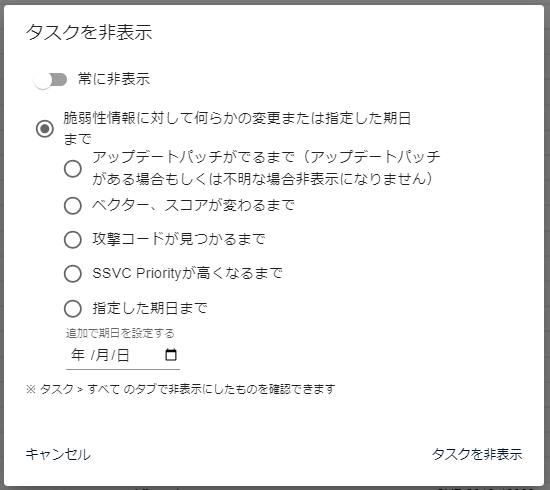
You can bulk ignore tasks. From the "Hide Tasks" button menu, select "Apply to selected rows" or "Apply to all rows matching the current filter". For details, see "Bulk Operations on All Filtered Rows".
Unhide Tasks#
On the "All" tab, you can use the "Unhide Tasks" button to bulk unhide tasks that are set to be ignored. As with "Hide Tasks", select the target of the operation from the menu.
Update Tasks#
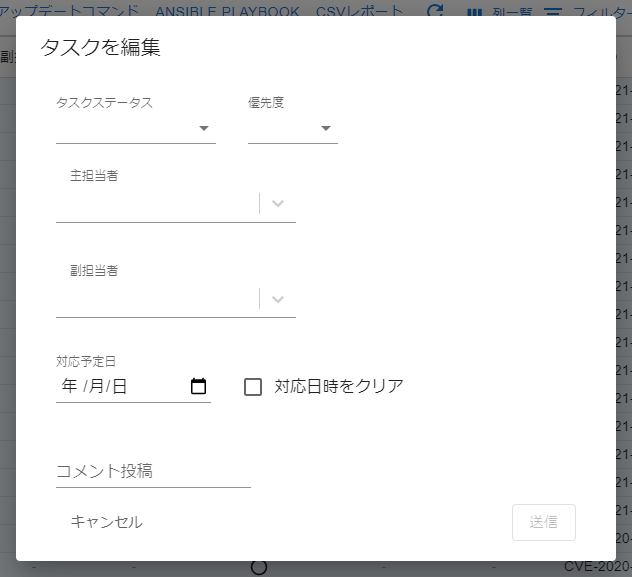
You can bulk update the assignees, priority, due date, and other fields of tasks. From the "Update Tasks" button menu, select "Apply to selected rows" or "Apply to all rows matching the current filter". For details, see "Bulk Operations on All Filtered Rows".
The limit for bulk updating tasks is 10,000.
SSM Update#
For vulnerabilities on EC2 instances with registered AWS credentials, you can issue on-demand update commands.
Update Command#
You can select one or more tasks to display the update command. The update command suitable for each server's OS will be displayed. For Windows tasks, links to the Microsoft Update Catalog are displayed. KBs not listed in the catalog are displayed separately with links to their support pages (see how to apply hotpatches).
However, update commands are not displayed for packages registered with CPE.
ANSIBLE PLAYBOOK#
You can select multiple tasks to display an Ansible Playbook. An Ansible Playbook suitable for each server's OS will be displayed.
However, update commands are not displayed for packages registered with CPE.
CSV Report#
You can download all tasks in a group in CSV format. The active sub-tab, filters, and selections on the screen do not affect which tasks are included in the CSV report.
To export only rows on the current page, use Export > CSV Download.
If you select rows, only the selected rows are exported.
This does not export matching rows from all pages.
For details, see "CSV Download".
You generate and download the CSV report from the "CSV Report" button menu.
- Select "Generate CSV Report (All Tasks in Group)" and start generation in the confirmation dialog
- When generation is complete, we notify you by email
- Download the report from "Download Generated CSV Report"
"Download Generated CSV Report" does not regenerate the report; it downloads the data as of the last generation. If you need the latest data, generate the report again.
| Column Name | Item | Details |
|---|---|---|
| cveID | CVE ID | The CVE-ID of the task |
| groupID | Group ID | The ID of the group the task belongs to |
| groupName | Group Name | The name of the group the task belongs to |
| mainUserID | Primary Assignee ID | The ID of the primary assignee for the task |
| mainUserName | Primary Assignee | The primary assignee for the task The primary assignee set by the user is displayed If a default assignee is set for the server, the default assignee is set when the task is created |
| subUserID | Secondary Assignee ID | The ID of the secondary assignee for the task |
| subUserName | Secondary Assignee | The secondary assignee for the task The secondary assignee set by the user is displayed |
| serverID | Server ID | The ID of the server |
| serverUuid | Server UUID | The UUID of the server |
| serverName | Server Name | The server name of the task |
| osFamily | OS Type | The OS type of the server (e.g., redhat, debian, windows) |
| osVersion | OS Version | The OS version of the server |
| hasExploit | Security Alert | Whether alert information has been published by CISA KEV, VulnCheck KEV, ENISA KEV, JPCERT/CC-Alerts, or CISA-Alerts |
| hasMitigation | Mitigation / Workaround | Whether mitigation or workaround information exists in Red Hat or Microsoft data sources |
| softwareNames | Vulnerable Software | Only packages with remaining vulnerabilities are displayed |
| softwareNameVersions | Vulnerable Software Versions | The versions of the packages with remaining vulnerabilities are displayed |
| pkgFixedStatus | Patch Availability | Whether a patch is available for the vulnerable software related to the task entire: A valid patch is available for all related software none: No patch is currently available for any related software some: A mix of patched and unpatched software exists unknown: Patch availability is unknown for some related software Blank: Patches have been applied to all related software, and the vulnerability is resolved For AlmaLinux and Rocky Linux scanned in fast scan mode or paste scan, patch availability cannot be determined and will be "unknown" (fast-root scan mode will show one of "entire, none, some") |
| applyingPatchOn | Scheduled Date | The scheduled resolution date for the task The scheduled resolution date set by the user is displayed |
| status | Status | The status of the task is displayed Automatically set statuses are NEW / PATCH_APPLIED (users cannot manually set the status to PATCH_APPLIED) |
| priority | Task Priority | The priority of the task is displayed |
| ignore | Hide Flag | The ignore flag status of the task If the task is set to be ignored, true is displayed; if not set, false is displayed |
| ignoreUntil | Hide Type | The condition for ignoring |
| ignoreExpiredAt | Ignore Expiration Date | The expiration date and time for the task's ignore setting Blank if no expiration date is set |
| nvdScoreV2s | NVD CVSS v2 Score | The CVSS v2 score published by NVD |
| nvdScoreV3s | NVD CVSS v3 Score | The CVSS v3 score published by NVD |
| nvdScoreV4s | NVD CVSS v4 Score | The CVSS v4 score published by NVD |
| jvnScoreV2s | JVN CVSS v2 Score | The CVSS v2 score published by JVN |
| jvnScoreV3s | JVN CVSS v3 Score | The CVSS v3 score published by JVN |
| jvnScoreV4s | JVN CVSS v4 Score | The CVSS v4 score published by JVN |
| redhatScoreV2s | Red Hat CVSS v2 Score | The CVSS v2 score published by Red Hat |
| redhatScoreV3s | Red Hat CVSS v3 Score | The CVSS v3 score published by Red Hat |
| redhatScoreV4s | Red Hat CVSS v4 Score | The CVSS v4 score published by Red Hat |
| microsoftScoreV3s | Microsoft CVSS v3 Score | The CVSS v3 score published by Microsoft |
| microsoftScoreV4s | Microsoft CVSS v4 Score | The CVSS v4 score published by Microsoft |
| nvdVectorV2s | NVD CVSS v2 Vector | The CVSS v2 vector published by NVD |
| nvdVectorV3s | NVD CVSS v3 Vector | The CVSS v3 vector published by NVD |
| nvdVectorV4s | NVD CVSS v4 Vector | The CVSS v4 vector published by NVD |
| jvnVectorV2s | JVN CVSS v2 Vector | The CVSS v2 vector published by JVN |
| jvnVectorV3s | JVN CVSS v3 Vector | The CVSS v3 vector published by JVN |
| jvnVectorV4s | JVN CVSS v4 Vector | The CVSS v4 vector published by JVN |
| redhatVectorV2s | Red Hat CVSS v2 Vector | The CVSS v2 vector published by Red Hat |
| redhatVectorV3s | Red Hat CVSS v3 Vector | The CVSS v3 vector published by Red Hat |
| redhatVectorV4s | Red Hat CVSS v4 Vector | The CVSS v4 vector published by Red Hat |
| microsoftVectorV3s | Microsoft CVSS v3 Vector | The CVSS v3 vector published by Microsoft |
| microsoftVectorV4s | Microsoft CVSS v4 Vector | The CVSS v4 vector published by Microsoft |
| maxV2 | Max CVSS v2 Score | The maximum CVSS v2 score from all data sources (NVD, JVN, Red Hat, Microsoft) |
| maxV3 | Max CVSS v3 Score | The maximum CVSS v3 score from all data sources (NVD, JVN, Red Hat, Microsoft) |
| maxV4 | Max CVSS v4 Score | The maximum CVSS v4 score from all data sources (NVD, JVN, Red Hat, Microsoft) |
| title | Vulnerability Summary | The summary of the vulnerability |
| ssvcPriority | SSVC Priority | The Priority from SSVC (immediate, out-of-cycle, scheduled, defer) |
| isImportant | Important CVE Conditions | Indicates whether the task meets the conditions for an Important CVE and is open (its status is NEW and it is not hidden) |
| createdAt | First Detection Time | The date and time the vulnerability associated with that task was first detected |
| updatedAt | Task Updated At | The date and time the task was last updated. Scans or SBOM re-uploads that do not change its contents do not update this timestamp |
| certAlert | Security Alert (CERT) | CERT if it exists, otherwise a blank string |
| reachability | Reachability | The reachability state (reachable, partial, not_reachable). Blank if there is no value |
| reachabilityEvaluatedAt | Reachability Evaluated At | The oldest evaluation time among the analysis results that the reachability is based on. Blank if there is no value |