How to Use Zendesk#
Zendesk is a support service used for FutureVuls user support. We use it to respond to inquiries quickly and accurately. This document explains how to make inquiries using Zendesk.
User Registration#
By "registering as a user" on Zendesk, you can view your past inquiry history and the inquiry details of other users within the same organization.
- A Zendesk account is different from a FutureVuls account.
- There are no charges for registering a Zendesk account.
- The setting to share inquiry content within the same organization can be turned ON or OFF. It is OFF by default, so if you wish to turn it ON, please have your organization's representative submit a request.
- The email address domain is used to determine the organization.
Submitting a Request Without User Registration#
To make an inquiry without user registration, access the inquiry page directly, enter your email address and the details of your inquiry, and submit it. A confirmation that the request has been received will be sent to the email address you entered. Our support staff will investigate and respond to requests in order, so please allow some time for a response. The staff's response will be sent as a reply to the confirmation email. If you need to reply further, please reply directly to the support email using your email client.
Notice: Email Verification Now Required
Due to Zendesk specification changes in March 2026, email verification is now required to confirm the validity of your email address when submitting an inquiry without user registration (signing in). For more details, please refer to the following. Reference: Notice regarding verification of anonymous requests to the help center
Submitting a Request with User Registration#
When you submit a request after completing user registration, some input fields are no longer required, and you can also view your past inquiry history and the inquiries of other users in your organization. After signing in, navigate to the form from "Submit a request" in the upper right corner of the home page, select "User Support," and then fill in the details of your request. Once submitted, a confirmation that the request has been received will be sent to the email address associated with your account. Our support staff will investigate and respond to requests in order, so please allow some time for a response. The staff's response will be sent as a reply to the confirmation email. If you need to reply further, please reply directly to the support email using your email client. Alternatively, you can open the relevant request from the request list page and reply within the Zendesk UI.
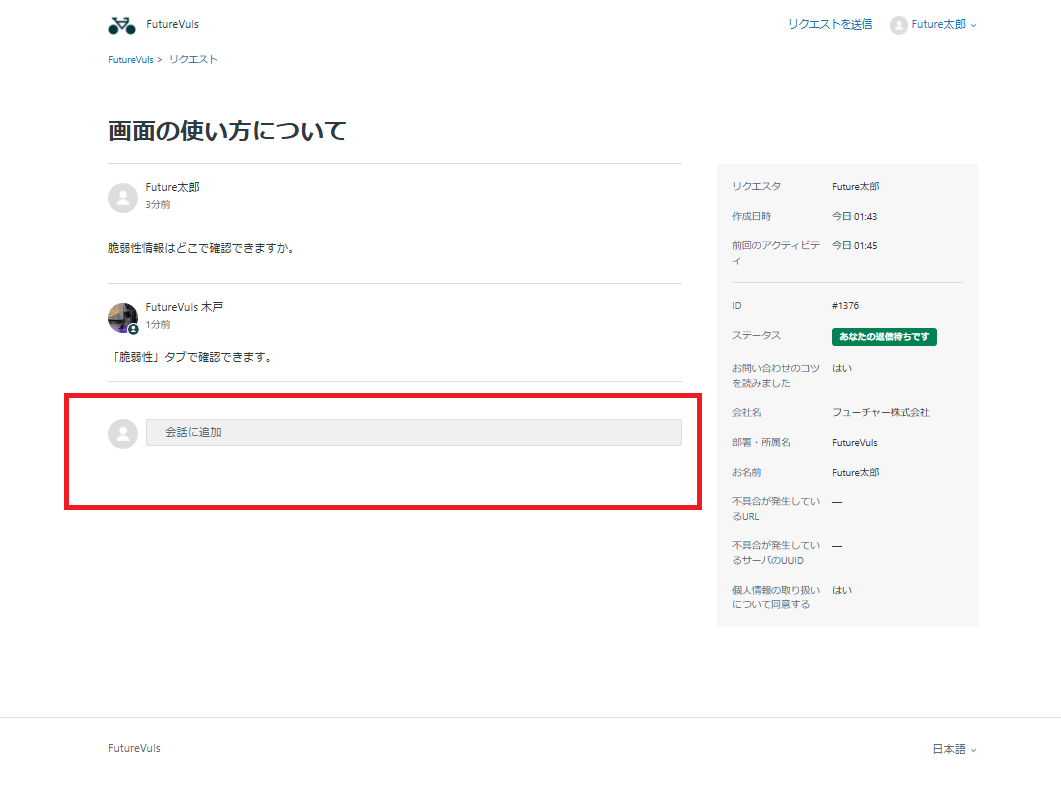
Even if you submit a request without being signed in, if a user account already exists with the same email address, you can view it later in the same way by logging in.
Checking the List of Requests#
If you want to view your past inquiry history or the inquiries of other users in your organization, sign in, click on your profile icon in the upper right corner of the Zendesk page, and select "Requests."
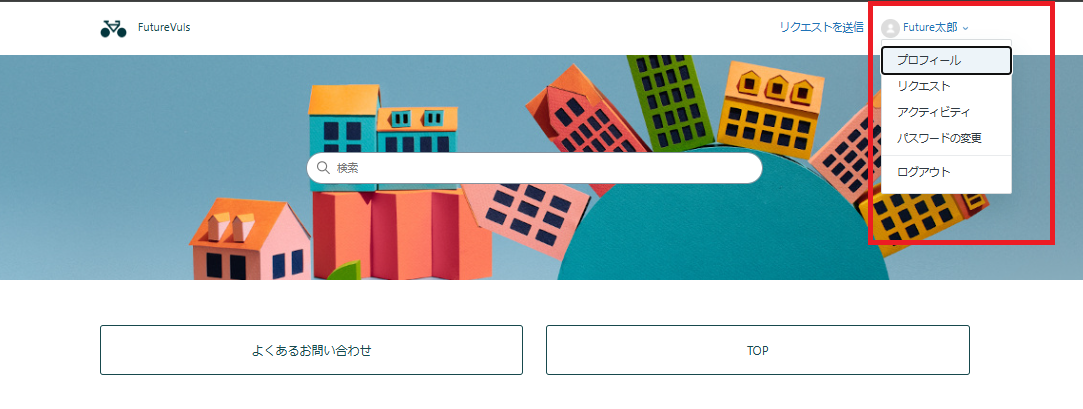
If sharing within your organization is set to OFF, you can view "My requests" and "Requests I'm CC'd on." If the sharing setting is ON, you can also view "Organization requests." From here, you can check the status of each request or reply.