MCP Server Integration#
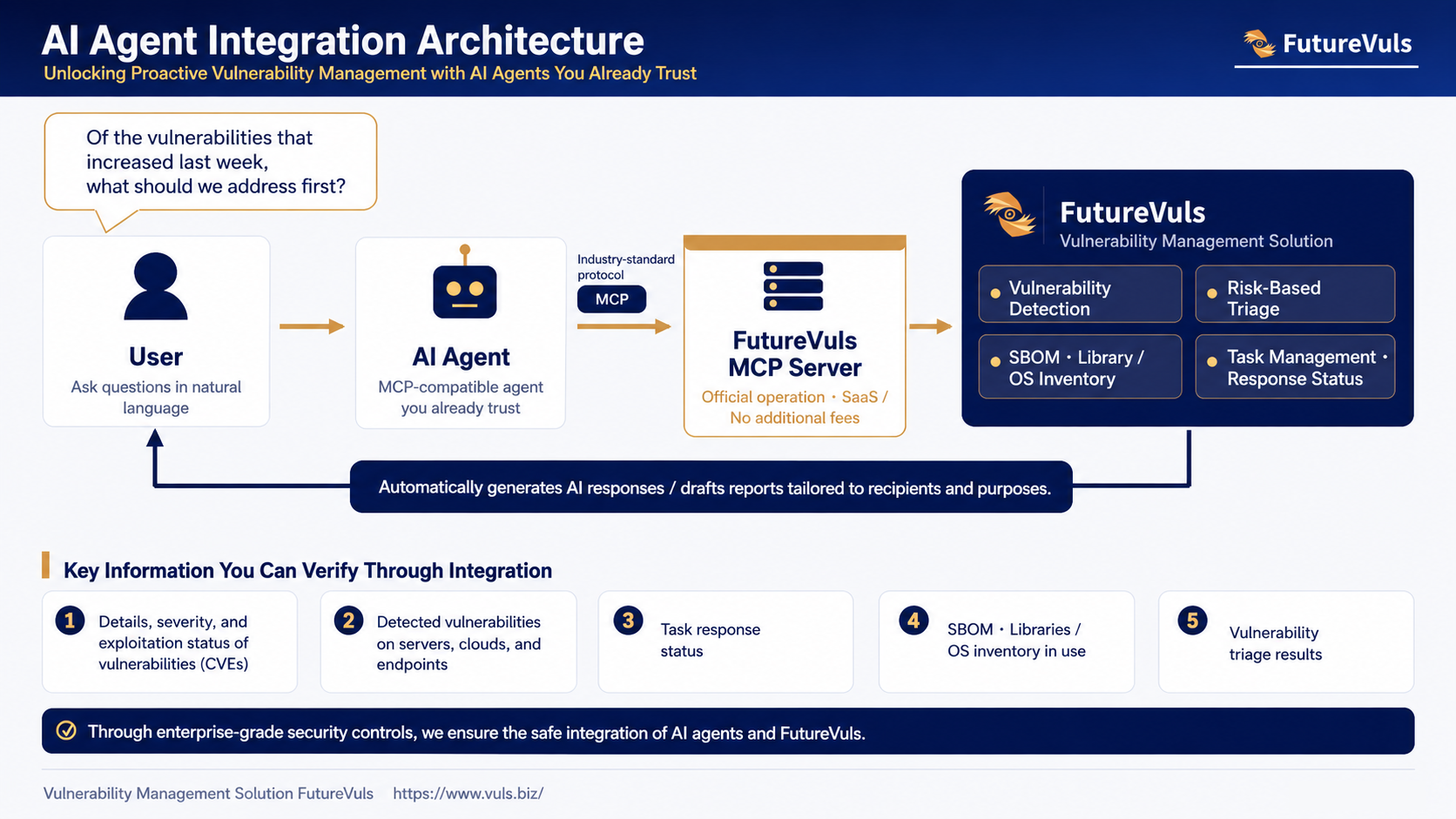
The FutureVuls MCP Server is an integration that lets AI agents and MCP clients that support MCP (Model Context Protocol) reference vulnerability, asset, and task information in FutureVuls. By connecting an AI agent such as Claude Code or Codex, you can check and investigate vulnerability information through natural-language queries.
Currently, the MCP Server only supports referencing (reading) information. Data in FutureVuls is never modified through MCP.
How to Configure#
The general setup flow is as follows.
- Enable MCP Server Integration in the organization settings
- Prepare a FutureVuls API token
- Register the FutureVuls MCP Server with your MCP client
MCP Server Integration is disabled by default
MCP Server Integration is managed per organization and is disabled by default.
The MCP Server cannot be used until an organization administrator enables it.
Enabling MCP Server Integration#
Open Organization Settings > Advanced Settings > Security.
When you turn on the toggle on the MCP Server Integration card, a confirmation dialog appears. Review the important notes shown there and approve it.
Once approved, the toggle changes to MCP Server integration: Enabled, and the setup is complete.
This operation requires organization Owner or CSIRT Permission.
Please review this before enabling
When you enable this feature, a connected MCP client or an AI agent such as Claude can access your vulnerability, asset, and task information within the scope of the API token. The retrieved data may then be sent, via the connected client or agent, to the LLM provider behind it. To protect your company's security, please review all of the following before enabling.
- All members who can issue API tokens will be able to use this feature.
- Connect only to MCP clients and AI agents that you trust. Connecting to untrusted destinations increases the risk of unintended data exfiltration through prompt injection and similar attacks.
- We strongly recommend using this together with IP address access restrictions. If they are not configured, the MCP Server can be reached from external networks as well.
- Whether the sent data is stored, shared with third parties, or used for model training depends on the plan, contract, settings, and data-use policy of the destination. FutureVuls cannot control how the data is handled at the destination, so please review the destination's policy in advance and use this feature under your own responsibility and governance. Also, even after you disable the integration, data already retrieved by the destination may remain on the destination side.
- Access via MCP is recorded in the audit log together with the token used for the connection. The endpoint name starts with
MCP:(for example,MCP:Server list), so it can be distinguished from normal API usage (for example,API:Server list). - This setting only controls the MCP Server feature provided by FutureVuls. Normal FutureVuls API access using an API token remains available regardless of this setting.
Preparing a FutureVuls API Token#
The MCP Server authenticates using your existing FutureVuls API token as-is. No dedicated token or additional authentication setup is required for the MCP Server.
| Token Type | Prefix | Where to Issue | Scope of Reference |
|---|---|---|---|
| Group Token | fvgr- |
Group Settings > Token |
Servers, vulnerabilities, tasks, and more within the group |
| Group Set Token | fvgs- |
Group Set Settings > Token |
Cross-group information within the group set |
| Organization Token | fvog- |
Organization Settings > Token |
Organization information, audit logs, and more |
Since the MCP Server currently supports reading only, we recommend a token whose API Permission is "Read Only". For instructions on issuing a token, see "FutureVuls API".
Token type and available tools
The tools available from your MCP client automatically change depending on the type of token you specify when connecting.
We recommend starting with a Group Token.
Configuring the MCP Client#
The FutureVuls MCP Server endpoint is as follows.
https://mcp.vuls.biz/mcp
For authentication, specify your API token in the Authorization HTTP header.
Register the FutureVuls MCP Server with the following command. Set your issued API token in $TOKEN.
export TOKEN="fvgr-xxxxxxxx"

claude mcp add --transport http --scope user \
  futurevuls-mcp-server https://mcp.vuls.biz/mcp \
  --header "Authorization: $TOKEN"
After registering, you can check the connection status with the following command. The setup is complete when Connected is displayed.
claude mcp list
Within a Claude Code session, you can use the /mcp command to check the connection status and the list of available tools.
To disconnect, remove the registration with the following command. Removing the registration does not invalidate the API token itself. Delete tokens you no longer need on the FutureVuls side.
claude mcp remove --scope user futurevuls-mcp-server
Register the FutureVuls MCP Server with the following command. Set your issued API token in the FUTUREVULS_TOKEN environment variable, and pass that variable name to --bearer-token-env-var.
export FUTUREVULS_TOKEN="fvgr-xxxxxxxx"

codex mcp add futurevuls-mcp-server \
  --url https://mcp.vuls.biz/mcp \
  --bearer-token-env-var FUTUREVULS_TOKEN
After registering, you can check the registered settings with the following command. Registration is complete when Status shows enabled and Auth shows Bearer token. This command only displays the configuration; it does not check whether the connection to the MCP Server or the authentication succeeded.
codex mcp list
To verify the connection, run the /mcp command within a Codex session and make sure that the tools of futurevuls-mcp-server are listed. For a thorough check, also ask Codex for server or vulnerability information and confirm that results are returned.
Codex stores the environment variable name, not the token value, in its configuration file (~/.codex/config.toml) and reads the token from the environment at startup. Make sure that FUTUREVULS_TOKEN is set in the shell from which you start Codex.
To disconnect, remove the registration with the following command. Removing the registration does not invalidate the API token itself. Delete tokens you no longer need on the FutureVuls side.
codex mcp remove futurevuls-mcp-server
Other MCP clients
Setup instructions for other MCP clients are in preparation. We will add them to this page once they are ready.
Usage Examples#
Once connected to an MCP client, you can make queries such as the following in natural language.
- Listing vulnerability tasks with approaching due dates and discussing their priorities
- Investigating which servers are affected by a specific CVE
- Summarizing the vulnerability status of each server within a group
Available Features#
The information you can reference for each token type is as follows. All of them are reference (read) only.
| Token Type | Information You Can Reference |
|---|---|
Group Token (fvgr-) |
Servers (assets), CVEs, tasks, packages and CPEs, SBOM, lockfiles, Supply Chain Risks, scan import information, roles |
Group Set Token (fvgs-) |
Servers, CVEs, tasks, packages and CPEs, and Supply Chain Risks across the group set |
Organization Token (fvog-) |
Organization information, group list, group set list, audit logs, and private EOL information |
When Using IP Address Access Restrictions#
If your organization has configured IP address access restrictions, access via the MCP Server is also evaluated using the source global IP address of the machine running the MCP client.
Access from an IP address not included in the allowlist results in an authentication error when a tool is executed. Please make sure that the source IP address of the environment running the MCP client is registered in the allowlist.
Limitations#
- The MCP Server only supports referencing (reading) information. Write operations such as updating tasks are not possible.
- Access via the MCP Server is also subject to the FutureVuls API rate limits (20 requests/minute per API token and 200 requests/minute per IP address). For details, see "Rate Limiting".
- Tools that do not match your token type cannot be used.