Scan Settings#
This section explains how to check the Vuls scanner version information and the specifications during a scan. For information on updating the scanner, please see here.
Checking the Scanner Version#
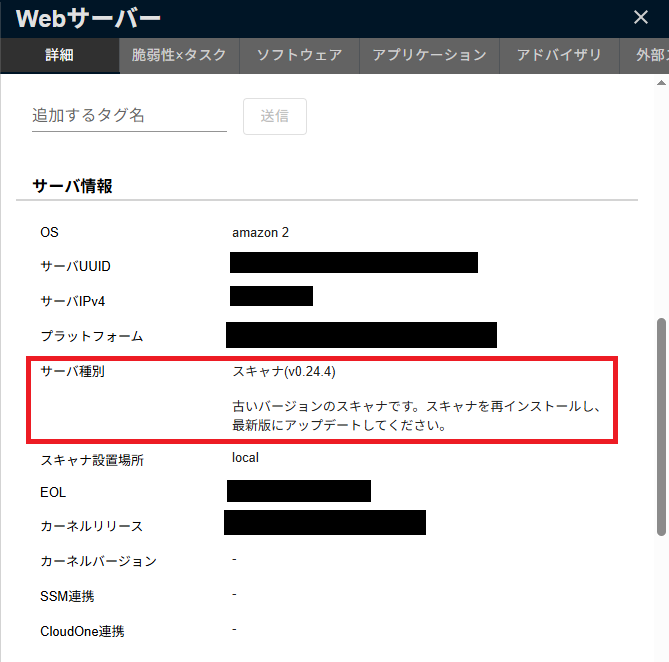
The version of the scanner installed on the server can be checked in the "Server Information" section of Server / Product Details.
An alert will be displayed if the scanner version is older than the latest version. If the scanner is outdated, you may not be able to use the latest features, so please update the scanner.
The scanner version can also be checked on the scan target server.
| OS | Execution Directory | Command to Execute |
|---|---|---|
| Linux | /opt/vuls-saas |
./vuls -v |
| Windows | C:\Program Files\vuls-saas |
vuls.exe -v |
Verifying the config.toml Settings#
If you have edited the scanner's configuration file, config.toml, you can verify that it is configured correctly with the vuls configtest command.
*For remote scans, the vuls configtest command can be executed on the scanner server after the scanner has been installed on it.
sudo su - vuls-saas
cd /opt/vuls-saas
./vuls configtest
Important Notes on Scanning#
Server UUID#
FutureVuls uses a UUID to uniquely identify each server. When a scan is performed, a unique UUID is assigned to each scan server and recorded in config.toml.
If you change the UUID of a server that has already been scanned, FutureVuls will recognize it as a different server. This will be treated as a new server addition and will affect billing calculations, so please be careful when changing UUIDs.
Automatic rewriting of config.toml#
Because FutureVuls adds UUID settings to config.toml, config.toml is automatically rewritten upon upload.
During this rewrite, all comments are deleted, and the original spacing and order may not be preserved.
The previous version is saved as config.toml.bk, but earlier versions are not retained.
For Simultaneous Uploads from the Same Server, the First One Processed Wins#
If two scan results from the same server (same UUID) are uploaded simultaneously, the result that is processed first acquires a lock and is processed, so the result that is processed later will cause an error. (The error can be confirmed in the Scan History).
Although this is rare, if you need to scan servers with the same UUID, please allow some time between scans.
Scan Settings in config.toml Are Generally Disabled#
While OSS Vuls allows you to configure settings such as CPE and excluded packages in config.toml, FutureVuls ignores most of the settings configured in config.toml. Similar settings can be configured on the web interface, so please configure them there instead.
For other settings supported by FutureVuls, please check Scanner Behavior Settings and Changing Scan Modules.
Adding/Deleting Scanner Tokens#
The scanner token included in the command during scanner installation can be added or deleted from Group Settings > Token.
To create a new scanner token, create a token with scan permissions from Group Settings > Token > Add a new token.
Then, during installation, select the newly created scanner token from the dropdown menu in Group Settings > Scanner.
Editing and deleting scanner tokens follows the same process as FutureVuls API Token Management.