Importing SBOM Files#
You can import SBOM information into FutureVuls to use for asset, license, and vulnerability management. For the SBOM formats and versions that can be imported, see "Supported Environments". To decide whether to register as a Server SBOM or an Application SBOM, see "Server SBOMs and Application SBOMs".
This manual explains the following operations:
- Importing an SBOM File
- Downloading Imported SBOM Files
- Updating SBOM Files
- Renaming SBOM Files
- Deleting SBOM Files
For the specifications on how component information in an SBOM is imported into FutureVuls, refer to the following:
- Import Specifications (import conditions and troubleshooting)
- CycloneDX Import Specifications
- SPDX Import Specifications
To learn how to check the relationship between an imported SBOM and the software and vulnerabilities in FutureVuls, see "View Source SBOM Files".
Importing an SBOM File#
You can import SBOMs in the following three ways:
- Uploading a file from the UI
- Pasting as text from the UI
- Uploading via the API
When importing from the UI, the screen differs depending on whether you are importing a Server SBOM or an Application SBOM. For the differences between the two, please refer to "Server SBOMs and Application SBOMs".
- For Server SBOMs: From
Server > Add Server > Import SBOM - For Application SBOMs: From "Add SBOM" in
Server Details > SBOM
File Upload#
As of the February 2026 release, you can now import SBOMs as a file. This method is recommended as it does not affect browser performance, even with large file sizes.
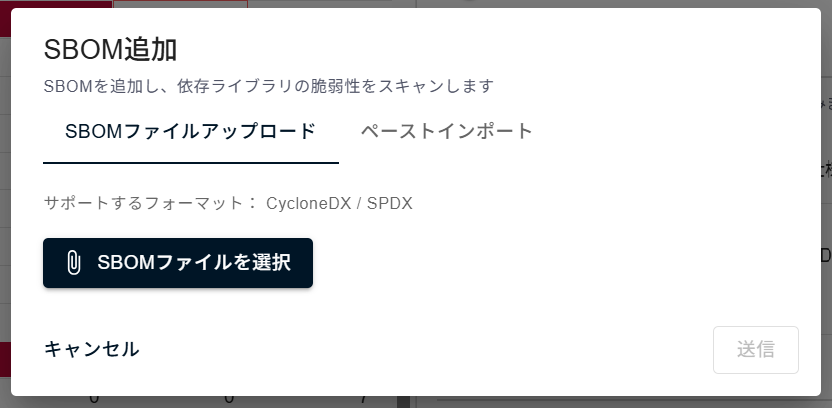
When you upload a file, you can check if the import was successful from Group Settings > Scan History.
The scan type will be displayed as "SBOM Scan".
When you upload a file, the initial SBOM file name is the name of the uploaded file. If the file name exceeds 50 characters, the first 50 characters are used as the SBOM file name.
If the import is successful, you can immediately detect vulnerabilities by running a manual scan on the server.
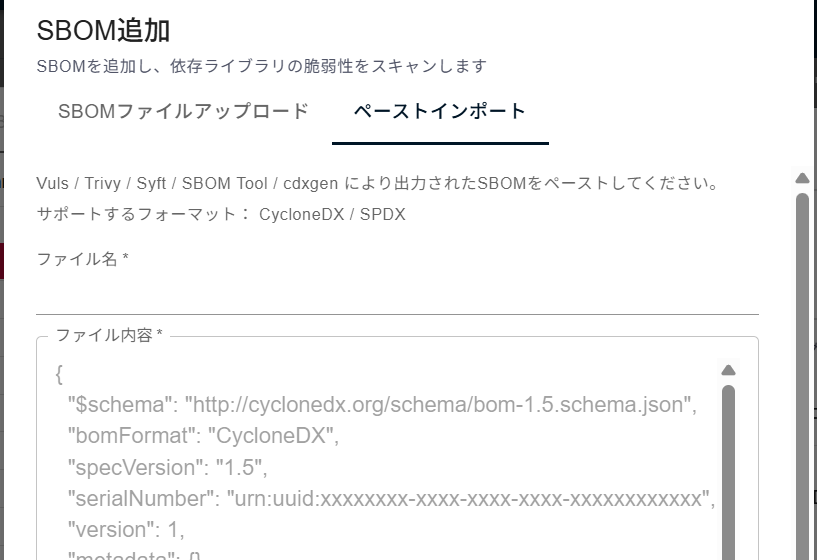
Text Paste Upload#
You can import an SBOM by pasting its data as text into the UI. When you upload as text, a dialog box will appear on the screen to indicate whether the import was successful.
API Upload#
For cases such as integrating into CI, you can import SBOMs using the FutureVuls API. When using the API, you can also upload the SBOM after Base64 encoding. For details, please refer to the API documentation.
Ignore OS Information#
If you enable "Ignore OS information" in any of the import dialogs, you can import an SBOM whose OS cannot be determined by importing only the components other than OS packages.
In the FutureVuls API, specify the ignoreOS parameter.
For details, see "Importing SBOMs Whose OS Cannot Be Determined".
Downloading Imported SBOM Files#
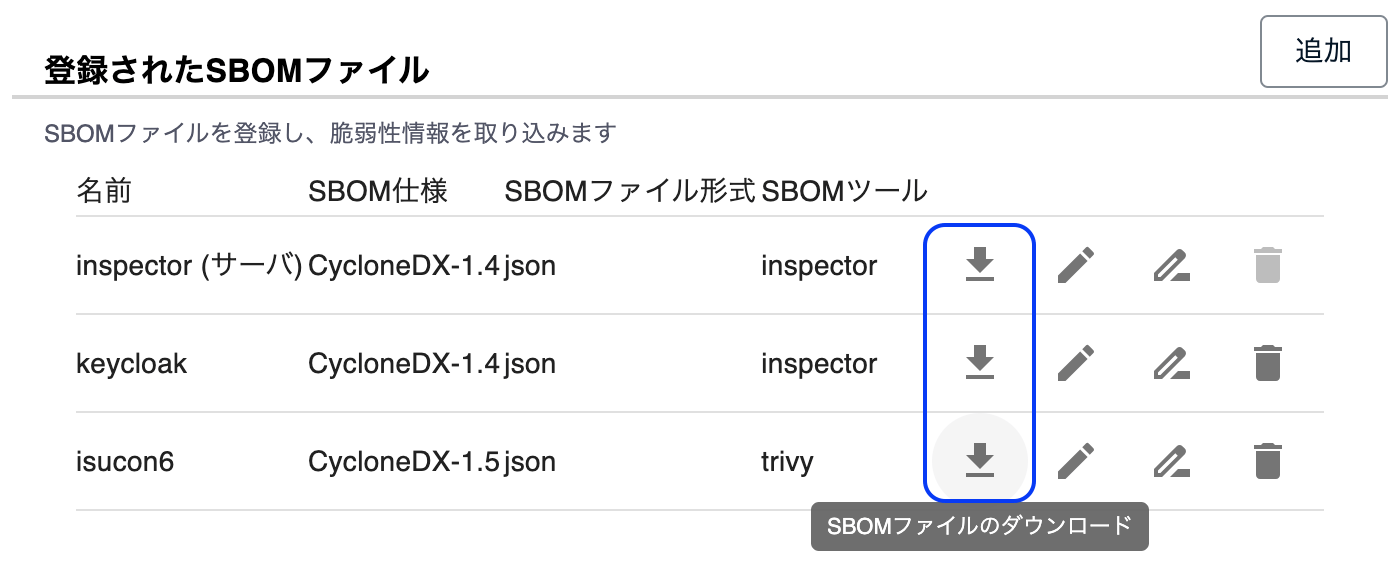
Imported SBOM files are stored in FutureVuls as-is and can be downloaded at any time.
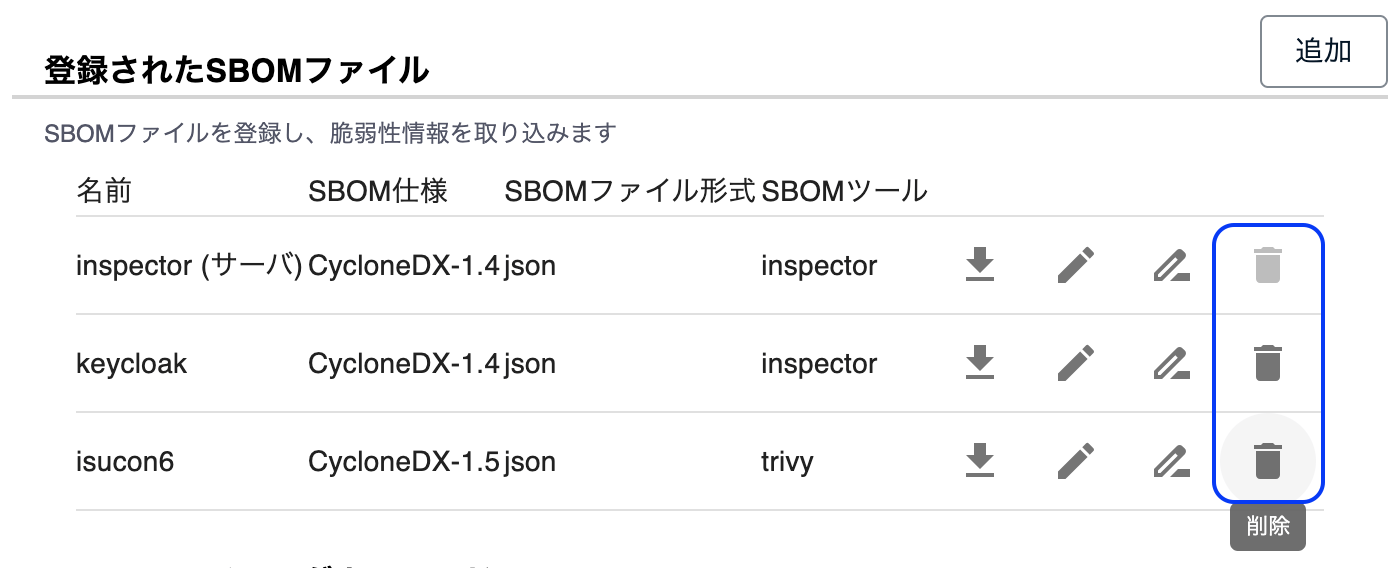
Open the target SBOM from the list in Server Details > SBOM, and download it with the download button in SBOM Details.
Where to manage SBOM files
As of the October 2026 release, you download, update, and rename SBOM files, and delete Application SBOMs, in SBOM Details, which you open from the "SBOM" sub-tab of Server Details (previously, you managed them from "Registered SBOM File" on the "Details" sub-tab). A Server SBOM cannot be deleted (see Deleting SBOM Files).
SBOM files imported before the "2024-10-16 Release" cannot be downloaded.
Updating SBOM Files#
You can update an imported SBOM file when its contents change. Click the update button in SBOM Details for the target SBOM, then upload the updated SBOM file or paste its content, and submit.
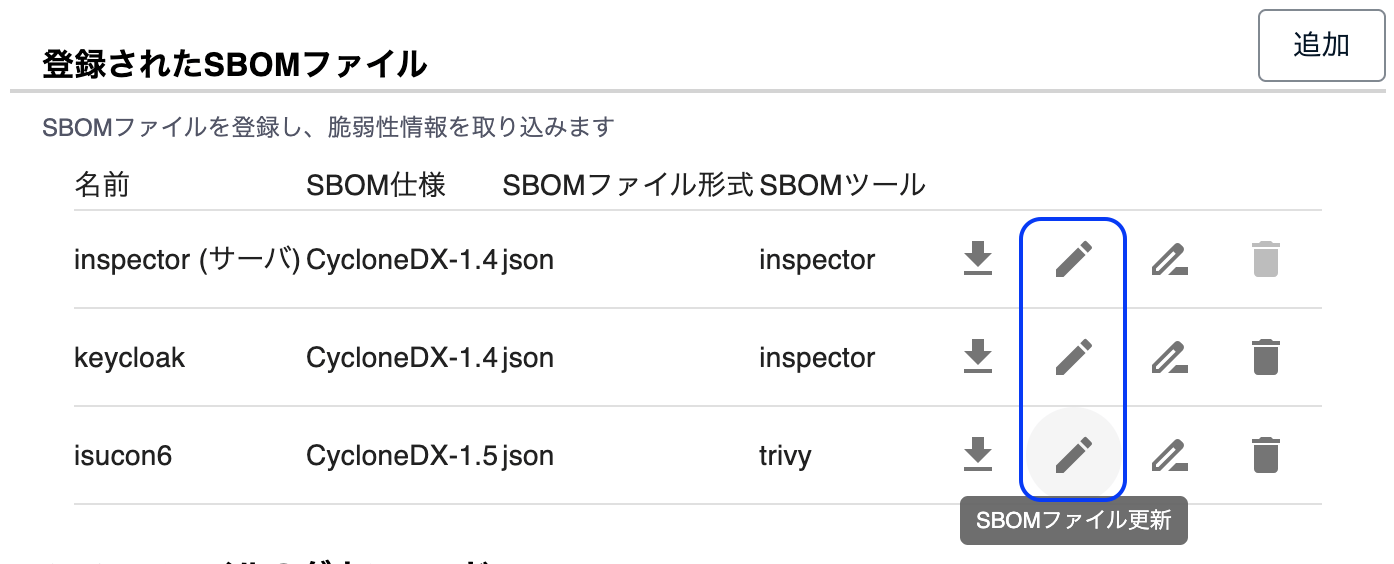
Updating an SBOM file does not change the SBOM file name. To use the name of the updated file, rename it as described in "Renaming SBOM Files".
After an update, the detection results, tags, and manually assigned CPEs of unchanged software are retained.
First update of an existing server SBOM
Server SBOMs registered or updated through the FutureVuls API or Paste Import before the October 2026 release have their OS packages registered again on the first update after the release. On this first update, manually assigned CPEs and tags on OS packages are not retained. Vulnerabilities are detected again during the same update. From the second update onward, information for unchanged OS packages is also retained. For details, see "First-update precautions".
Renaming SBOM Files#
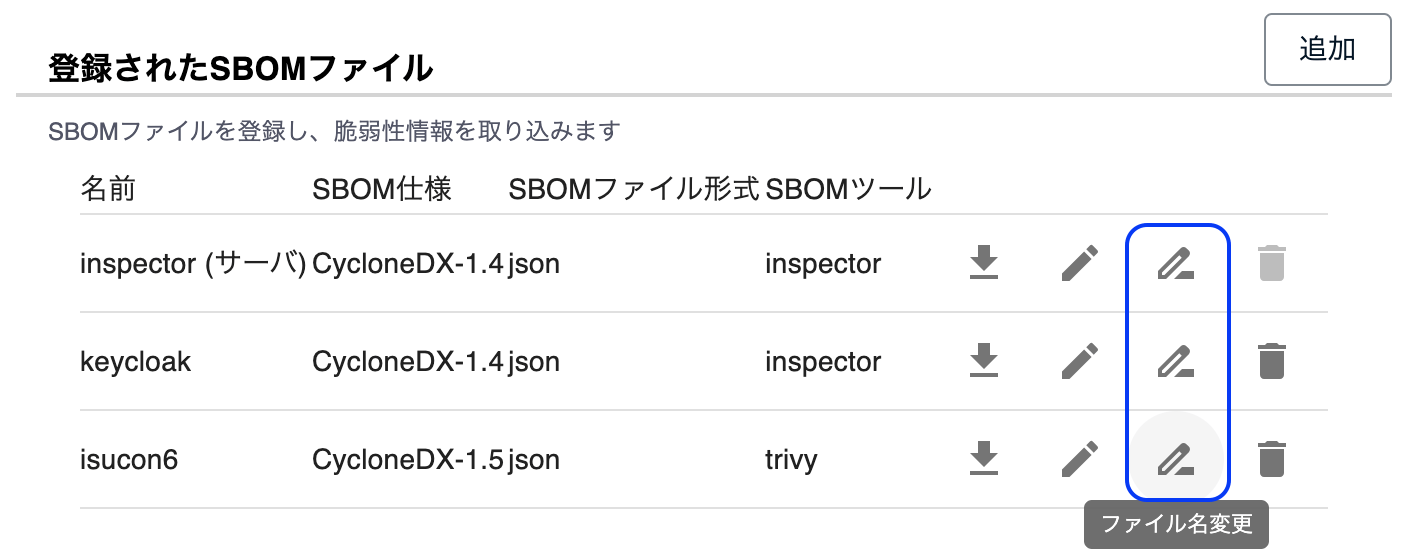
You can rename an imported SBOM file. Use the rename button in SBOM Details to enter the new SBOM file name.
Deleting SBOM Files#
You can delete an imported SBOM file with the delete button in SBOM Details.
Deleting a Server SBOM
An SBOM imported as a Server SBOM cannot be deleted. If you need to delete it, please delete the entire server.