Task Details#
When you click on an item in the task list in the first pane, the details will appear in the second pane. On the Task Details screen, you can view and update task information.
SSVC#
This feature is available only for organizations with SSVC enabled.
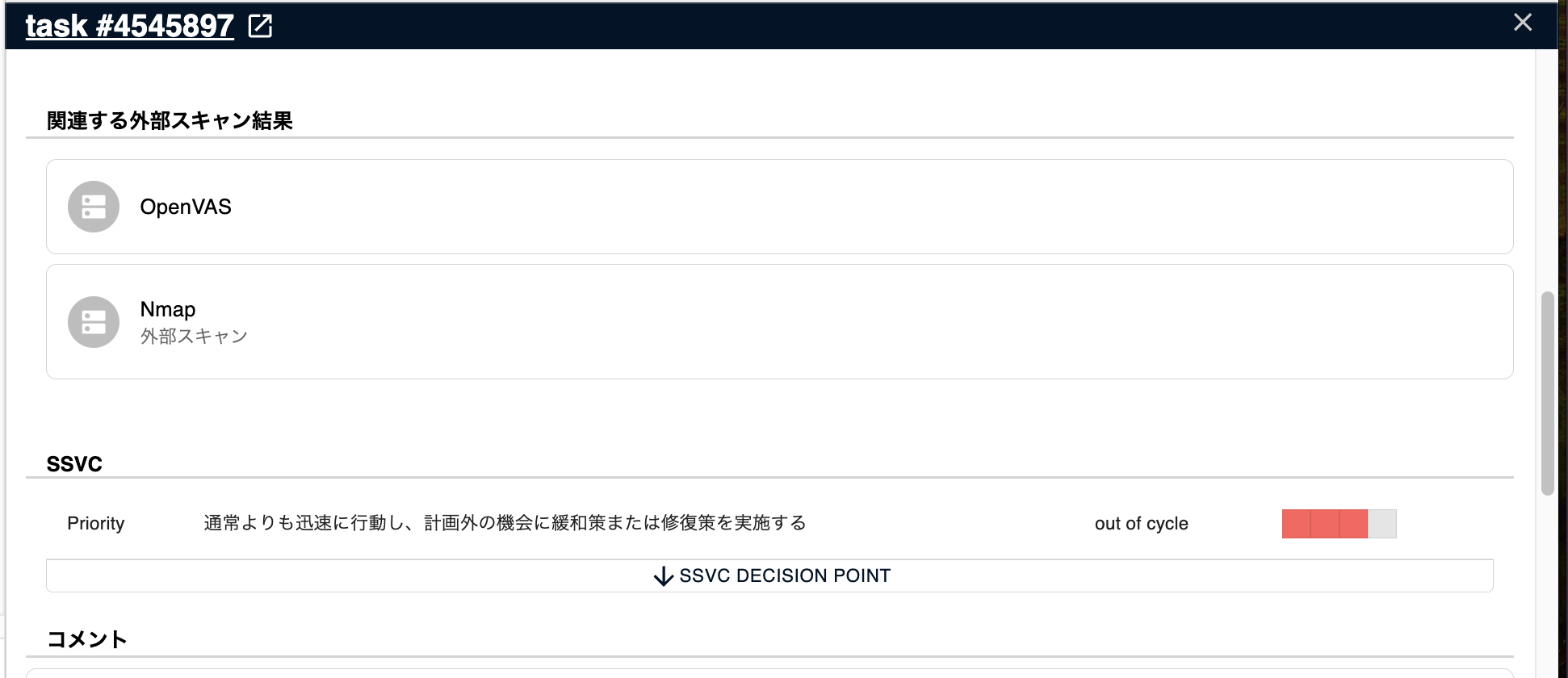
You can view the task's SSVC Priority and the decision points behind it.
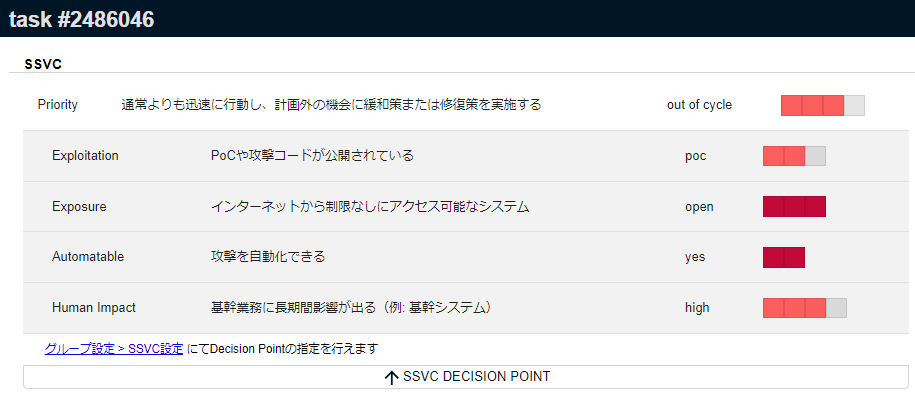
The SSVC Priority and its description are displayed.
Click Show decision points to display the four Decision Points (Exploitation, Automatable, Exposure, and Human Impact) used to determine the SSVC Priority.
Each item shows its current value, a description of that value, and the source of the value.
Update Task#
In "Task Response Status," you can configure the following items and update the task with the Update button.
To the right of "Task Response Status," the date and time the task priority was last updated (Last Priority Update) is displayed.
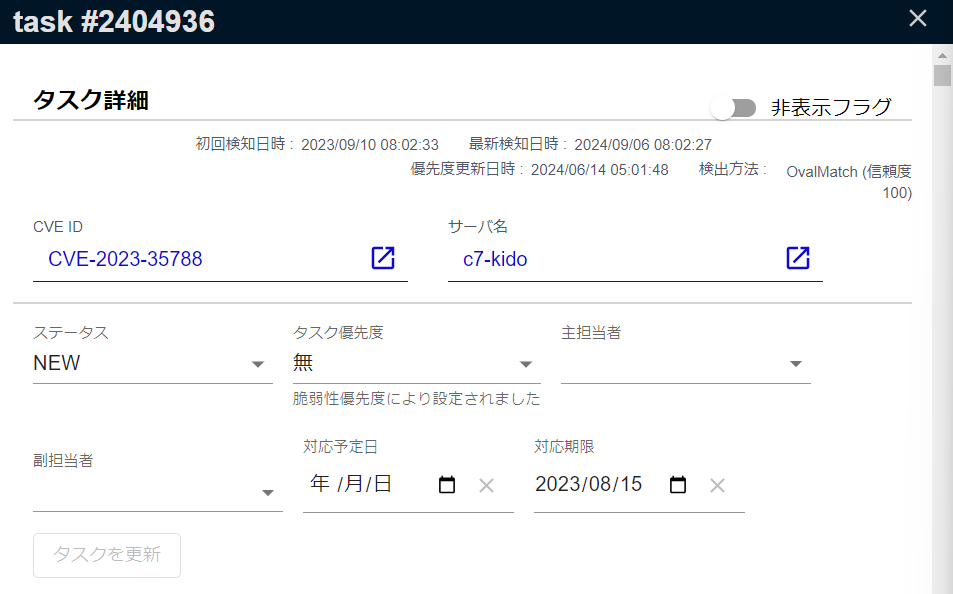
| Item | Details |
|---|---|
| Task Priority | Displays the task's priority. If it was set automatically by a rule or similar, the source of the setting is displayed. |
| Status | Displays the task's status. Statuses set automatically are NEW / PATCH_APPLIED.Users cannot manually set the status to PATCH_APPLIED. |
| Primary Assignee | The primary person in charge of the task. Displays the assignee set by the user. If a default assignee is configured for the server, the default assignee will be set when the task is created. |
| Secondary Assignee | The secondary person in charge of the task. Displays the secondary assignee set by the user. |
| Scheduled Date | The scheduled date for addressing the task. Displays the scheduled date set by the user. |
| Due Date | The deadline for the task is displayed based on the following sources 1. Automatic (Special Alert Tag) Deadline set by a Special Alert Tag If the alert tag has a deadline, it cannot be changed manually (as it is managed to be enforced organization-wide) If the alert tag has no deadline, the task deadline is left blank and can be set manually or by SSVC 2. Automatic (SSVC) Deadline automatically set by SSVC Triage 3. Manual Deadline set by the user via Task Update ※ The displayed deadline is determined by the priority order: "Special Alert Tag > Manual > SSVC" |
To post a comment on the task, use the Comments tab.
Candidates Displayed for Assignee/Secondary Assignee#
The users who can be designated as Primary Assignee/Secondary Assignee are as follows:
- Individual users with the following permissions (can be confirmed in
Group Settings > Member):- Owner
- CSIRT
- Groupset Admin / Member
- Group Admin / Member
Hiding a Task#
You can set a task to be hidden using the Hide Flag below the "Task Response Status" heading.
Using the hide feature allows for more efficient vulnerability management.
For a hidden task, "This task is hidden" and the hiding conditions are displayed at the top of the Task Details screen.
You can also unhide the task with the Unhide Tasks button shown there.
CVE#
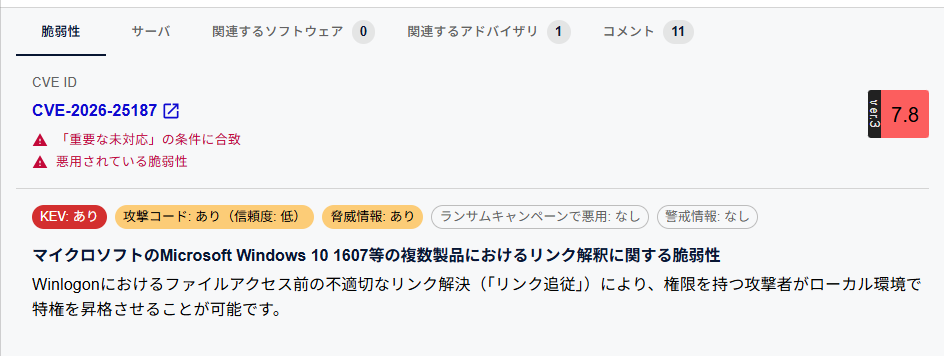
You can view an overview of the vulnerability associated with the task.
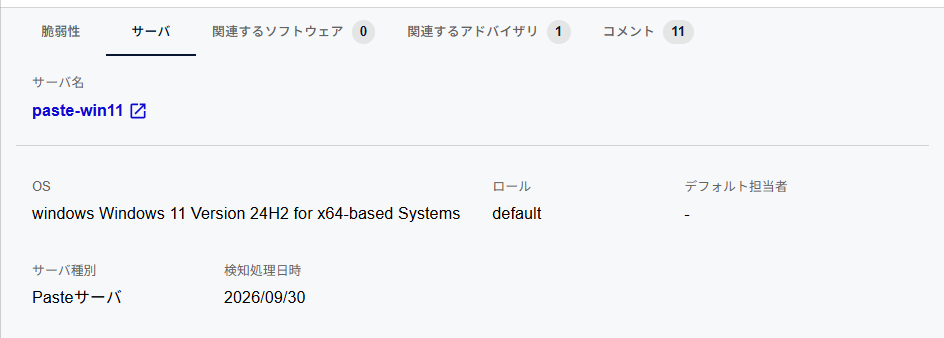
Server#
You can view an overview of the server associated with the task.
Related Packages#
You can view the software related to the task's vulnerability.
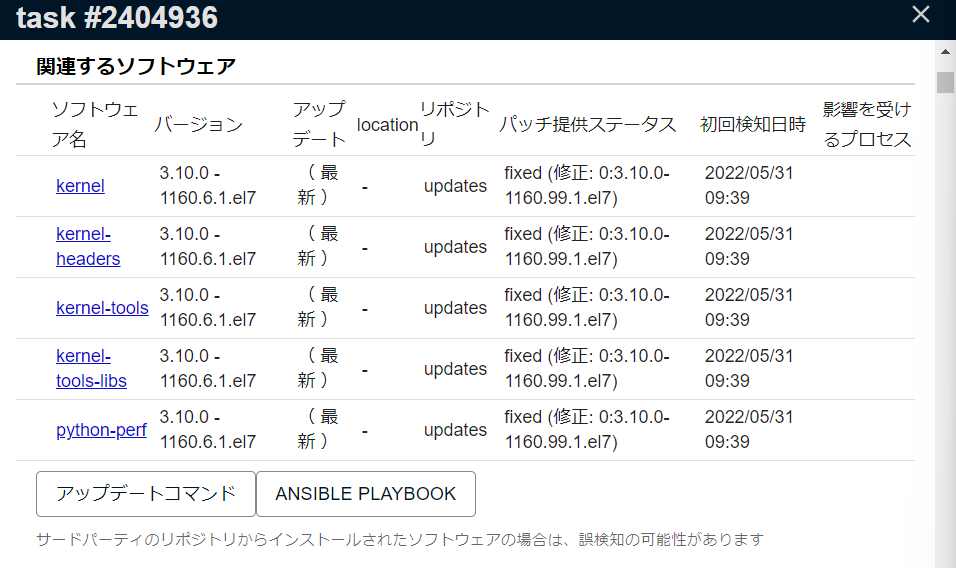
| Item | Details |
|---|---|
| Software Name | The name of the vulnerable software. A [DevDependency] badge is displayed for software from development dependencies (devDependencies). |
| Version | The currently installed version of the software. |
| Update | The latest version of the software. When scanning with the Vuls scanner in fast-root scan mode, the latest updatable version is displayed for all Linux distributions.In fast scan mode, some OSes (like AlmaLinux, Rocky Linux, etc.) can retrieve the latest version without root privileges, so it will also be shown.However, it is not displayed for CPEs, Paste Scan or Offline scan modes, trivy, or when the scan target is Windows. |
| Patch Availability Status | The patch status of the packages related to the task. ・Fixed: Patch provided. ・Affected: Affected, but no patch provided. ・Fix deferred: A patch is planned but not yet available. ・Will not fix: No plan to provide a patch due to low impact. ・Needs triage: Unknown whether it is affected. ・Under investigation: Investigating whether it is affected. ・Not affected: Not affected. Note: By design, FutureVuls does not detect vulnerabilities with a patch status of "Will not fix," "Under investigation," or "Not affected." |
| Affected Processes | Information on the affected processes. |
| Location | The file path (e.g., a lockfile) where the library is located. |
| Repository | The software repository. |
| First Detection Time | The date and time the software was first detected. |
| Resolved Time | The date and time the vulnerability was resolved. |
Additionally, if a patch is available, the Update Command feature can be used.
Behavior When a Vulnerability Is No Longer Detected#
As a result of a re-scan, software for which a vulnerability is no longer detected is automatically removed from "Related Software." This includes the following cases:
- The software has been removed from the server.
- The vulnerability is no longer detected as a result of a version update.
- The vulnerability is no longer detected as a result of changes in the data source.
The removal history can be viewed in the task comments.
Reachability#
You can check the results of reachability analysis (beta) for vulnerabilities in Go applications. For each combination of application and package, the tab shows the reachability state, the reached vulnerable functions, and sample call paths. This tab is displayed only for organizations on the CSIRT Plan, and only when the detections of the task include libraries of applications.
For the displayed items and the meaning of the states, see "Reading the Results".
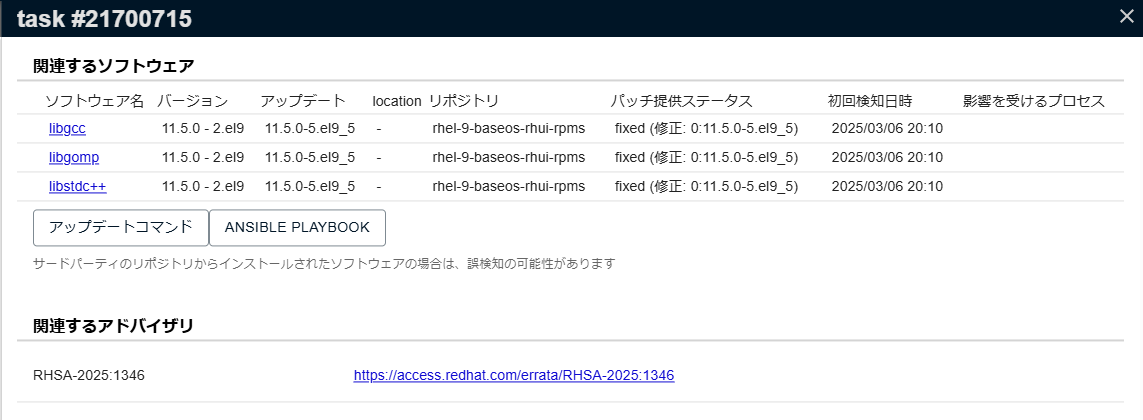
Related Advisories#
You can view a list of advisories related to the vulnerability associated with the task, along with links to their pages. This tab is displayed only when there are related advisories.
Related External Scan Results#
You can view a list of external scan results associated with the task and links to their pages. This tab is displayed only when there are related external scan results.
Comments#
You can view the history of task updates made by the system, or post comments on the task to share information with other users. Can be written in Markdown format.
The display settings for the system's update history can be toggled with the Show system-generated update history bar.
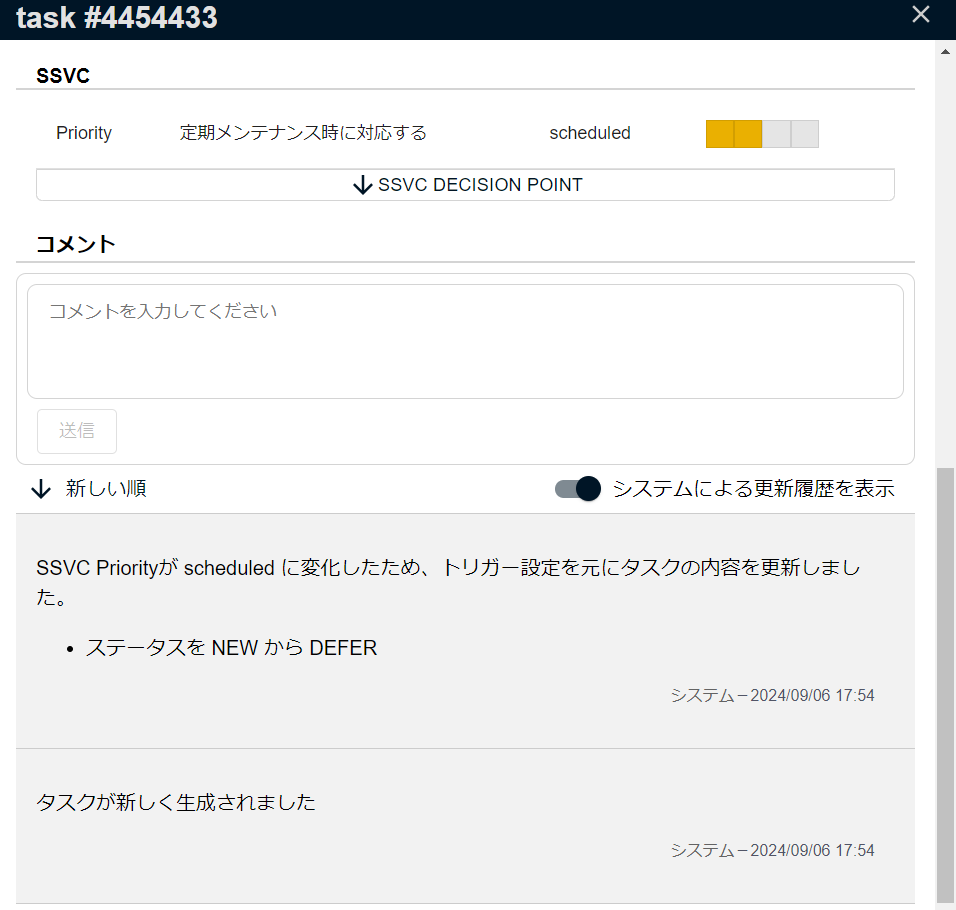
Comment Notifications via Mentions#
You can also use mentions in comments. By typing @ and selecting a target, an email notification with the task content will be sent to that user. You can select individual user names and user groups as targets for mentions.
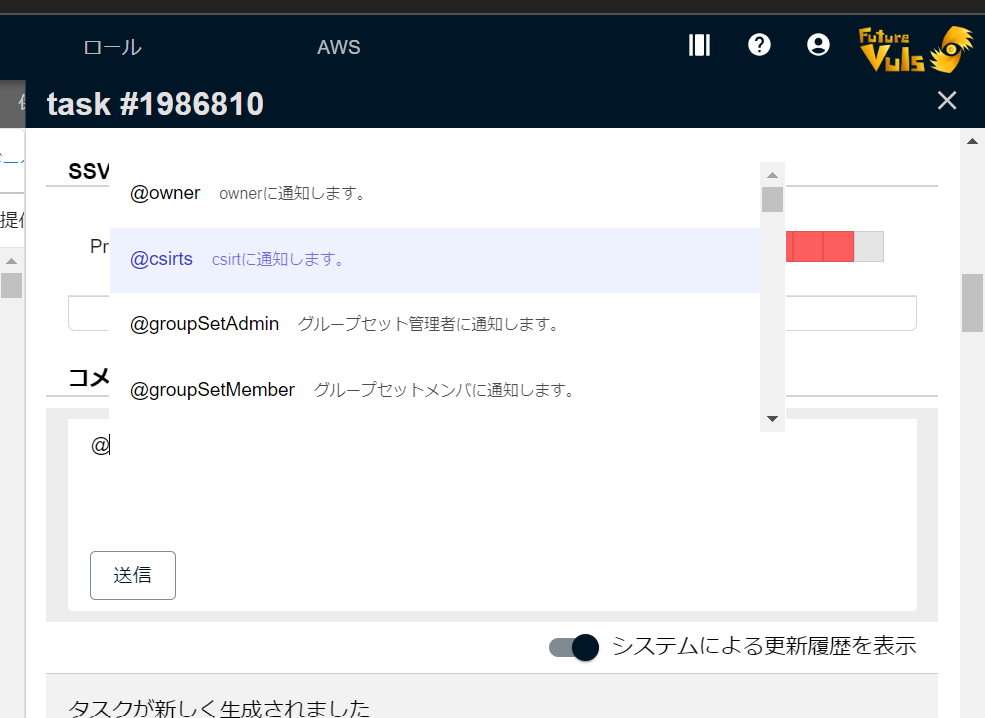
Mention Candidates Displayed on the Group Screen#
- Individual users with the following permissions (viewable in
Group Settings > Member):- Owner
- CSIRT
- Groupset Admin / Member / Readonly
- Group Admin / Member / Readonly
- User groups with specific permissions:
- Owner (
@owner) - CSIRT (
@csirts) - Admin (
@groupSetAdmin) / Member (@groupSetMember) of the group set that includes the group the task belongs to - Admin (
@groupAdmin) / Member (@groupMember) of the group the task belongs to
- Owner (
Mention Candidates on the Group Set Screen#
- Individual users with the following permissions (viewable in
Groupset Settings > Member):- Owner
- CSIRT
- Groupset Admin / Member / Readonly
- User groups with specific permissions:
- Owner (
@owner) - CSIRT (
@csirts) - Admin (
@groupSetAdmin) / Member (@groupSetMember) of the group set that includes the group the task belongs to - Admin (
@groupAdmin) / Member (@groupMember) of the group the task belongs to
- Owner (
Attaching Files to Comments#
This feature is available only for the CSIRT plan.
You can attach files to comments you have posted. Clicking the paperclip icon on your posted comment will open a file attachment dialog.
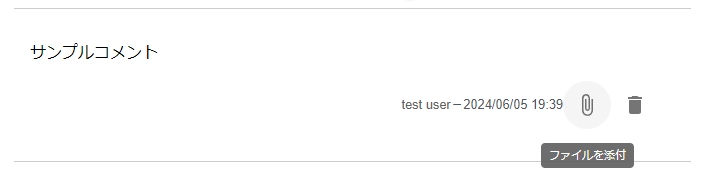
The restrictions for attachable files are as follows:
- Maximum file size: 100MB
- Uploadable file formats:
- Image files (
.jpg,.jpeg,.png,.gif,.bmp,.tiff) - Video files (
.mp4,.avi,.mov,.wmv,.mkv) - Text files (
.txt,.csv,.log) - Document files (
.pdf,.doc,.docx,.xls,.xlsx,.ppt,.pptx) - Compressed files (
.zip,.rar,.7z,.tar.gz)
- Image files (