GitHub Integration#
GitHub provides a built-in feature to detect vulnerabilities in libraries.
FutureVuls imports the following two kinds of information from a specified GitHub repository so you can manage them on the FutureVuls platform:
- The list of libraries the repository depends on (GitHub's dependency graph). All libraries are imported, whether or not they have vulnerabilities.
- Vulnerabilities detected by Dependabot (open alerts)
GitHub builds the library list by reading the manifest files in the repository (package-lock.json, pom.xml, etc.).
As a result, libraries without vulnerabilities are also covered by EOL management and license management.
Imported libraries appear as GitHub Package on the software list, whether or not they have vulnerabilities (see Software types).
The integration procedure is as follows:
- Enable GitHub Security Alerts
- Generate a GitHub token
- As a group administrator, register the GitHub token for the group under Group Settings > External Integration
- From the Server / Product details, register the
owner/repository_nameof the GitHub repository you want to integrate and select the token to use
Enabling GitHub Security Alerts#
Refer to the "GitHub Documentation" to enable the GitHub Security Alerts setting. Also enable the dependency graph so that the library list can be imported.
Generating a GitHub Token#
Generate a GitHub token from Personal access tokens (classic).
The repo (Full control of private repositories) scope is required (Reference: How to set up GitHub "Personal access tokens" - in Japanese)
When using Fine-grained personal access tokens
If you are setting up Fine-grained personal access tokens (Beta), please be aware of the following:
- Expiration: Ensure it has not expired
- Resource owner: Ensure this is set to the owner (Organization) of the target repository
- Repository access: Ensure the target repository is included
- Repository permissions: Ensure the following scopes have at least read-only access
- Contents
- Dependabot alerts
- Metadata
Configuring External Integration#
As a group administrator, register the token created above under Group Settings > External Integration.
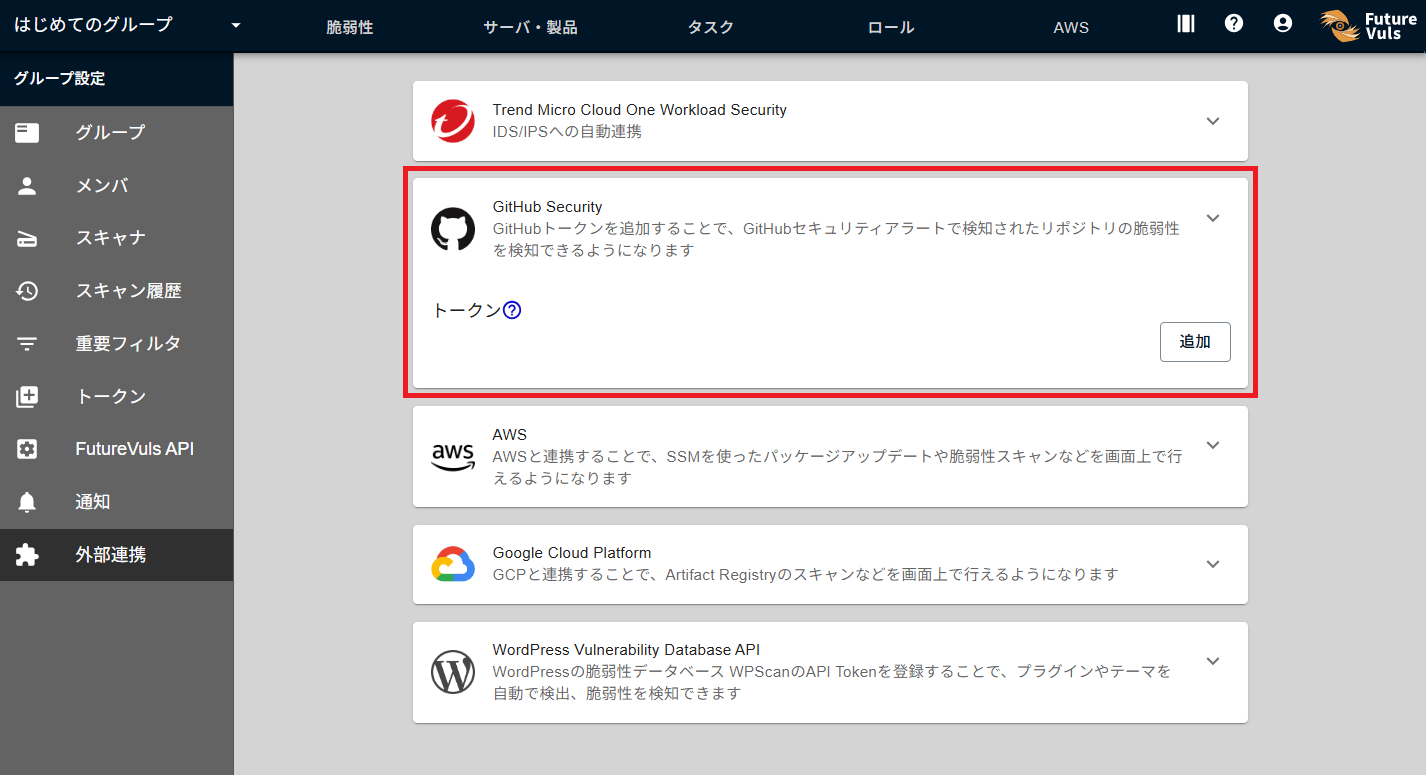
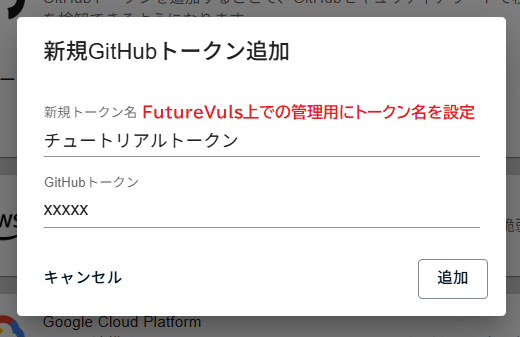
Register the token using the "Add" button. Also, set a token name to identify it within FutureVuls.
The configuration is complete once the added token appears in the list.
Registering a GitHub Repository to a Server#
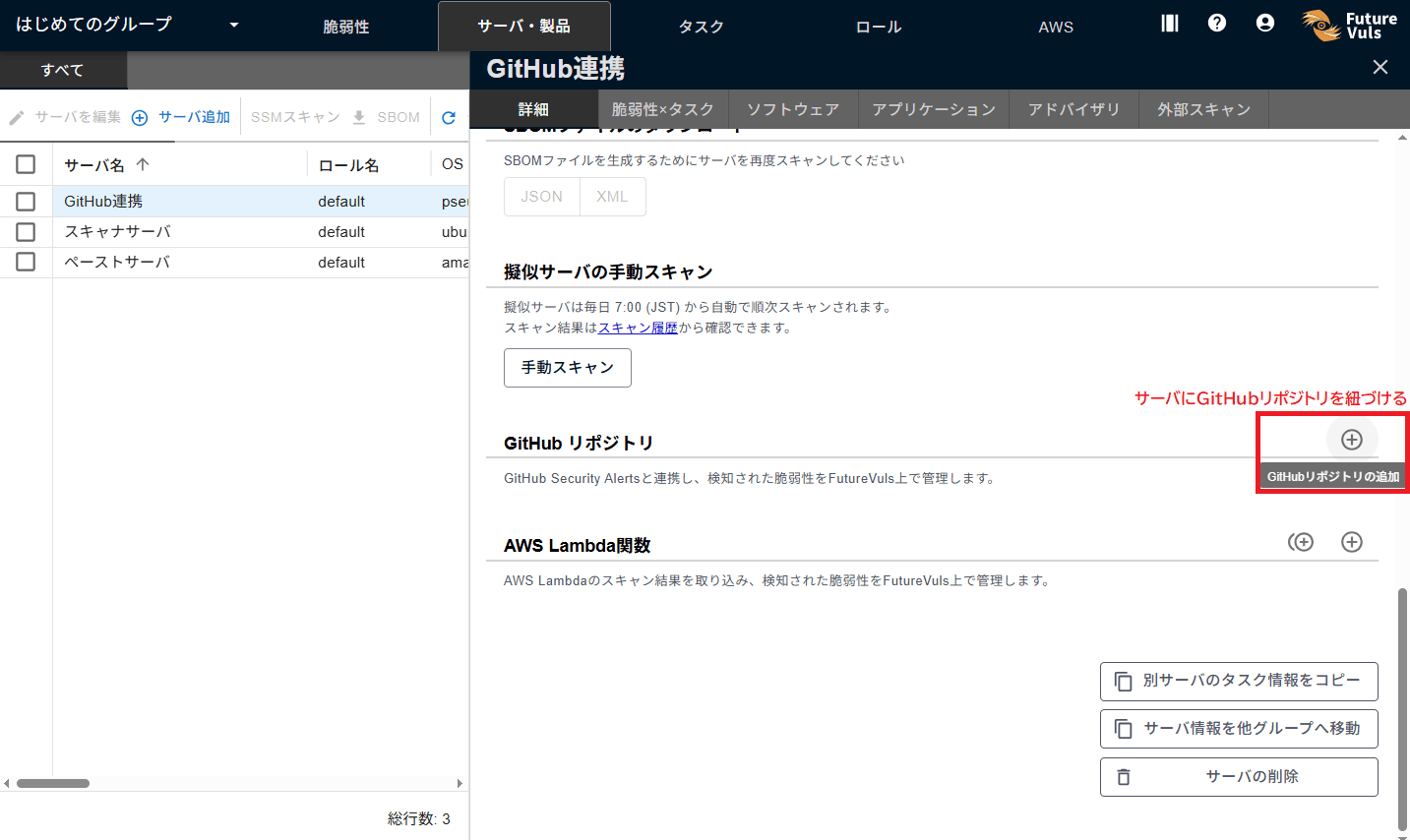
From the Server / Product details, select the GitHub repository you want to integrate and the token.
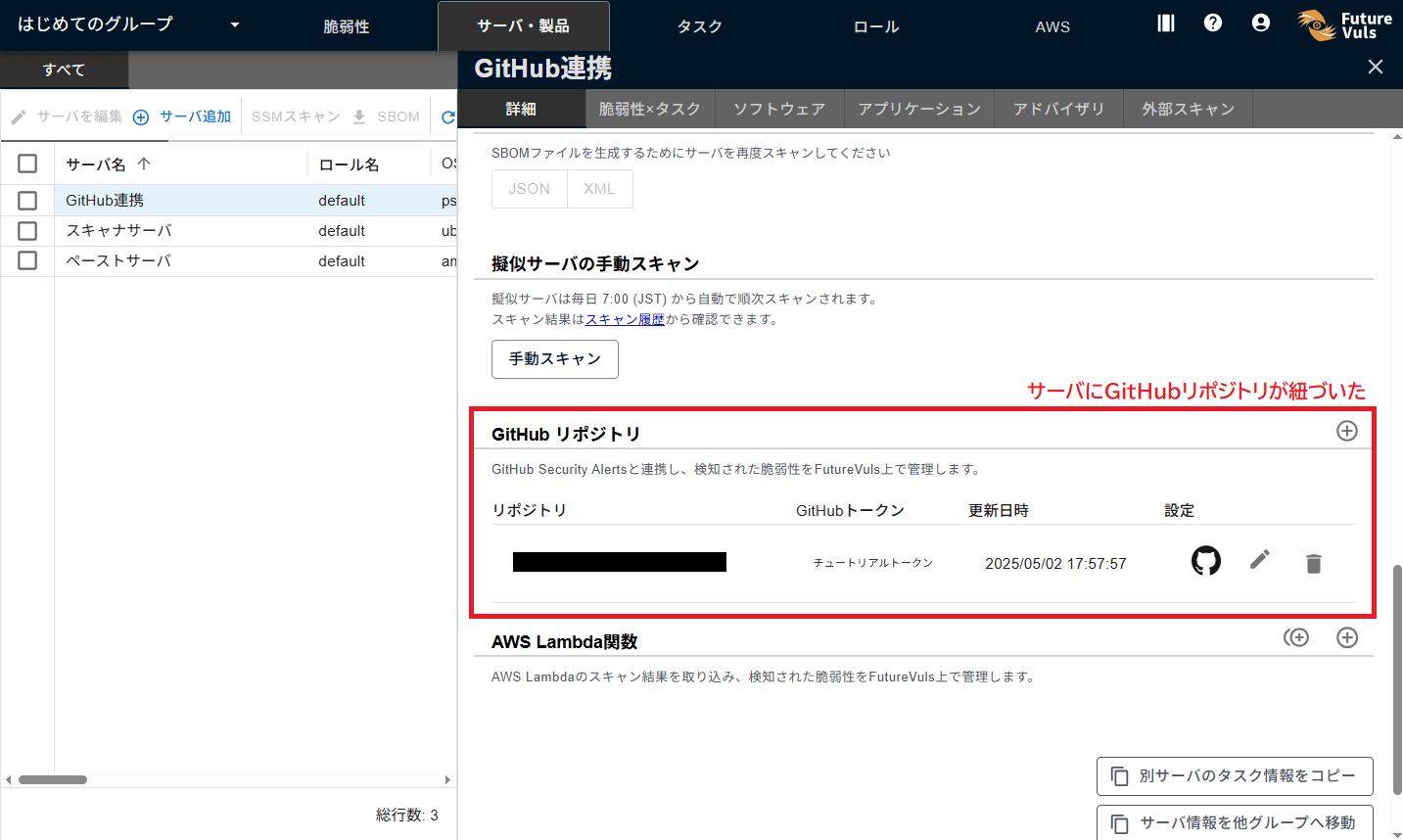
If registration is successful, the registered repository will appear in the list.
Clicking the GitHub icon in the settings will take you to the corresponding repository on GitHub. You can also switch tokens or remove the integration by clicking Edit.
When Scan Results are Reflected
After integration, you can update the scan results by running a "Manual Scan" from the Server / Product details. For an actual server, the results will also update during the next scheduled scan.
After the scan, the corresponding libraries will be displayed under Server > Software.