Checking Server Information#
This section explains how to view the server information registered in FutureVuls during the Add Server step.
Please also refer to the "Basic Screen Usage" manual.
Viewing the Server List#
In the Server / Product tab, you can view a list of servers registered within a group. You can check each server's OS, version information, and default assignee.
In the Server / Product tab, clicking a row in the list will open the second pane, displaying the detailed information for that server.
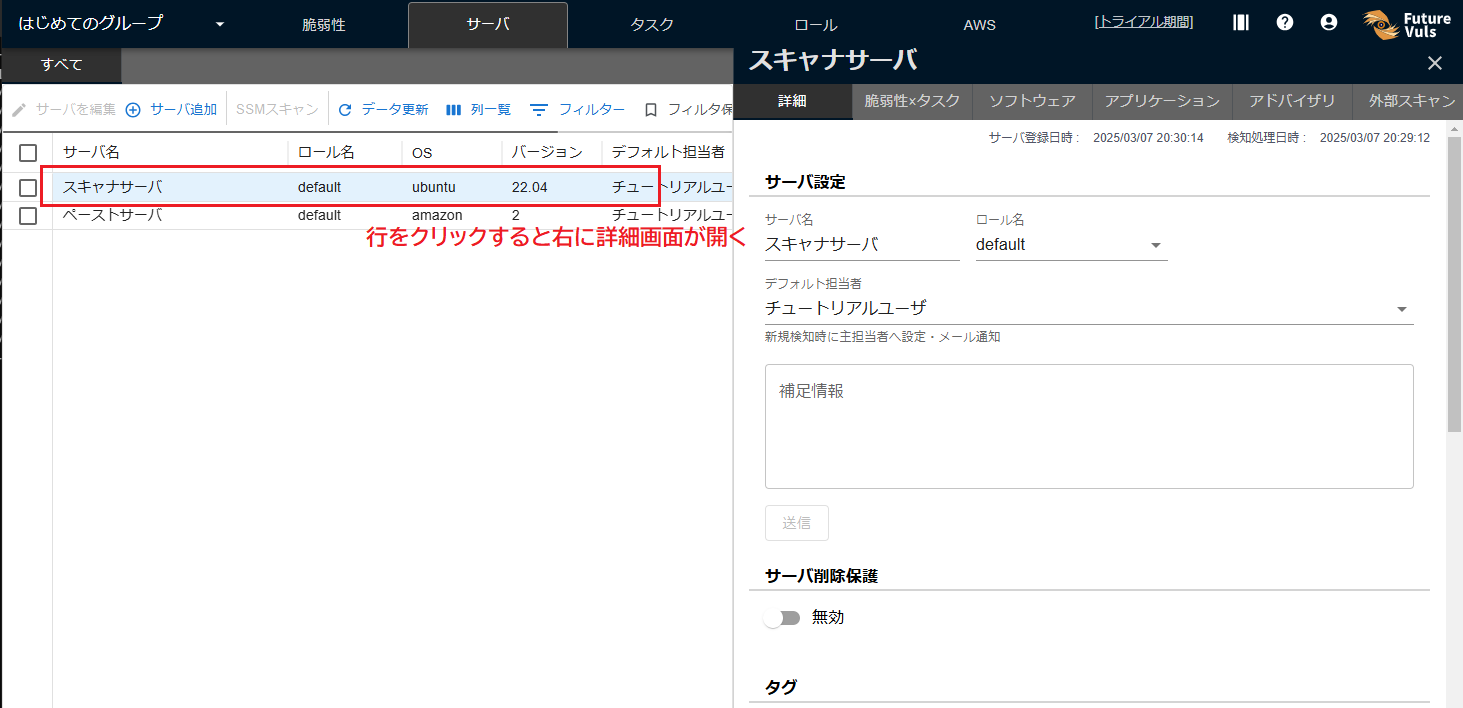
Understanding the Second Pane#
The second pane is divided into sub-tabs. Clicking on each one will change the view.
Here, we will look at the following commonly used tabs:
- Detail: View the server's configuration settings and detailed information.
- CVE × Task: View a list of vulnerabilities detected on this server.
- Software: View a list of software installed on the server.

Server Details#
On the Server Details screen, you can configure the display name in FutureVuls, the server's assignee, and supplementary server information. You can also view information such as the server's OS, version, EOL, and IPv4 address.
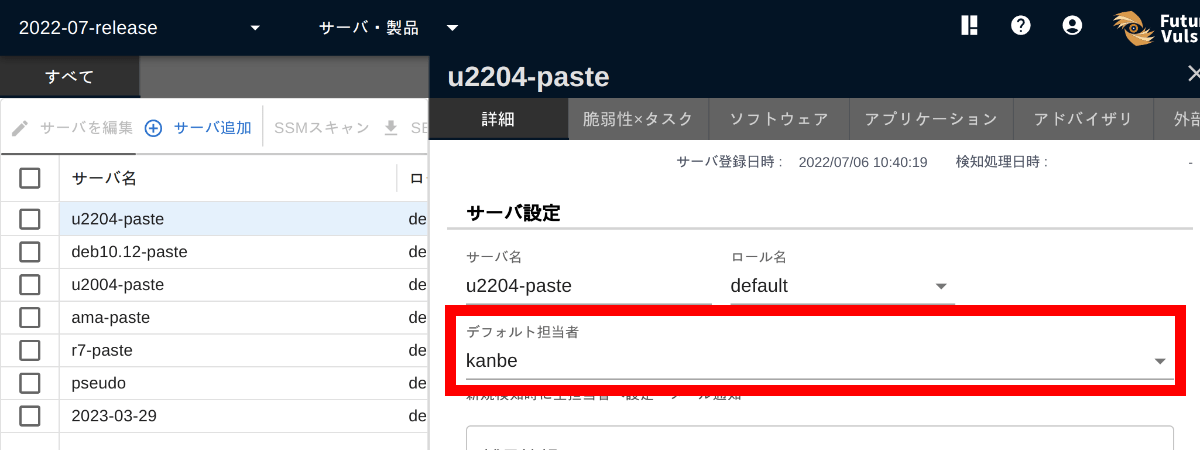
Setting the Server's Default Assignee
Set the "Default Assignee" for the server. The "Default Assignee" is the user who is automatically set as the primary assignee and receives notifications when a task is created. If a default assignee is not set, you will not be notified when new tasks are detected, so be sure to configure it.
Vulnerabilities and Tasks#
The CVE × Task tab displays a list of vulnerabilities detected on this server. You can check the information for each vulnerability, identified by its CVE-ID.
- Clicking the CVE-ID column opens the details screen for that vulnerability in the third pane.
- Clicking any column other than CVE-ID opens the details screen for that task in the third pane.
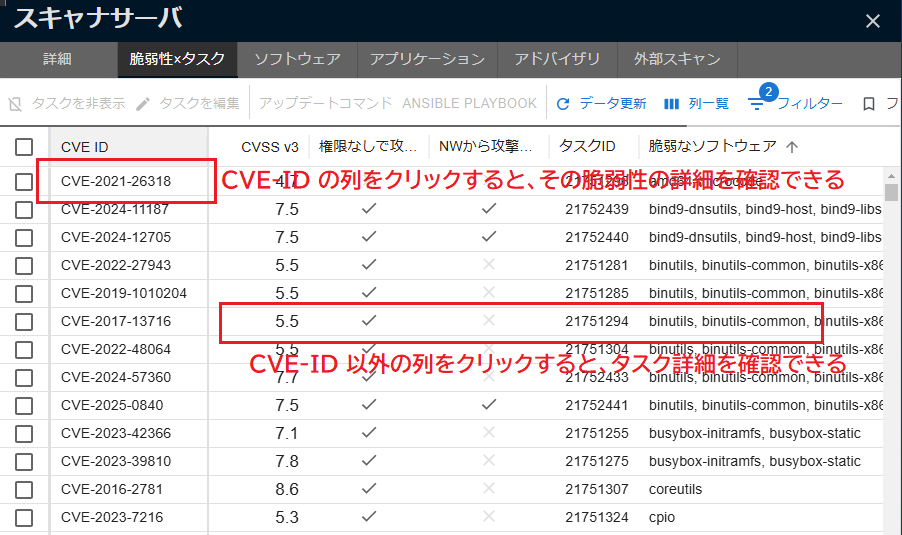
In the Servers > CVE × Task tab, you can see a "list of vulnerabilities detected on a specific server". If you want to see a "list of vulnerabilities detected across an entire group", please refer to the next section, "Checking Vulnerability Information".
Software#
The Software tab displays a list of software installed on the server. You can check the software version, OSS license information, and the execution status of processes.
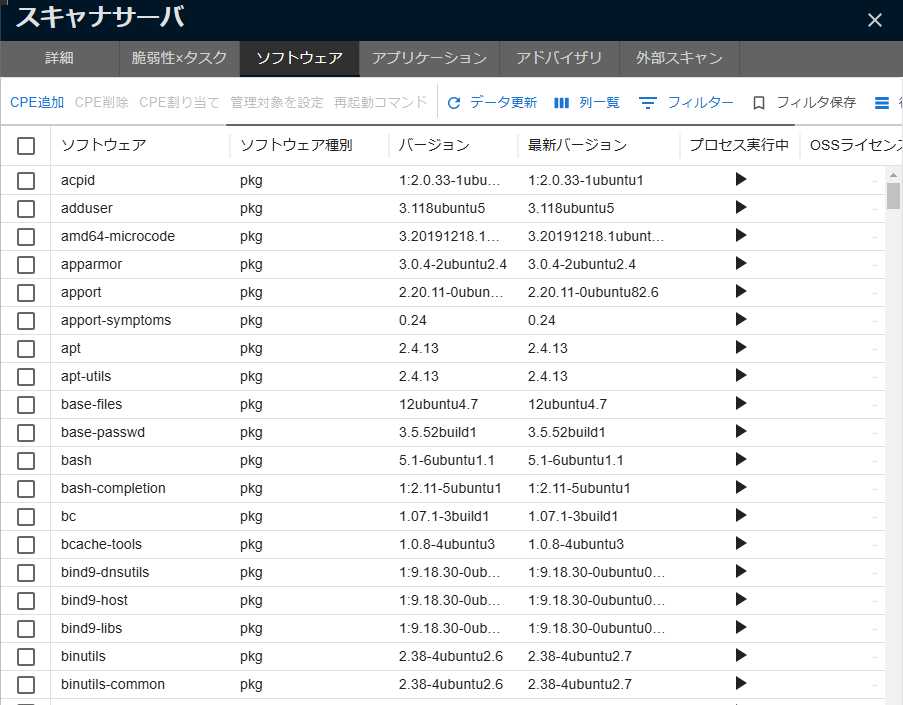
You can also manually register software installed outside of a package manager (such as manually downloaded software) by using "Import Software" on the Software tab (CPE Scan).
Information Displayed in Servers > Software
This list shows the software on the server, regardless of whether that software has vulnerabilities. To check whether each software package has vulnerabilities, see the "CVE × Task" tab in the software details.
After reviewing the information available in the Server / Product tab, let's look at the vulnerability information on FutureVuls (→Checking Vulnerability Information).