How to Use from a Field Operator's Perspective#
This section explains the operational flow using SSVC from the perspective of developers and operators.
Notification and Confirmation Flow#
1. Receiving Notifications#
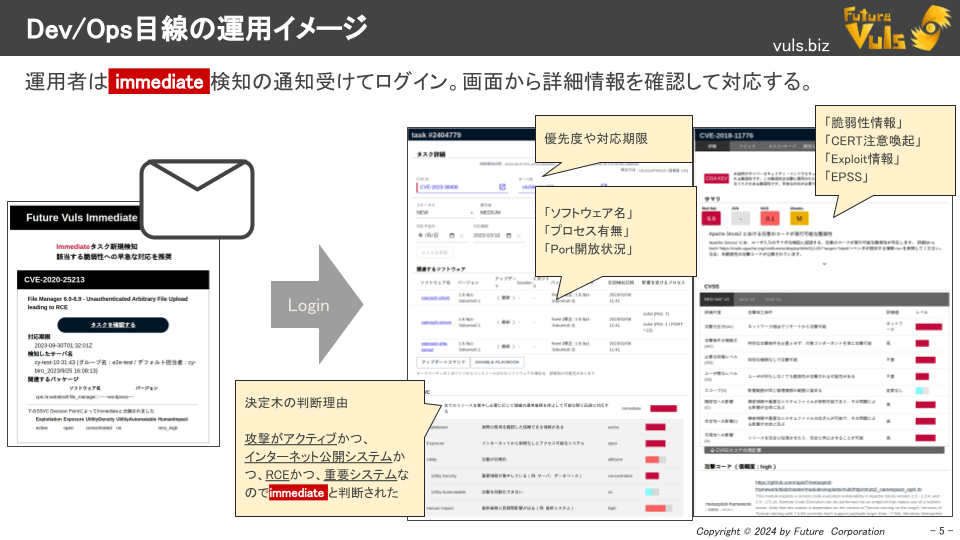
When a vulnerability classified as Immediate is detected, operators receive a notification via Email, Slack, Teams, etc.
2. Checking Details on the Screen#
Clicking the link in the notification brings you to FutureVuls, where the following information is consolidated:
- Which server the vulnerability was detected on
- Detailed information about the detected vulnerability
- The affected programs/libraries
- The state of running processes and listening ports
3. Clarification of Decision Rationale#
The reason for the Immediate classification is displayed at the bottom of the page, allowing you to quickly understand the basis for the decision.
Differences Between SSVC and Traditional CVSS#
In traditional CVSS-based operations, instructions were often ambiguous, such as "Urgent action is required because the CVSS score is 9." This could lead to confusion in the field, leaving operators unsure how to handle a score of 8.9.
With SSVC, priority is determined based on specific, concrete grounds like the following:
- It is actively being exploited on the internet.
- It is an RCE vulnerability that allows a network-based takeover.
- It was detected on a system exposed to the internet.
- It affects a system with high business impact.
- → Therefore, it was classified as Immediate.
Vulnerability details, CERT-related alerts, exploit information, and EPSS scores are all available on a single screen.
Operational Flow#
List View Column Settings#
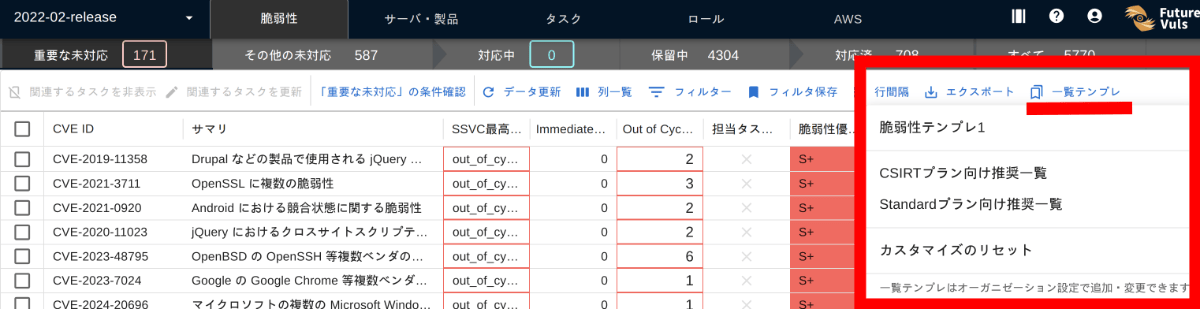
By using "List Templates," you can switch display columns, filters, and sorting conditions with a single click. FutureVuls comes with standard recommended templates, and you can also create and save your own templates from "Organization Settings".
Important Pending Tab#
To include Immediate or Out-of-Cycle vulnerabilities in the Important CVE list, set the conditions in Group Settings > Advanced Settings > Important CVE Conditions as follows:
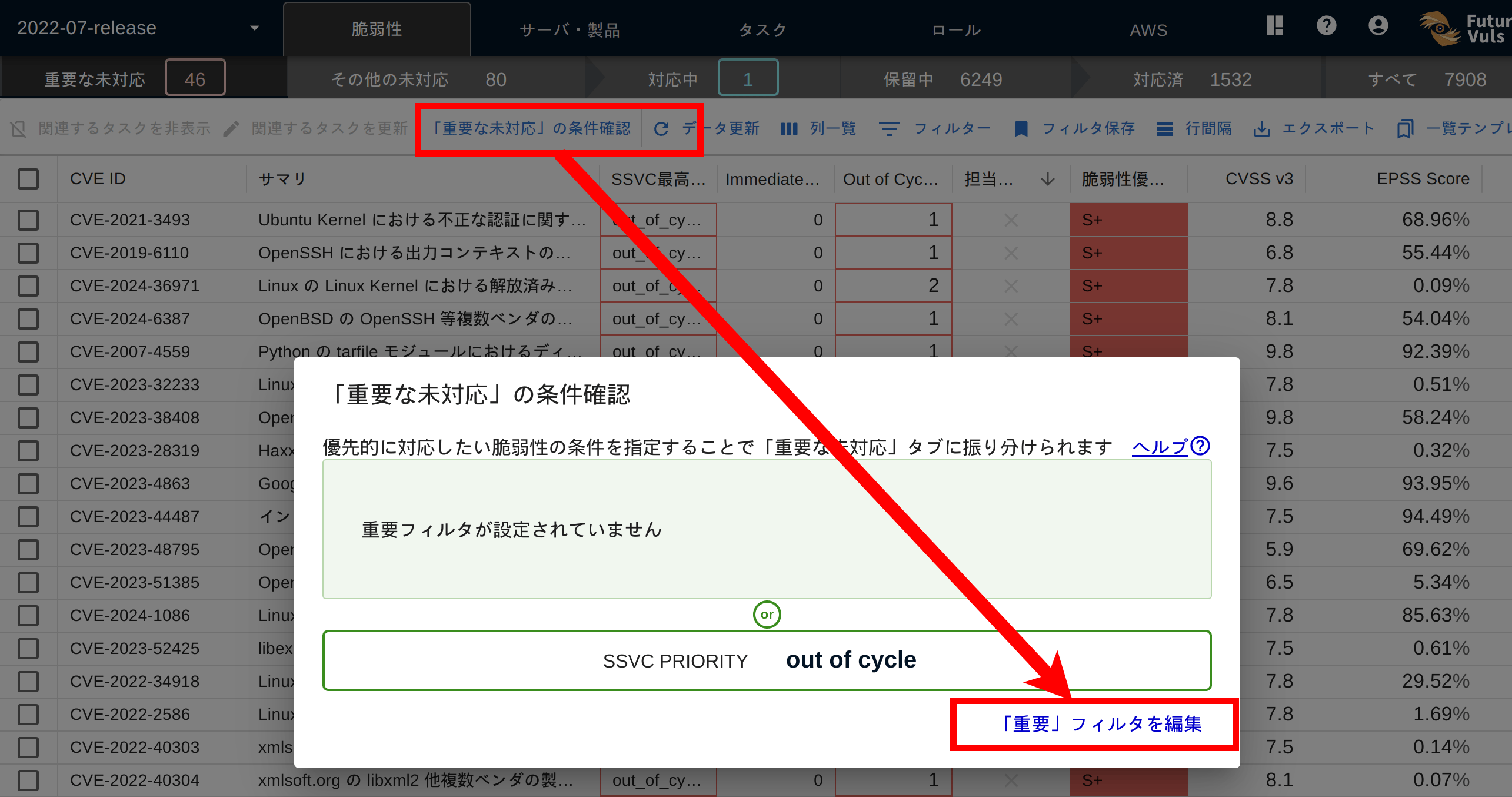
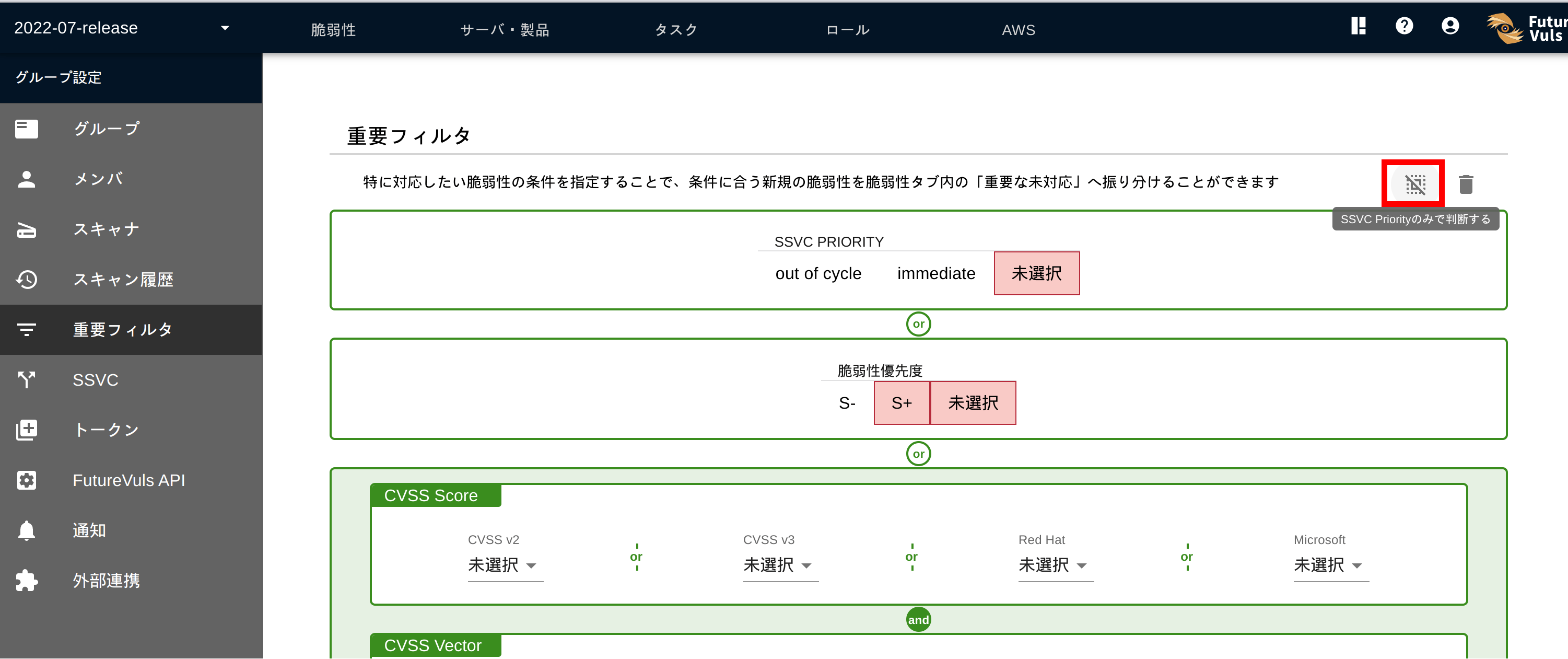
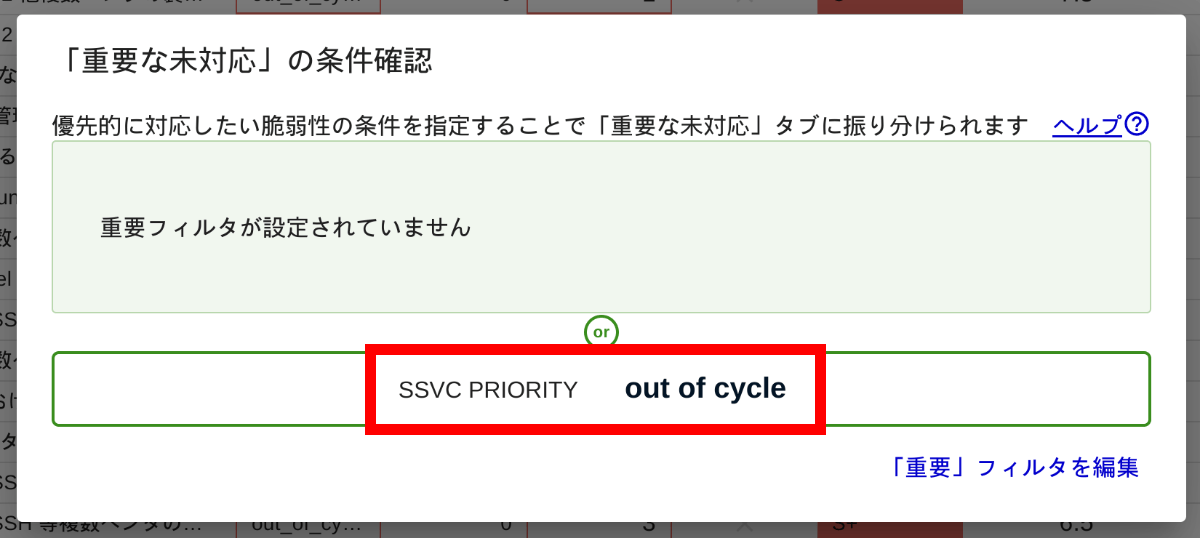
Once configured, vulnerabilities with tasks rated as Immediate or Out-of-Cycle will be automatically classified under Vulnerabilities Tab > Important CVE.
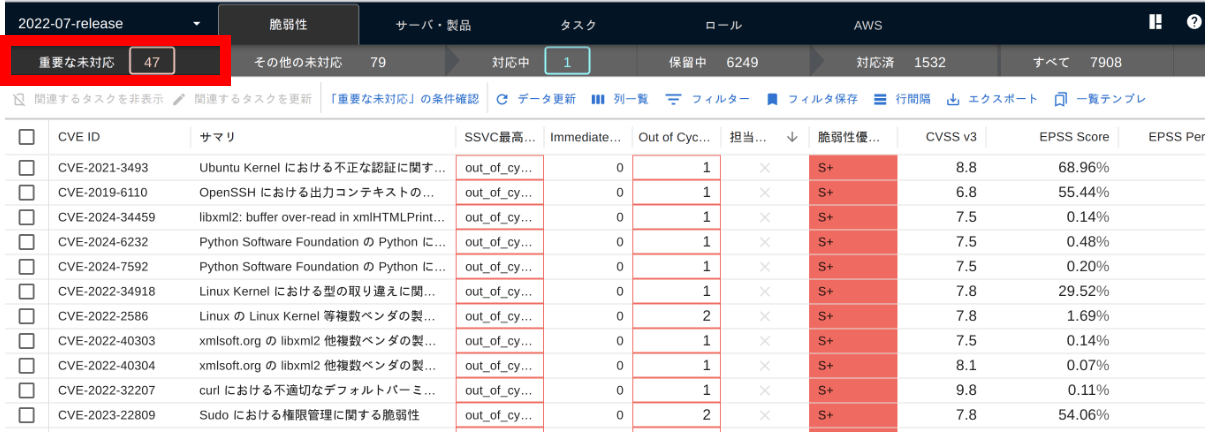
Vulnerabilities displayed in the "Important CVE" tab are those determined to be high-risk.
The count indicates the total number of high-risk vulnerabilities that are remaining (status new).
In daily operations, your goal should be to keep this count at 0.
Number of Tasks by Status
For example, if you change a task status from new to investigating, the vulnerability moves from "Open" to "Ongoing," and the count decreases by 1.
Extending Filter Conditions#
In addition to SSVC, the Important CVE Conditions can be configured with AND/OR conditions using CVSS scores/vectors, exploit code availability, and alert information from KEV and JPCERT. Adjust these settings to match your organization's policies and response capabilities.
How to Read the Vulnerability List#
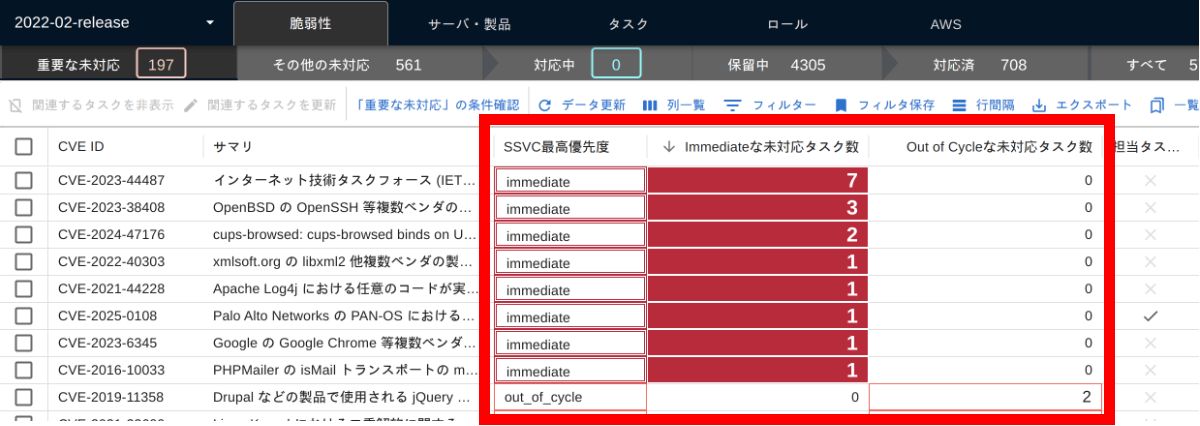
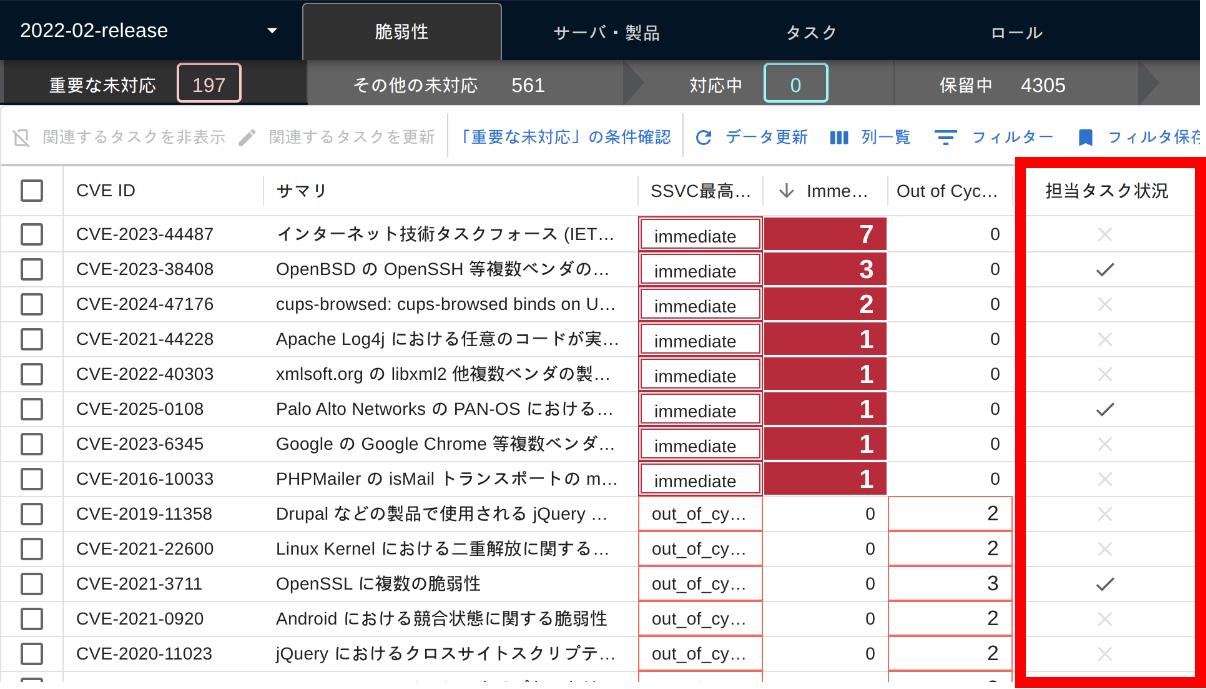
First, open the Vulnerabilities Tab > Important CVE. There are three columns related to SSVC:
Highest SSVC PriorityOpen Immediate TasksOpen Out of Cycle Tasks
The Open Immediate Tasks and Open Out of Cycle Tasks columns are particularly important as they show the count of tasks with the status new.
Assigned Task Status Column#
A ✔ appears in the Status of Your Tasks column if there is at least one task for which you are the designated assignee.
- By setting a Default Assignee for a server, new tasks will be automatically assigned upon creation (How to set).
- It is efficient to filter for rows with a ✔ and check the details.
How to Use Pane 2 of the Vulnerability List#
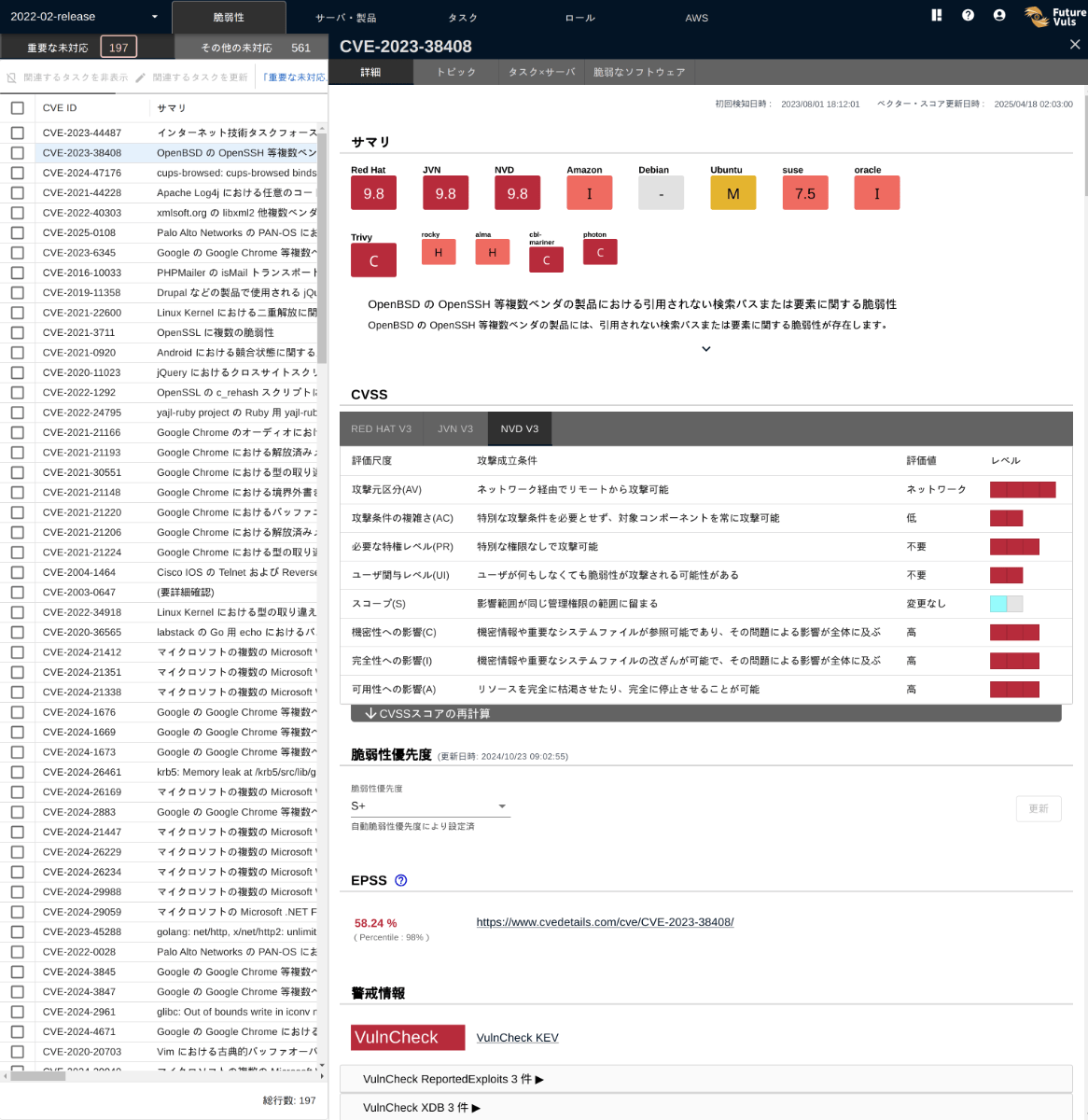
Clicking on a row in Pane 1 opens Pane 2, where you can check details in various tabs.
Details Tab#
- CVSS score/vector
- Threat information such as KEV and exploit code availability
- EPSS score
- Links to primary sources (advisories, blogs, etc.)
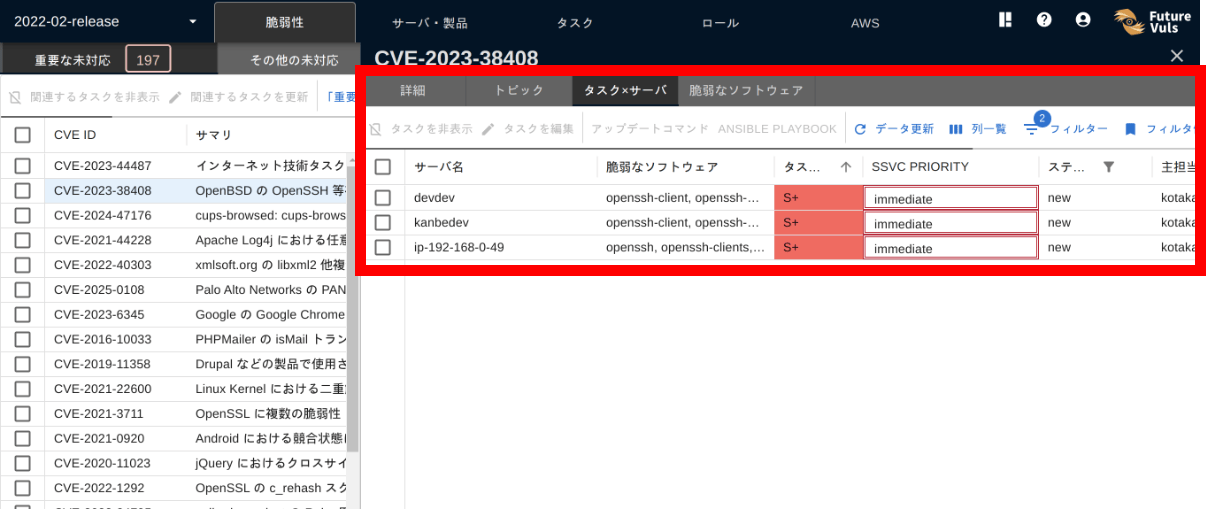
Tasks × Servers Tab#
For the vulnerability selected in Pane 1, you can check:
- On which servers and products it was detected
- The types of affected software
- The detailed status of the task
How to Use Pane 3 of the Vulnerability List#
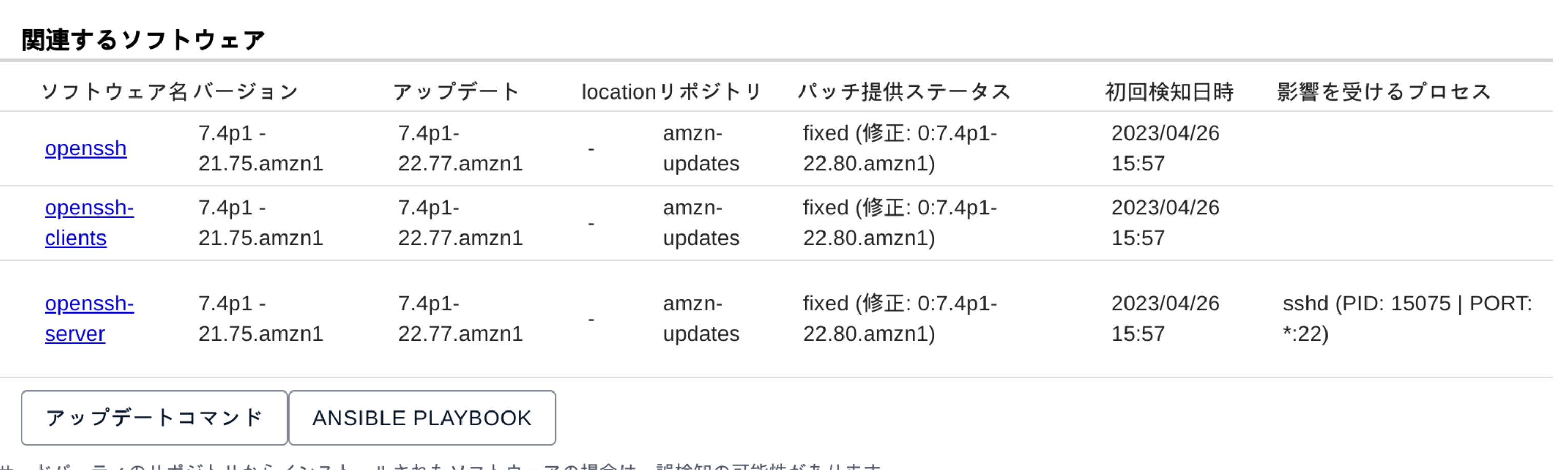
Selecting a row in the Task × Server tab opens Pane 3, where you can check even more detailed task information.
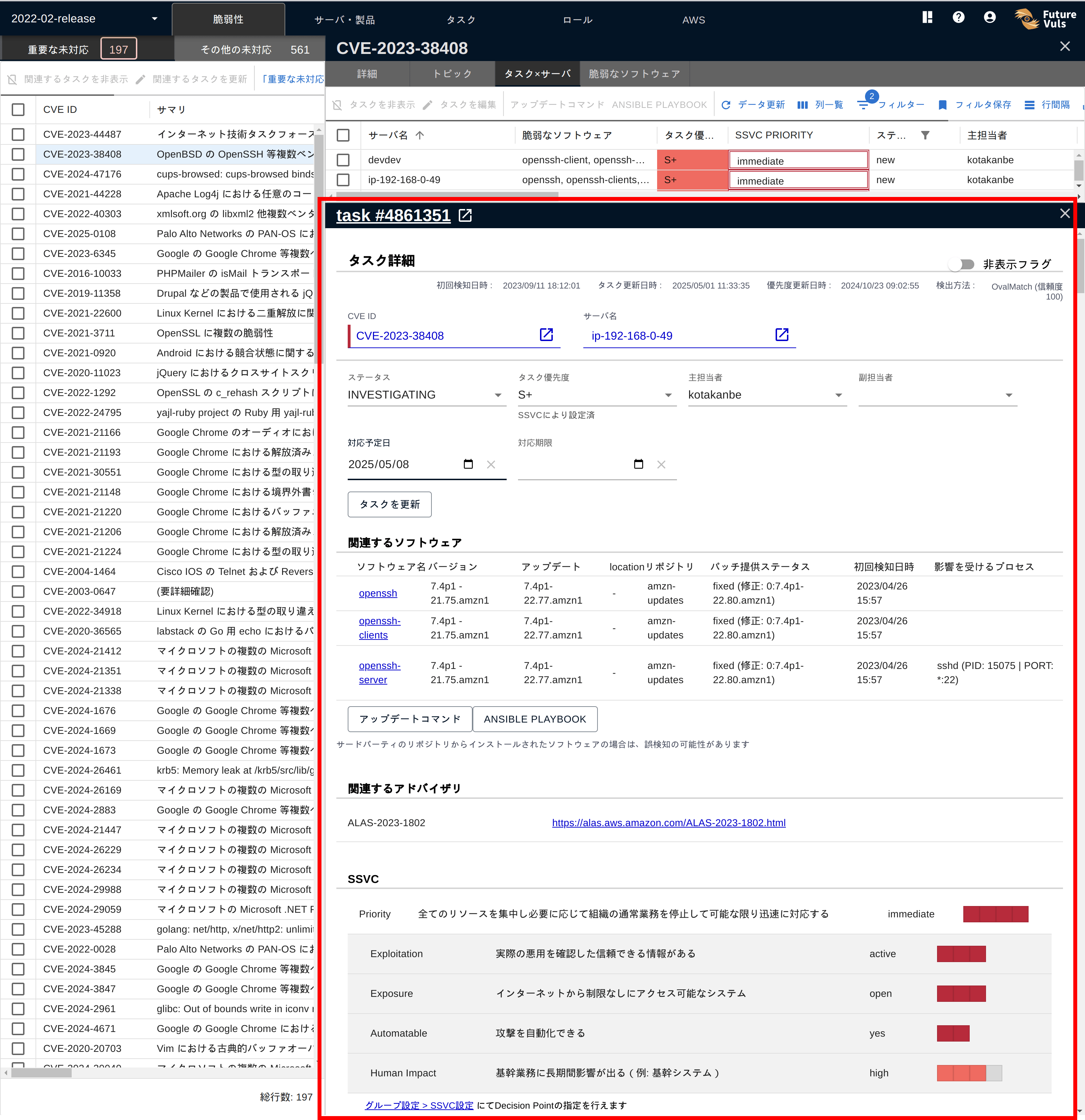
Related Software Tab#
- Installed version
- Update availability
- Whether a vulnerable process is running and a port is listening
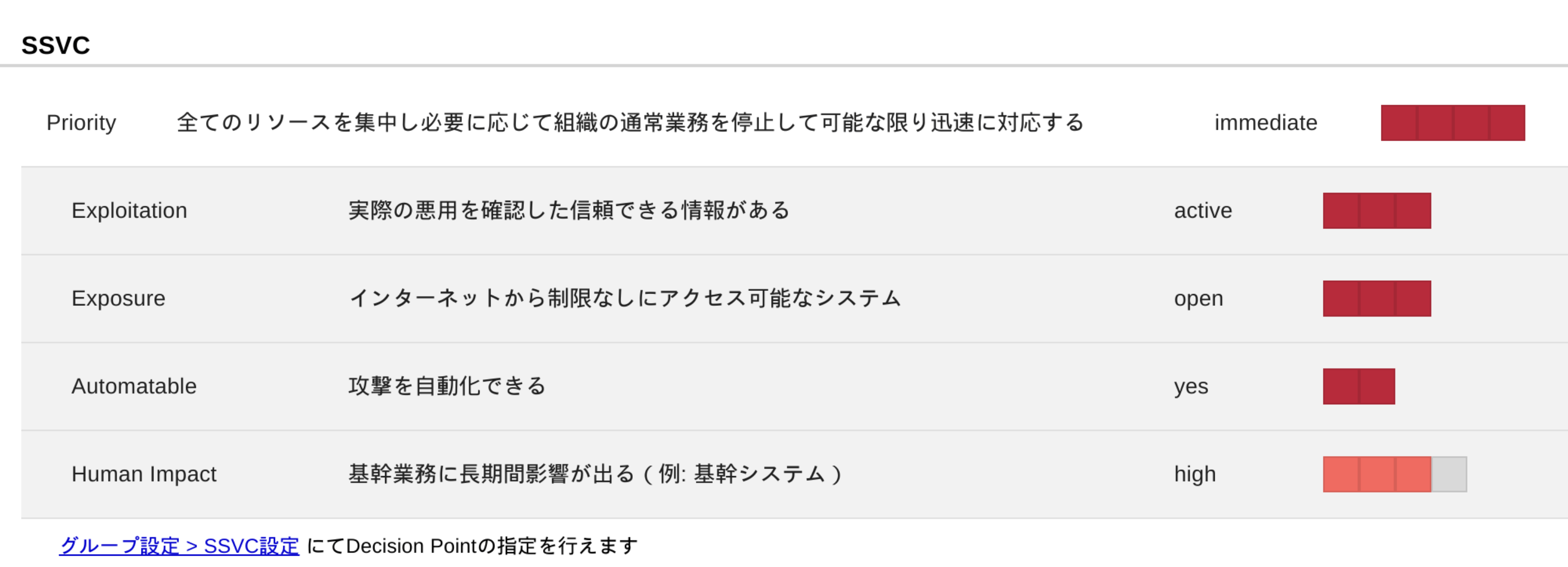
SSVC Priority Rationale#
Click Show decision points in the SSVC Priority section at the top to check the four decision points—Exploitation status (Exploitation), System exposure (Exposure), Attack automatability (Automatable), and Impact on business and people (Human Impact)—and the source of each value.
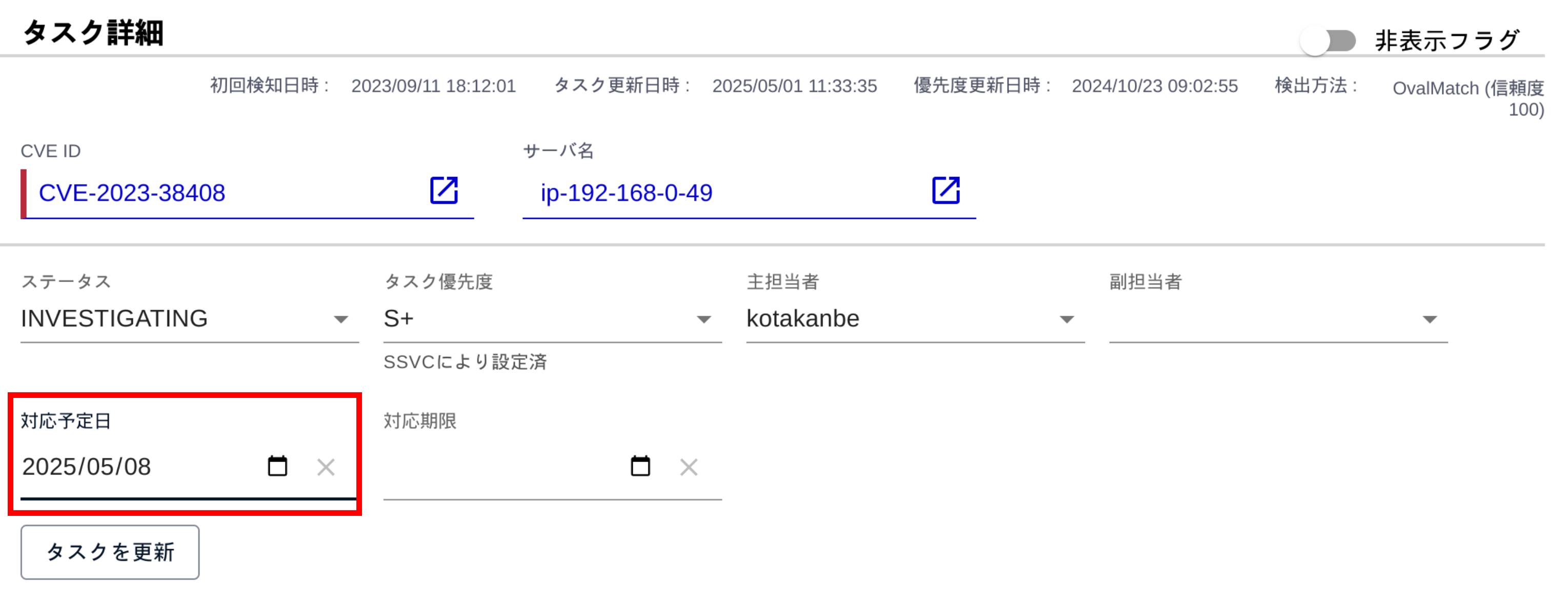
Changing Task Status#
If you determine that action is required, update the task status and the Scheduled Date. In this example, the next maintenance date (2025-05-08) is set.
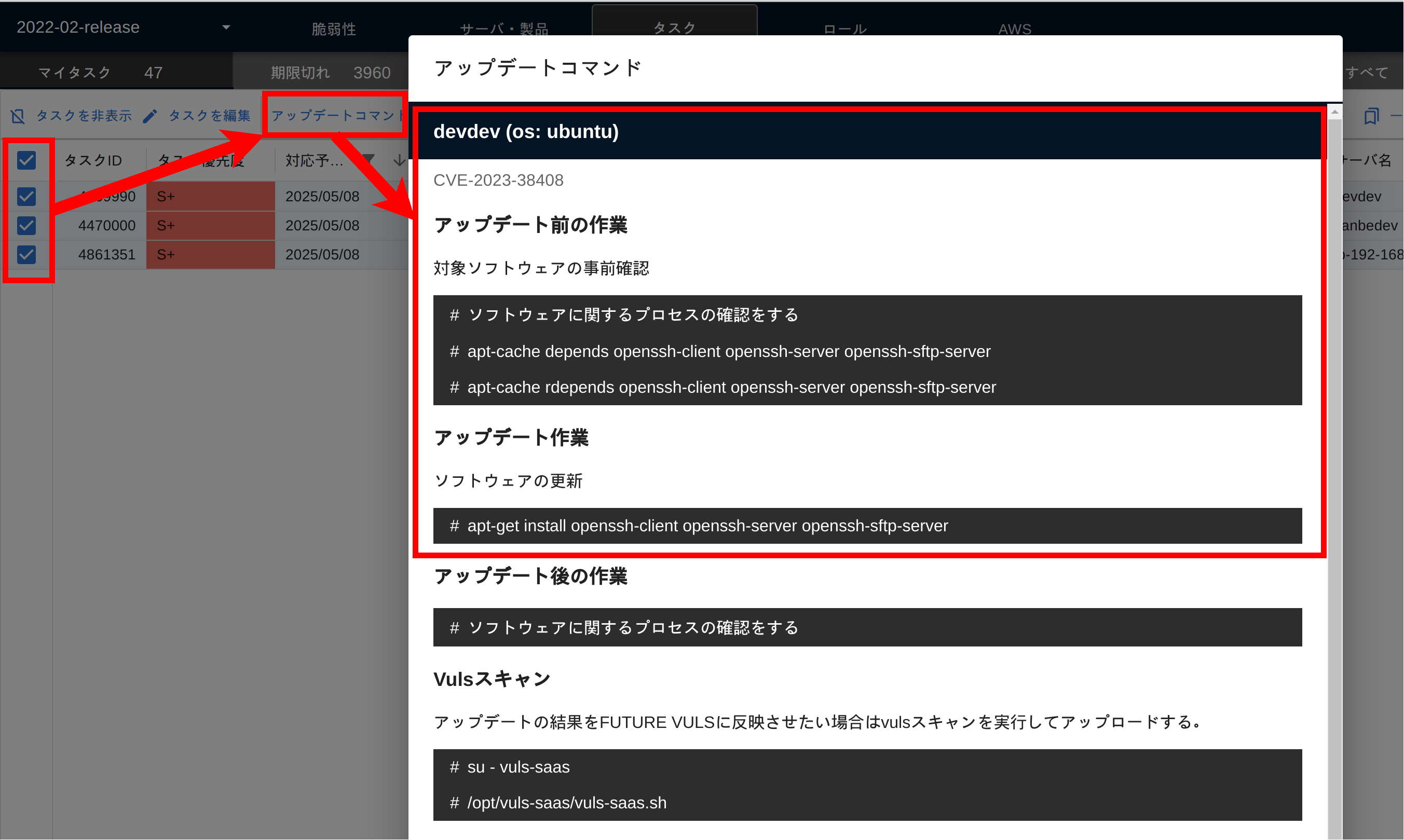
On the Day of the Update Task#
On the scheduled day (2025-05-08), the operator opens the Task > My Task tab and filters by Scheduled Date = Today.

By selecting multiple tasks and clicking the Update Commands button, the commands to be executed for each server will be displayed.
Update Support Features
You can also download an Ansible Playbook (Reference).
For AWS EC2 instances, you can integrate with SSM to update multiple tasks at once from the screen (Reference).
Risk Prediction Using EPSS#
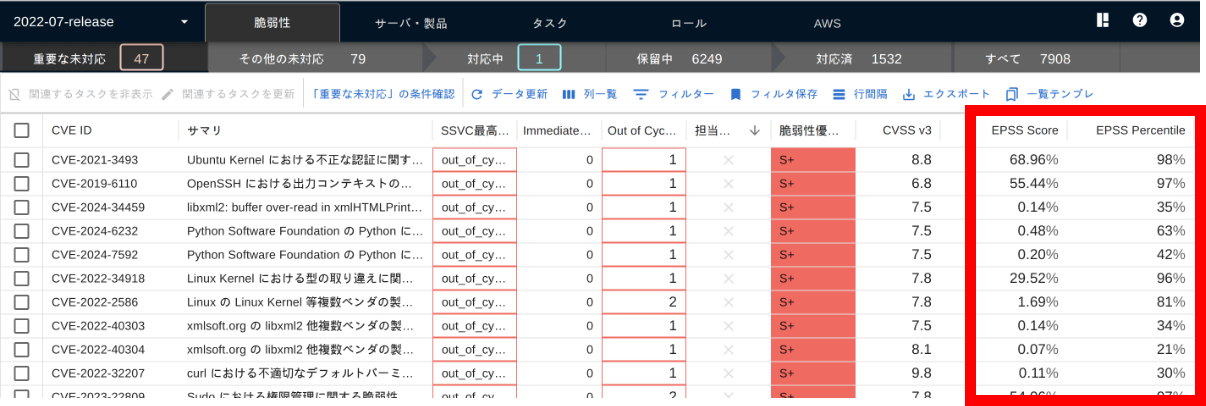
Even for tasks classified as Scheduled, you can sort or filter to identify vulnerabilities with a high EPSS score.
EPSS (Exploit Prediction Scoring System) is an indicator of the "likelihood of being exploited in an attack within the next 30 days," enabling you to proactively address potential threats.