Responding to Vulnerabilities#
This section explains the workflow for responding to detected vulnerabilities.
Confirming Response Notifications#
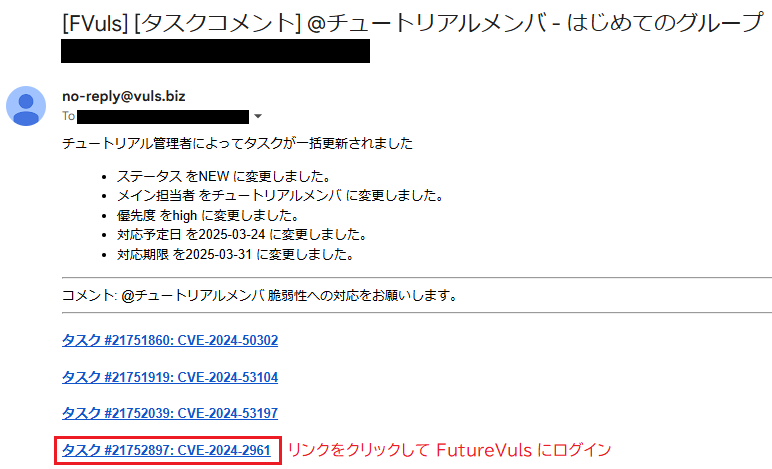
When a task is assigned to a person, they are notified of its details. The person in charge can review the response details in the notification email and log in to FutureVuls using the link provided in the task.
Reviewing Your Assigned Tasks#
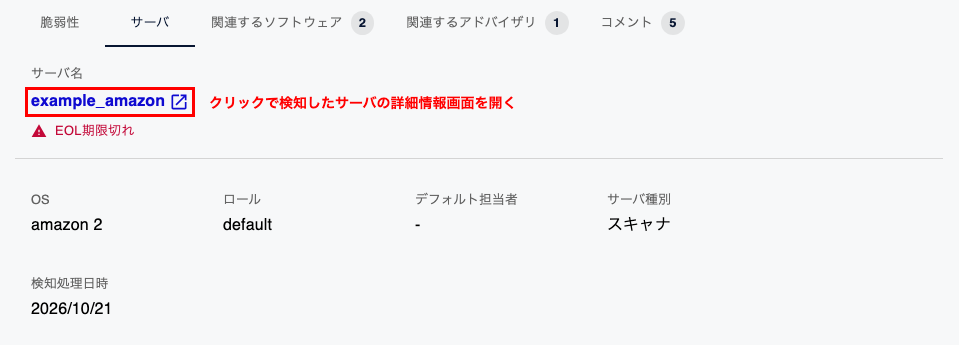
Logging in from the link in the email will take you to the details screen for the corresponding task. On the "CVE" and "Server" tabs at the bottom of the screen, you can review the detected vulnerability and server. The CVE ID and server name on their respective tabs are clickable, opening the corresponding vulnerability details and server details screens. After reviewing the task, a good next step is to investigate the vulnerability information.
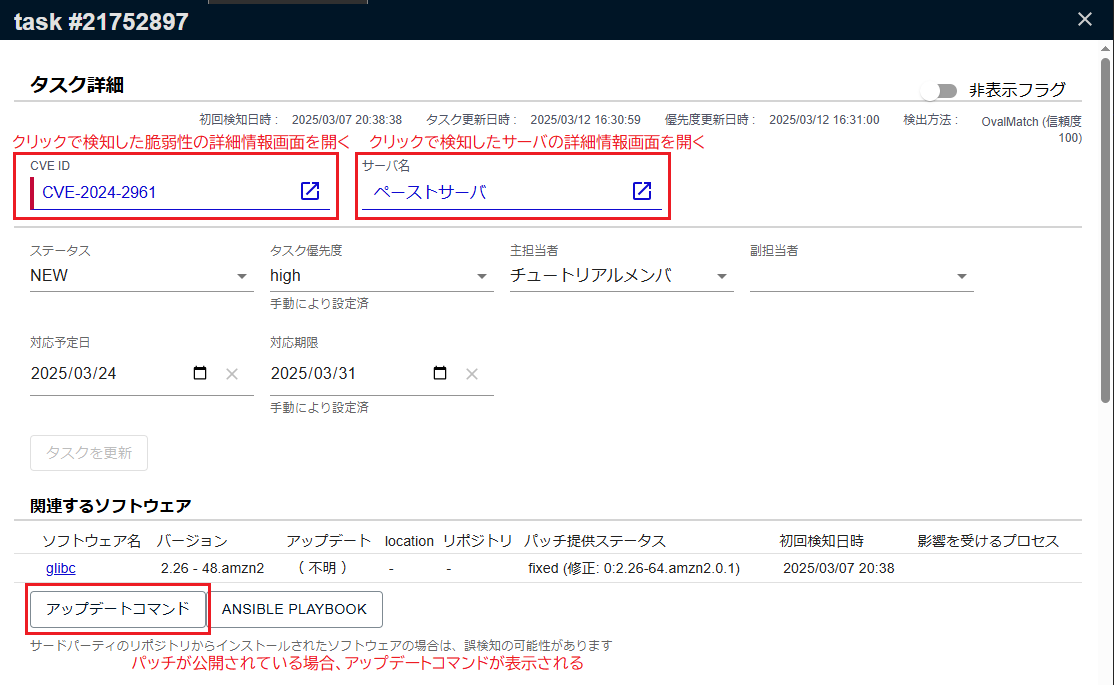
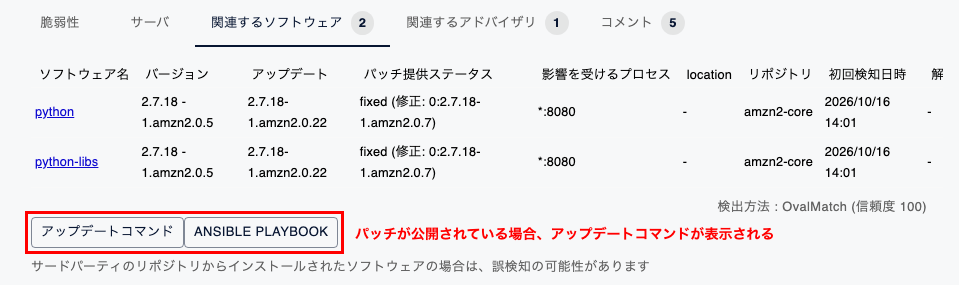
Additionally, if a patch for this software has already been released, the "Update Commands" and "ANSIBLE PLAYBOOK" buttons will appear on the "Related Software" tab. From here, you can view the information needed to update the software.
Responding to Tasks#
The following sections describe how to filter for high-priority tasks when responding to your assignments.
Task Triage#
Filter by Deadline#
First, filter the tasks that need to be addressed by a certain date. Click "Filter" and set the following conditions:
- Column:
Scheduled Date - Operator:
is ... - Value: (Select a date)
This will extract only the tasks with a scheduled date on or before the selected date.
Filter by SSVC Priority#
Next, to determine the response priority for vulnerabilities, filter by SSVC Priority.
Clicking the "SSVC Priority" column header allows you to sort by that column.
By sorting in ascending order, you can arrange the tasks in the order of immediate > out_of_cycle > scheduled > defer, so you can address them from the top down.
Investigating the Vulnerability#
For an assigned task, change its status when you begin work, such as investigating the vulnerability.
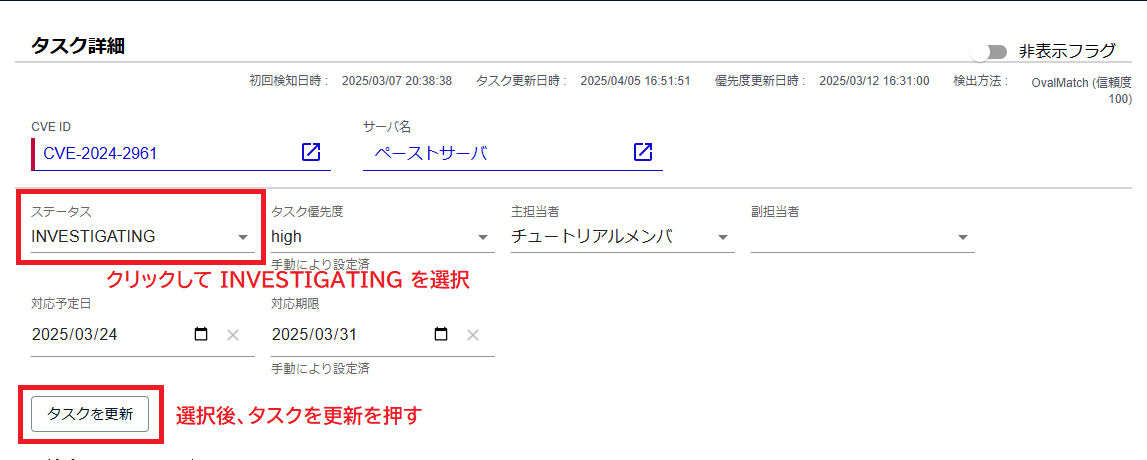
In the task details, select INVESTIGATING in Status and click Update. To change multiple tasks at once, select them in the task list and make the change from Update Tasks.
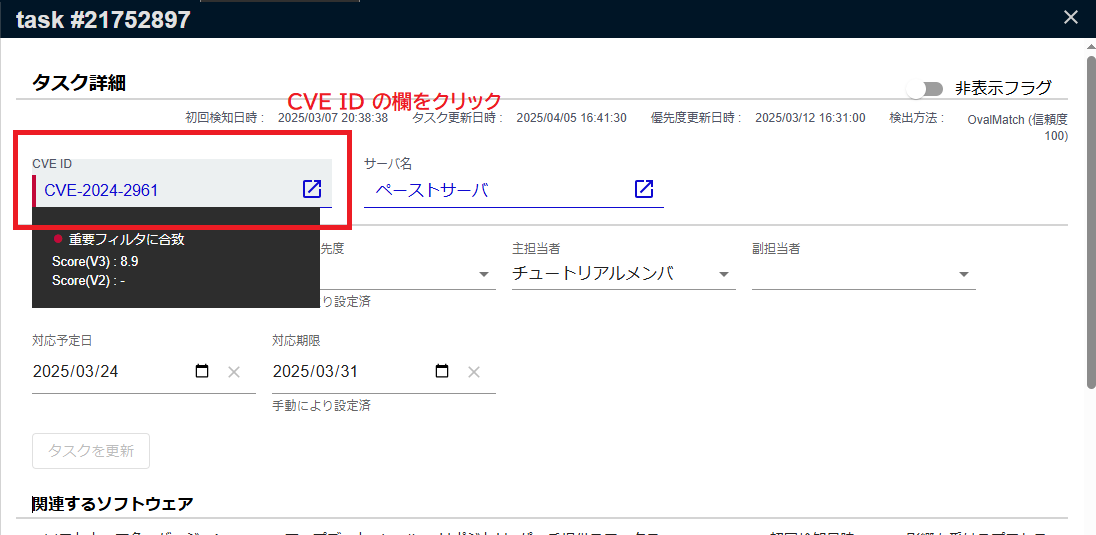
To check the details of a vulnerability, you can navigate to the vulnerability details from Task Details > CVE > CVE ID.
Using FutureVuls as a starting point, you can access publicly available information such as vulnerability characteristics, attack information, and mitigation measures.
Addressing the Vulnerability#
Once the vulnerability investigation is complete and you are ready to perform response actions, such as applying a patch, change the task status to ONGOING.
When a Patch Can Be Applied#
If a software patch is available, you can resolve the vulnerability by updating to the patched version.
For vulnerabilities where the "Patch Availability" column in the task list is marked with a ✓, a patch that resolves the vulnerability has been released.
Click on a task, then click the "Update Commands" button under Task Details > Related Software to display the command required for applying the patch.
Alternatively, you can select multiple tasks using the checkboxes in the task list and click "Update Commands" to display a list of update commands for each server.
After applying the patch, the software configuration information will be updated during the next scan. When the vulnerability is no longer detected in the new version, the task's status will automatically change to PATCH_APPLIED.
To Reflect Applied Patches in the Service
Even if a patch is applied on the server, it is not yet reflected in the service, so running a "Manual Scan" or similar action will not change the status to PATCH_APPLIED.
When the server's configuration information is uploaded according to settings like cron jobs, the applied patch will be synchronized with the service, and the status will change.
To synchronize the configuration information with the service without waiting for the scheduled execution, manually run /opt/vuls-saas/vuls-saas.sh (for Linux environments) or a similar script.
When a Patch Cannot Be Applied#
There may be cases where a software patch is not available but a mitigation is, or where you opt for mitigation measures like configuration changes instead of patching due to production impact concerns.
For vulnerabilities where the "Mitigation / Workaround" column in the task list is marked with a ✓, a mitigation that can reduce the vulnerability's impact is available.
Navigate from the task to the vulnerability details and check the "Mitigation" section to see the mitigation information published by each vendor.
If you have completed the vulnerability response by applying a mitigation, change the task's status to WORKAROUND to mark it as resolved (since the application of mitigations is not automatically detected, you must change the status manually).
Recording Vulnerability Response Status#
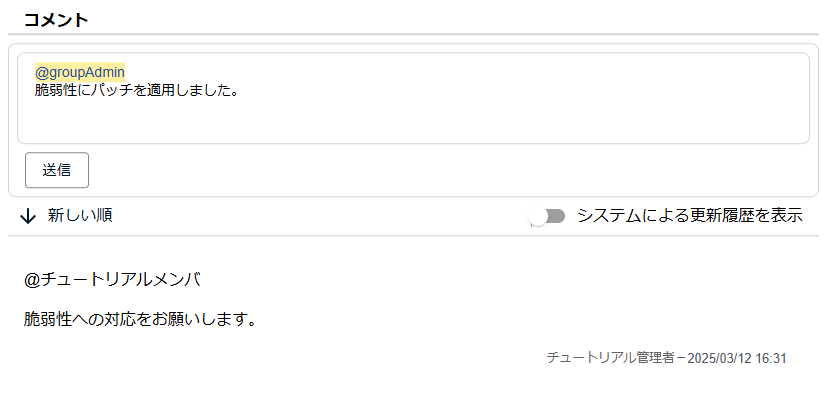
After applying a patch or mitigation, record that action in the task. You can record the details of your work, such as the actions taken, in the task's "Comments" section.
In the comments section, you can also use the "Mention feature" to notify CSIRT, group administrators, or individual users.