Updating the Scanner#
New features are only available with the latest scanner. This section explains how to update the scanner to the latest version.
Determining if an Update is Needed#
An update is required for the following scan methods:
There are two types of components to update: the scanner binary and the scan execution script.
- Scanner Binary
/opt/vuls-saas/vuls(Linux Scan)C:\Program Files\vuls-saas\vuls.exe(Windows Scan)trivy,trivy-to-vuls,future-vulsunder the/opt/vuls-trivy-saasdirectory (Trivy Scan)
- Scan Execution Script
/opt/vuls-saas/vuls-saas.sh(Linux Scan)C:\Program Files\vuls-saas\vuls-saas.bat(Windows Scan)/opt/vuls-trivy-saas/vuls-trivy-saas.sh(Trivy Scan)
When to Update the Scanner Binary#
If the automatic update option, which updates the scanner binary during each scan, is ON, no action is required as the latest scanner is always used.
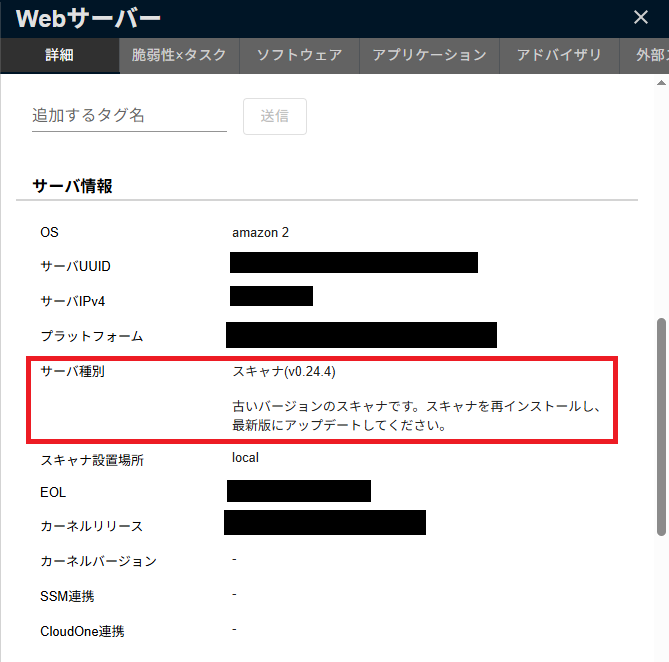
Servers with old in the "Scanner Version" column on the Server / Product tab require a scanner update.
This can also be confirmed from the details screen.
When to Update the Scan Script#
Although the scan execution script file is updated infrequently, it must be updated when necessary.
If the Release Notes indicate that an update to the scan execution script is required, please take action.
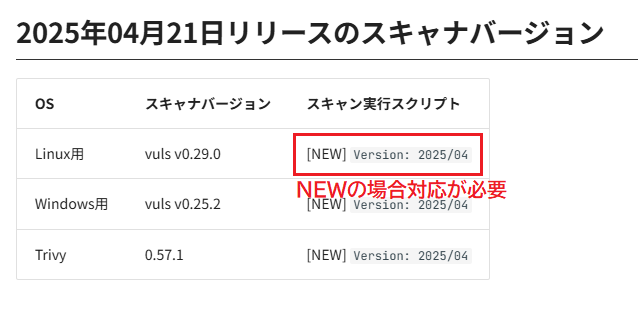
Alternatively, action is required if the script version information found in the latest release notes does not match the version information in the scan script file.
Example for Linux scan vuls-saas.sh:
1 #!/bin/bash
2
3 # Version: 2022/09
        :
Updating the Scanner Binary#
There are two methods: automatically updating the scanner binary during each scan, or manually updating it when an update is needed.
Automatic Updates During Each Scan#
When a scan is executed, the latest scanner is automatically reinstalled. With this setting, you do not need to manage the scanner version. (This setting is enabled by default.)
For Linux Scans#
In the scan execution script file /opt/vuls-saas/vuls-saas.sh, set the value of the local variable AUTO_REFRESH_BINARY to true.
If you do not want to automatically update the scanner, set it to false.
        :
8 ## If you dont't refresh scanner, please set "false" ##
9 AUTO_REFRESH_BINARY=true
        :
For Windows Scans#
In the configuration file C:\Program Files\vuls-saas\batch_config.toml, set the value of AutoRefreshBinary to true.
If you do not want to automatically update the scanner, set it to false.
Additionally, if the automatic scanner update process takes too long and regularly times out, increase the value of TimeoutRefreshBinary in the same file. This value controls the waiting time for file retrieval by bitsadmin; setting an extremely large value is not recommended because the process will always wait the full configured duration before proceeding.
For Trivy Scans#
For Trivy scans, please refer to the Trivy Scan Settings page.
Manual Updates When Needed#
Similar to the initial installation, copy the scanner installation command from the FutureVuls screen and execute it in the target environment.
Updating the Scan Script#
Similar to the initial installation, copy the scanner installation command from the FutureVuls screen and execute it in the target environment.
Notes on Reinstallation#
When manually updating the scanner binary or updating the scan execution script file, you need to re-run the installation command. The following settings will not be updated upon reinstallation.
- Linux Scan
/opt/vuls-saas/config.toml- cron settings
- Windows Scan
C:\Program Files\vuls-saas\config.tomlC:\Program Files\vuls-saas\batch_config.toml
- Trivy Scan
/opt/vuls-trivy-saas/config.toml- It will be updated if the scan target specified during installation is not registered in config.toml.
- cron settings
If you have modified sudoers (e.g., for scanning WordPress), it may be overwritten during the scanner update, causing the next scan to fail. Please be aware that you will need to edit /etc/sudoers.d/vuls-saas again after updating the Vuls scanner.