Organization Settings#
In Organization Settings, you can configure settings related to the entire organization, such as members, groups, and triage.
View Permissions
The Organization Settings menu is only displayed to users with the following permissions, who can configure the items below.
| Permission | Item |
|---|---|
| Owner Permission | All items |
| CSIRT Permission | All except Organization |
| Has any Groupset Admin permission | Group and Group Set items |
CSIRT / PSIRT Plan Exclusive Items
The following items are displayed only for the CSIRT / PSIRT Plan. For details, please refer to the respective manuals.
Organization#
You can change the total number of registered servers for the organization and its language settings.
| Item | Description |
|---|---|
| Organization Name | The name set when the organization was created |
| Current Plan | The organization's current plan |
| Total number of registered servers | The total number of servers registered to the organization |
| Organization language | Changes the language of notifications forwarded to Notification Email Addresses, notifications to Slack and Teams, user addition and organization paid-plan upgrade notifications, and CSV report generation completion notifications Text that FutureVuls records automatically, such as system comments, is also recorded in this language For details, see Organization Language Settings |
| Two-factor authentication settings for members belonging to this organization | Confirms the setting to require two-factor authentication for members who authenticate with a password login |
| Organization SSO Login Permission Settings | Confirms the setting to restrict to SSO users only when inviting external users to a group |
| Billing Information | The organization's billing information |
Bulk scan of all servers
The organization-wide bulk scan (Manual Scan of All Servers) has been discontinued.
To scan servers in bulk, use "Manual Scan of All Servers" in Group Settings.
To scan many servers in an emergency, call the FutureVuls API server scan endpoint (POST /v1/server/scan/{serverID}) for each target server (see Group API List).
Members#
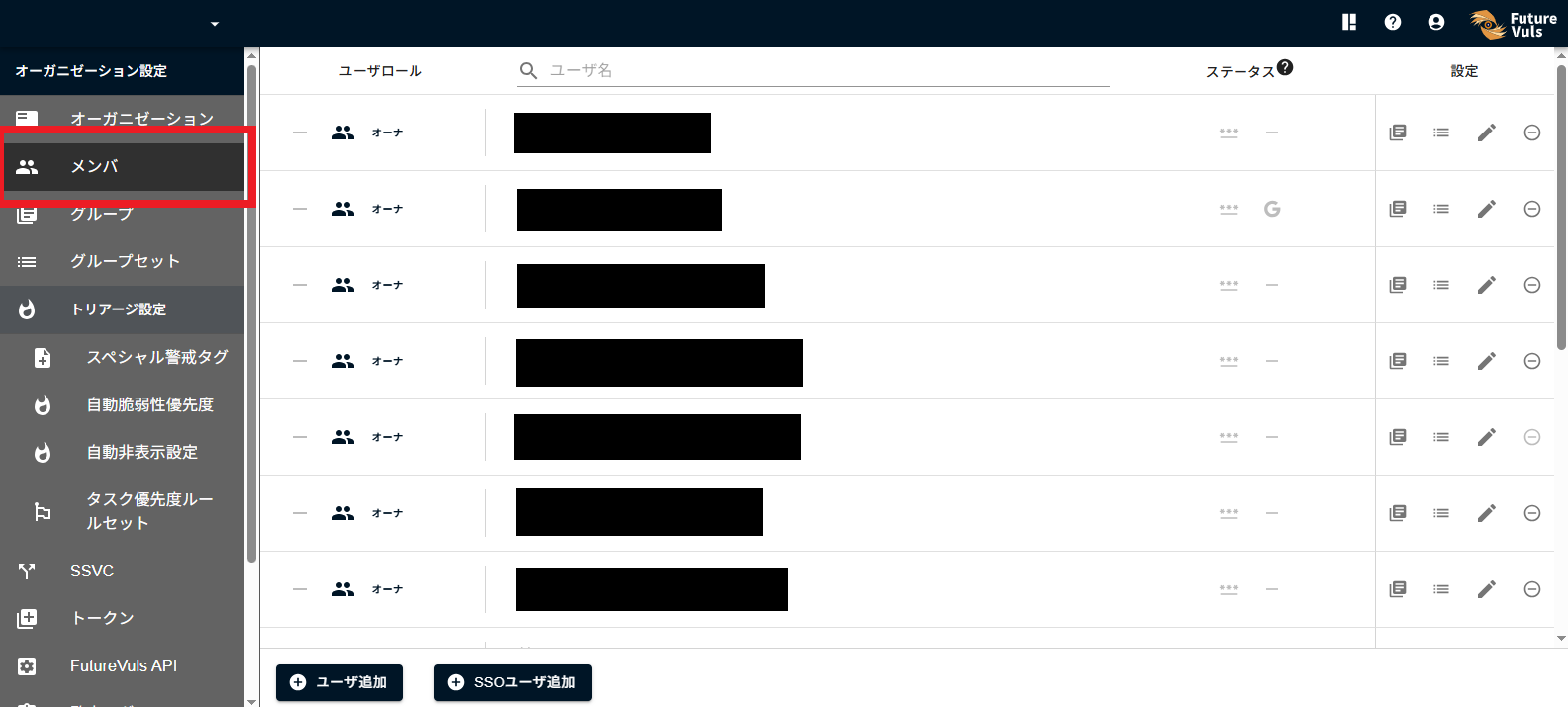
You can view a list of users within the organization and their permissions. You can also grant "Owner" and "CSIRT" permissions to members invited to the organization, manage their group affiliations, and remove members.
Regarding User Limits and Pricing
There is no specific limit on the number of users. The number of users does not affect the pricing calculation.
Managing Group Affiliations#
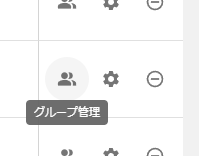
By clicking the group management icon, you can view and edit the groups a member belongs to.
Viewing Groupset Affiliations#
CSIRT Plan Exclusive
The Groupset Management icon is displayed only on the CSIRT Plan.
By clicking the Groupset Management icon, you can view a list of the groupsets a member belongs to. To change a member's groupset affiliations, use "Members" in the settings of each groupset.
Changing User Settings for Owners#
CSIRT Plan Exclusive
Changing display names within an organization is only available on the CSIRT Plan.
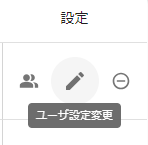
By clicking the "Change User Info" button for the respective user, you can change the user's display name within the organization and their permissions. This allows administrators to change names to comply with the organization's rules. Additionally, users belonging to multiple organizations can have a different display name for each organization.
Note that users can change their own display name from "User Settings > Affiliations".
Member Status#
Each member's row displays their login activity and login method configuration status. Hover over an icon to see a description of its status.
| Location | Description |
|---|---|
| Icons to the right of the user name | A Google icon (Federated with Google) is shown for users who can log in via Google, and a SAML icon (Federated with SAML) is shown for users who can log in via SAML |
| Last Accessed At | The date and time the member last accessed FutureVuls. - is shown if there is no record |
| Verified | For users who log in with a password, shows whether the email address has been verified (Email verified / Email not verified). Users who log in only via SSO are shown as - (SSO login user) |
| SSO | Shows whether login via SSO is required (SSO login required / No restriction on login method). Displayed only on the CSIRT Plan |
| TOTP | For users who log in with a password, shows whether two-factor authentication is active or inactive. Users who log in only via SSO are shown as - (No data) |

Adding Members to the Organization#
Abolition of Approval Workflow (Effective July 14, 2025)
The approval workflow for adding users to organizations/groups has been removed. When an administrator performs the addition process, it is reflected immediately, leading to faster and more efficient operations.
Click "Add a new user" at the bottom of the list to display a dialog for adding users.
You can add multiple users to the organization at once by entering them on separate lines or separated by commas.
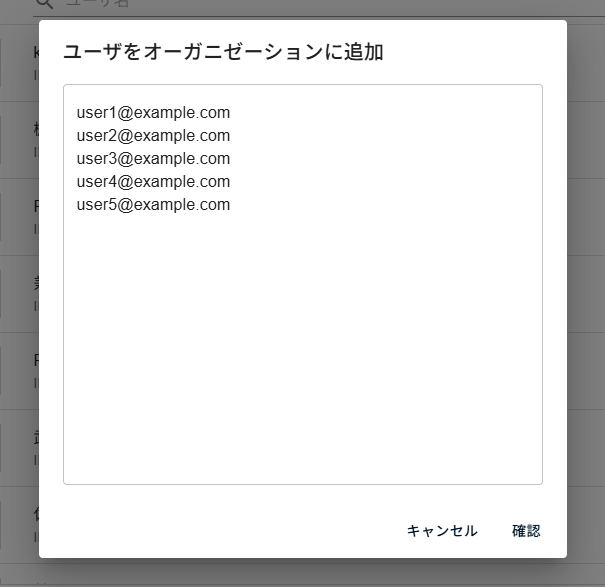
Users added from the Members page in Organization Settings are not assigned to any group. Please add them to the necessary groups so they can check vulnerability information, etc.
Removing Organization Members#
All Users Must Belong to an Organization (Effective July 14, 2025)
All users must belong to at least one organization. If you are removing a user from their last organization, they must first join another organization or create a new one.
Removing a member from "Organization Settings" will delete their account information from the organization, and they will no longer be able to access it.
To remove a member from the organization, click the ⊖ icon for the corresponding member.
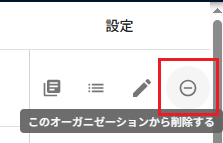
If they wish to continue using FutureVuls, they will need to create a new account and a new organization, or be invited by an administrator of another organization.
For details, please refer to "Remove a user from an Org".
Groups#
You can manage groups within the organization and create new ones.
In the group list, you can see the groups within the organization. You can also check if you are a member of a group and what your role is. Clicking "Create a group" at the bottom of the list will display a dialog to create a new group. Enter a group name and create it.
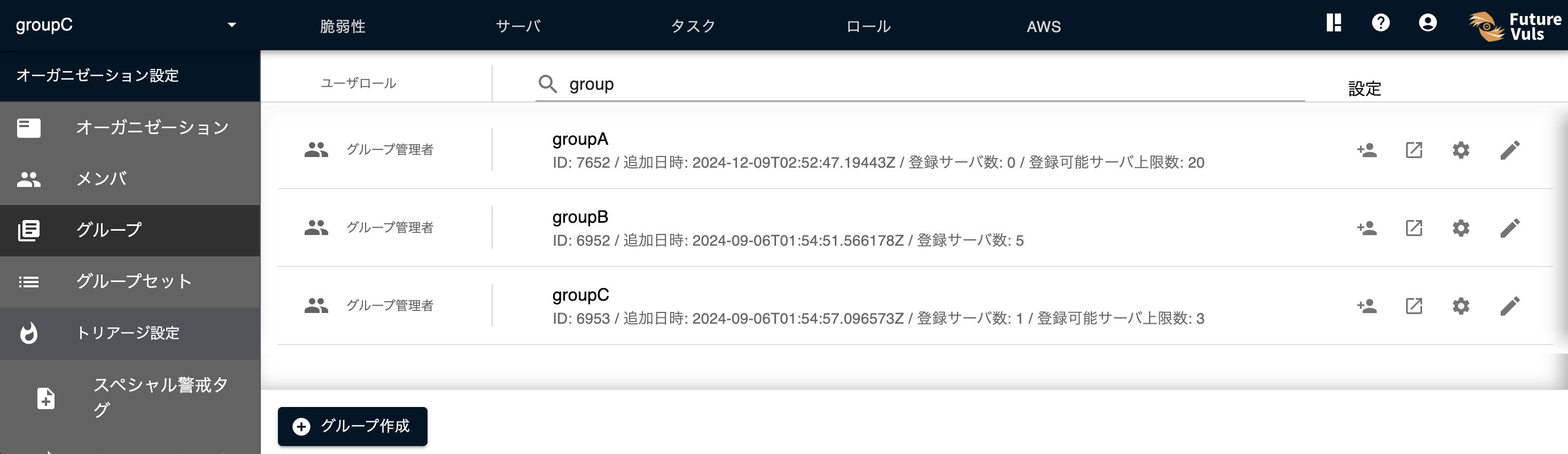
Settings in the Group List#
User Management#
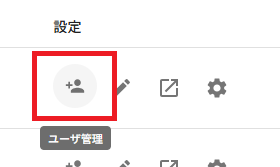
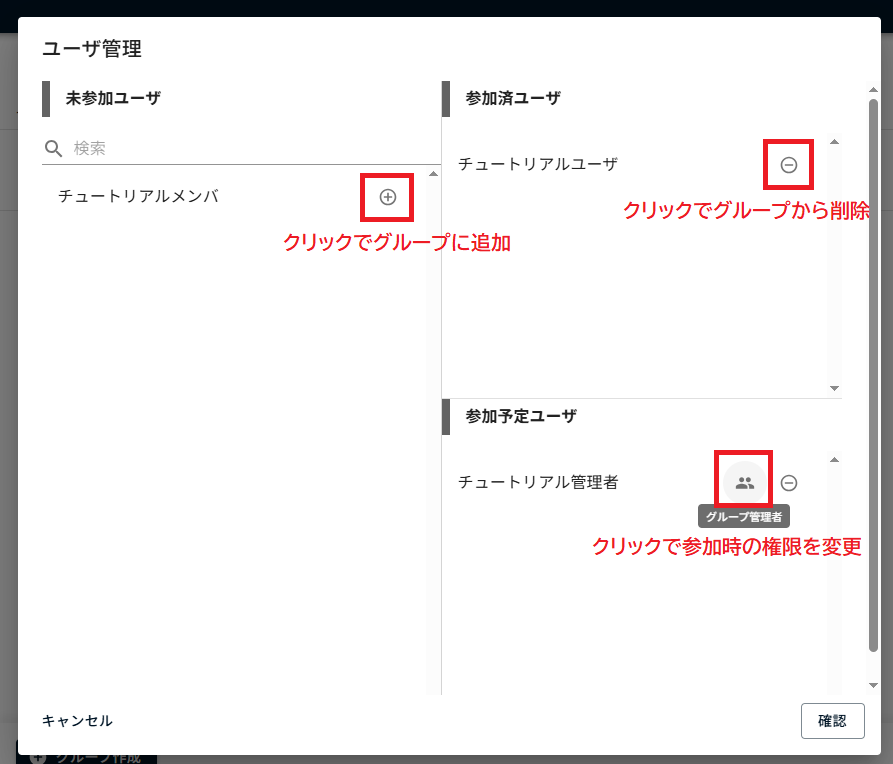
Clicking the user management icon allows you to view and manage the members of the group.
Members who belong to the organization but are not yet in the target group are displayed under "Candidate Members". Pressing will add them to the "Members to Join" list.
Members who are already in the target group are displayed under "Joined Members". Pressing will show their name with a strikethrough and add them to the list of members to be removed from the group.
By clicking the person icon for a member in the "Members to Join" list, you can set the user's permissions for when they join the group.
Setting the Maximum Number of Registrable Servers#
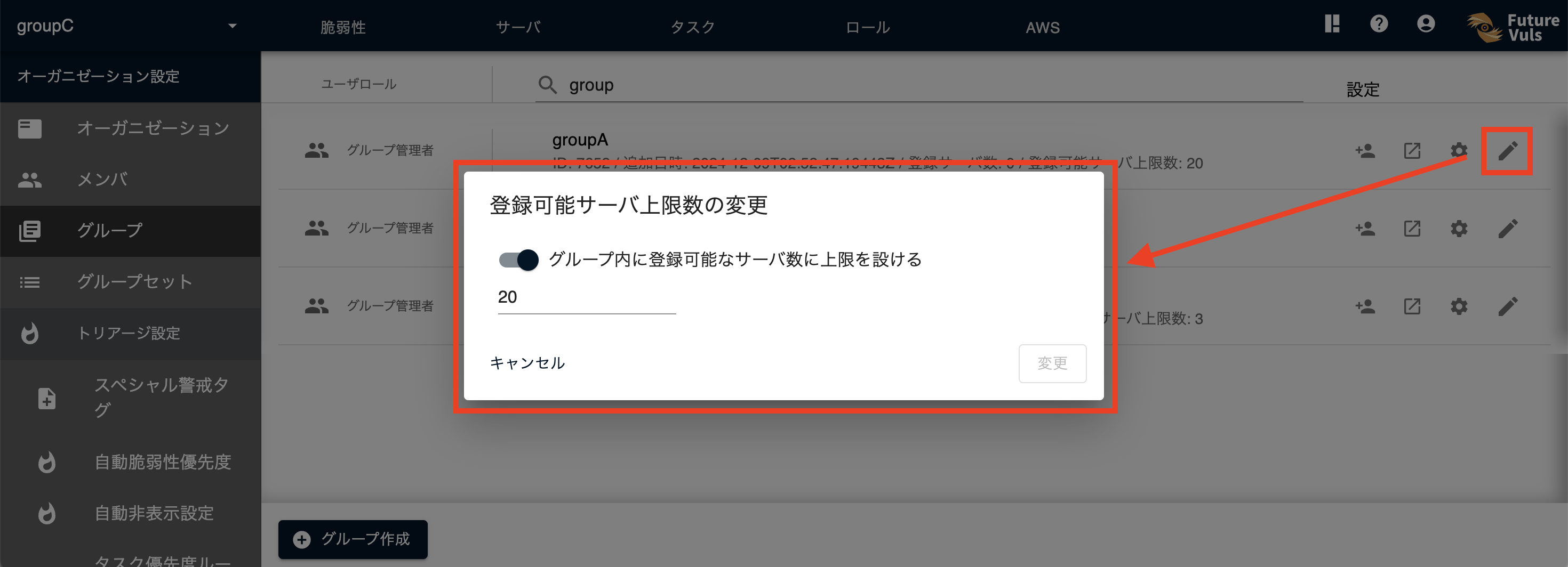
By clicking "Edit Server Registration Limit", you can set the maximum number of servers that can be registered for each group. In a group where a server limit is set, an error will occur if you try to add or scan more servers than the configured limit.
Navigating to a Group#
Clicking the "CVE" icon in the center will take you to the group's CVE page.
Navigating to Group Settings#
Clicking the "Group Settings" gear icon on the far right will take you to the group's settings screen. Note that if you do not have group administrator permissions, the gear icon on the right will be disabled.
Group Sets#
CSIRT Plan Exclusive
Group Sets are a feature exclusive to organizations with a CSIRT Plan contract.
In the Group Sets list, you can check the group sets within the organization.
You can also see if you are a member of a group set and what your role is.
You can create a group set from the Create a groupset button.
To delete a group set, please do so from the Group Set Settings screen.
When a group set administrator modifies their group memberships, groups where the administrator only has view permissions will not appear as available options.
SSVC#
You can configure organization-wide settings related to SSVC.
Advanced Settings#
Less frequently used items are collapsed under "Advanced Settings" in the menu. They are collapsed by default, so expand "Advanced Settings" when you want to work with them.
Special Alert Tags#
For details, please refer to "Special Alert Tags".
Automatic Vulnerability Priority#
For details, please refer to "Automatic Vulnerability Priority".
Automatic Ignore Settings#
For details, please refer to "Automatic Ignore Settings".
Task Priority Rule Sets#
For details, please refer to "Task Priority Rule Sets".
FutureVuls API#
You can check how to use the FutureVuls API and its documentation.
Tokens#
You can manage the tokens used for scanning and the FutureVuls API.
Security#
MFA Settings#
You can prevent members of the organization who have not set up two-factor authentication from performing operations.
When you click the "MFA Settings" switch, a confirmation dialog will appear. Click the "OK" button to enable the setting.
With this setting enabled, password-login users who belong to the organization and have not set up two-factor authentication will see a message and be unable to perform operations. They can enable operations by activating two-factor authentication from Profile > Two-Factor Authentication.
Note that when using SSO login or Google login, operations are not restricted even if two-factor authentication has not been set up. If you want to require two-factor authentication, please configure it on the provider's side.
To turn off the setting, you can disable it by clicking the "MFA Settings" switch again under "Security".
Registering Accessible IP Addresses#
You can implement IP restrictions by adding IP address ranges (in CIDR format) to the organization's settings page.
The details of the IP address restriction are as follows:
- If no IP range is set, connections from all IP addresses are allowed.
- If even one IP range is specified, access is only possible from the specified IP ranges.
- The IP address of the person configuring the setting (the person connected) cannot be restricted (you must first specify your own IP address).
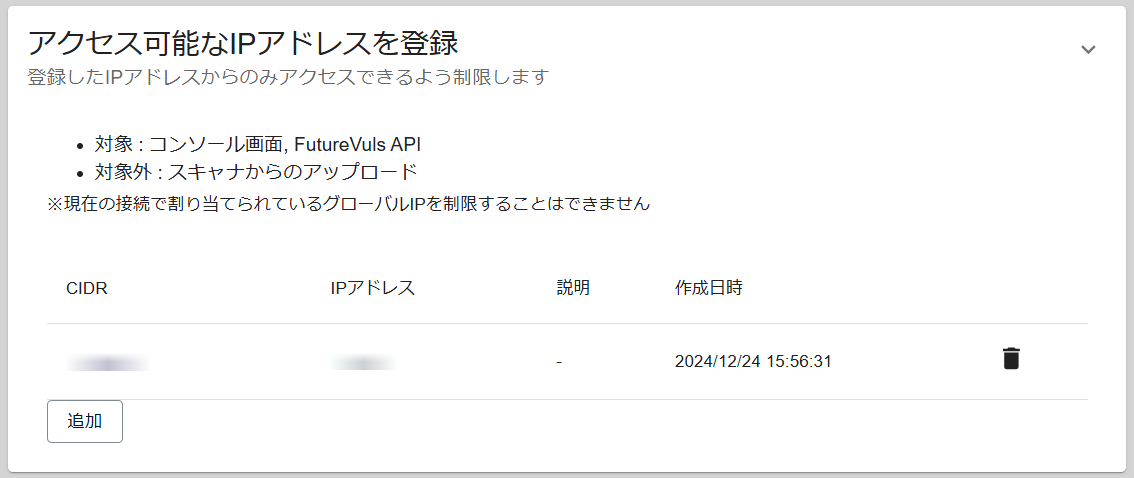
- This IP restriction limits access to the console screen, the FutureVuls API, and the FutureVuls MCP Server (uploads from scanners are not restricted).
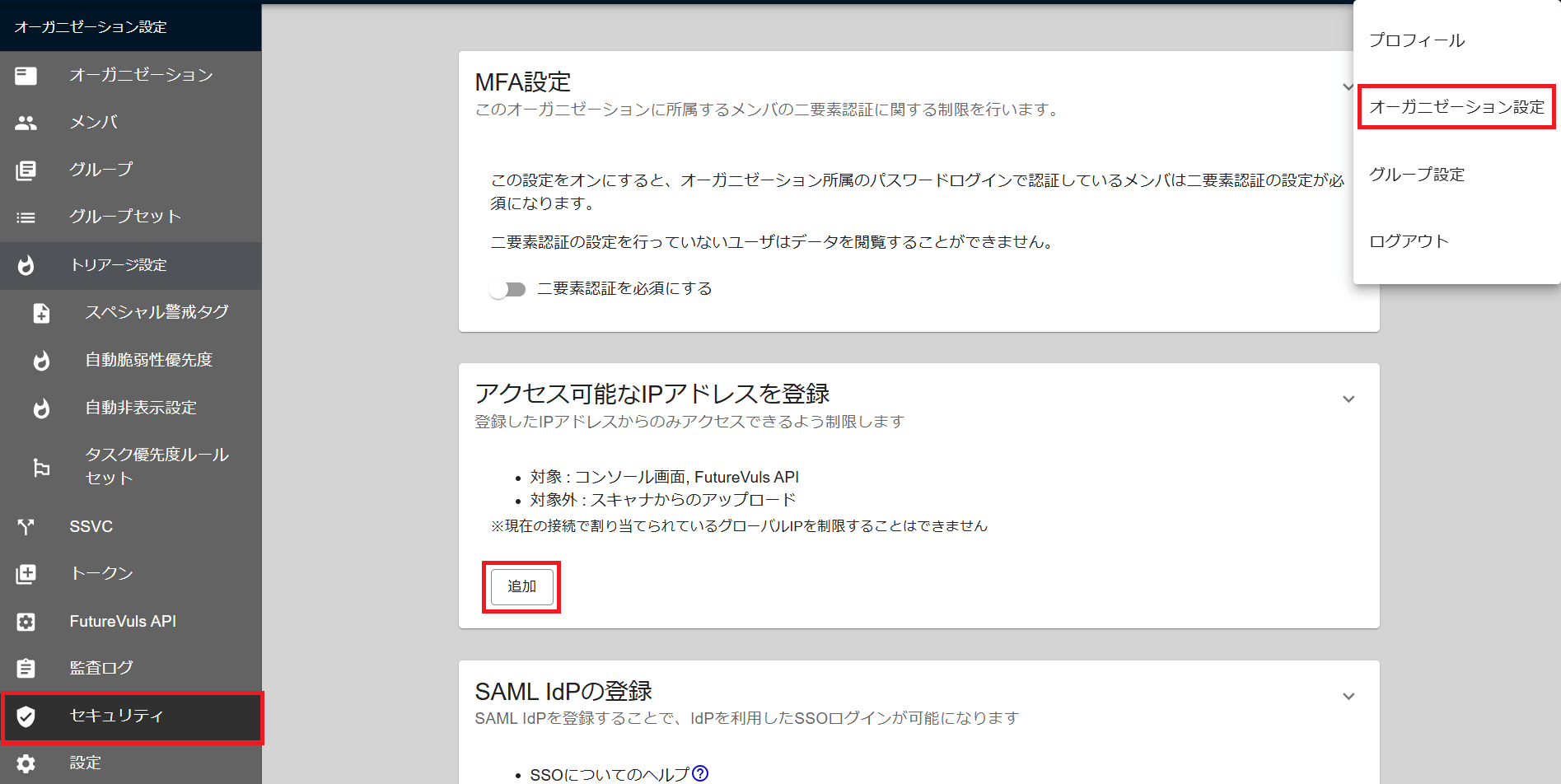
From the Organization Settings screen, open Security, and in the Register an Accessible IP Address card, click Add.
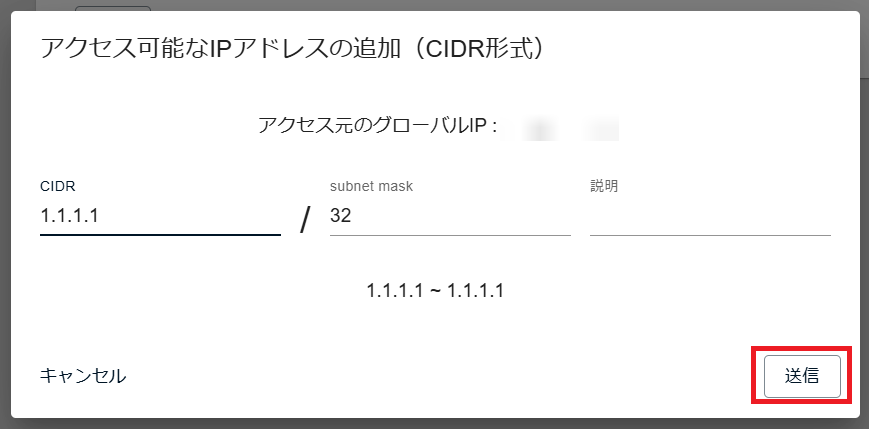
Enter the IP address you want to allow in CIDR format and click "Submit".
If the registered IP address is displayed as below, the IP restriction is active.
Registering a SAML IdP#
Only available for organizations on the CSIRT Plan.
This enables SSO login using your existing authentication infrastructure. For details, please refer to SAML Integration.
SSO Settings#
Only available for organizations on the CSIRT Plan.
Discontinuation of SSO Information Sharing Feature (Effective July 14, 2025)
To enhance security, the feature for sharing SSO information with other organizations has been discontinued. Independent SSO settings are now required for each organization.
This restricts login to SSO only for users invited to the organization.
Please also see Enable SAML login for registered users.
Audit Log#
You can view the operation history within the organization. For details, please refer to "Audit Log".
List Templates#
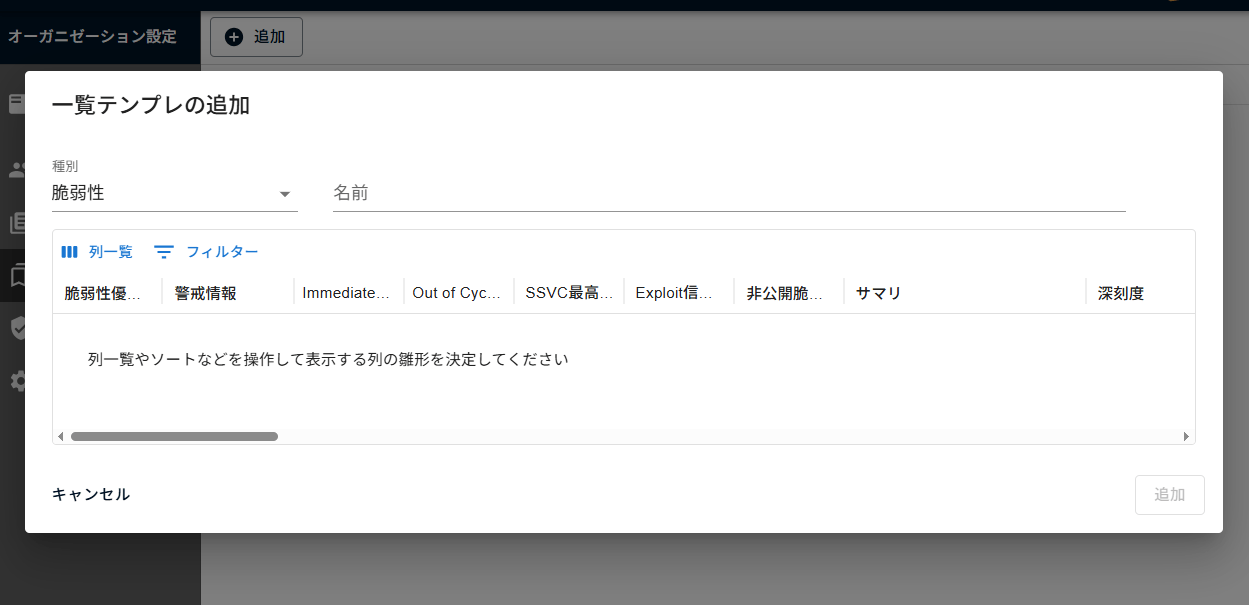
"List view settings" created by an organization's administrator (Owner) can be shared by all members within the organization. For example, it can be used for the following purposes:
- Applying Company-Wide Unified Rules: Share a view tailored to important items like SSVC or CVSS with all members.
- Simplifying Onboarding: New members can immediately use the same display settings as existing members.
- Improving Task Management Efficiency: By creating a task list template that includes "Last Commenter," "Last Comment Content," and "Last Comment Update Time" columns, administrators and all members can instantly check the latest interactions on the list screen, saving the effort of opening individual task detail screens.
The following information can be saved:
- Column visibility (show/hide)
- Column order
- Filter conditions
- Sort conditions
Organization administrators can create them from "Organization Settings > List Templates". Templates can be registered for each list, such as the Vulnerabilities tab and Tasks tab.
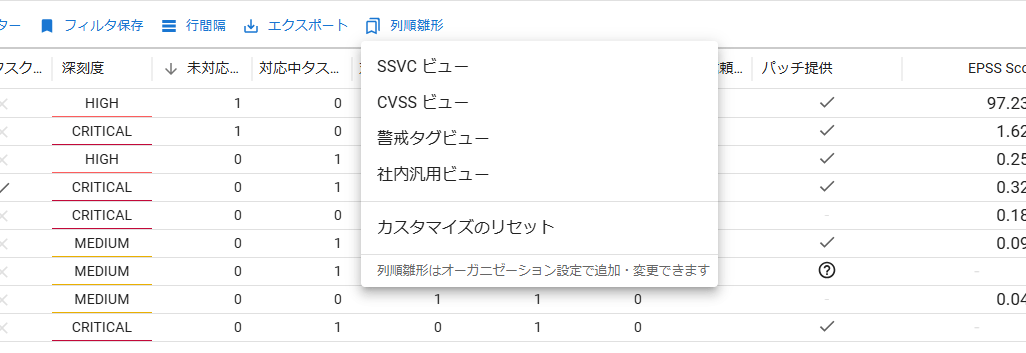
All users can easily apply the settings from "List Templates" in the menu bar at the top of the list.
Notifications#
You can configure organization-wide settings related to the "Notification Feature".
Settings#
Installing the Slack App#
By registering the FutureVuls app in your Slack Workspace, you can receive various notifications within a Slack Channel.
For details, please refer to Slack App.
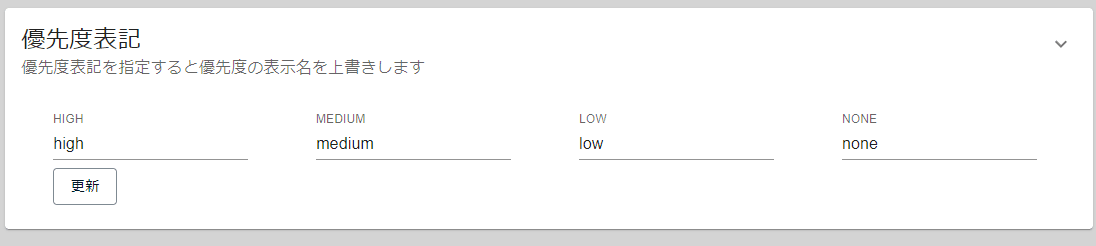
Priority Notation#
You can change the notation for "Priority".
You can set custom notations for the default priority levels of HIGH / MEDIUM / LOW / NONE.