Importing External Scan Results#
You can import scan results from tools other than the FutureVuls scanner, such as network scanning tools like Nessus, OpenVAS, and Nmap, or ASM (Attack Surface Management) services (hereinafter referred to as external scan results), and manage them as vulnerabilities and tasks.
By importing the scan results from tools like Nessus and Nmap that scan targets externally, you can also centrally manage both internal vulnerability information scanned by the FutureVuls scanner and network-exposed vulnerabilities detected by Nmap or Nessus.
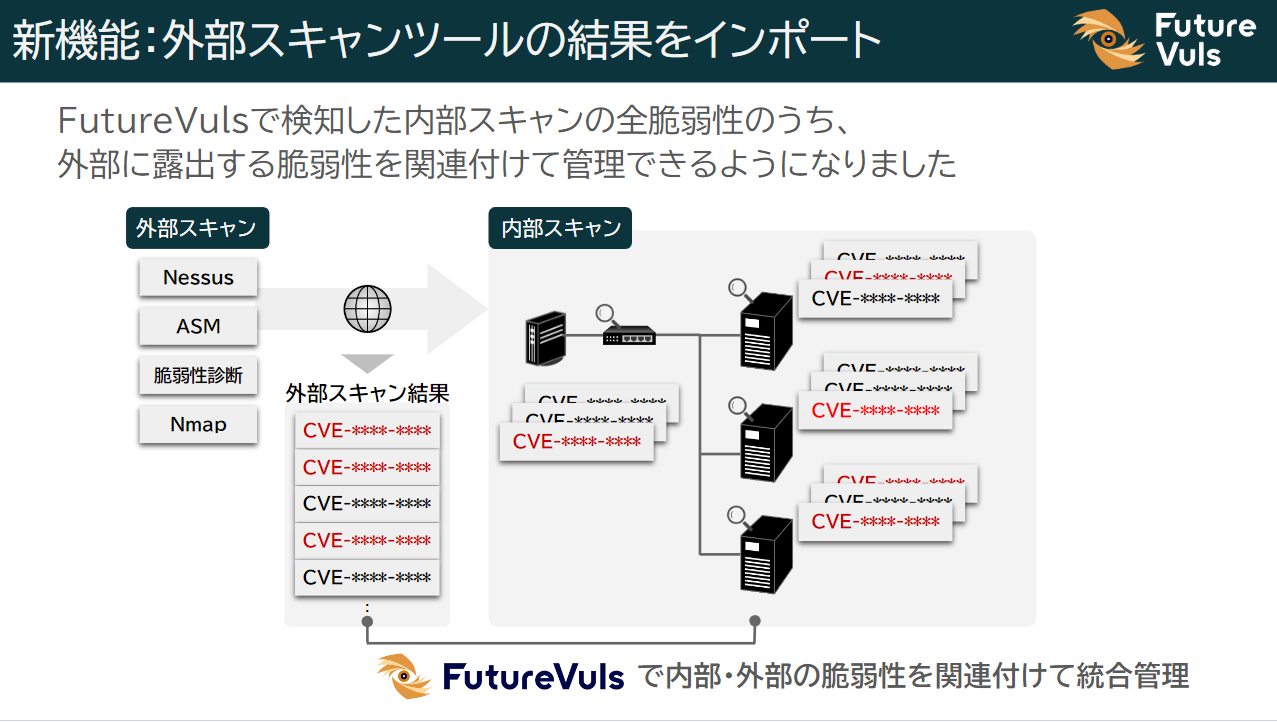
By combining this feature with other FutureVuls functionalities, you can achieve the following:
- Instantly identify and respond to externally exposed vulnerabilities.
- Centrally manage both internal and externally exposed vulnerabilities by creating tickets.
- Clarify priorities with automatic risk assessment using the FutureVuls SSVC feature.
External Scans List#
Displayed Fields#
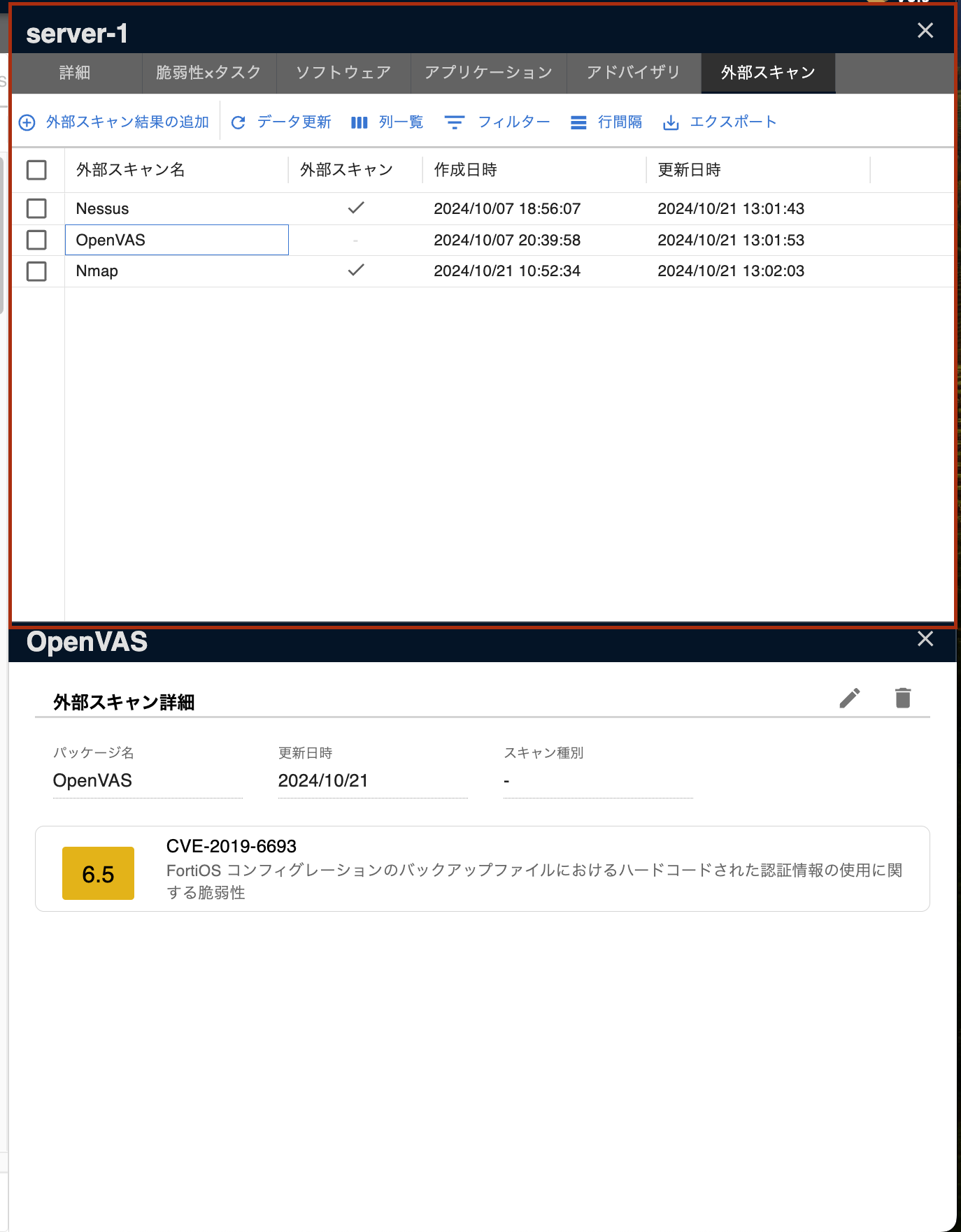
From the second pane of the Server / Product tab, you can view a list of external scan results added to the target server.
| Field | Details |
|---|---|
| External Scan Name | The name of the added external scan result. |
| External Scan | Indicates whether the vulnerabilities associated with the external scan result are externally exposed. |
| Creation Time | The date and time the external scan result was added. |
| Last Update | The date and time the external scan result was updated. |
Adding External Scan Results#
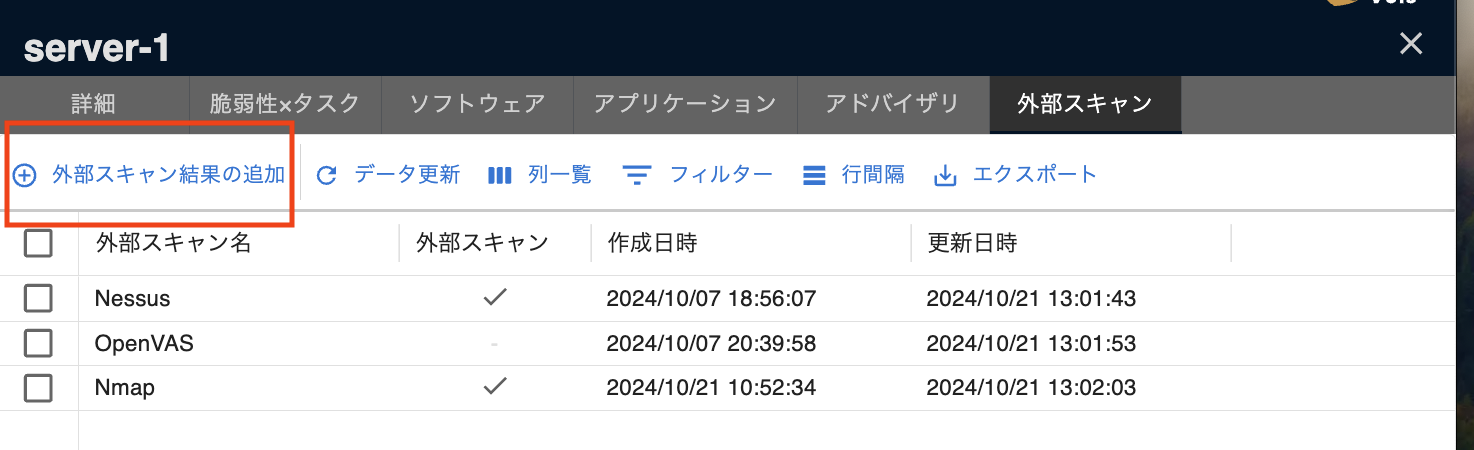
Clicking the "Add Scan Import" button at the top of the External Scans list screen will display a dialog box for adding an external scan result.
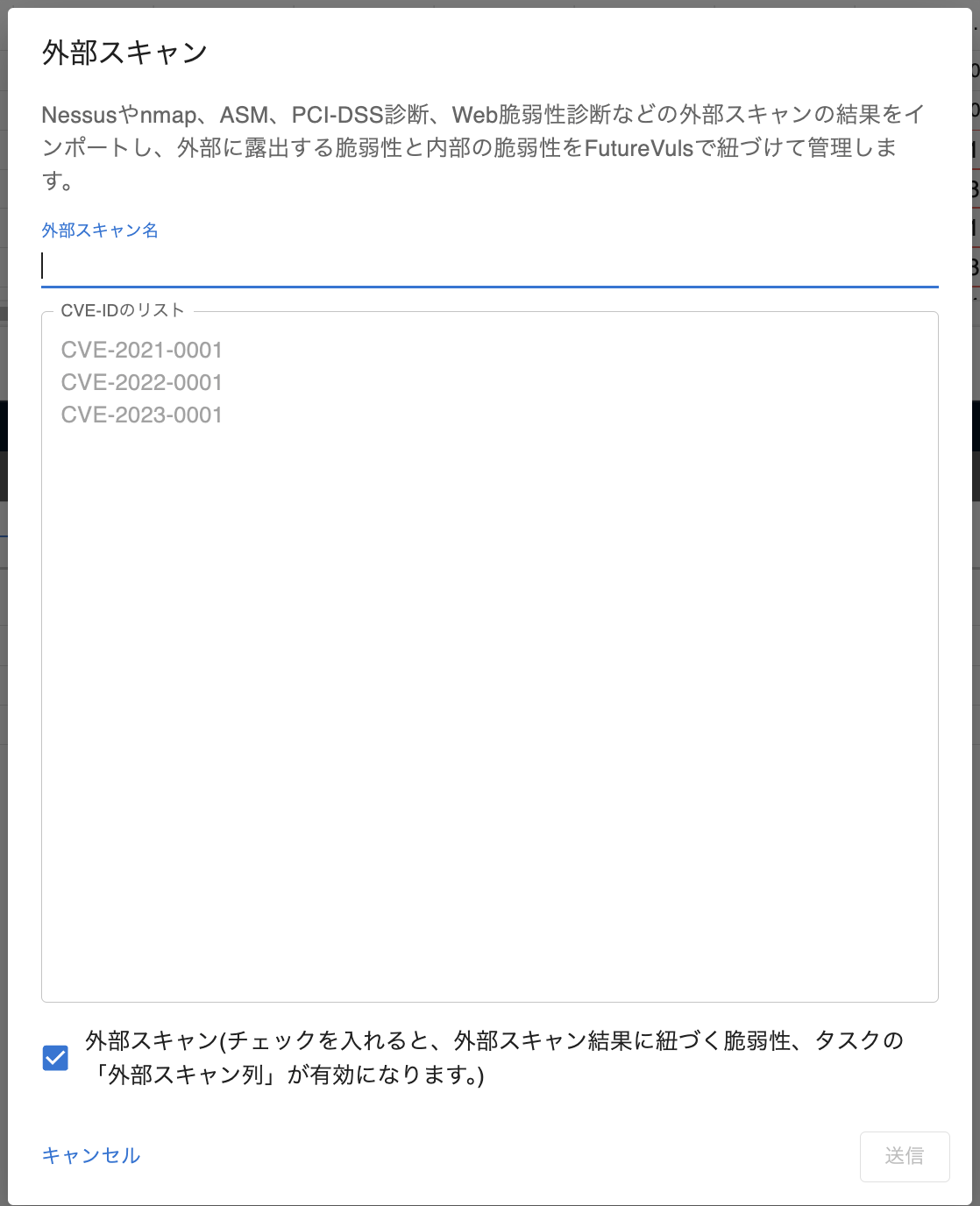
| Field | Details |
|---|---|
| External Scan Name | The name of the external scan result to be added. |
| List of CVE-IDs | A list of CVE-IDs reported by the external scan. |
| External Scan | Indicates whether the vulnerabilities in the added scan result are externally exposed. This is checked by default. |
Check the "External Scan" box if the vulnerabilities included in the external scan result are externally exposed. You would leave this unchecked when:
- Adding results from a tool that scans for vulnerabilities internally, like the FutureVuls scanner.
Regarding Unregistrable CVE-IDs
After adding an external scan result, vulnerabilities from the list of CVE-IDs are registered in the group. If the list contains any CVE-IDs that cannot be registered (e.g., they do not exist or have an incorrect format), those CVE-IDs will not be added, and only the valid CVE-IDs will be registered.
Task Generation Timing
Tasks associated with the newly registered vulnerabilities will be generated during the server's next scan. If you want to manage the added external scan results in the Tasks tab immediately, run a manual scan from the server details page.
The 'External Scan' Checkbox
If you add an external scan result with the "External Scan" box checked, a checkmark will appear in the "External Scan" column for the vulnerabilities and tasks associated with each CVE-ID, which you can view on the list screen. You can use the filter function in the Tasks and Vulnerabilities lists to display only those items with the "External Scan" box checked.

Scan Import Detail#
Displayed Fields#
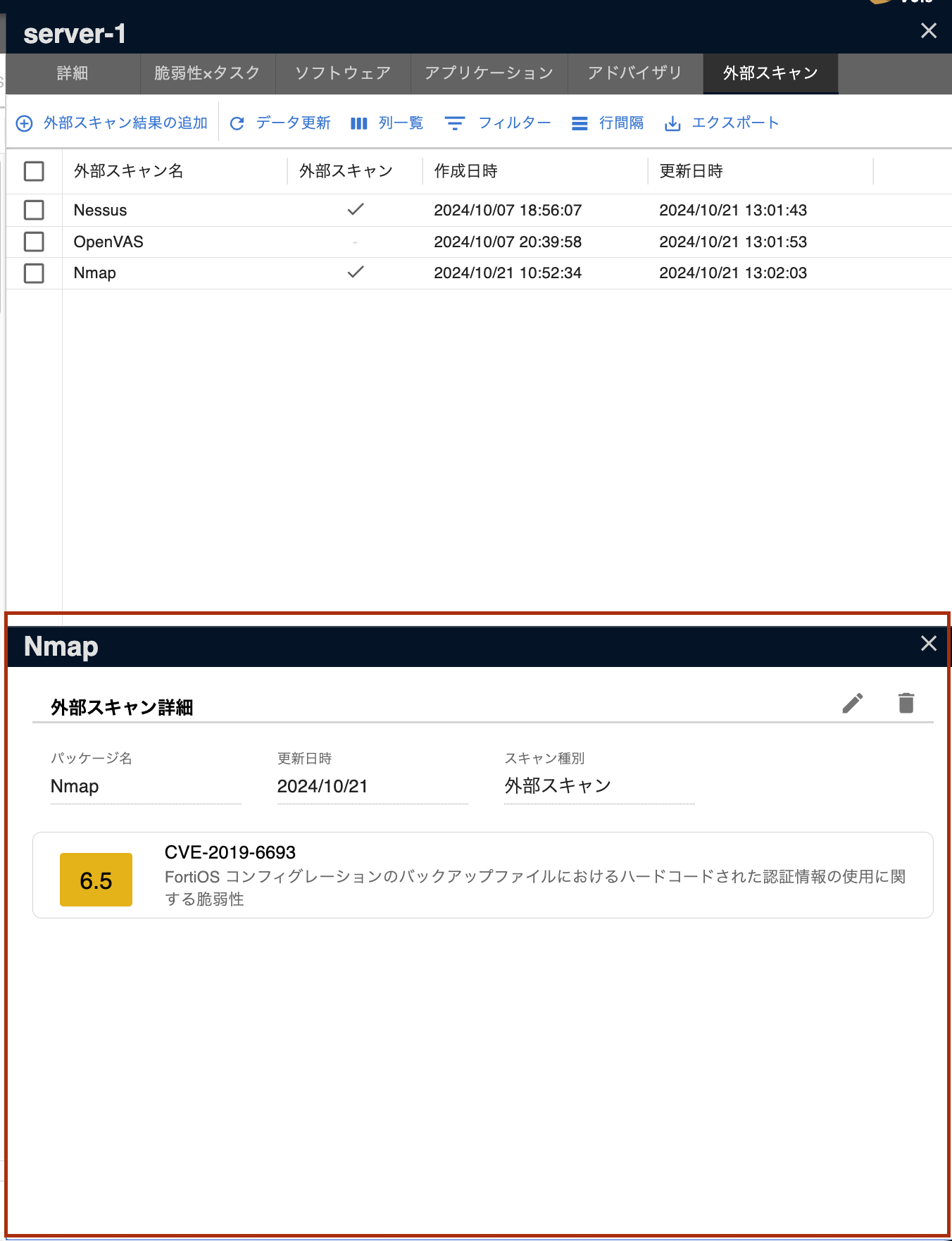
In the Scan Import Details, you can review and update the details of an added external scan result.
The following fields are displayed in the Scan Import Details:
| Field | Details |
|---|---|
| Name | The name of the added external scan result |
| Scan Type | Displays "External Scan" if the result was added with the "External Scan" box checked. |
| Last Update | The date and time the external scan result was updated. |
| CVE-ID | The list of CVE-IDs associated with the added external scan result. |
Additionally, you can click on any vulnerability in the displayed list to navigate to its details page. You can update or delete the added external scan result using the icons in the upper right corner.
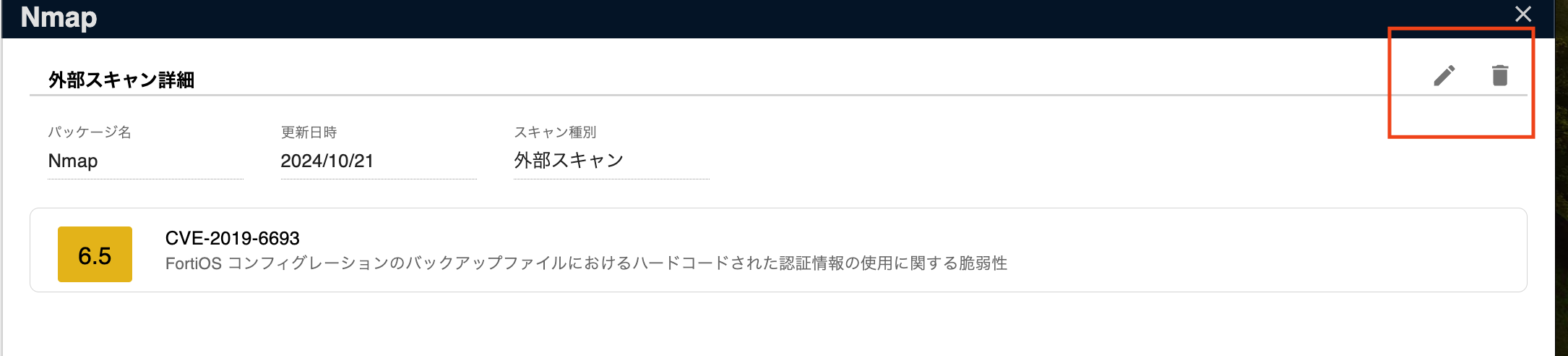
Update scan import#
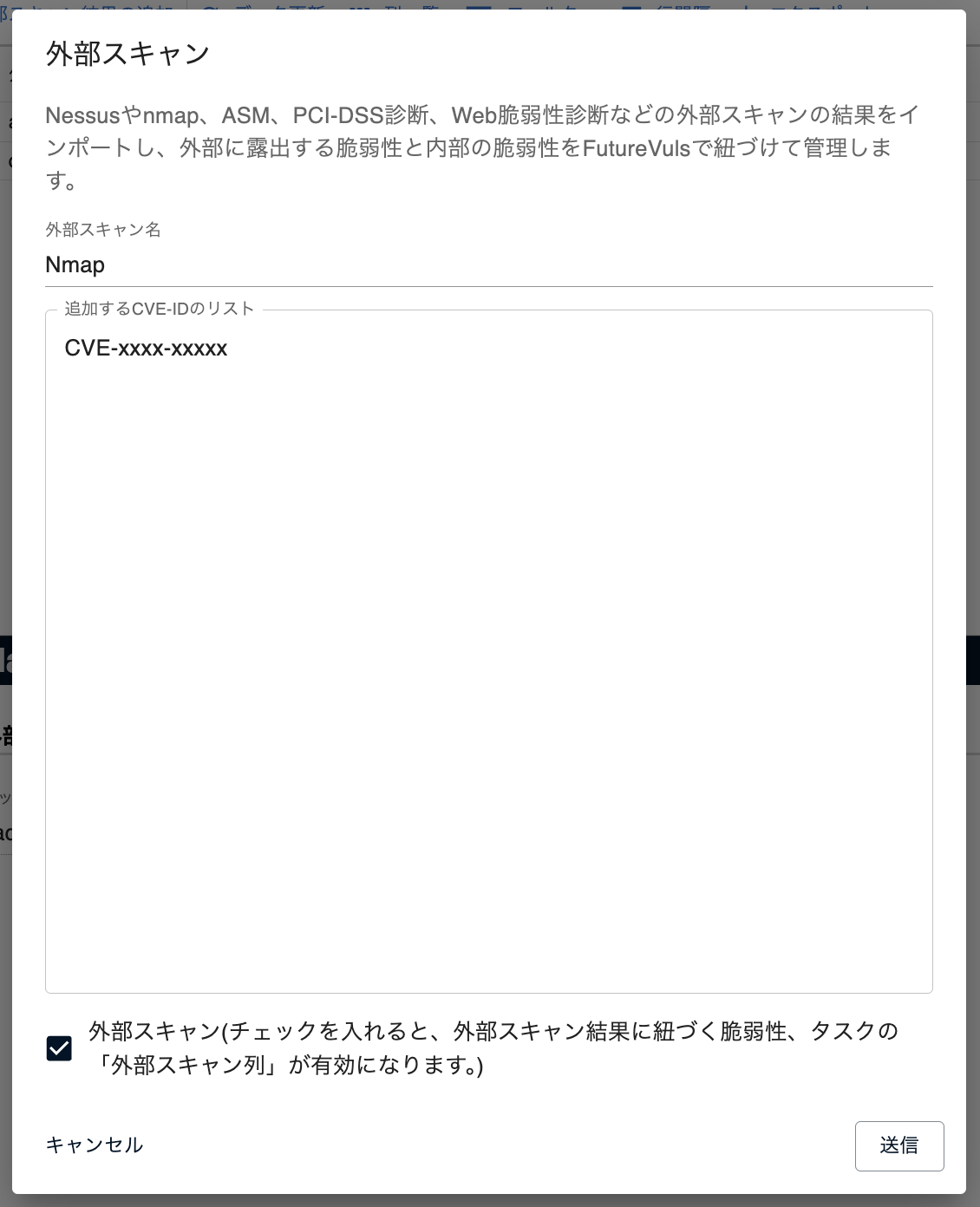
The following three items can be updated:
- External Scan Name
- List of CVE-IDs
- External Scan
The previously added CVE-IDs are pre-populated as the default. If you only want to update the External Scan Name and not the list of CVE-IDs, submit the form without changing the list from its default value. If you want to update the list of CVE-IDs with the results of a rescan, clear the input field, paste the new external scan results, and submit. Tasks related to vulnerabilities that are no longer included in the updated CVE-ID list will automatically be set to 'patch_applied' and will be removed from the task's Related Scan Imports field. The CVE-IDs will not be removed from the Scan Import Details page and will continue to be displayed.
Deleting External Scan Results#
You can delete an added external scan result.
When an external scan result is deleted, the associated vulnerabilities and tasks are also deleted. If the vulnerabilities or tasks have other associated external scan results or software, only the association with the deleted external scan result will be removed.