How to Use from a CSIRT/Administrator's Perspective#
This section explains the operational workflow using SSVC from the perspective of a CSIRT (Computer Security Incident Response Team) that manages vulnerabilities for the entire organization.
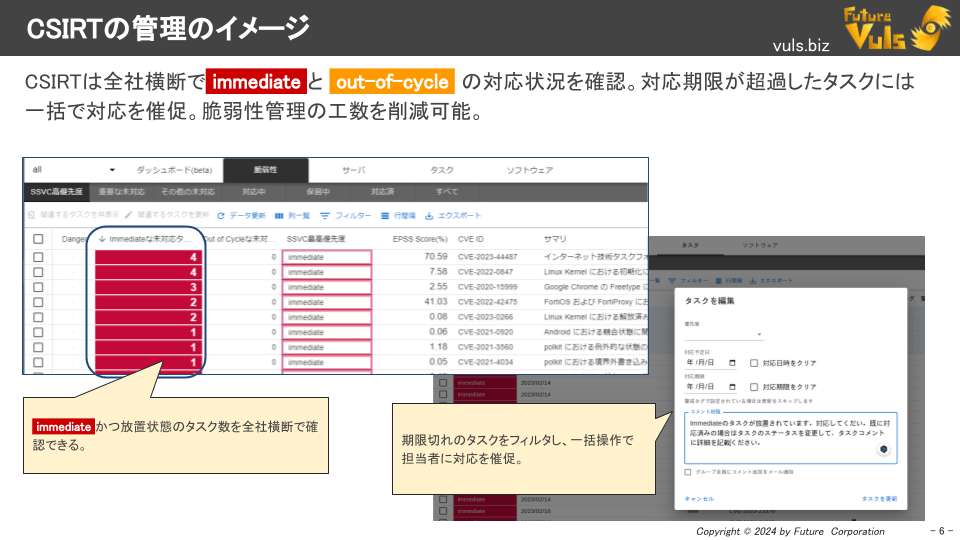
Operational Procedures for CSIRT#
Company-Wide Risk Assessment#
CSIRT personnel review vulnerabilities across the company that have been assessed as Immediate or Out-of-Cycle by SSVC.
For example, they can filter for neglected or overdue tasks and prompt the assignees to take action.
Task Classification and Automatic Configuration#
FutureVuls allows you to automatically configure the following settings based on SSVC using the "Trigger Action function":
- Status (e.g., Open)
- Priority (e.g., Immediate is High)
- Due Date
Efficient Group Management#
When dealing with a large number of systems, you can use FutureVuls' Group Set function to consolidate all systems into an "all group set," allowing you to manage company-wide vulnerabilities from a single screen.
Specific Operation Examples#
Checking for Neglected Vulnerabilities#
SSVC High Priority Tab#
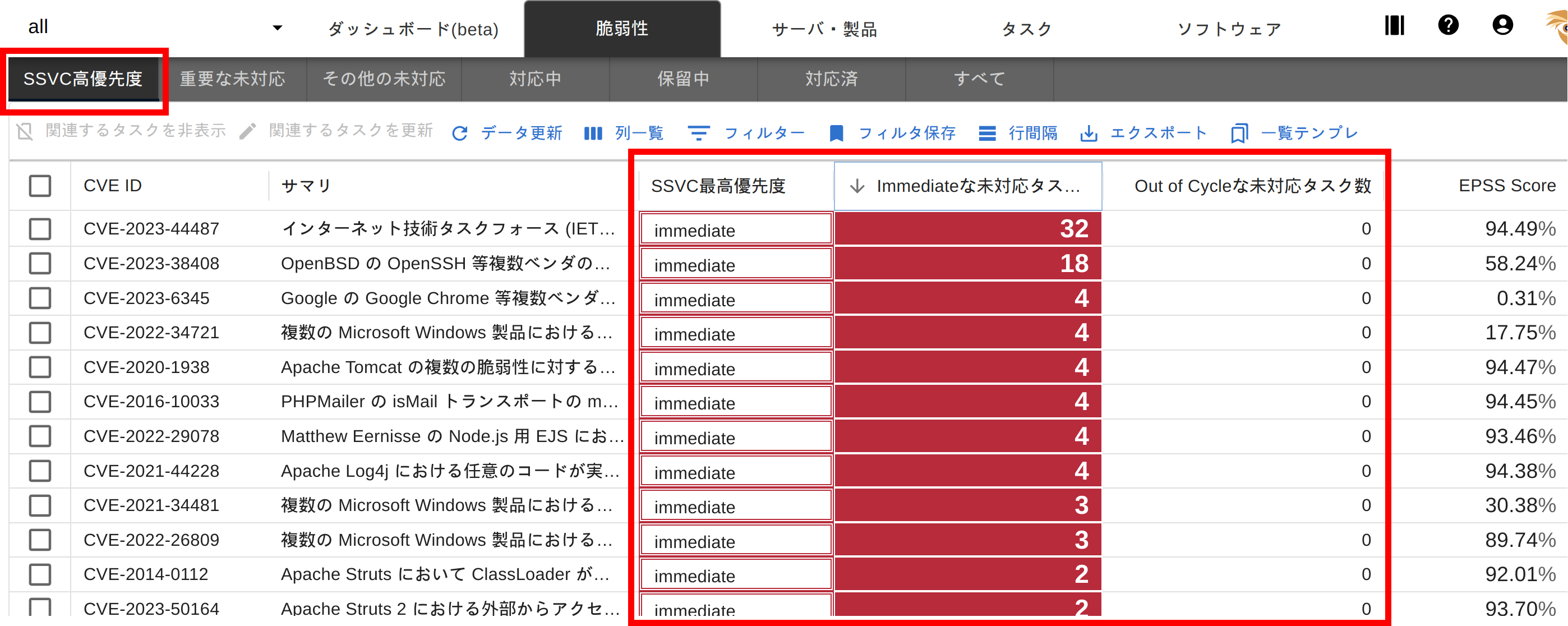
On the "High SSVC Priority CVE" tab, you can view vulnerabilities with tasks classified as Immediate or Out-of-Cycle by SSVC.
The "Highest SSVC Priority" column displays the higher of the two priorities.
The "Open Immediate Tasks" and "Open Out of Cycle Tasks" columns show the number of unaddressed tasks whose status is still new. By focusing on rows where either of these two columns is non-zero, CSIRT can get an organization-wide view of how many unaddressed high-priority SSVC tasks exist.
Important CVE Tab#
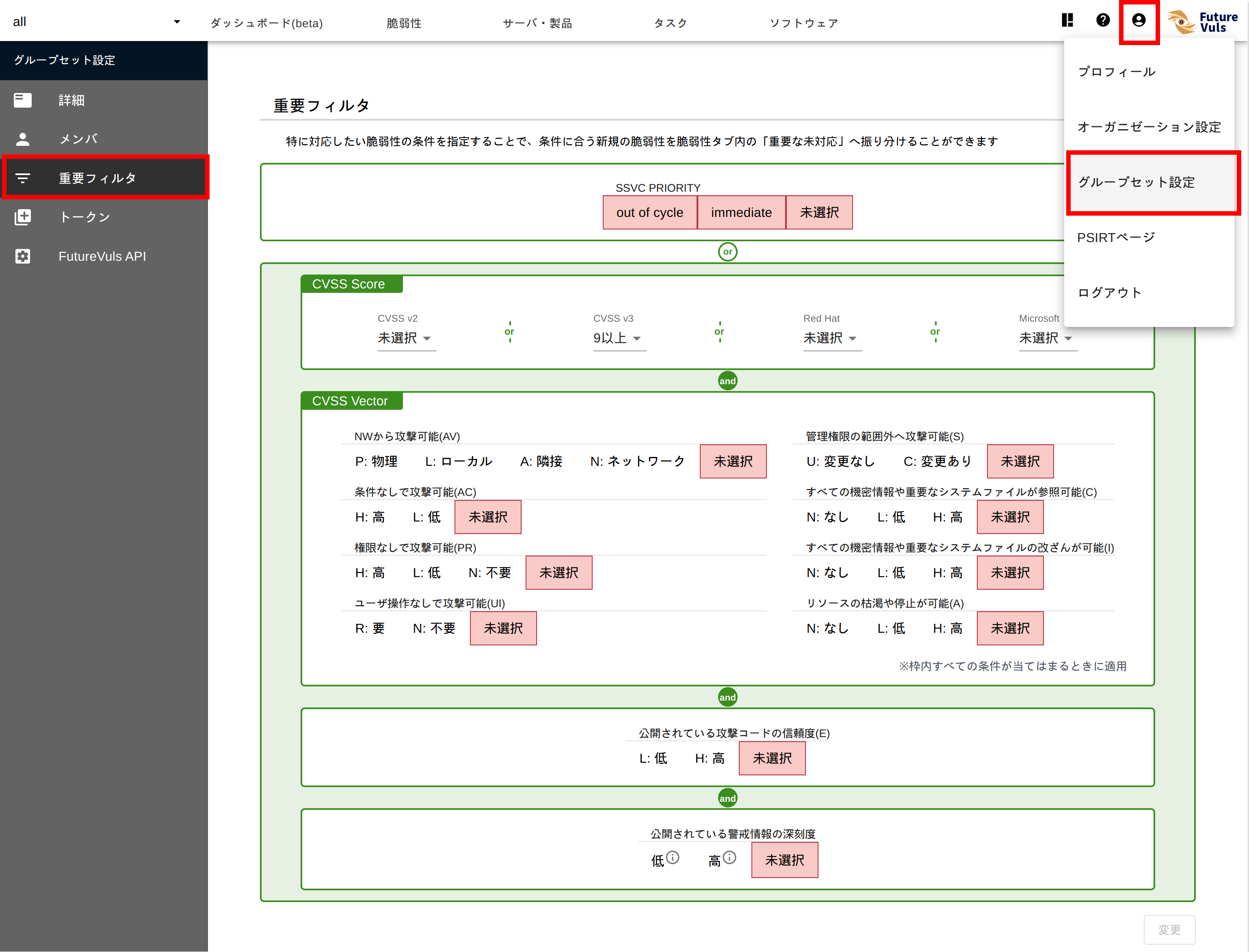
The "Important CVE" tab lists vulnerabilities that match the conditions defined as important in Groupset Settings > Advanced Settings > Important CVE Conditions.
The Important CVE Conditions allow you to combine not only SSVC but also CVSS scores/vectors, exploit code availability, and threat intelligence from sources like KEV and JPCERT using flexible AND / OR conditions.
This is useful when you want to consider other metrics in addition to the SSVC decision to determine priority.
Checking Task Details#
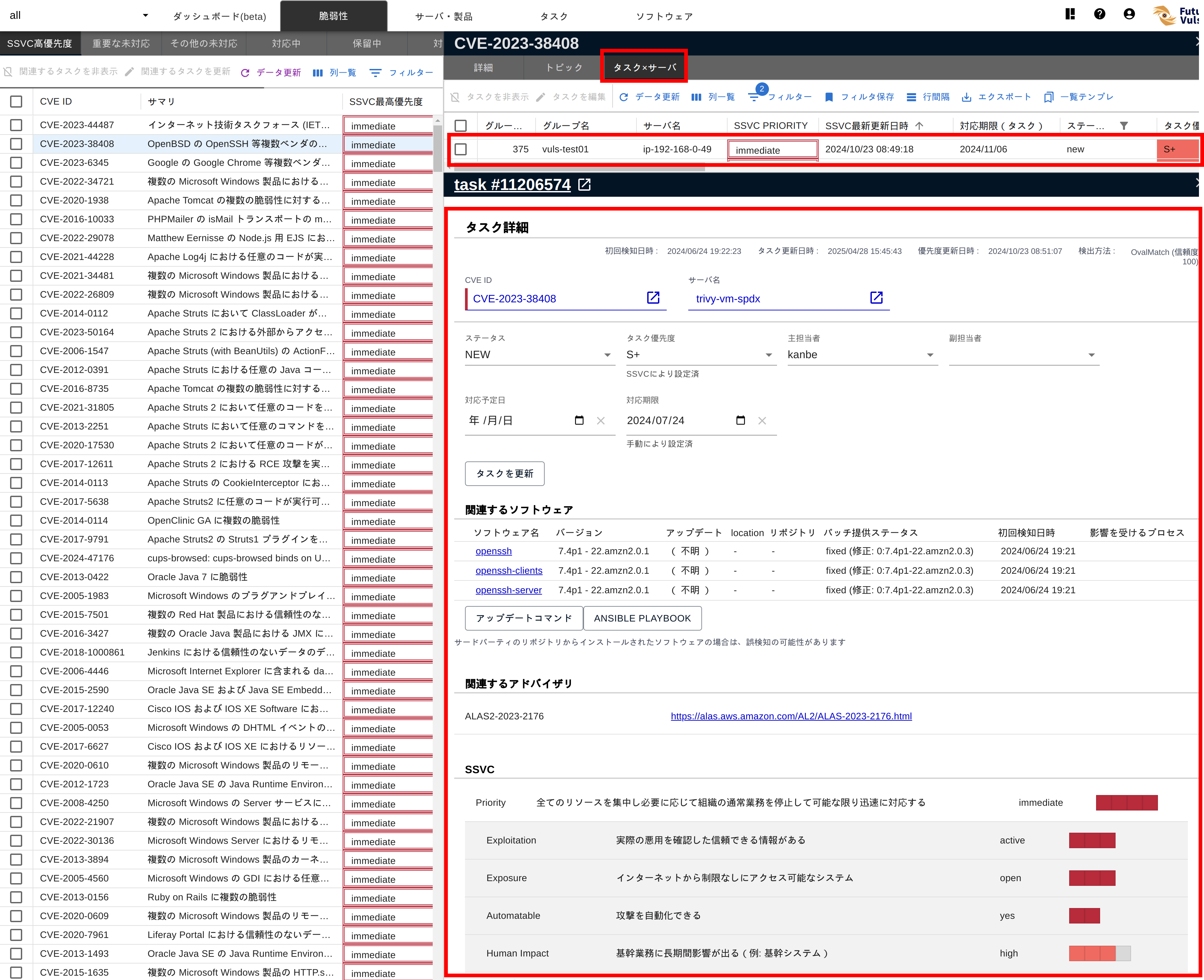
By clicking a row on the "High SSVC Priority CVE" or "Important CVE" tab, you can check what kind of vulnerability it is and in which groups, servers, or products it remains unaddressed. The Detail tab in the second pane consolidates information such as the CVSS score, threat intelligence like KEV and exploit code, the EPSS score, and links to primary sources, allowing you to assess the details and current threat level of the selected vulnerability at a glance.
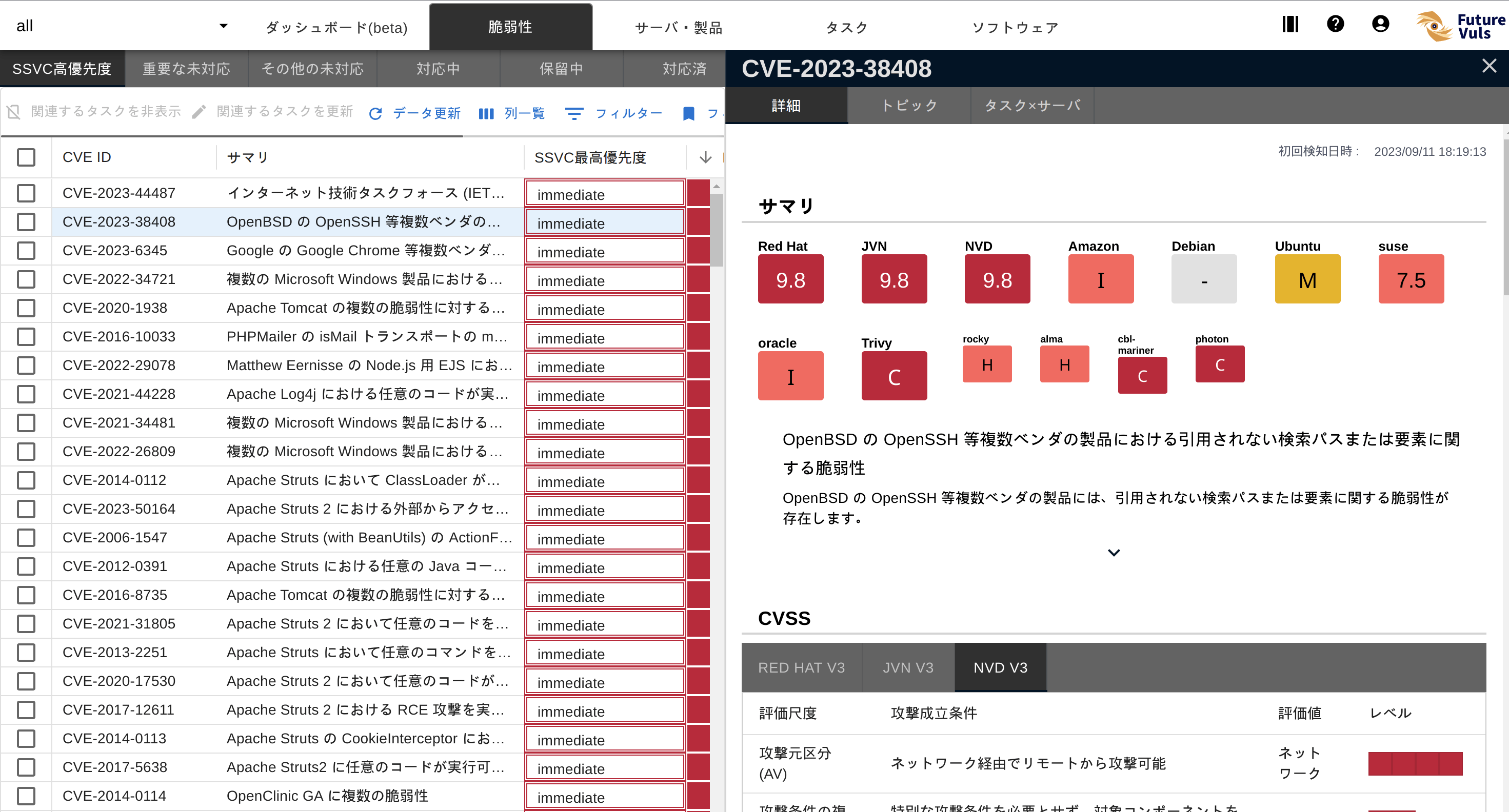
To see which groups and servers the vulnerability has actually been detected on, open the Task × Server tab in the second pane. Clicking on a row displays the task details screen, where you can check the relevant software, whether the process is running, and if a port is in a Listen state. You can also set assignees, change priority, status, and due dates, and provide instructions through task comments.
Periodically Reviewing Detected Vulnerabilities#
Suppose a security officer needs to conduct a weekly review of high-risk vulnerabilities across the organization. There are two scenarios to check:
- Vulnerabilities newly detected as Immediate / Out-of-Cycle (Those not detected in the past)
- Vulnerabilities whose priority was escalated from Scheduled, etc., to Immediate / Out-of-Cycle this week (Those already detected in the past)
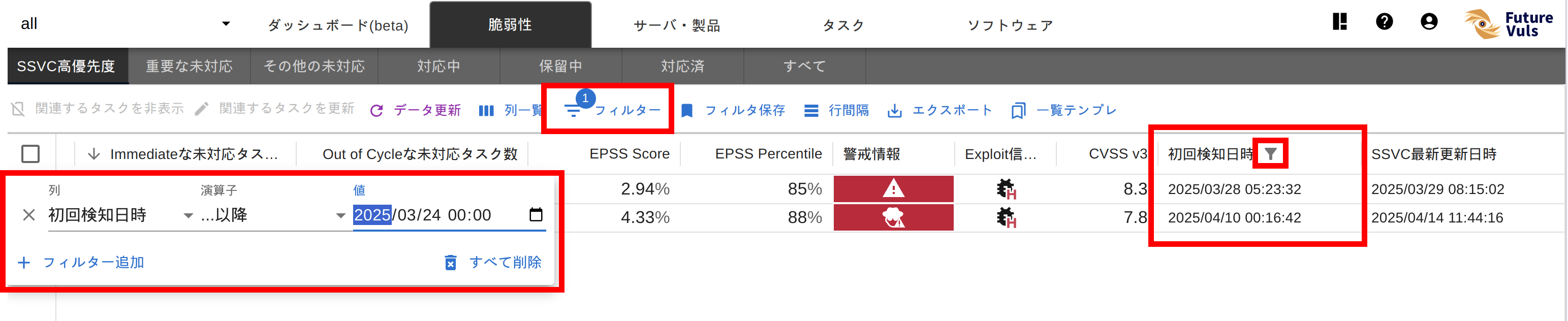
1. Extracting Newly Detected Vulnerabilities#
- Select Group Set Open the "all group set › CVE" tab.
- Configure Column Filter In the First Detection Time column, specify the target period (e.g., since last Monday at 00:00).
- Check Results The filtered rows represent high-priority vulnerabilities that were newly detected within the week.
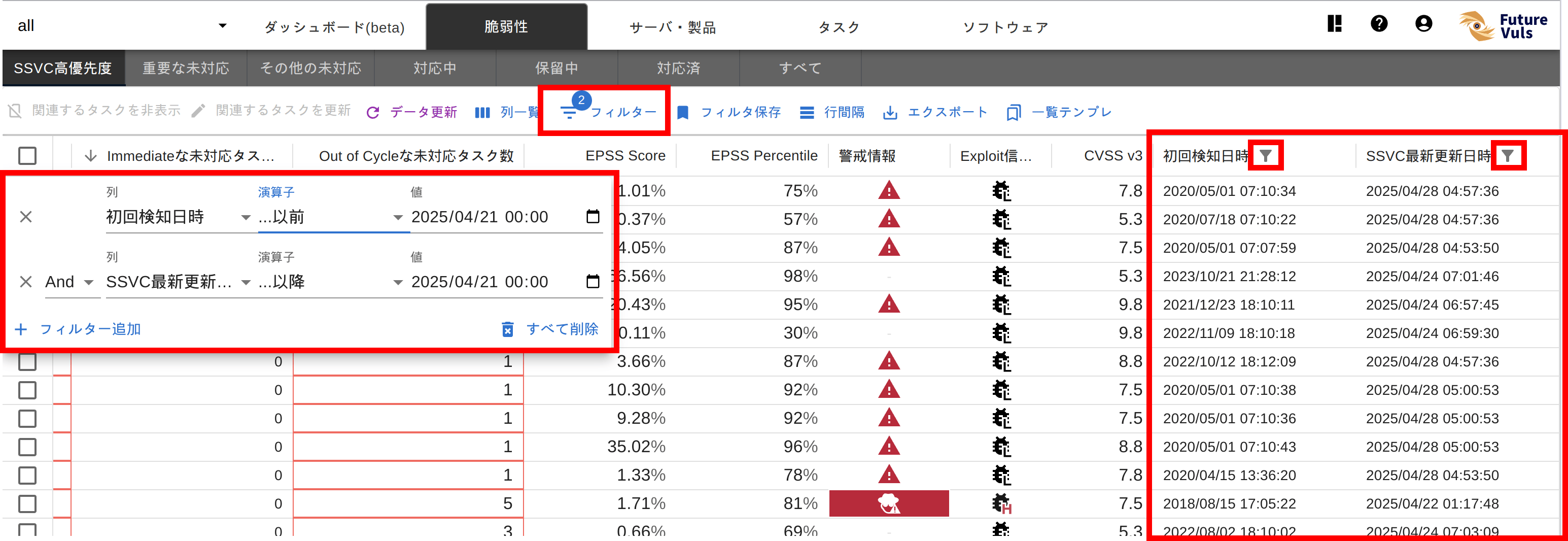
2. Extracting Vulnerabilities with Escalated Priority#
- Select Group Set Open the "all group set › CVE" tab.
- Configure Column Filter - In the Latest SSVC Update column, specify the target period (since last Monday at 00:00). - In the First Detection Time column, specify a date before the target period (to explicitly exclude new vulnerabilities).
- Check Results The filtered rows represent vulnerabilities whose priority was escalated this week.
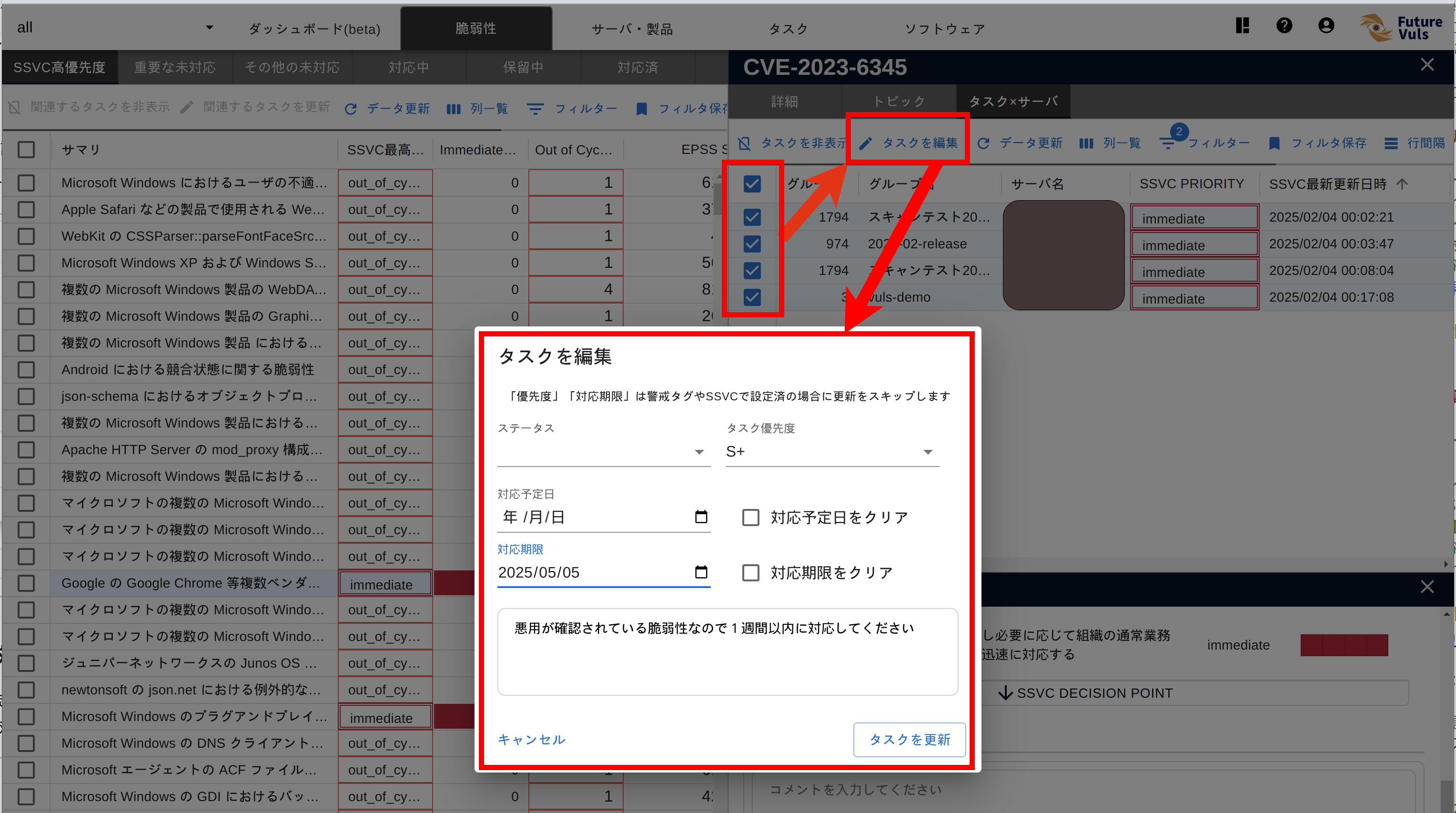
Issuing Bulk Remediation Instructions for Critical Vulnerability Tasks#
While you can open individual tasks to issue remediation instructions for the critical vulnerabilities you've identified (see Checking Task Details), you can also select multiple rows in the second pane and update task statuses and other properties with Update Tasks.
Utilizing the Topic Function#
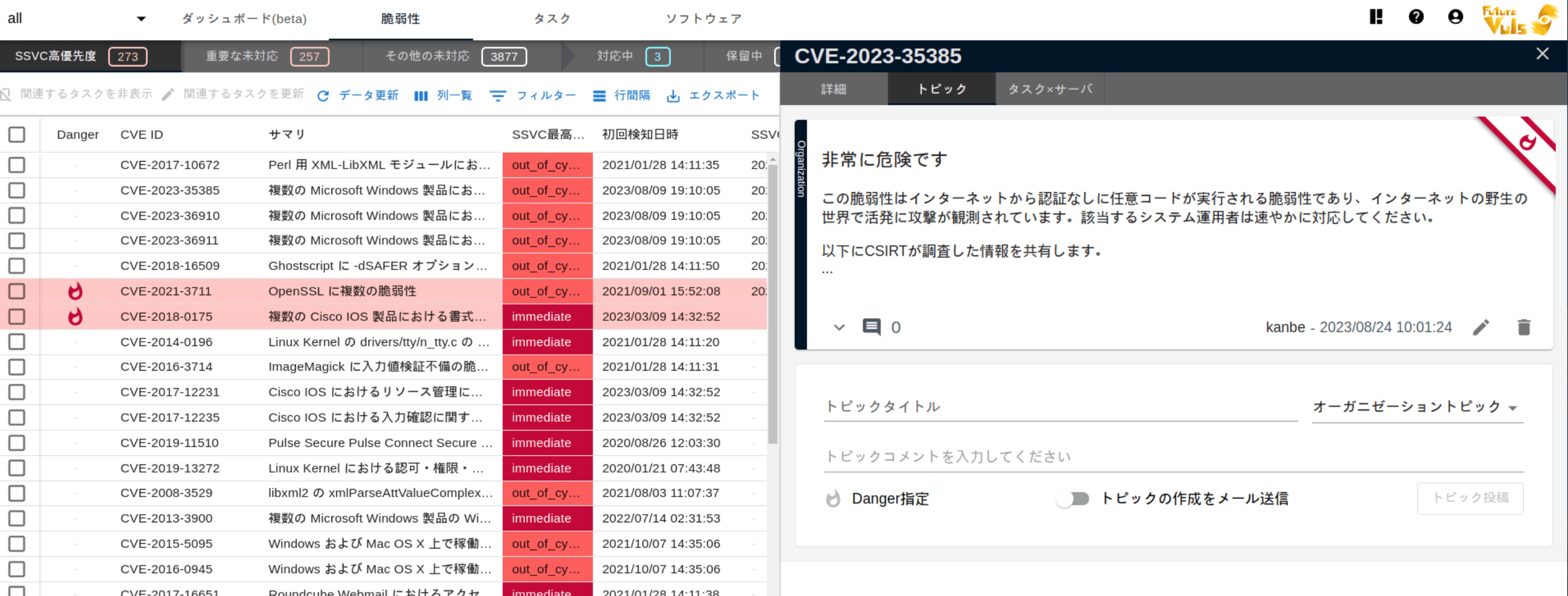
Using the Topic function, you can post comments for each vulnerability and send email notifications to operators. This allows CSIRT to easily issue alerts to the entire company.
Task Management and Reminders#
-
Filtering Unaddressed Tasks
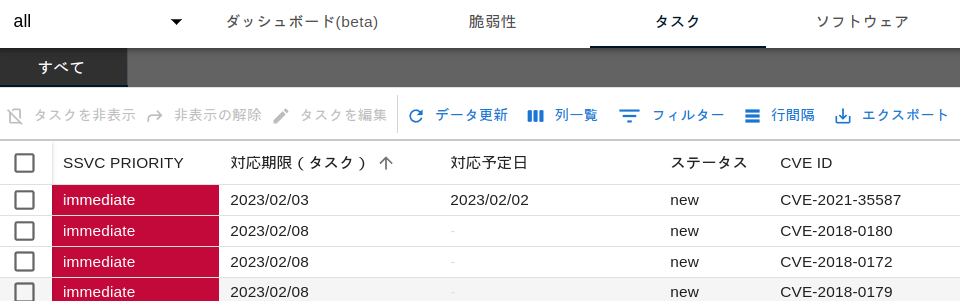
You can filter and extract "tasks that remain unaddressed past their due date" or "tasks with no scheduled remediation date."
-
Bulk Notifications
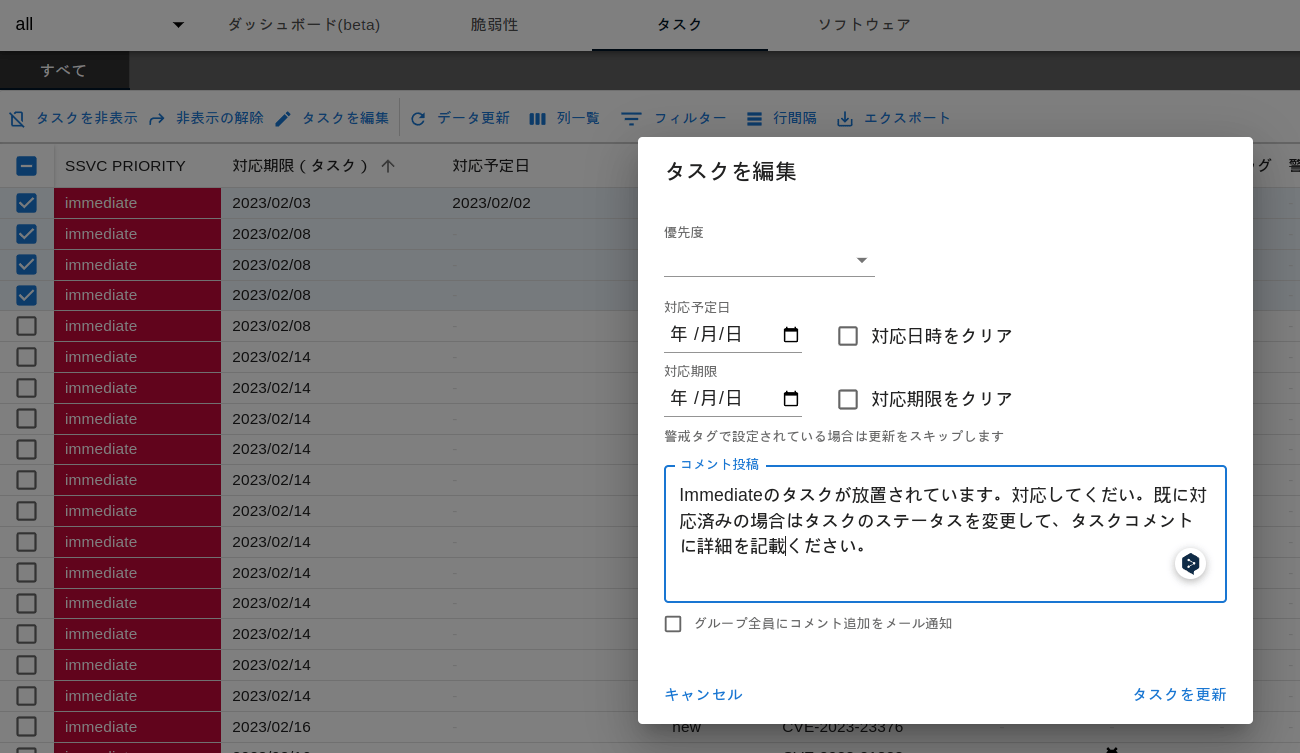
You can select multiple tasks and notify the assignees in bulk.
-
Tracking Progress via Task Comments
By utilizing the "Last Comment Author" and "Last Comment" columns in the task list, you can track the progress of each task directly from the list view.
- Last Comment Author is a member → A report or question has been submitted. This requires confirmation and a response from an administrator.
- Last Comment Author is the administrator → Instructions have been given. Awaiting action from the member.
Sorting by "Last Comment Update" brings tasks with recent interactions to the top, allowing you to review them without opening each task's detail screen individually. For a detailed use case, please refer to "Directly check the latest comment content in the task list".
Share Column Settings with List Templates
By saving the display settings, including the "Last Comment Author," "Last Comment," and "Last Comment Update" columns, as a List Template, all members in the organization can access the same view with a single click.
Improving CSIRT Operational Efficiency#
Traditionally, CSIRT has faced challenges with triage based on real-world risk, leading to resource and cost constraints. By leveraging FutureVuls' SSVC functionality, these challenges can be addressed, significantly streamlining vulnerability management operations.
Supplementing SSVC by Combining with EPSS#
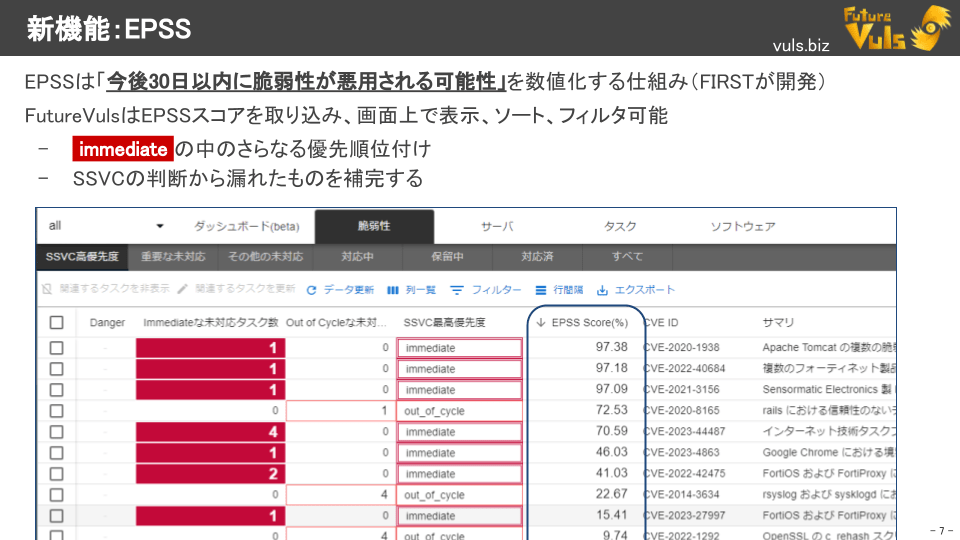
EPSS (Exploit Prediction Scoring System) is a system that quantifies the "probability of a vulnerability being exploited within the next 30 days." FutureVuls incorporates EPSS data, enabling the following use cases in combination with SSVC:
- Further Prioritization of 'Immediate' Among vulnerabilities classified as Immediate, prioritize those with high EPSS scores.
- Supplementing SSVC Decisions - Target tasks classified as Scheduled or Defer for remediation if they have high EPSS scores.
To learn more about the EPSS feature in FutureVuls, please see the following articles: