Group Settings#
In Group Settings, you can configure member verification, scanners, scan history, external integrations, and more.
Access Permissions
Group Settings are only visible to users with Group Admin permissions.
Group#
Here you can configure settings related to the group itself and notifications.
| Category | Details |
|---|---|
| Group Name | You can change the group name, as long as it is unique within the organization. |
| Default Server Role | A role is always assigned to every server. You can configure the role that is automatically assigned when a new server is created. |
| Default Assignee | You can change the default assignee that is automatically set when a server is added via a scanner or the FutureVuls API. The creator of a group is automatically set as the default assignee for that group. |
| Last Batch Manual Scan | You can run a scan on all servers registered in the group. The 'Last Batch Manual Scan' displays the date and time the manual scan for all servers was executed. Run a bulk scan from the 'Manual Scan of All Servers' button. Note: As this is a manual scan, configuration information will not be synchronized. Note: A single bulk scan covers up to 500 servers. If a group has more than 500 servers, split it into smaller groups. Note: If the scan targets more than 100 servers, it may take some time for all scan results to become available. To scan many servers in an emergency, call the FutureVuls API server scan endpoint ( POST /v1/server/scan/{serverID}) for each target server (see Group API List). |
| Last Inspector SBOM Manual Scan | You can run a scan on servers configured with the Inspector SBOM integration. The 'Last Inspector SBOM Manual Scan' displays the date and time the manual scan for all servers was executed. Run a bulk scan from the 'Inspector SBOM Batch Scan' button. |
| Share this vulnerability topic with other groups | Configure whether to share vulnerability topics within the organization (Reference) |
| CPE Auto Assignment | You can enable or disable automatic CPE assignment for Windows software during scans. When enabled, CPEs are automatically assigned during the scan based on FutureVuls' proprietary dictionary of verified CPEs. Manual assignments take precedence, and CPEs that have been manually assigned will not be overwritten by automatic assignment. This feature is enabled by default for newly created groups, and disabled by default for groups that already existed at the February 24, 2026 release (when this feature was added). |
| Notify all group members via email when task comments are added | Configure whether to notify all group members when a task comment is added. ・ON: All members of the group to which the task belongs will be notified. ・OFF: The task's primary and secondary assignees will be notified. |
| Notification settings when an Immediate task is detected | ・All group members: Notifies all users explicitly belonging to the group of newly detected Immediate tasks. ・Task assignees: Notifies only the primary and secondary assignees of newly detected Immediate tasks. |
| Notification settings when an actively exploited vulnerability is detected | ・All group members: Notifies all users explicitly belonging to the group of tasks related to newly detected actively exploited vulnerabilities. ・Task assignees: Notifies only the primary and secondary assignees of tasks related to newly detected actively exploited vulnerabilities. ・None: Disables notifications. This setting is enabled (ON) by default for organizations subscribed to the PSIRT plan. It is disabled (None) by default for all other organizations. |
| Notification settings when a malicious package is detected | ・All group members: Notifies all users explicitly belonging to the group of newly detected malicious packages. ・Supply Chain Risk primary assignees: Notifies only the primary assignee for the supply chain risk of newly detected malicious packages. |
For a list of users who can be set as the 'Default Assignee', please refer to 'Candidates Displayed for Primary/Secondary Assignee'.
Members#
Adding Members#
Abolition of Approval Workflow (Effective July 14, 2025)
The approval workflow for adding users has been removed. When an administrator adds a user, their participation is completed immediately.
On the Members screen, you can view the users within the group. You can check the user's permissions, two-factor authentication status, and configure group administrators.
You can add users from the Add a new user button. There are two options for adding users.
- Select from this organization
- Add a user who already belongs to the organization by selecting them from a dropdown menu.
- Invite an external user
- Add a user not yet registered in the organization by sending them a notification email.
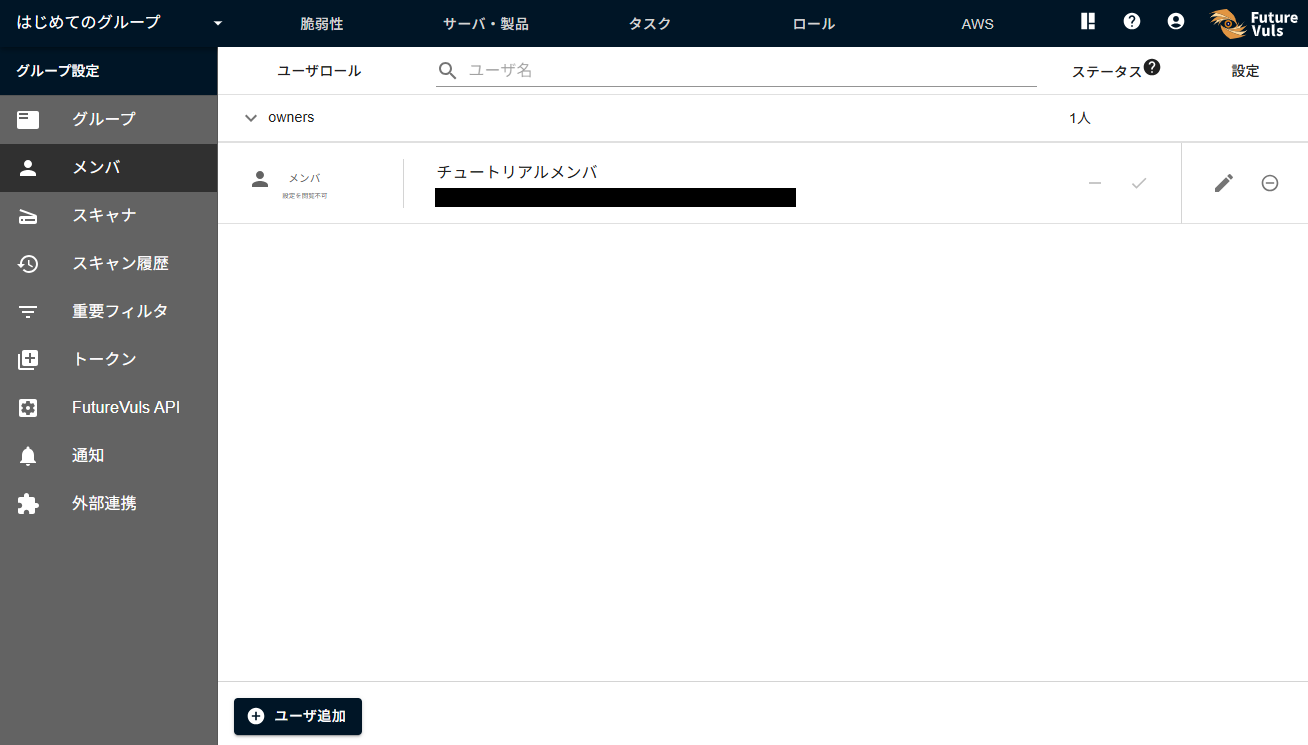
You can add a user by clicking 'Add a new user'. There are two different flows depending on the user's participation status.
If the user to be added already belongs to the organization#
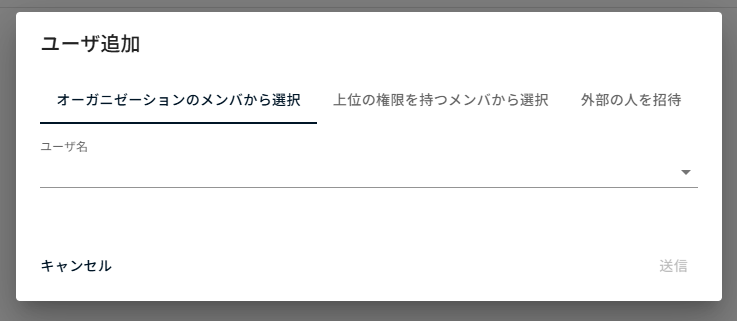
To add a user who is already a member of the current organization to a group, select from the following:
- Select from the organization members: Users with Member permissions in the organization.
- Select from members with higher-level permissions: Users with Owner or CSIRT permissions in the organization.
If the user to be added does not yet belong to the organization#
For users joining the organization for the first time, add them by entering their email address under 'Invite an external user' (select this option even if they belong to a different organization).
Enter the email address of the user to be added and click 'Submit'. A notification email will be sent (Subject: [FutureVuls] Invitation to the new organization:
Removing Members#
To remove a member from the group, click the button on the right.
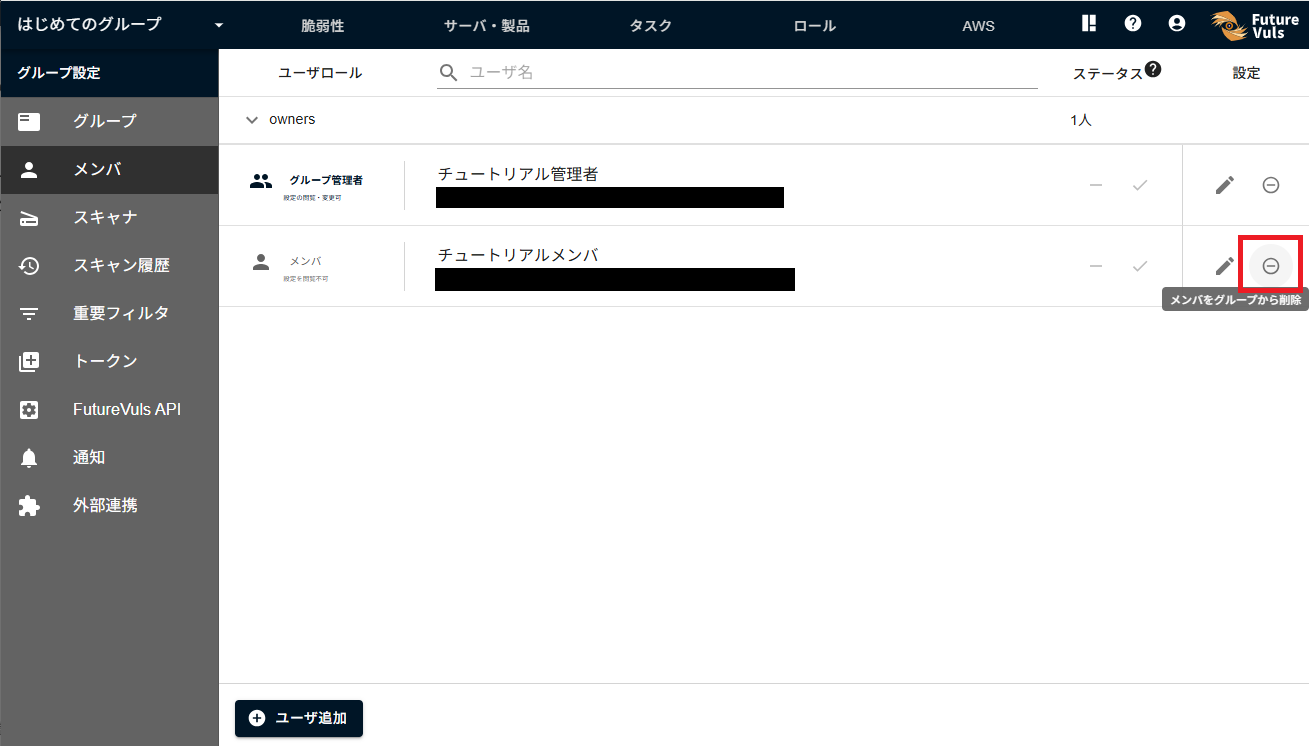
Please note that removing a member from a group does not remove them from the organization. For details, please refer to Removing a user from a group.
SSVC#
You can configure SSVC settings at the group level. Specifically, you can configure the following items within the group:
Scanners#
Displays how to install and uninstall the scanner program.
Scan History#
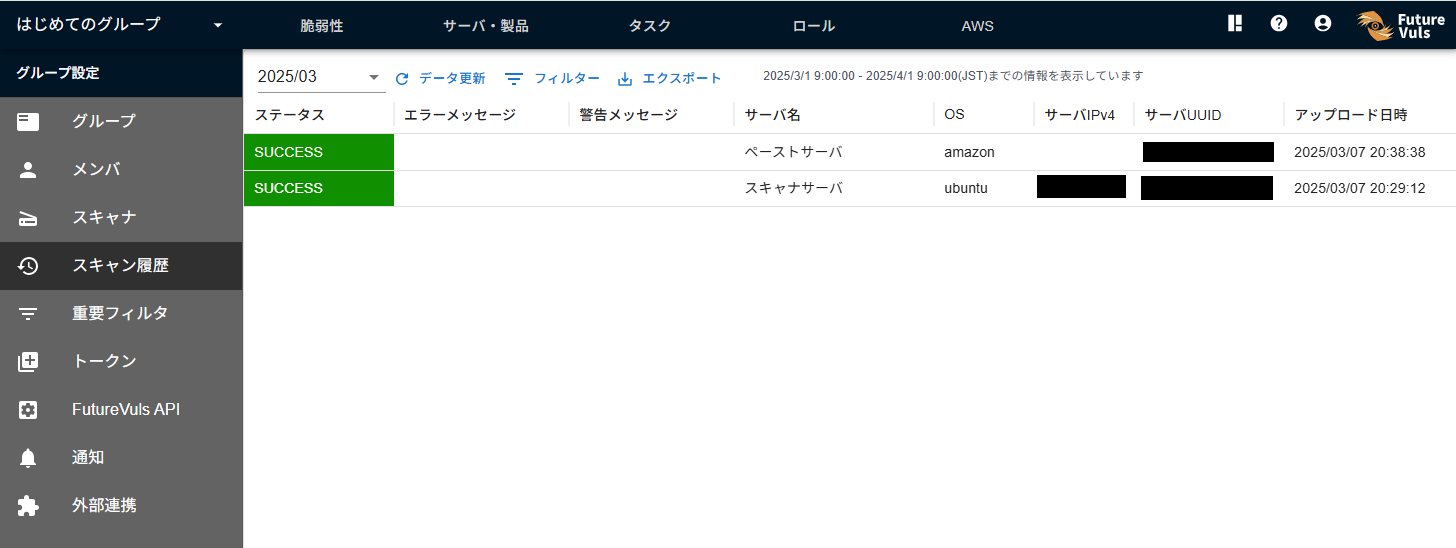
On the Scan History page, you can check the history of scans. You can check scanner information for each server, whether scans succeeded or failed, and error messages for failed scans.
Error messages, and warnings shown when vulnerabilities cannot be detected from Dependabot alerts in the GitHub integration, are shown in the organization language in effect at the time they are recorded. However, other warnings (such as those output by the scanner) are shown in English regardless of the organization language. When details about the cause of an error are available (such as conflicting OS packages in an SBOM import), they are shown on a new line after the error message, in the same language as the error message. Error messages for supply chain risk scans and SBOM imports, and the GitHub integration warnings, recorded before this behavior was introduced may be in Japanese regardless of the organization language (introduced in the 2026-10-14 release; see the "Release Notes").
Advanced Settings#
Less frequently used items are collapsed under 'Advanced Settings'. Since they are collapsed by default, expand 'Advanced Settings' in the menu to access them.
Important CVE Conditions#
You can set the conditions for which vulnerabilities are treated as 'Important CVE' at the group level.
For more details, see 'Criteria for Important CVE'.
Tokens#
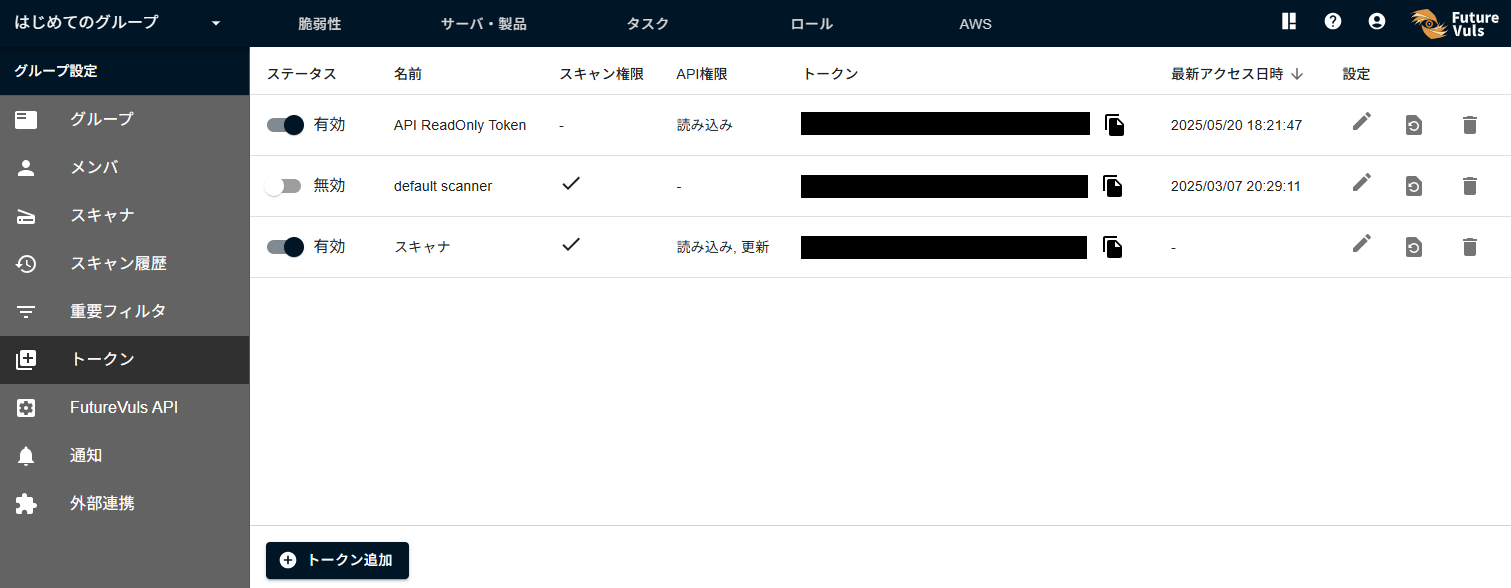
You can manage tokens used for scanning and the FutureVuls API.
FutureVuls API#
You can check how to use the FutureVuls API and view its documentation.
Notifications#
You can configure 'Notification features' at the group level. Specifically, you can configure the following items within the group:
External Integrations#
In External Integrations, you can configure settings for linking with various external services. For details, please refer to External Integrations.