Windows Paste Scan#
By registering Windows update information (KBIDs) and package information in the FutureVuls console, you can detect vulnerabilities without using a scanner.
This scanning method is recommended for the following environments:
- Environments where scanner programs "cannot be installed"
- Environments that are isolated from the internet and "cannot upload" configuration information to FutureVuls
- Environments that "cannot connect" to the internet or a Windows Update service like WSUS
It supports environments where deploying the FutureVuls scanner is difficult.
For supported OSes and versions, please refer to "Supported Environments".
Differences from Scans Using a Scanner#
Compared to a scan that uses a scanner, the Windows paste scan cannot retrieve the following information:
-
Restart status of applied updates
Information on whether a restart is required for installed updates.
-
Unapplied updates
Information about updates that are not installed.
-
Update information retrieved using Windows Update Search
The paste scan does not retrieve KB (update) information that is obtained by using the
UpdateSearcher. (This information is retrieved in a local scan. For details, see the Windows Local Scan Manual).$UpdateSearcher = $UpdateSession.CreateUpdateSearcher(); $UpdateSearcher.ServerSelection = 2; $UpdateSearcher.search("IsInstalled = 1 and RebootRequired = 0 and Type='Software'").Updates $UpdateSearcher.search("IsInstalled = 0 and Type='Software'").Updates$UpdateSearcher = (New-Object -ComObject Microsoft.Update.Session).CreateUpdateSearcher(); $HistoryCount = $UpdateSearcher.GetTotalHistoryCount(); $UpdateSearcher.QueryHistory(0, $HistoryCount);
If the KB information registered via paste scan is outdated or incomplete, you can supplement it using the "Manual KBID Registration" feature.
New Registration#
To perform a new Windows paste scan, follow these steps.
-
Click
Server>Add Server>Add Paste Serverto open the dialog box.
-
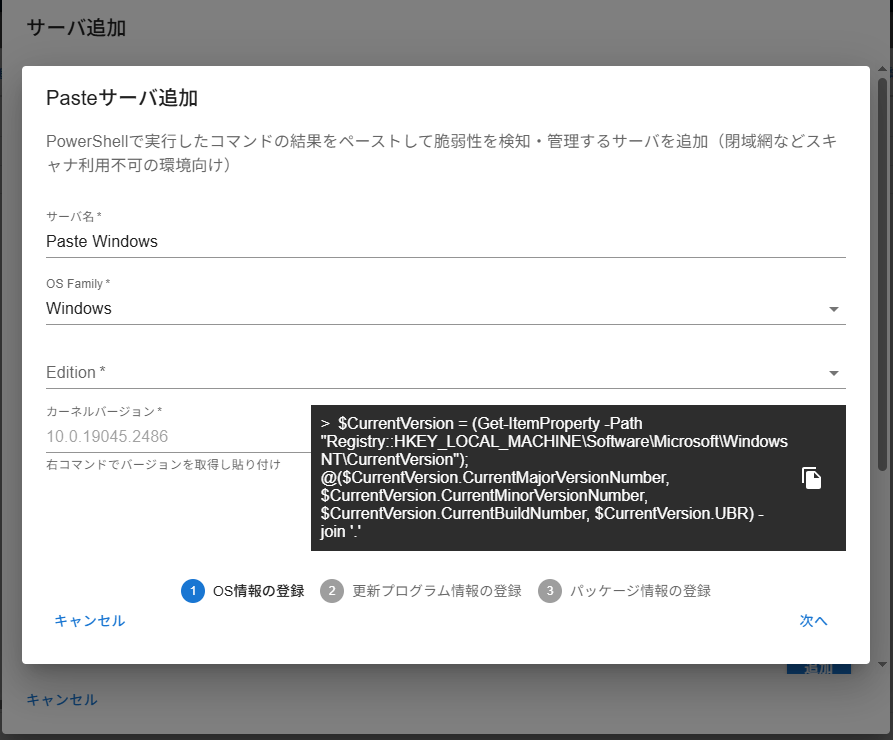
Enter the server name and OS information (OS Family, Edition, Kernel Version).
-
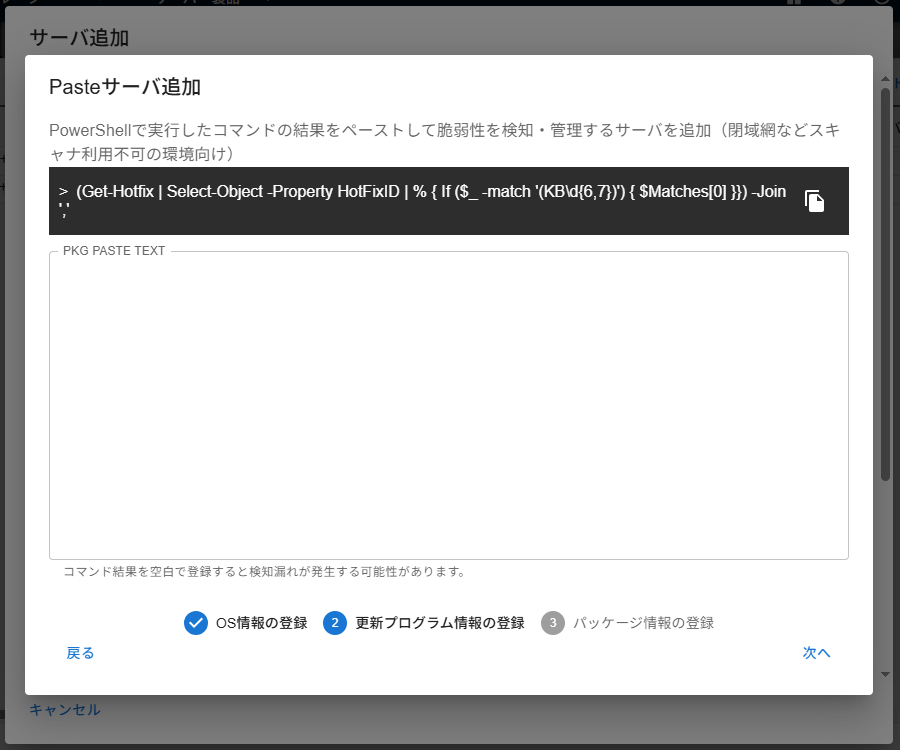
To retrieve update information, execute the command displayed on the screen in PowerShell and paste the result.
-
To retrieve package information, execute the command displayed on the screen in PowerShell and paste the result.
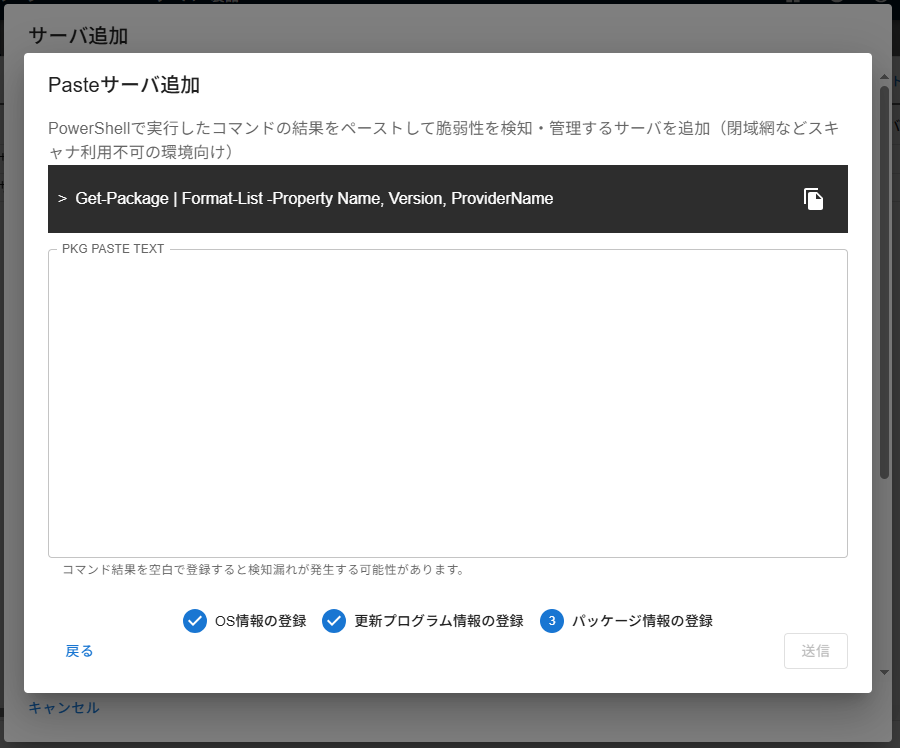
A scan runs automatically after registration. Based on the registered configuration information, a vulnerability is detected if FutureVuls cannot confirm that the KB that fixes it has been applied. For more precise vulnerability management, please use the Manual KBID Registration feature to register any unregistered update information.
Information Required for Windows Paste Server Registration and How to Obtain It#
| Info | Command |
|---|---|
| Kernel Version | $CurrentVersion = (Get-ItemProperty -Path "Registry::HKEY_LOCAL_MACHINE\Software\Microsoft\Windows NT\CurrentVersion"); @($CurrentVersion.CurrentMajorVersionNumber, $CurrentVersion.CurrentMinorVersionNumber, $CurrentVersion.CurrentBuildNumber, $CurrentVersion.UBR) -join '.' |
| KBIDs | (Get-Hotfix | Select-Object -Property HotFixID | % { If ($_ -match '(KB\d{6,7})') { $Matches[0] }}) -Join ',' |
| Packages | Get-Package | Select-Object Name, Version, ProviderName, @{Name='Publisher';Expression={$_.Metadata['Publisher']}} | Format-List | Out-String -Width 1024 |
Manual KBID Registration#
If the KB information registered via paste scan is outdated or incomplete, use this feature to register KBIDs manually. You can also use this feature if the KB information registered by a scanner-based Windows scan is incomplete.
For details, please refer to "Manual KBID Registration".