Windows Local Scan#
FutureVuls provides the following vulnerability management methods for Windows servers.
- Windows Scan: Vulnerability management using KB (Microsoft Knowledge Base)
- CPE Scan (CPE Assignment): Vulnerability management for software not managed by KB
- Lockfile Scan: Vulnerability management using application dependency files (available from July 14, 2025)
For users of older scanners
If you are using a Windows scanner older than vuls-v0.24.1 build-9d8e510, a manual update is required.
Users of older Windows scanners should perform a manual update by January 1, 2024. How to check the scanner version
How Windows Server Vulnerability Management Works#
1. Windows Scan: Overview of Vulnerability Management using KB (Microsoft Knowledge Base)#
KB (Microsoft Knowledge Base) is a repository of technical and support information provided by Microsoft, where each KB article is assigned a unique ID number (e.g., KB0000001). Information regarding patches that resolve vulnerabilities, security updates, and more is also published as KB articles and assigned a KB-ID.
To identify the contents of program updates, Windows updates are assigned a KB-ID, with some exceptions. Therefore, by checking which KB-ID-associated updates have been applied to the system, you can identify which vulnerabilities have been fixed and which remain unpatched.
FutureVuls's Windows Scan enables vulnerability detection and management using the status of Windows updates (i.e., which updates are applied or not applied). If the KB that fixes a vulnerability cannot be confirmed as applied, the CVE-IDs linked to that KB are detected as vulnerabilities present on the system.
Microsoft Edge is assessed using its installed version. Vulnerabilities in Microsoft products other than the OS, such as Teams and Visual Studio Code, may also be detected.
By converting KB-IDs to CVEs, the vulnerabilities can be evaluated using the same metrics as other managed targets like Linux and libraries. This also allows for triage and response based on information such as security alerts and exploit code.
Windows in any of the following environments can be scanned.
- Environments connected to Windows Update on the internet
- Environments under WSUS
- Offline environments / Cases where the scanner cannot be installed
During a local scan, the following commands are primarily used to obtain information about applied updates:
Get-HotfixGet-Package -ProviderName msu- UpdateSearcher commands such as
IUpdateSearcher::Search,UpdateSearcher::QueryHistory systeminfo.exe
For detailed behavior when acquiring update application information, please refer to the relevant code in the OSS vuls repository.
Additionally, for a detailed explanation of the Windows OS vulnerability detection mechanism, please see the blog post "Mechanism of Windows OS Vulnerability Detection".
2. CPE Scan (CPE Assignment): Overview of Asset and Vulnerability Management for Software Not Managed by KB#
Definition of 'Not Managed by KB'
In this manual, software that meets either of the following criteria is defined as "not managed by KB".
- Software that is not a target for update management
- Software whose updates are not associated with a KB-ID
- For example, Microsoft Office falls into this category. Although Microsoft Office is subject to update management, its updates are not typically associated with a KB-ID.
Software that is not managed by updates, or whose updates are not associated with a KB-ID, is outside the scope of KB-based vulnerability management.
FutureVuls provides the CPE Scan feature to perform asset and vulnerability management for this software that is not managed by KB. For details, see "Detecting Vulnerabilities in Software Not Managed by KB".
Windows Scan: Vulnerability Management using KB (Microsoft Knowledge Base)#
How to Run a Scan#
The Windows scanner runs automatically once a day via Task Scheduler.
If you want to run the scanner immediately after installation or at any arbitrary time, follow these steps:
- Method 1: Run from Task Scheduler
- Method 2: Run from Command Prompt
Method 1: Running from Task Scheduler#
- Start the
vuls-saastask from the Task Scheduler.- Open Task Scheduler.
-
Right-click on
vuls-saaslocated at the top level of the task list and select "Run".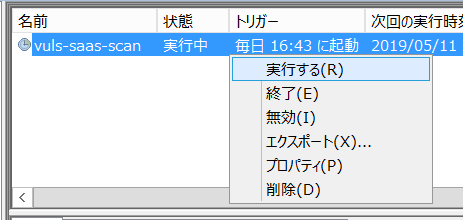
Method 2: Manual Scan from Command Prompt#
You can perform a manual scan by running the following command with administrator privileges.
C:\Program files\vuls-saas\vuls-saas.bat
How to Check Scan Results#
After the scan is complete, the results will be reflected on the web interface shortly. If the scan results are not reflected after a few minutes, or if the scan fails, check the following log file to identify the cause.
C:\Program Files\vuls-saas\vuls-saas.log- This file records the success or failure of the scan and the upload.
- If the scan fails, the report information will not be uploaded to FutureVuls.
If an error occurs, please refer to the Windows Scanner FAQ.
If there are missed detections in the scan results
When checking the Advisory List for the scanned Windows system, if you find any missed detections for applied or unapplied updates, you can supplement them using the Manual KBID Registration feature.
Scan Configuration File Location#
Scan settings are written in C:\Program Files\vuls-saas\config.toml as shown below.
PS C:\> type 'C:\Program Files\vuls-saas\config.toml'
# See README for details: https://vuls.io/docs/en/usage-settings.html

version = "v2"

[saas]
  GroupID = 0000
  Token = "xxxx-xxxxxxxx-xxxx-xxxxxx-xxxxxxxxx"
  URL = "https://xxxxxxxxxxxx"

[default]

[servers]

  [servers.server1]
    host = "localhost"
    port = "22"
    scanMode = ["fast-root"]
    [servers.server1.uuids]
      server1 = "xxxxxxxx-xxxx-xxxx-xxxx-xxxxxxxxxxx"
    [servers.server1.windows]
      serverSelection = 2

      version = "v2"
Scanning Windows under WSUS#
By configuring config.toml, you can detect unapplied KBs by referencing a WSUS server on the local network.
This scanning method is recommended for the following environments:
- Cannot connect to the Windows Update service on the internet, but a WSUS server is set up on the local network.
- The scanner program can be installed.
- Configuration information can be uploaded from the scanner program to FutureVuls on the internet.
- You do not want to copy and paste KBs on the screen every time Windows Update is performed, as with a paste scan.
When changing the Windows Update source, set serverSelection in config.toml to serverSelection = 1. (To reference the default Windows Update on the internet, set it to 2).
~ snip ~
[servers]
  [servers.localhost]
    host = "localhost"
    port = "local"
  [servers.localhost.uuids]
    localhost = "xxxx-xxxx-xxxx"
  [servers.localhost.windows]
    serverSelection = 1
~ snip ~
If you have trouble with scanning Windows under WSUS, please refer to the following:
Customizing Uploaded Information#
You can filter the information uploaded to FutureVuls by specifying the JSON keys of the information you do not want to upload in IgnoredJSONKeys in config.toml. This can only be configured for Windows scans.
As an example, the setting to not upload the list of installed software is as follows.
To find the JSON key to specify in config.toml, follow the steps below or refer to the FAQ.
~ snip ~
[servers]
  [servers.localhost]
    host = "localhost"
    port = "local"
    ignoredJSONKeys = ["packages"]
~ snip ~
Using CPE Scan to Manage Vulnerabilities in Software Not Managed by KB#
KB-based vulnerability management through Windows Scan detects vulnerabilities that are fixed by updates provided for a product, using the KB-ID associated with the update.
However, software that is not a target for update management, or software whose updates are not associated with a KB-ID, is outside the scope of KB-based vulnerability management. To detect vulnerabilities in these products not managed by KB, FutureVuls provides features to manage vulnerabilities for each product via CPE scan: Automatic CPE Assignment and Manual CPE Assignment.
For details, please see "Assigning CPE/PURL".
Reference Information for Determining if Software is Not Managed by KB#
None of the methods introduced below can accurately determine whether software is managed by KB. Please use them only as reference information. If you need accurate information on whether each product is managed by KB, please contact Microsoft.
- Software that is not a target of Windows Update / Microsoft Update is highly likely to have updates without an associated KB-ID, meaning it is likely not managed by KB.
- By searching for software in the "Microsoft Update Catalog", you can check if there are vulnerabilities with associated KBs for that product. You can also check the update method for each software in the "MSRC Security Update Guide". If no vulnerabilities with associated KBs appear on these sites, the software is likely not managed by KB.
Manually Registering Software#
For Windows systems registered via methods other than the Windows scanner, or for software that the scanner could not recognize, you can register the software manually. For more details, see CPE Registration.
Lockfile Scan: Vulnerability Management Using Application Dependency Files#
New Feature (Available from July 14, 2025)
While lockfile scanning by the Vuls scanner was previously available on Linux, this release makes it possible on Windows as well. This allows you to manage Windows packages and lockfiles as a single server on FutureVuls.
About Lockfile Scan#
Lockfile Scan is a feature that analyzes application dependency files (lockfiles) to detect vulnerabilities in the libraries being used. It allows you to manage vulnerabilities in dependency libraries used by applications in various programming languages running on Windows.
Scan Targets#
You can scan the following types of lockfiles on Windows:
- Node.js:
package-lock.json,yarn.lock - Python:
requirements.lock,Pipfile.lock,poetry.lock - Ruby:
Gemfile.lock - PHP:
composer.lock - .NET:
packages.lock.json - Go:
go.sum - Rust:
Cargo.lock - Java:
pom.xml,build.gradle.lock
For detailed scan targets, please refer to Application Scan.
How to Scan#
The Windows scanner automatically scans the configured directories and detects lockfiles. Detected lockfiles are automatically analyzed, and vulnerabilities in their dependency libraries are reported to FutureVuls.
How to Configure#
By specifying the target directories for lockfiles in config.toml, lockfiles will also be scanned during a Windows scan.
[servers.localhost]
  host = "localhost"
  port = "local"
  lockfiles = ["C:\\path\\to\\xxx.lock", "C:\\path\\to\\yyy.lock"]
  [servers.localhost.uuids]
    localhost = "xxxx-xxxx-xxxx"
Benefits of Integrated Management#
Managing Windows packages and lockfiles as a single server on FutureVuls offers the following benefits:
- Centralized Management: View OS vulnerabilities and application dependency vulnerabilities on a single screen.
- Prioritization: Holistically prioritize fixes from KBs and updates to dependency libraries.
- Efficient Triage: Process all vulnerabilities through the same workflow.