GCP Integration#
By registering your GCP credentials, you can use FutureVuls more effectively.
Currently, FutureVuls integrates with the following GCP services:
- Artifact Analysis
- You can register container images managed in GCP's Artifact Registry as FutureVuls servers and scan them.
- Only one set of GCP credentials can be registered per group in FutureVuls.
- All GCP integrations in FutureVuls use this single set of credentials.
- If you use multiple GCP environments, create a separate group for each and register them individually.
Integration Procedure#
Register your credentials with FutureVuls using a GCP service account.
Configuration on GCP#
- Log in to GCP.
- Enable the Container Analysis API.
- If it is disabled, an error dialog stating "The GCP ProjectID is incorrect." will be displayed in a later step.
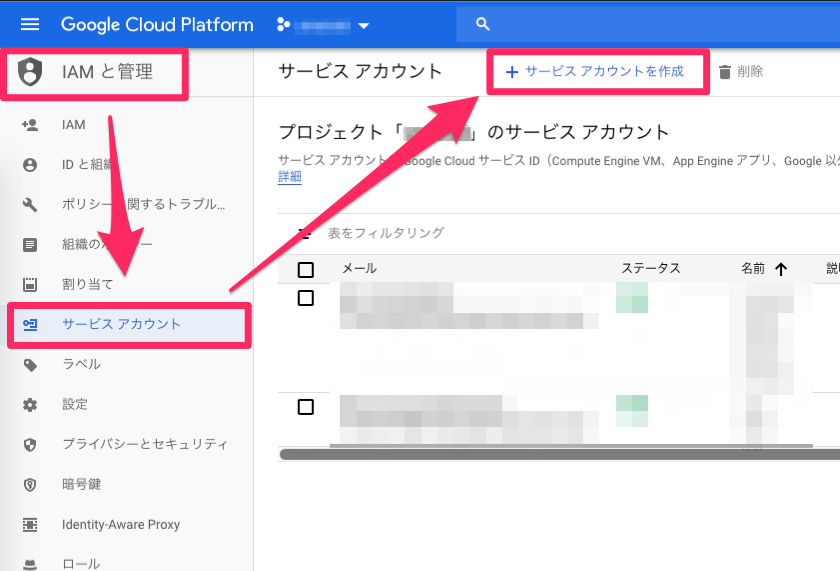
- Navigate to "IAM & Admin" -> "Service Accounts" and click "CREATE SERVICE ACCOUNT".
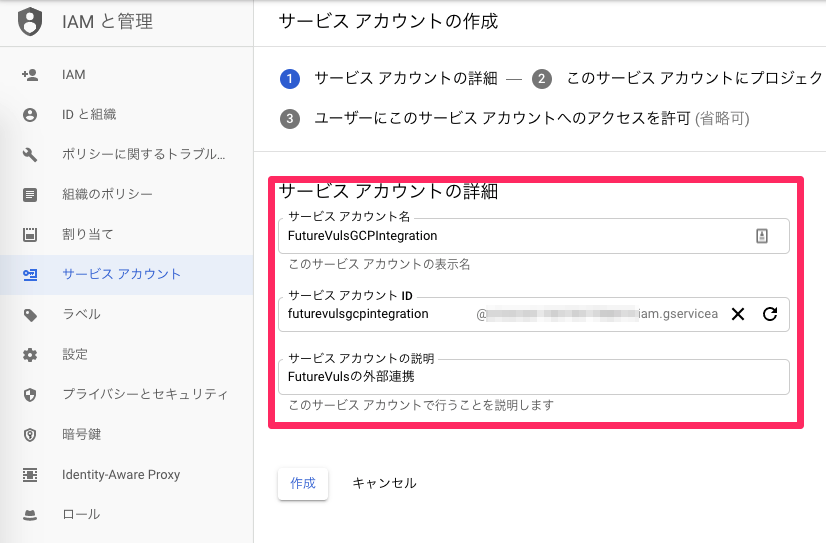
- Enter the required information and click "CREATE".
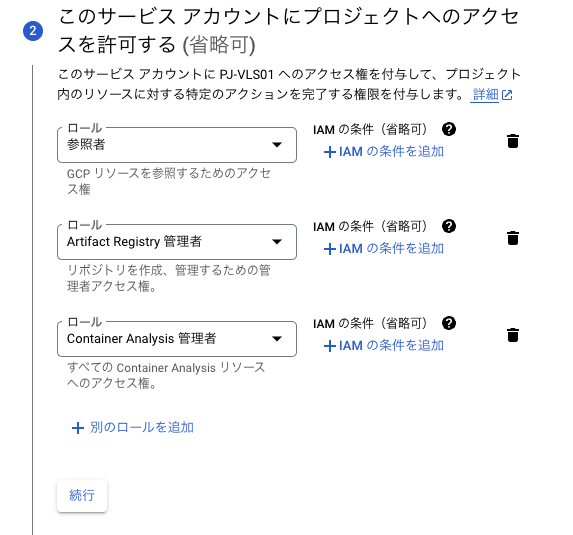
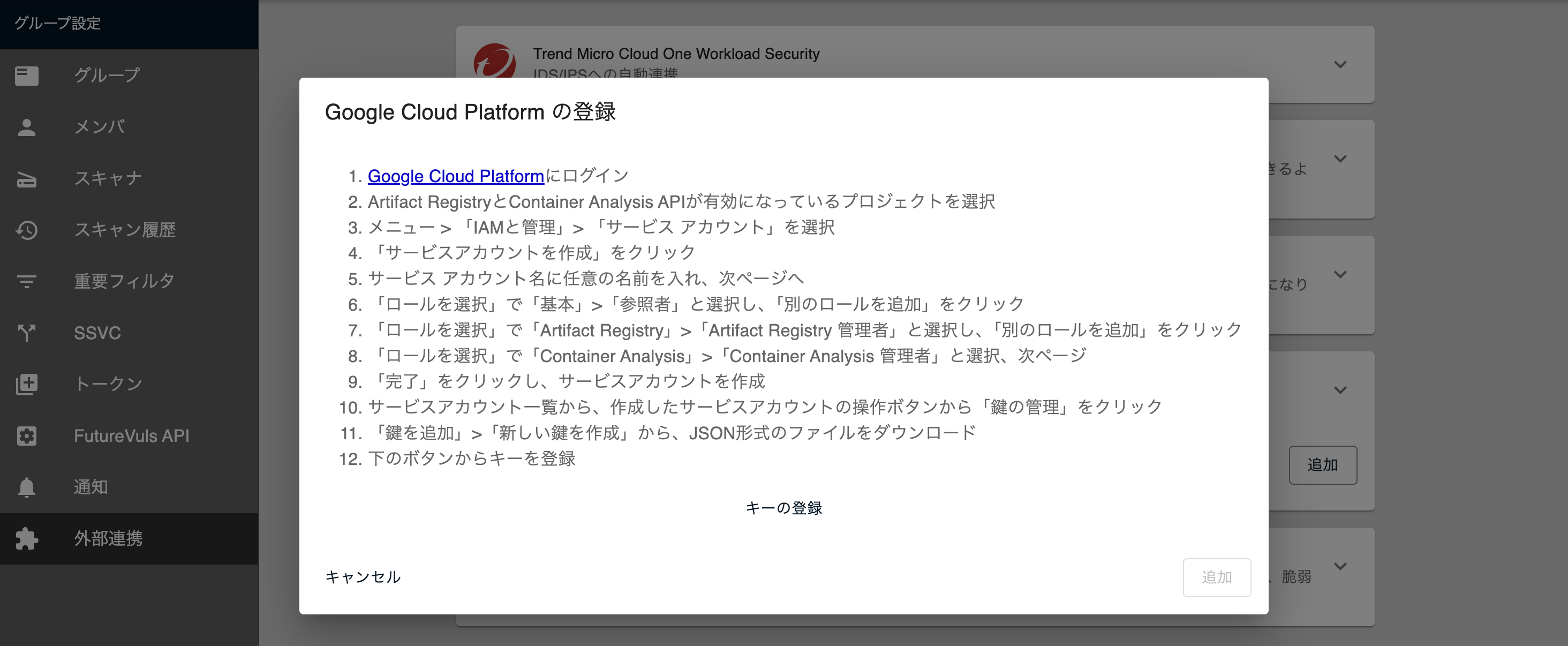
- Add the following three roles and click "CONTINUE".
- "Basic > Viewer"
- "Container Analysis > Container Analysis Administrator"
- "Artifact Registry > Artifact Registry Administrator"
- Click "CREATE KEY", ensure the key type is JSON, and then click "CREATE". This key will be used in a later step.
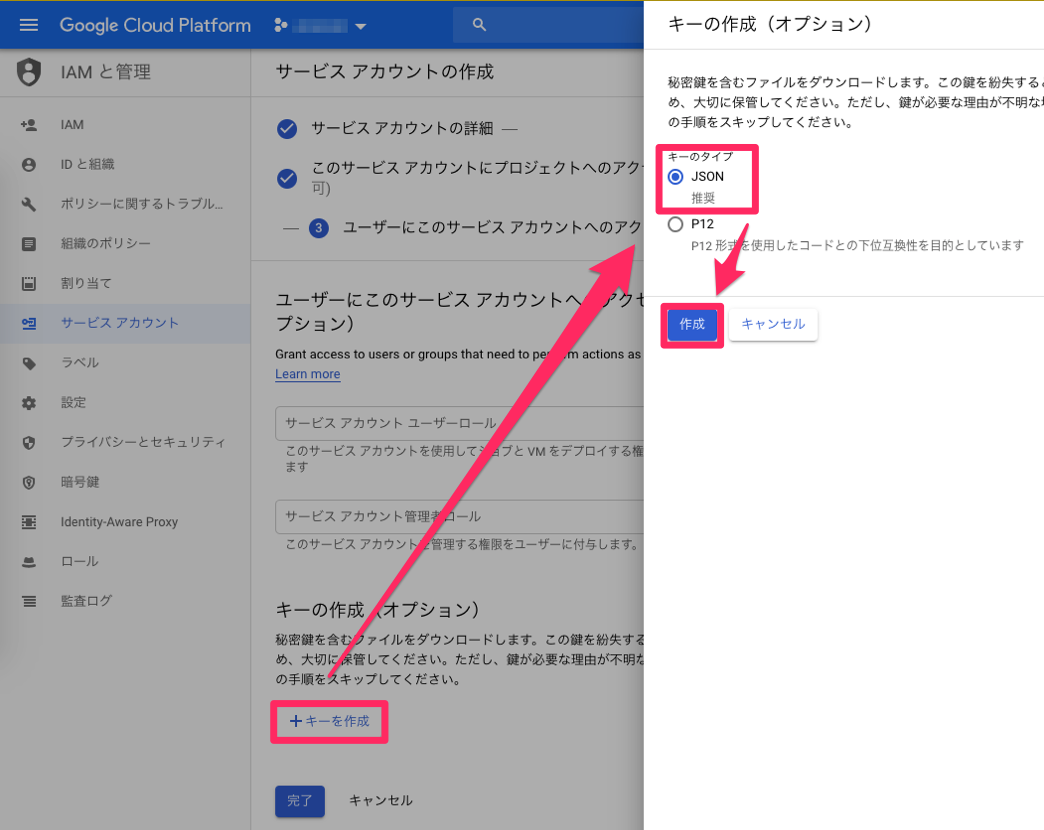
- Click "DONE" to complete the service account creation.
Configuration on FutureVuls#
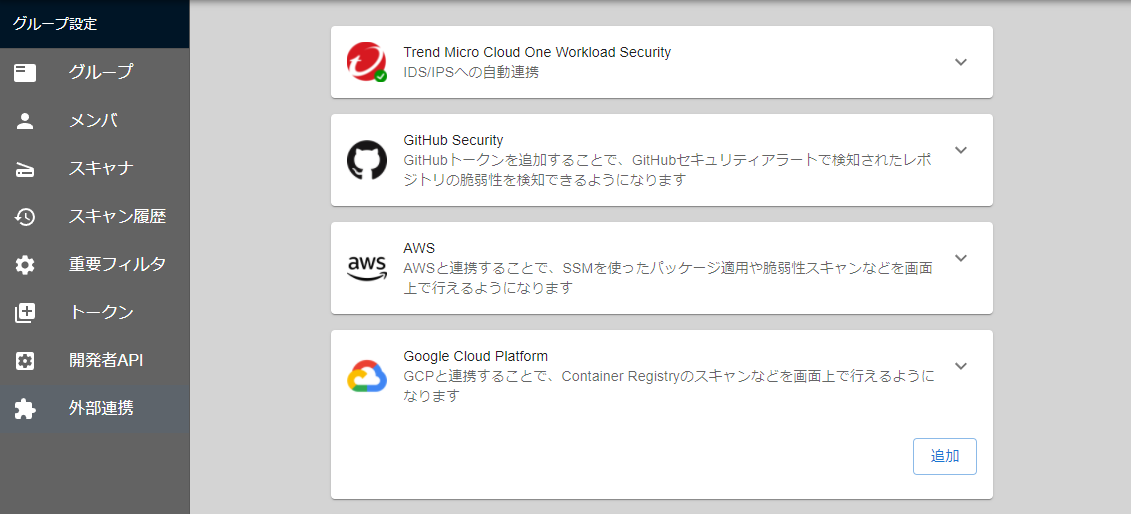
- Open External Integration in FutureVuls and click "Add" on the GCP card.
- Register the service account credential JSON file downloaded from GCP.
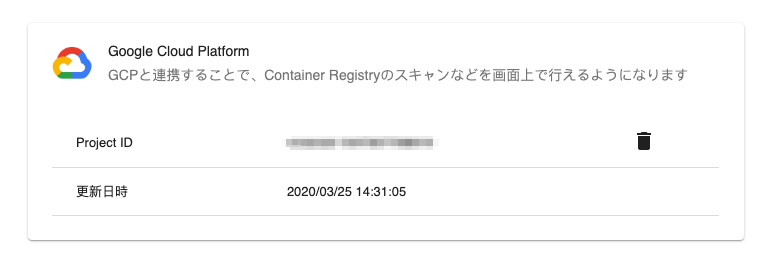
- The setup is complete once the credential information is displayed.
The procedure for registering an Artifact Registry image is described here.
Deleting the Configuration#
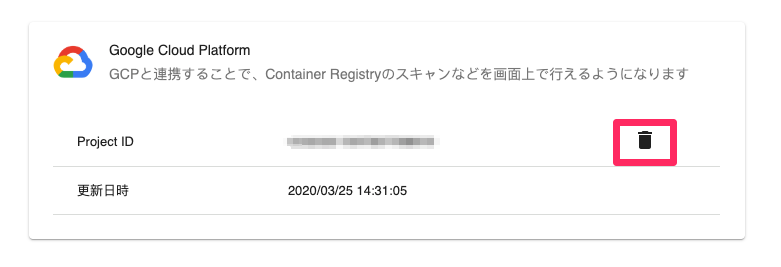
You can delete the credentials by clicking the trash can icon next to them.
When updating the configuration
Once registered, credentials cannot be edited in place. Delete the existing configuration and register a new one.