Triage Settings in the CSIRT Plan#
FutureVuls's automatic triage feature consists of three sub-features to streamline vulnerability management. By combining these features, you can further automate your operations.
- Automatic Triage with SSVC Decision Tree: Automatically determines response priority based on risk and automates task setting for operators.
- Rule-based Alerting: Automatically sends alerts based on critical vulnerabilities.
- Rule-based Automatic Hiding: Automatically hides low-priority vulnerabilities to reduce workload.
In particular, the "Automatic Triage with SSVC Decision Tree" feature significantly contributes to the efficiency of vulnerability management. This feature enables accurate risk assessment and significantly reduces operator workload.
SSVC Configuration#
This section covers the information and configuration needed to use SSVC. Note that SSVC is enabled by default on the CSIRT Plan.
Group-level Configuration#
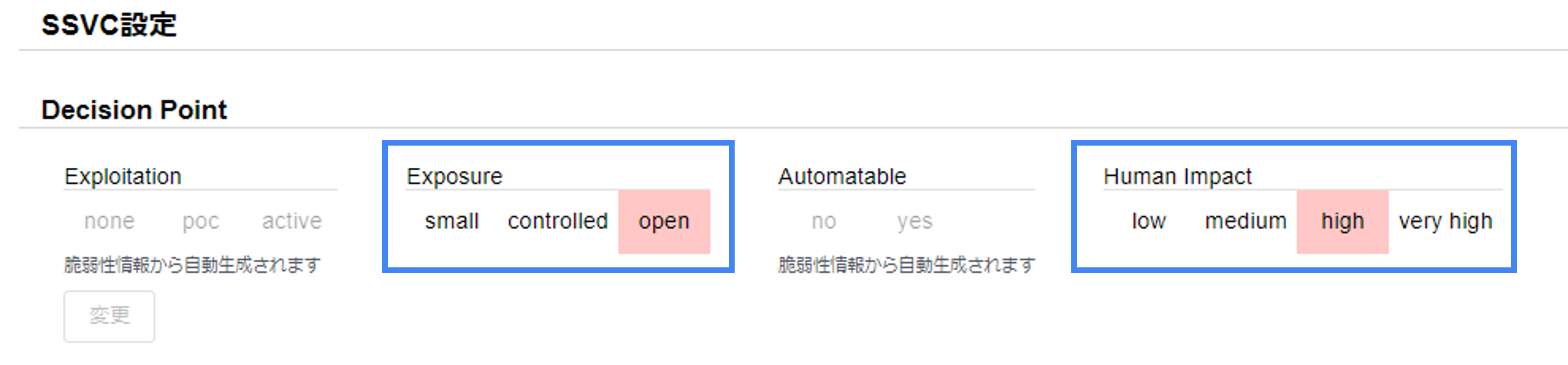
SSVC is a framework that determines the response priority for vulnerabilities in four levels, based on Decision Points for "vulnerability risk," "vulnerability threat status," "network exposure," and "business impact." While the system can automatically determine whether exploitation can be automated (Automatable) and the current threat status (Exploit), the "system environmental values" and the "business impact if the system is attacked" are specific to the user's environment and must be configured individually. Since these differ for each system (corresponding to a group), they are configured in the group settings.
Note that in FutureVuls, standard values are set in advance for these Decision Points. Therefore, SSVC evaluation will work without this configuration, but configuring these values allows for a more accurate assessment that reflects your actual environment.
In the decision tree shown under "Decision Point" in Group Settings > SSVC, click to select the values for Exposure and Human Impact, then press the Apply button.
For details on each evaluation item, please refer to the manual.
Server-level Configuration#
Even within a single system, the business impact can differ, for example, between an application server and a DB server. If you want to change Decision Point values for individual nodes like servers within the same system, you can configure this using Roles. By creating a role, setting the Decision Point, and assigning it to a server, the role's Decision Point values will be used in SSVC calculations.
Checking the SSVC Derivation Results#
In FutureVuls, you can visually check the priority derived from the SSVC decision tree. A major advantage is that the basis for the decision is clear.
Checking the Rationale#
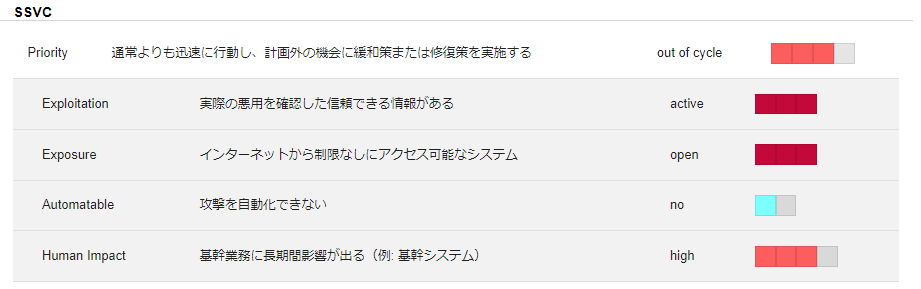
In the "Task Tab > Task Details > SSVC", you can check the SSVC Priority, as shown in the figure below.
Click Show decision points to see the values of the four Decision Points used in the decision, along with where each value came from (vulnerability information or Role settings).
Filtering#
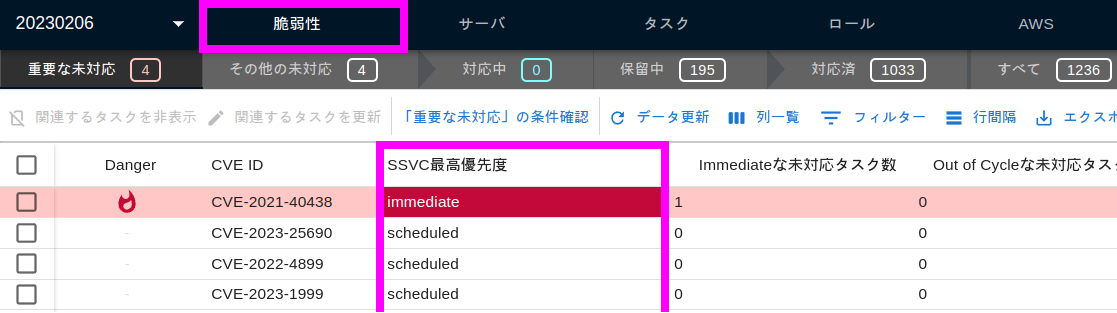
In the Vulnerability tab and Task tab, you can filter by the "SSVC Priority" column — for example, showing only Immediate vulnerabilities.
Filtering by Important CVE Conditions#
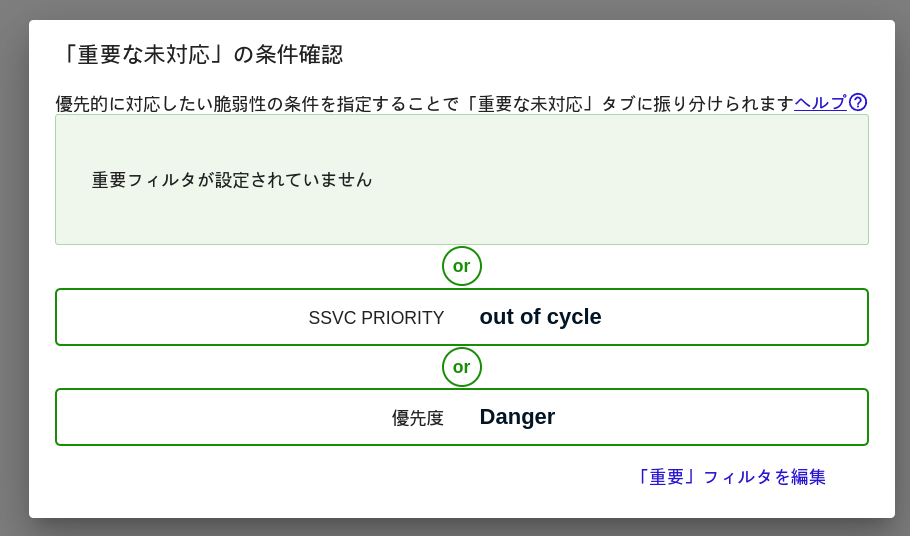
In "Vulnerability Tab > Important CVE Conditions", Immediate and Out-of-Cycle vulnerabilities can be automatically classified as "Important CVE".
Automatic Triage Function#
FutureVuls has a "Trigger & Action" feature that allows you to automatically set ticket statuses, due dates, and more, based on the SSVC Priority of detected vulnerabilities. You can configure this from the "Triggers and follow-up actions for Priority changes" section at both the organization and group levels. If a group-level setting exists, it takes precedence. This allows for flexible configuration, such as setting a standard policy at the organization level and overriding it for specific groups.
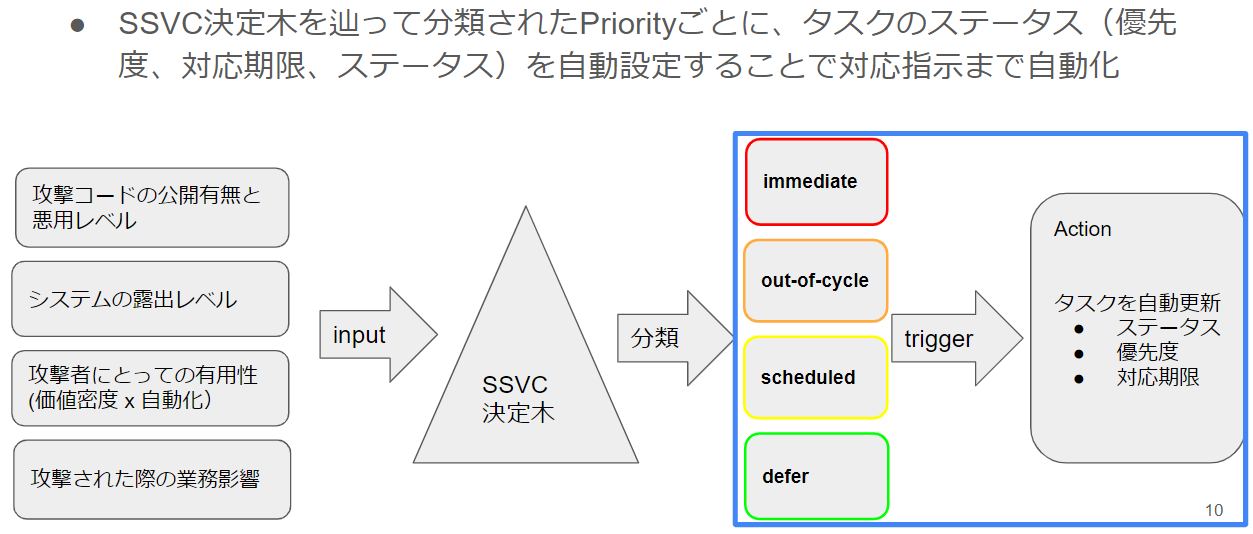
By using configurations like the ones below, you can focus on responding to high-priority vulnerabilities.
Vulnerabilities Requiring Priority Response#
As an example, let's configure the action for when the SSVC Priority is Immediate.
Press and change to the following settings:
- Task Status:
new - Task Priority:
High - Due Date:
14 days later
Then, among the vulnerabilities detected in this system, those with an SSVC Priority of Immediate will be assigned to the Open tab with a new status. The due date for the related tasks will be automatically set to two weeks from the time of detection.
For critical vulnerabilities, we recommend a configuration like this that sets a clear due date for focused response.
Vulnerabilities That Are Not Critical to Address Immediately#
As an example, let's configure the action for when the SSVC Priority is scheduled.
Press and change to the following settings:
- Task Status:
defer(On Hold) - Task Priority:
Low - Due Date:
0 0 30 * *(the 30th of every month)
Then, among the vulnerabilities detected by this system, those with an SSVC Priority of scheduled will be assigned to the Resolved tab with a defer status. The due date for the related tasks will be automatically set to the next 30th of the month.
For low-priority vulnerabilities, we recommend a configuration like this to address them in bulk during regular maintenance.
Rule-based Priority Change#
This feature can be used to complement SSVC — for example, by creating alerts for vulnerabilities with a CVSS score of 10, even if they are not classified as Immediate by SSVC.
Rule-based Automatic Hide Function#
FutureVuls's "Automatic Hide Function" is a feature that automatically hides tasks determined to be low-risk.
- Target for Hiding
Define rules in advance for what is considered low risk, and tasks that match these rules will be set to a hidden status. - Improved Operational Efficiency
Since the vulnerabilities are still detected, you can check them later if necessary.
By utilizing this feature, operators can focus on high-risk tasks.