Vulnerability Priority and Task Priority#
This manual explains Vulnerability Priority and Task Priority.
About Vulnerability and Task Priorities#
You can set four priority levels for "Vulnerabilities" and "Tasks": HIGH / MEDIUM / LOW / NONE.
This allows you to clearly communicate the urgency of vulnerabilities and the importance of tasks to the entire team, enabling appropriate action.
You can customize the display name for each priority level to match your organization's rules. This allows you to integrate FutureVuls' priority levels with the response priority rules in your existing business processes.
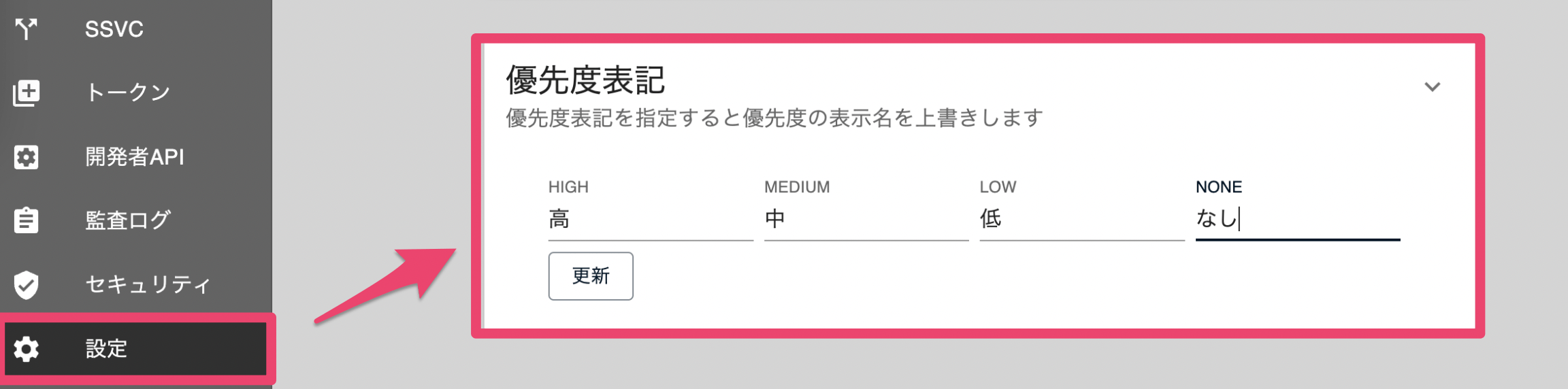
Vulnerability Priority#
This section explains how to set vulnerability priorities and when to use each method.
Setting Vulnerability Priority#
Vulnerability priority is determined by the highest-ranking applicable setting. The priority is determined according to the following flow:
flowchart TD
    A["Vulnerability Detected"] --> B{"Matches a Special<br>Alert Tag?"}
    B -- Yes --> C["Vulnerability Priority = Value set by Special Alert Tag<br>(Cannot be changed later)"]
    B -- No --> D{"Vulnerability Priority<br>set manually?"}
    D -- Yes --> E["Vulnerability Priority = Manually set value"]
    D -- No --> F{"Matches an Automatic<br>Vulnerability Priority rule?"}
    F -- Yes --> G["Vulnerability Priority = Value set by Automatic Vulnerability Priority"]
F -- No --> H["Vulnerability Priority = NONE"]| No | Setting Type | Configuration Location | "CVE Priority Changed From" Display | Scope | Required Permissions | CSIRT Plan Only |
|---|---|---|---|---|---|---|
| 1 | Special Alert Tag | Organization Settings | Special Alert Tag | Entire Organization | Owner | ☑️ |
| 2 | Individual Manual Setting in Vulnerability Details | Vulnerability Details | Manual | Within a specific group | Group Members or higher | |
| 3 | Automatic Vulnerability Priority Setting | Organization Settings | Auto CVE Priority | Entire Organization | Owner | ☑️ |
The "Vulnerability Priority" value is determined in the order shown in the table above. A priority set by a higher-ranking method cannot be overridden by a lower-ranking setting. For example:
- A priority set by a "Special Alert Tag" cannot be overridden by the lower-ranking "Individual Manual Setting in Vulnerability Details."
- A priority set by the "Automatic Vulnerability Priority Setting" can be changed by the higher-ranking "Individual Manual Setting in Vulnerability Details."
When to Use Each Vulnerability Priority Setting (CSIRT Plan)#
First, use the lowest-ranking "Automatic Vulnerability Priority Setting" to assign priorities to vulnerabilities across the entire organization based on consistent rules.
After that, we recommend using the settings as follows:
- To change the priority of a specific vulnerability in a specific group → "Individual Manual Setting in Vulnerability Details"
- To change the priority of a vulnerability with a specific CVE-ID across the entire organization → "Special Alert Tag"
How to Use Automatic Vulnerability Priority Setting and the Important CVE Conditions
By combining "Automatic Vulnerability Priority Setting" and the "Important CVE Conditions," you can achieve the following workflow.
Automatic Vulnerability Priority Setting
- The security department configures this for the entire company (the whole organization) at once.
- Set strict conditions, as lenient conditions may result in too many high-priority vulnerabilities, making it difficult to respond to them all.
Important CVE Conditions
- Configured by each department (on a per-group basis).
-
Set flexible conditions based on the specific characteristics of that department's systems.
- Example: For a system with many Microsoft products, set a condition requiring a Microsoft CVSS Score of 9 or higher.
- Example: For a communication system sensitive to DoS attacks, such as one operating DNS, specify availability in the conditions.
Task Priority#
This section explains how to set task priorities and when to use each method.
Default Task Priority Setting
When a new task is created, its priority is inherited from the associated vulnerability.
Setting Task Priority#
Task priority is determined by the highest-ranking applicable setting. The priority is determined according to the following flow:
flowchart TD
    A["Task Created"] --> B{"Priority set<br>manually?"}
    B -- Yes --> C["Task Priority = Manually set value"]
    B -- No --> D{"Priority set by<br>SSVC Triage?"}
    D -- Yes --> E["Task Priority = Value set by SSVC"]
    D -- No --> F{"Matches a Task<br>Priority Rule Set?"}
    F -- Yes --> G["Task Priority = Value set by the Rule Set"]
F -- No --> H["Task Priority = Inherited from Vulnerability Priority"]| No | Setting Type | Configuration Location | "Task Priority Changed From" Display | Required Permissions | CSIRT Plan Only |
|---|---|---|---|---|---|
| 1 | Individual Manual Setting in Task Details | Task Details | Manual | Group Members or higher | |
| 2 | SSVC Triage | Organization Settings | SSVC | Owner | ☑️ |
| 3 | Automatic Task Priority Setting | Organization Settings | Task Priority Rule Set | Owner | ☑️ |
| 4 | Inheritance from Vulnerability Priority | Vulnerability Details | CVE Priority | None |
Task Priority Precedence
The "Task Priority" value is determined in the order shown in the table above. A priority set by a higher-ranking method cannot be overridden by a lower-ranking setting.
For example:
- A priority set by "SSVC Triage" can be changed by the higher-ranking "Individual Manual Setting in Task Details."
- A priority set by "SSVC Triage" cannot be overridden by the lower-ranking "Task Priority Rule Set."
When to Use Each Task Priority Setting#
This section explains when to use each task priority setting for the Standard and CSIRT plans.
For the Standard Plan#
In the Standard Plan, the methods for setting task priority are limited to:
- Inheritance from Vulnerability Priority
- Individual Manual Setting in Task Details
Since inheritance from vulnerability priority is automatic, we recommend using the individual manual setting from the task details only when you need to change the priority of a specific task.
For the CSIRT Plan#
We recommend a workflow where you use "Automatic Task Priority Setting" and "SSVC Triage" to assign priorities to tasks across the entire organization based on consistent rules. If there are specific tasks for which you want to set a priority individually, you can then use the individual manual setting in the task details.
When to Use Automatic Task Priority Setting vs. SSVC Triage
"Automatic Task Priority Setting" and "SSVC Triage" serve different purposes as follows.
SSVC Triage
- When you want to set task priority based solely on the SSVC Priority value.
- When you want to set the task's status and due date at the same time as its priority.
Automatic Task Priority Setting
- When you want to set task priority based on conditions in addition to the SSVC Priority value, such as CVSS Score.
- Only the task priority can be set; you cannot configure the task's status or due date.
About Task Priority Inheritance from Vulnerability Priority#
When a vulnerability's priority is changed, the priority of tasks associated with that vulnerability also changes. The timing of this task priority change depends on how the vulnerability priority was modified.
| No | Vulnerability Priority Setting Type | Timing of Inheritance to Task Priority |
|---|---|---|
| 1 | Special Alert Tag | When the "Special Alert Tag" setting is changed |
| 2 | Individual Manual Setting in Vulnerability Details | At the time of the next scan |
| 3 | Automatic Vulnerability Priority Setting | At the time of the next scan |