Checking Task Information#
This section covers how to manage tickets for vulnerabilities detected in FutureVuls. For details on tasks, please refer to the "Manual".
We will cover the following:
- Viewing a list of tasks
- Checking task details
- Updating tasks in bulk
For information on managing task statuses in a real operational workflow, please refer to the following tutorials.
- CSIRT: Usage from a Manager's Perspective
- CSIRT: Usage from an Operator's Perspective
- Usage with the Standard Plan
Creating Multiple Users
For this tutorial, we have created accounts for the following two users.
If you want to create multiple users with a single email address to test features like assignee assignment during your evaluation, please refer to "Testing with Multiple Accounts" to create the accounts. Also, for user permissions on FutureVuls, please refer to the "User Management" manual.
- Tutorial Admin: Group Admin role. Represents a person who manages the entire system, such as in a CSIRT or security department.
- Tutorial Member: Group Member role. Represents a person in the field, such as a server administrator.
Viewing a List of Tasks#
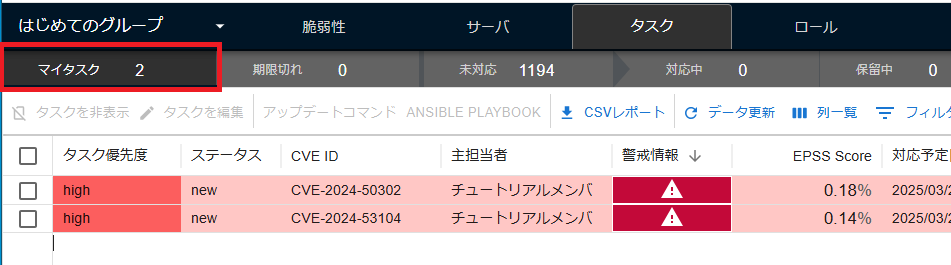
On the Tasks tab, you can view a list of tasks detected within the group.
The Tasks tab is divided into sub-tabs organized by vulnerability response status.
- My Task
- Expired
- Open
- Ongoing
- Deferred
- Resolved
- All
Unaddressed tasks assigned to you are displayed on the "My Task" tab. Field operators responsible for applying patches and other tasks should primarily refer to this "My Task" tab.
Checking Task Details#
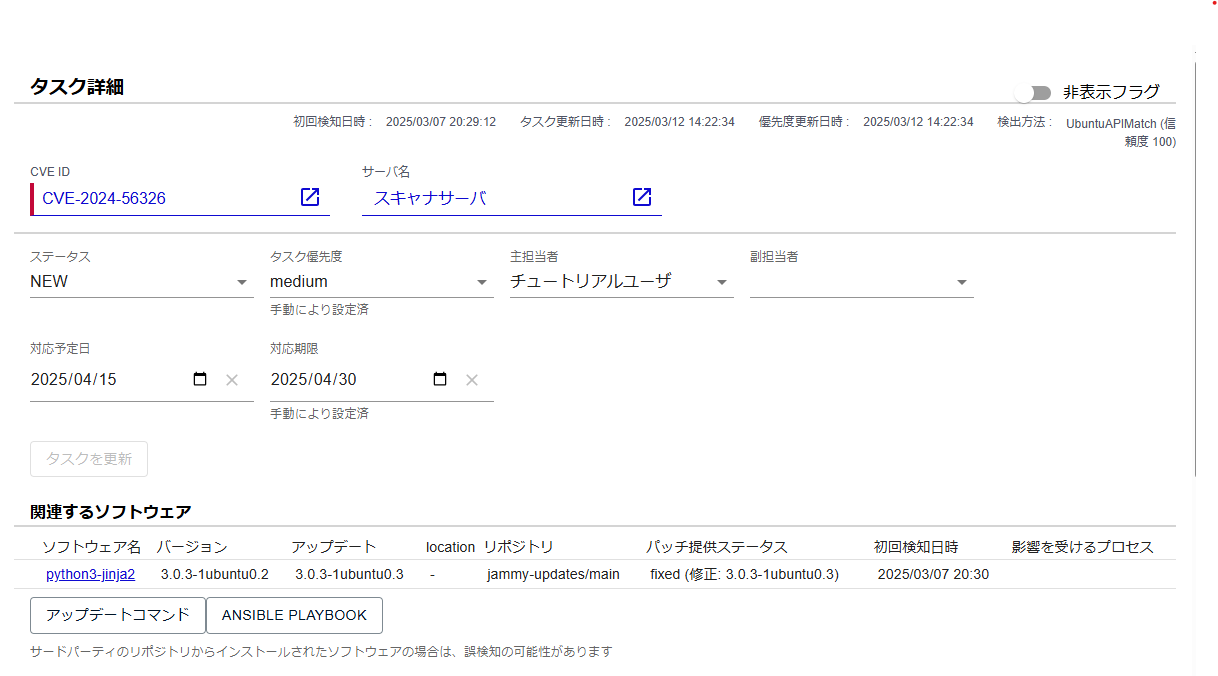
Clicking a row in the task list will display the task details screen.
Task Details Information#
In the task details, you can see which vulnerability has been detected on which server. You can also set the task status, assignee, due date, and more.
You can check the list of software related to this vulnerability, and if a patch is available, an "Update Commands" button will be displayed.
SSVC Priority Decision Logic#
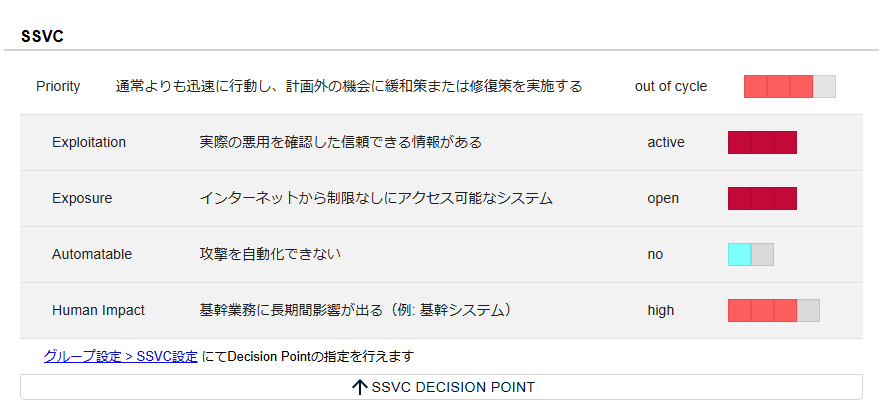
Additionally, if you are subscribed to the CSIRT plan, you can also check how the task's SSVC Priority was determined. You can review the reasoning behind the decision, understanding why the vulnerability must be addressed with a given priority.
In the case of the image below:
- There is reliable information confirming actual exploitation (e.g., KEV information is public) → Exploitation: active
- The system is accessible from the internet without restrictions → Exposure: open
- The attack cannot be automated (e.g., attacks by bots are not feasible) → Automatable: no
- It will affect mission-critical operations for an extended period (system with high business impact) → Human Impact: high
For these reasons, you can determine that this vulnerability is not "an extremely high-risk vulnerability that must be addressed within two weeks" (Priority: Immediate), but is "a vulnerability that should be addressed relatively soon" (Priority: out-of-cycle).
Communication on the Task#
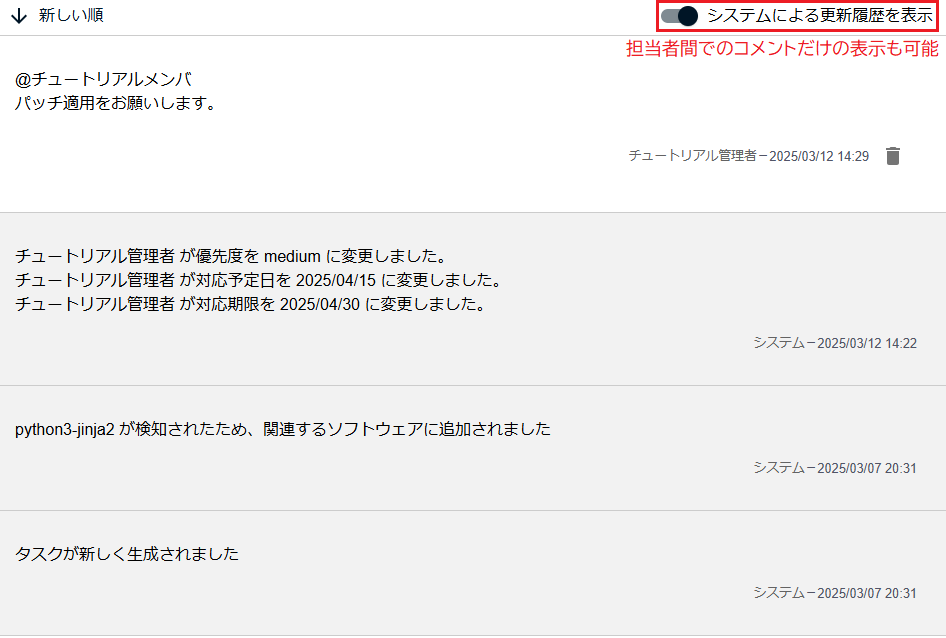
You can also view and record the response history for this task, allowing you to track the ticket's status. When a vulnerability is detected or information in the vulnerability database is updated, automated updates are recorded in this comment section (the gray comments in the image). You can hide these to display only user interactions.
Additionally, you can use the mention feature, such as @username, in task comments.
Updating Tasks in Bulk#
While you can change the status of individual tasks in the task details, you can also perform this operation on multiple tasks at once. This is a convenient feature for administrators when giving response instructions to field operators.
Updating from the Vulnerabilities Tab#
Operators in charge of vulnerability management, such as CSIRT, check the "Important CVE" tab on the Vulnerabilities tab to decide which vulnerabilities to address. In line with organizational policy, they use filters and sorting to extract and reorder the vulnerabilities to prioritize from the list, then assign them to the responsible person. Please also use the "Criteria for Important CVE" setting feature.
About Column Sorting When Prioritizing Responses
In FutureVuls, you can sort within a column by clicking its name.
Note that you can sort by multiple columns by holding down <Ctrl> while clicking on another column.
You can also apply filters in each column to narrow down the items displayed in the list (Reference: Basic Screen Usage).
With the CSIRT plan, prioritization by SSVC Priority is possible, so we recommend using this value as the primary basis for prioritizing responses. To further prioritize within the same SSVC Priority, you can also sort by the presence of Alerts or by EPSS score as supplementary indicators.
- Filter by the highest SSVC Priority
- Sort by Alerts
- Sort by EPSS score
With the Standard plan, we recommend prioritizing responses using indicators such as whether alert information is public, if it can be attacked directly from the internet, and whether it is a vulnerability with a high EPSS score.
- Sort by Alerts
- Sort by CVSS Score
- Sort by EPSS score
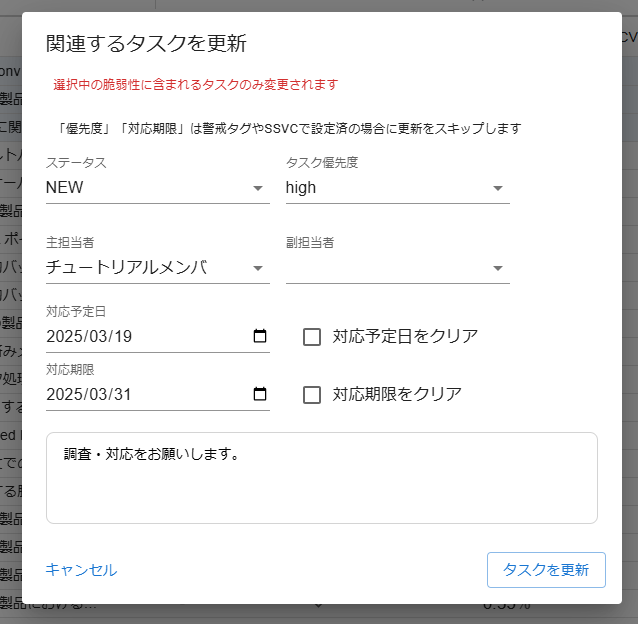
Once you have identified the vulnerabilities to address, click their checkboxes and press "Update Related Tasks". By clicking the checkbox in the column header, you can select all vulnerabilities currently displayed.
A dialog will appear, allowing you to set an assignee and a due date. You can also add a comment when making the assignment. The user assigned to the task will receive an email notification and can view the changes and comments.
Updating from the Tasks Tab#
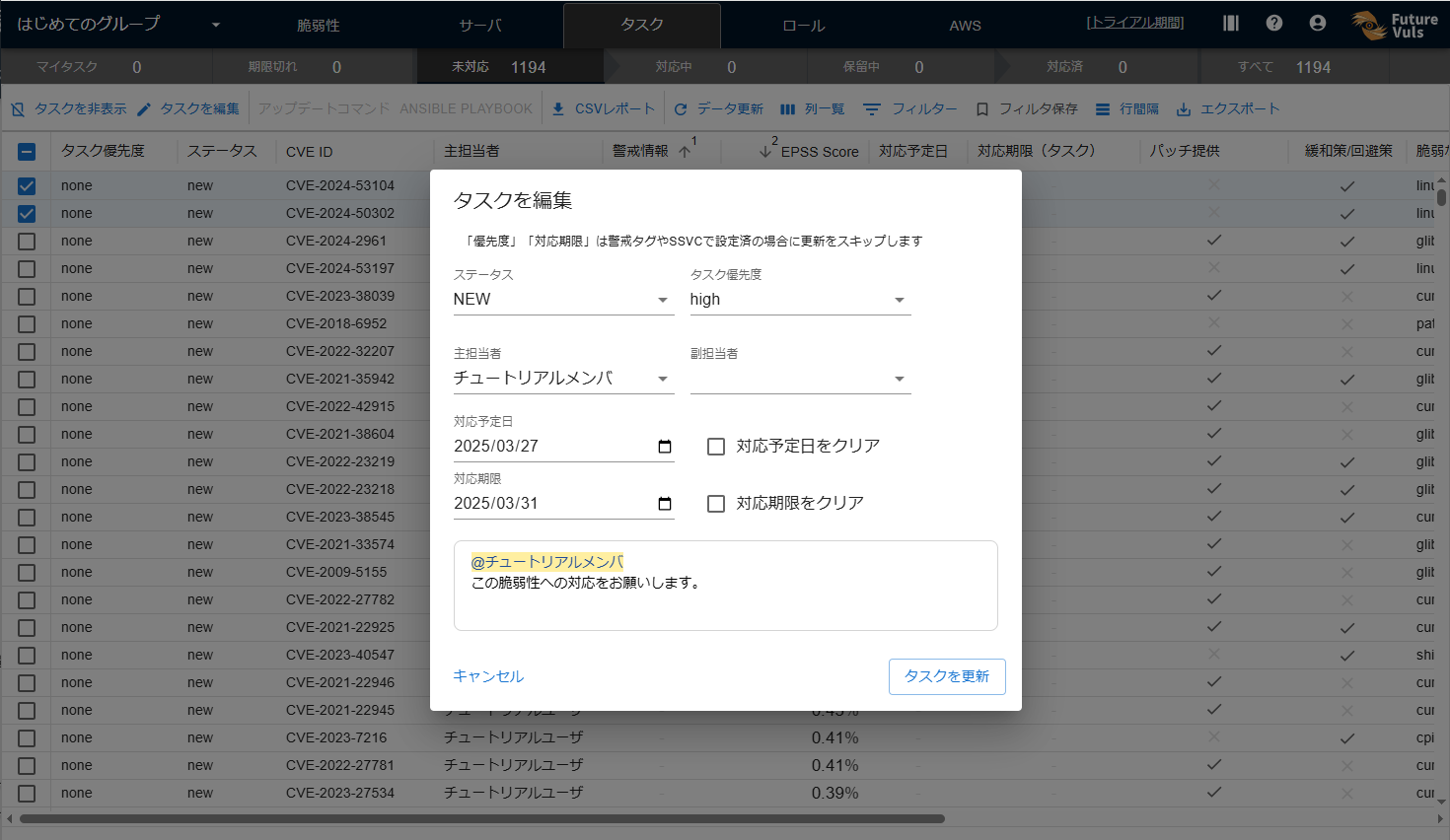
Similar to updating from the Vulnerabilities tab, you can also assign tasks in bulk from the task list. By selecting multiple tasks and pressing "Update Tasks", you can similarly assign task assignees, due dates, and more.
Once you have finished assigning tasks, we will look at how to respond to vulnerabilities (→Responding to Vulnerabilities).