Server SBOM and Application SBOM#
FutureVuls provides two methods for managing SBOMs: Server SBOM and Application SBOM.
Server SBOM#
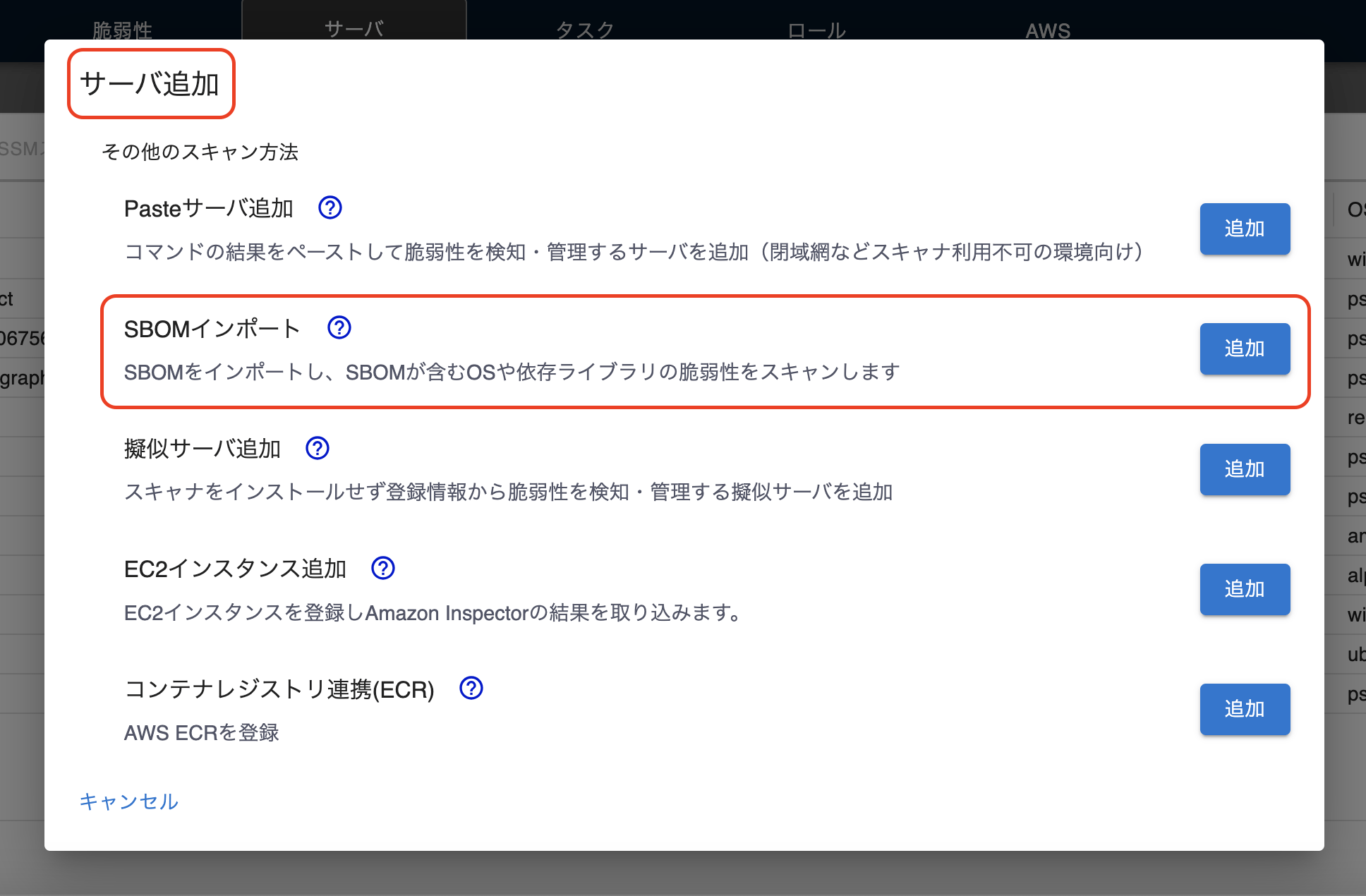
SBOMs registered via "Import SBOM" under Server / Product > Add Server are called Server SBOMs.
This process creates a single "server" that includes OS information and OS packages, and only one Server SBOM can be registered per server.
A scan is automatically performed upon upload, and you can check the results in Group Settings > Scan History.
Application SBOM#
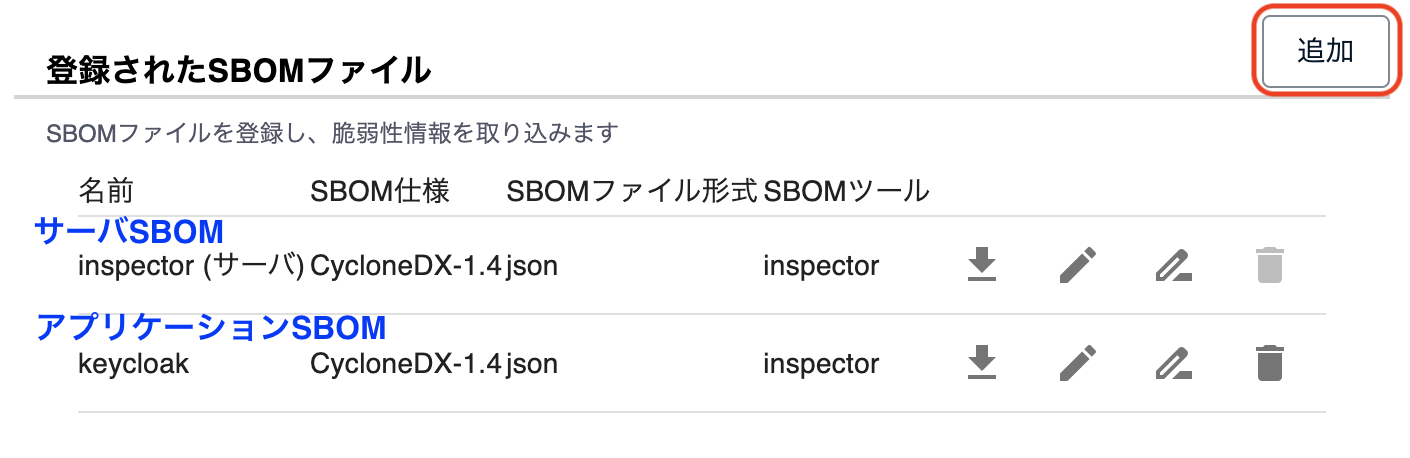
This method adds application dependencies (an SBOM) to an existing server, registering language libraries and other components. You can add SBOM files with "Add SBOM" in the "Server / Product" tab > "Server Details" > "SBOM", and multiple Application SBOMs can be registered per server.
If an Application SBOM that you add to an SBOM server (a server created from a Server SBOM) contains OS packages, those OS packages are also subject to vulnerability detection. For details, see "OS Packages Included in Application SBOMs".
A scan is not automatically performed upon upload, so if you want to detect vulnerabilities immediately, run a manual scan separately.
Summary#
| Item | Server SBOM | Application SBOM |
|---|---|---|
| Registration Method | ・Server / Product tab → Add Server → Import SBOM ・A new server is created upon upload. |
・For an existing server, go to the Details screen → "SBOM" sub-tab → Add SBOM. |
| Information Used for Scanning | ・OS information (OS name, version) ・OS packages ・Language libraries |
・OS information is not used ・OS packages (only when added to an SBOM server) ・Language libraries |
| Initial Scan Timing | A scan runs automatically right after registration. *A separate manual scan is required when registering via file upload. |
Manual scan or scheduled scan. |
| Display on Server Details Screen | Displayed on the "SBOM" sub-tab of Server Details, with the type "Server SBOM" in SBOM Details. | Each uploaded SBOM file is added to the "SBOM" sub-tab of Server Details, and a server can hold multiple Application SBOMs. |
| Registration Limit | Only one Server SBOM can be registered per server. | Multiple Application SBOMs can be registered per server. |
| Deletion Method | When the server is deleted, its Server SBOM is also deleted. | Each SBOM can be deleted individually using the Delete button in SBOM Details. |