Inspector Integration#
You can integrate with "Amazon Inspector" to import scan results and manage them in FutureVuls.
Vulnerability information for EC2 instances, AWS Lambda, and Amazon ECR is retrieved using the AWS API inspector2:ListFindings.
AWS credentials must be configured in advance. Please register your AWS credentials in "External Integration > AWS".
The following are the scan targets for Inspector integration:
Additionally, by integrating with the Amazon Inspector SBOM Export feature, you can gain a comprehensive understanding of your software, regardless of whether vulnerabilities are present.
Scanning Amazon EC2#
Follow the steps below to manage EC2 instance scan results in FutureVuls.
- Enable Amazon Inspector
- Configure SSM Agent
- Confirm Amazon Inspector Scan Results
- Register the Instance in FutureVuls
- Run Scan
If you configured AWS authentication before the "March 29, 2023 Release", an update is required.
Refer to "Policy for Use in FutureVuls" and add inspector2:ListCoverage and inspector2:ListFindings as Actions to the IAM Policy of FutureVulsAssumeRole.
If permissions are insufficient, scan results may not be retrieved or may be empty.
Enable Amazon Inspector#
- Open the "Amazon Inspector console" and click
Get started. - Click
Activate Inspector. - Navigate to
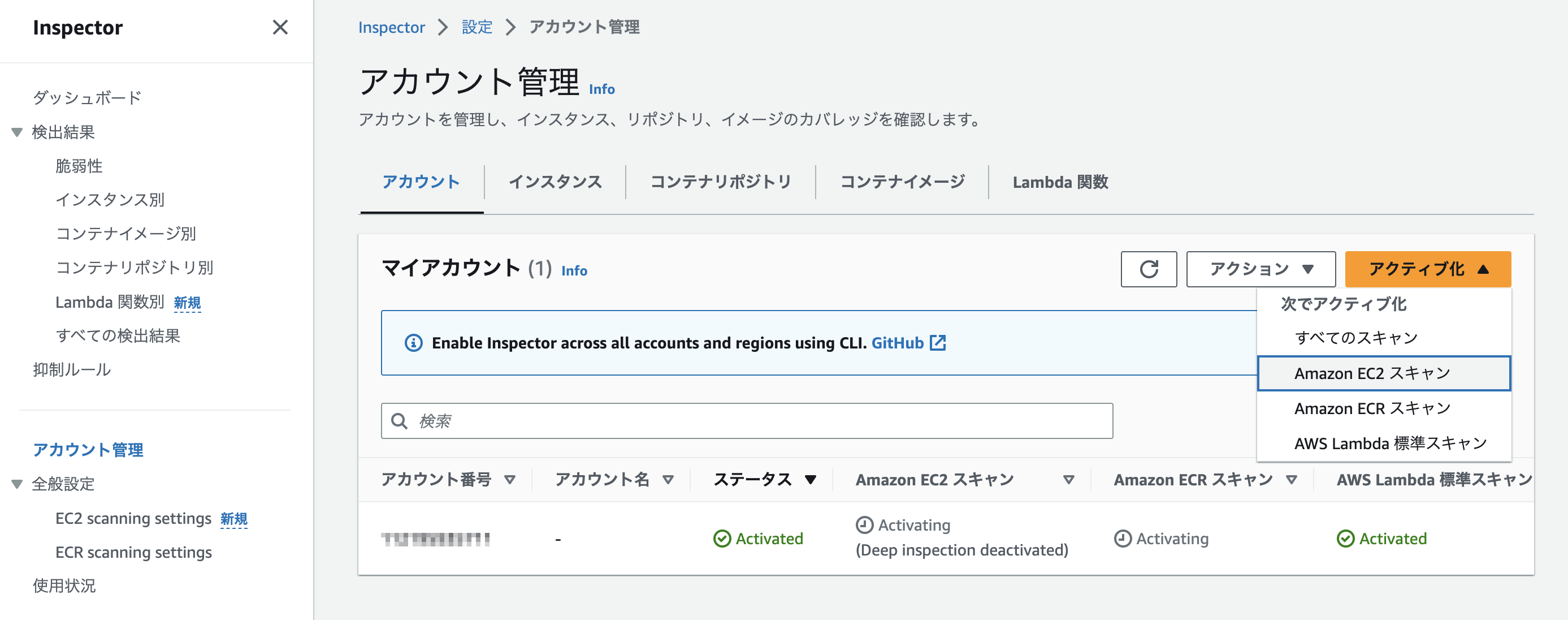
Inspector > Settings > Account managementand activateAmazon EC2 scanning.
Configure SSM Agent#
Install and configure the SSM Agent on the instance, grant it the necessary permissions, and enable Inspector scanning. For detailed configuration instructions, please refer to "Scanning Amazon EC2 instances".
When Using Agentless Scanning
If you are using agentless scanning, this section can be skipped. For detailed procedures and important considerations when using agentless scanning, please refer to the following blog post.
Agentless Vulnerability Scanning for EC2 with Amazon Inspector and FutureVuls: A Hands-On Guide
Install and Start the SSM Agent#
Install the SSM Agent on your instance. The installation method varies depending on whether the SSM Agent is pre-installed on the AMI and the operating system. Please refer to "Working with SSM Agent".
Set Instance Permissions for Systems Manager#
Enable the default host management configuration from the Fleet Manager console, or attach an IAM role with the AmazonSSMManagedInstanceCore policy to the instance you wish to integrate.
For details, refer to "Configure instance permissions for Systems Manager".
Confirm Amazon Inspector Scan Results#
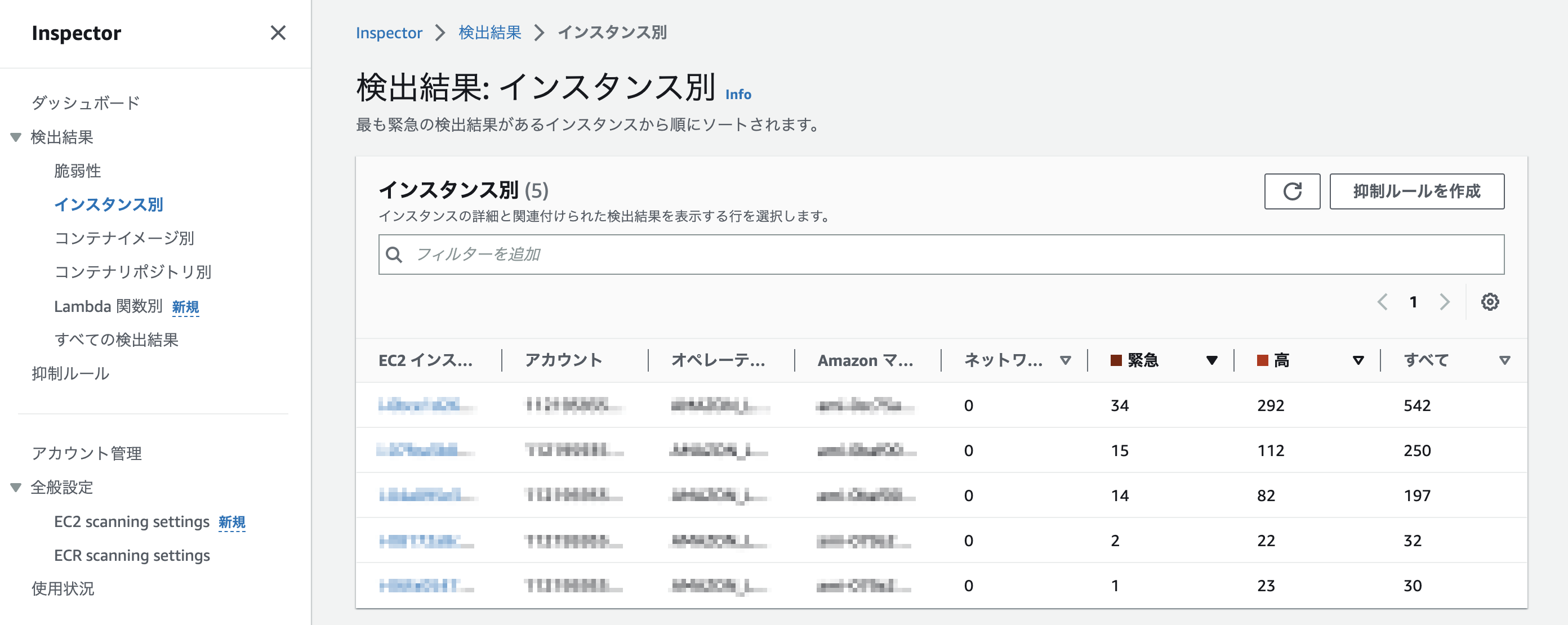
The configuration on the AWS side is complete once you can confirm the scan results for the instance you wish to integrate by navigating to Inspector > Findings > By instance.
Register the Instance in FutureVuls#
Once vulnerabilities are detected in Inspector, register the instance in FutureVuls.
From Server > Add Server > Add EC2 Instances, select the instance you want to integrate.

Run Scan#
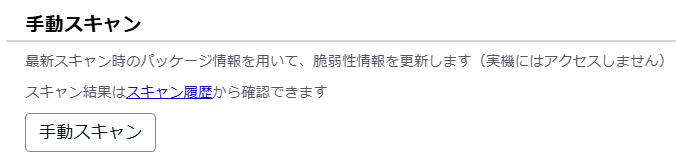
A Manual Scan button will appear in Details Tab > Settings of the server details.
When the scan is executed, vulnerabilities and tasks will be created just like for a regular server.
Scanning AWS Lambda#
Follow the steps below to manage AWS Lambda function scan results in FutureVuls.
- Enable Amazon Inspector
- Confirm AWS Lambda Scan Results
- Register AWS Lambda Function in FutureVuls
- Run Scan
For runtime support, please refer to "Supported Lambda function runtimes".
AWS Inspector does not support scanning container image–type Lambda functions, so they cannot be registered in FutureVuls.
If you configured AWS authentication before the "April 1, 2024 Release", an update is required to use the AWS Lambda scanning feature.
To register Lambda functions in FutureVuls, refer to "Policy for Use in FutureVuls" and add lambda:GetFunction and lambda:ListFunctions as Actions to the IAM Policy of FutureVulsAssumeRole.
Enable Amazon Inspector#
- Open the "Amazon Inspector console" and click
Get started. - Click
Activate Inspector. - Navigate to
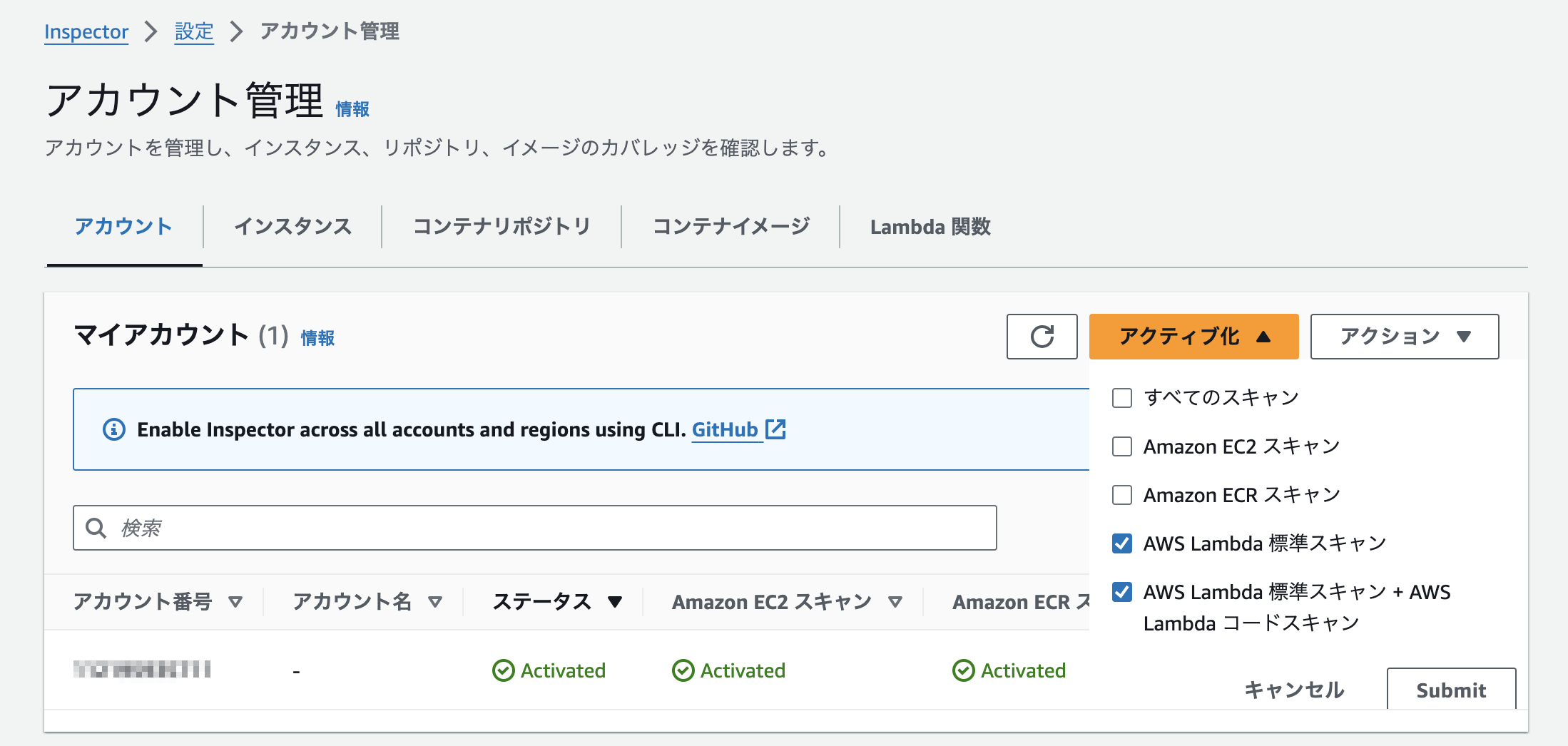
Inspector > Settings > Account managementand activateAWS Lambda standard scanning.
Confirm AWS Lambda Scan Results#
The configuration on the AWS side is complete once you can confirm the scan results for the Lambda function you wish to integrate by navigating to Inspector > Findings > By Lambda function.
Register AWS Lambda Function in FutureVuls#
There are two ways to register an AWS Lambda function in FutureVuls.
Eligible Targets for AWS Lambda Function Registration
AWS Lambda functions can be registered to a server with the server type Pseudo Server.
Additionally, multiple Lambda functions can be registered on a single server.
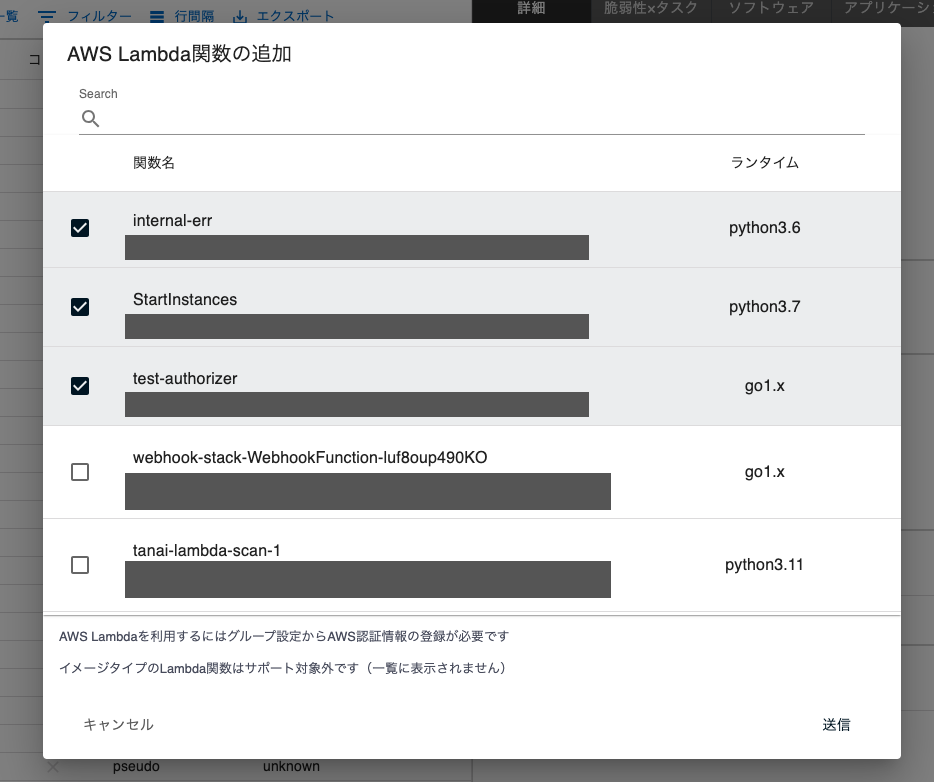
Registration Method 1: Bulk Register Lambda Functions in FutureVuls#
- From
Server > Add Server > Add Pseudo Server, register a pseudo server to be used for AWS Lambda function registration. - A list of Lambda functions associated with the group's AWS credentials will be displayed under
Server Details > AWS Lambda Function > Bulk Add AWS Lambda Function. - From the list, select the function names you want to register (you can select multiple functions).
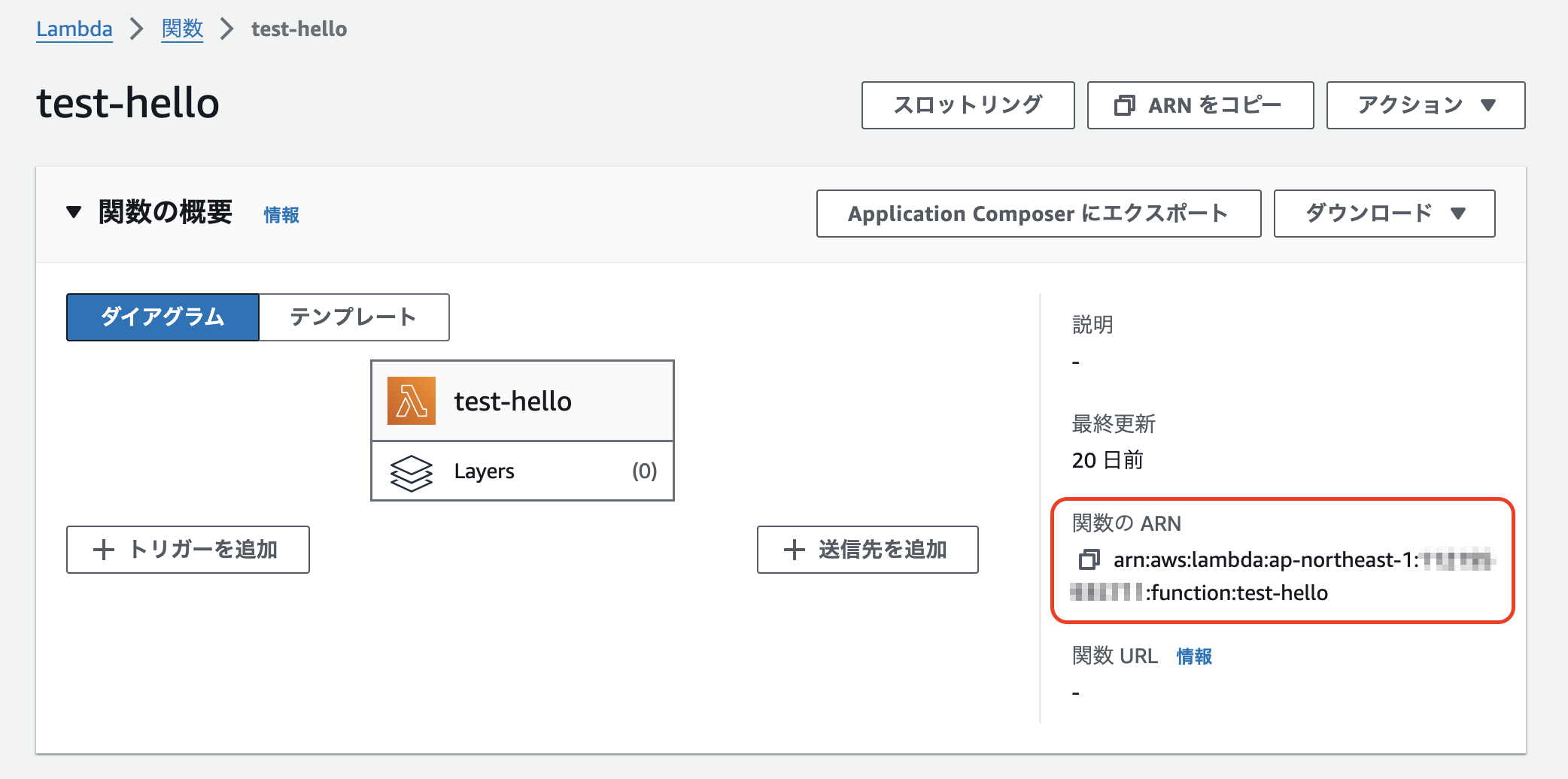
Registration Method 2: Register by Specifying the Lambda Function's ARN#
- On the function's details page in the AWS Console, copy the function's ARN.
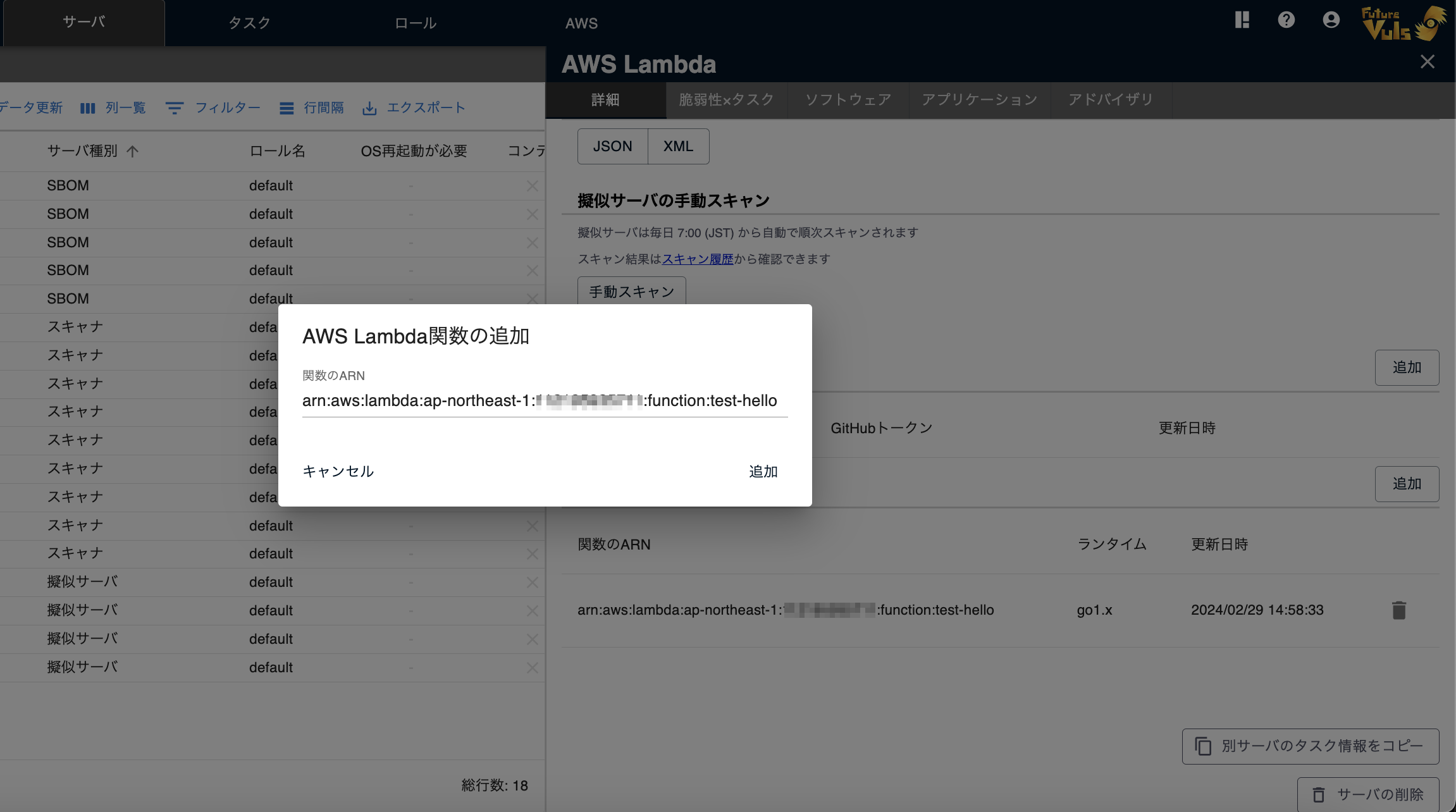
- In FutureVuls, navigate to
Server Details > AWS Lambda Function > Add AWS Lambda Function, and enter the Lambda function's ARN that you just copied.
Run Scan#
A Manual Scan button will appear in Details Tab > Settings of the server details.
When the scan is executed, vulnerabilities and tasks will be created just like for a regular server.
Importing Amazon Inspector SBOMs#
By integrating with AWS Inspector v2's SBOM Export feature, you can gain a comprehensive understanding of all your software, regardless of whether vulnerabilities are present. This enables more comprehensive software supply chain risk management (such as EOL management and license management).
This setting is optional
Even if you do not configure SBOM Export, you can still use Amazon Inspector for vulnerability detection (EC2/Lambda/ECR).
However, if you want to visualize all software, including "software with no detected vulnerabilities," and use the EOL and license management features, this setting is required.
Target Resources and Information Obtained#
| Resource | Information Obtained |
|---|---|
| EC2 Instances | OS packages, application libraries |
| Lambda Functions | Runtimes and application libraries |
| ECR Images | OS packages and application libraries within containers |
Supported Regions#
This feature is supported in the following regions.
- US East (N. Virginia) (
us-east-1) - US West (Oregon) (
us-west-2) - Asia Pacific (Tokyo) (
ap-northeast-1) - Asia Pacific (Osaka) (
ap-northeast-3) - Asia Pacific (Mumbai) (
ap-south-1)
We plan to gradually expand to other regions based on feature requests.
Configuration Steps#
Please complete the "AWS Authentication Settings" in advance.
Also, ensure that Amazon Inspector is enabled.
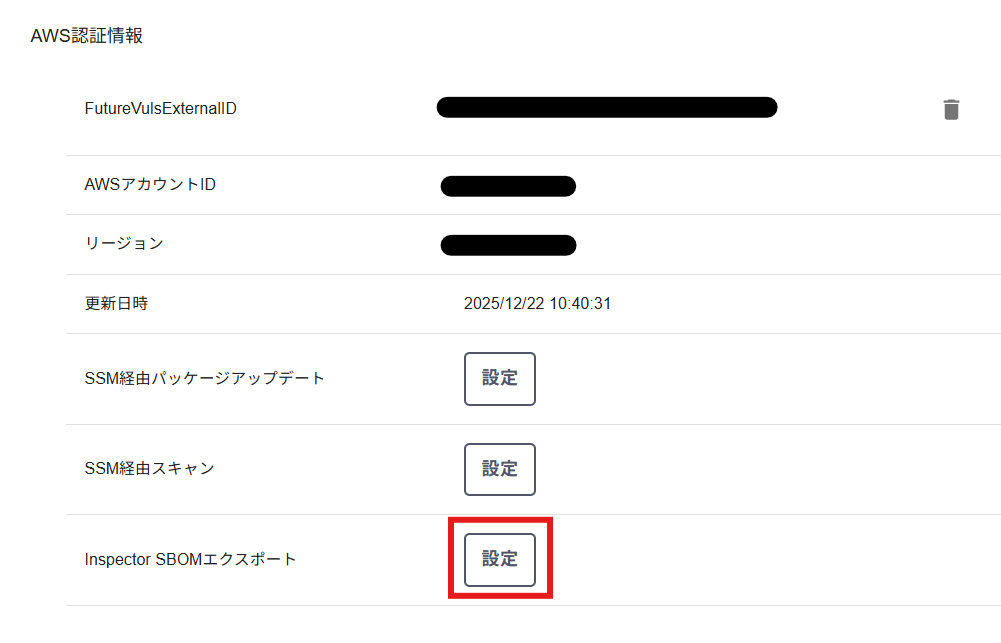
1. Enable SBOM Export in the FutureVuls UI#
In the FutureVuls console, navigate to Group Settings > External Integration > AWS and click the "Configure" button for Inspector SBOM Export.
2. Add IAM Permissions with CloudFormation#
Using the CloudFormation template provided by FutureVuls, add the necessary permissions for SBOM Export to your existing IAM user/role.
Enter the following parameters into the CloudFormation template:
| Parameter Name | Description | Example |
|---|---|---|
| S3BucketName | The S3 bucket name displayed in the FutureVuls console | futurevuls-inspector-sbom-123456789012-42-ap-northeast-1 |
| KmsKeyArn | The KMS key ARN displayed in the FutureVuls console | arn:aws:kms:ap-northeast-1:... |
| IAMUserName | If using IAM user authentication, the name of the existing IAM user | FutureVulsIAMUser |
| IAMRoleName | If using IAM role authentication, the name of the existing IAM role (leave empty for user authentication) | FutureVulsAssumeRole |
Selecting IAM User/Role
Please enter either IAMUserName or IAMRoleName depending on the authentication method you selected in the "AWS Authentication Settings". You do not need to enter both.
The following permissions will be added:
| Target Service | Permissions |
|---|---|
| Inspector2 | CreateSbomExport, GetSbomExport, CancelSbomExport, BatchGetAccountStatus, ListFindings |
| S3 | PutObject, PutObjectAcl, GetBucketLocation (for the specified bucket only) |
| KMS | Decrypt, Encrypt, GenerateDataKey (for the specified key only) |
Scope Limitation
The S3 and KMS permissions are restricted to the specific bucket and key managed by FutureVuls. Access to other resources in your AWS environment is not permitted.
3. Start Automatic Integration#
Once configured, SBOM Export will be automatically executed during FutureVuls's scheduled scans, and the exported SBOMs will be imported into FutureVuls.
Regarding the Switch in Scanning Methods
Once Inspector integration is configured, all Lambda, ECR, and EC2 instances within the group will be switched to Inspector SBOM scanning and will be excluded from regular scans.
When an SBOM scan is executed, software and vulnerabilities that were detected by regular scans will be moved to SBOM management, and from then on will be managed via Inspector SBOM.
During this transition, a comment will be automatically added to the task indicating that it has been "removed from old software management and placed under new SBOM management."
SBOM Export Execution Timing
- SBOM Export is executed at a different time from regular server scans (vulnerability scans).
- Manual scans from the server details screen will not trigger an SBOM Export.
- If you want to manually trigger an SBOM Export, please use the "Inspector SBOM Batch Scan" from
Group Settings > Group.
The manual bulk scan can only be executed once per hour.

Reflection of Scan Results
Because the Inspector SBOM Export takes time, after manually running a bulk scan, it may take anywhere from a few minutes to over ten minutes for the scan results to appear in the scan history. Please wait a while before checking the scan history.
You can check the execution results under Group Settings > Scan History with the scan type SBOM Scan.

What You Can Do After Importing#
- View Software List: See a list of all software, regardless of whether vulnerabilities are present.
- EOL Management: Identify software nearing its end-of-life and plan accordingly.
- License Management: Check the license information of the software you are using.
- Supply Chain Risk Management: Assess risks by visualizing your software composition.
Important Notes
- Lambda Functions: Only the latest version is included in the SBOM Export. Past versions are not included.
- ECR Images: Only image tags registered in FutureVuls are included in the SBOM Export. Unregistered image tags are not included.
- Enabling Inspector2: You must enable Inspector2 in your AWS account beforehand.
Costs on the AWS Side#
There is no additional charge for the SBOM Export feature itself, but usage charges for Amazon Inspector, S3, and KMS may apply. For details, please check the Amazon Inspector pricing page.
Impact on Existing Tasks#
When transitioning to SBOM scanning, existing tasks will remain. The transition will not automatically close any tasks.
Use with the Vuls Scanner#
Within the same group, you can use servers with the Vuls scanner alongside servers integrated with Inspector (EC2, Lambda, ECR).
- Vuls Scanner: Servers registered via local or remote scans will continue to be scanned by the Vuls scanner.
- Inspector Integration: Servers registered by adding EC2 instances, Lambda functions, or ECR images will be scanned via Inspector.
Configuring Inspector SBOM Export will not affect servers registered with the Vuls scanner.
Regarding Software Registration#
Software acquired through SBOM Export is registered in FutureVuls through the following process.
Matching Resources and Servers#
The resource ARNs (EC2 instance ID, Lambda function ARN, ECR image name) included in the SBOM are used to automatically match with servers registered in FutureVuls.
| Resource Type | Matching Method |
|---|---|
| EC2 Instance | Matches the EC2 instance ID in the SBOM with the instance ID registered on a server in FutureVuls. |
| Lambda Function | Matches the Lambda function ARN in the SBOM with the Lambda function ARN registered on a server in FutureVuls. |
| ECR Image | Matches the image name and tag in the SBOM with the image information registered on a server in FutureVuls. |
If Matching Fails
If a corresponding server is not registered in FutureVuls, that SBOM data will be skipped. Please register the server first, for example, by "Registering the Instance in FutureVuls".
Software Type Conversion#
Software obtained from an SBOM Export is checked against FutureVuls's vulnerability database and converted to the appropriate software type.
For example, if software detected by Inspector as an OS package is managed as a library in FutureVuls's database, it will be automatically converted to the library type. This allows for more accurate vulnerability detection.
Troubleshooting#
If SBOM Export Fails#
If you encounter an "Access Denied" error, please verify that the CloudFormation stack was created correctly.
# Check the status of the CloudFormation stack
aws cloudformation describe-stacks \
  --stack-name FutureVulsInspectorSbomExport \
  --query 'Stacks[0].StackStatus'
If you encounter a KMS access denied error, check if the KMS key policy is configured correctly. Rerunning the SBOM Export setup from the FutureVuls console will update the policy.
If Software Does Not Appear#
- Confirm the server is registered: The server corresponding to the resource from the SBOM Export must be registered in FutureVuls.
- Confirm Resource ARN match: Check if the EC2 instance ID, Lambda function ARN, and ECR image name match correctly.
- Check Scan History: Check the status of the SBOM scan in
Group Settings > Scan History.
Bulk Scan Execution Limit#
The manual bulk scan (Inspector SBOM Batch Scan) can only be executed once per hour to avoid AWS Inspector2's concurrent execution limits.
Please note that FutureVuls performs a scheduled automatic scan once a day, during which the SBOM Export is also automatically executed.