Server / Product Details#
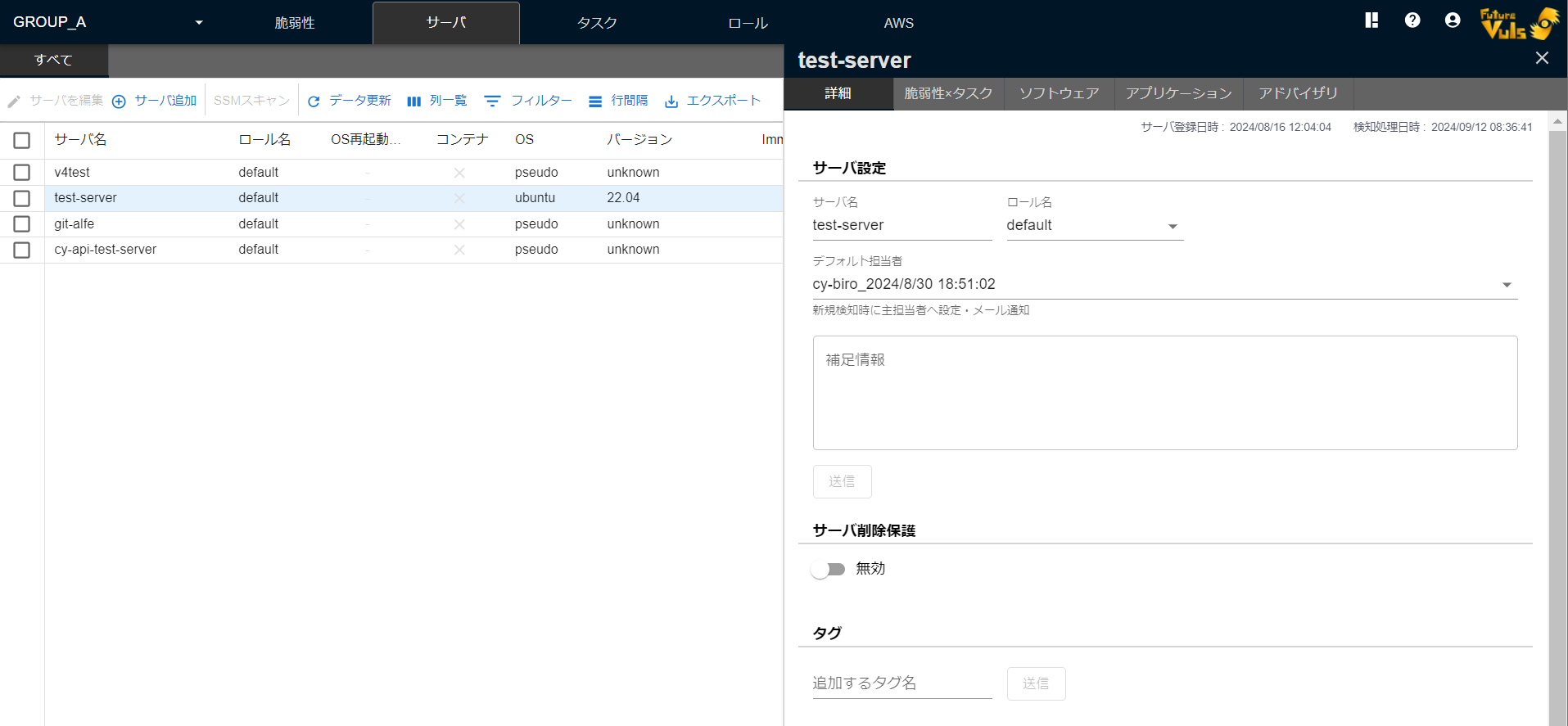
Click on an item in the server list in the first pane of the Server / Product tab to display the Server / Product details in the second pane.
Details Tab#
In the Details tab, you can check the server's details.
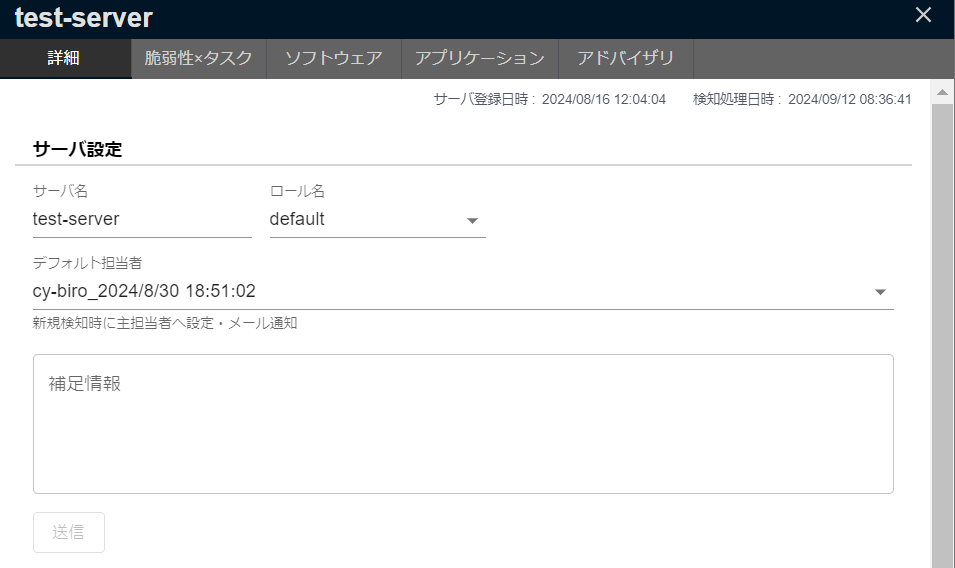
Server Settings#
You can configure "Server Name," "Role," "Default Assignee," and "Supplementary Information."
For a list of users who can be specified as the "Default Assignee," please refer to this page.
From the icons at the top right of "Server Settings," you can download the SBOM file and delete the server.
Tags#
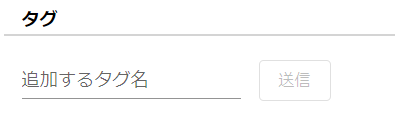
You can add tags to a server. Click the × button on a tag to remove it.
Server Information#
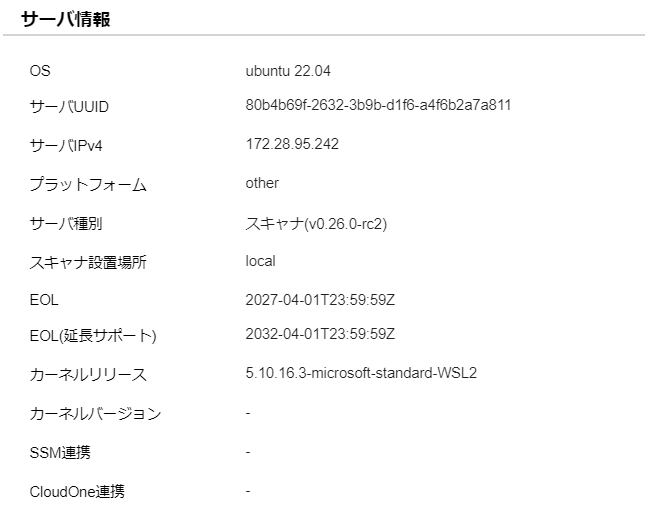
You can check OS, IP information, version information, and more.
About Server Information for Remote Scans
For remote scans, the OS and Server IPv4 fields will display values obtained from the target server.
GitHub Repository#
GitHub provides a built-in feature to detect vulnerabilities in libraries (About Dependabot alerts).
You can import vulnerabilities detected in your GitHub repositories and manage them on FutureVuls. For configuration instructions, please refer to the "How to Integrate with GitHub Security Alerts" manual.
AWS Lambda Functions#
Similar to "EC2 Instance Scan" and "ECR Scan", you can import the results of "Scanning AWS Lambda functions with Amazon Inspector" and manage them on FutureVuls. For configuration instructions, please refer to the "AWS Lambda Vulnerability Scan" manual.
Settings#
The Settings tab displays the following items. The items displayed vary depending on the server type.
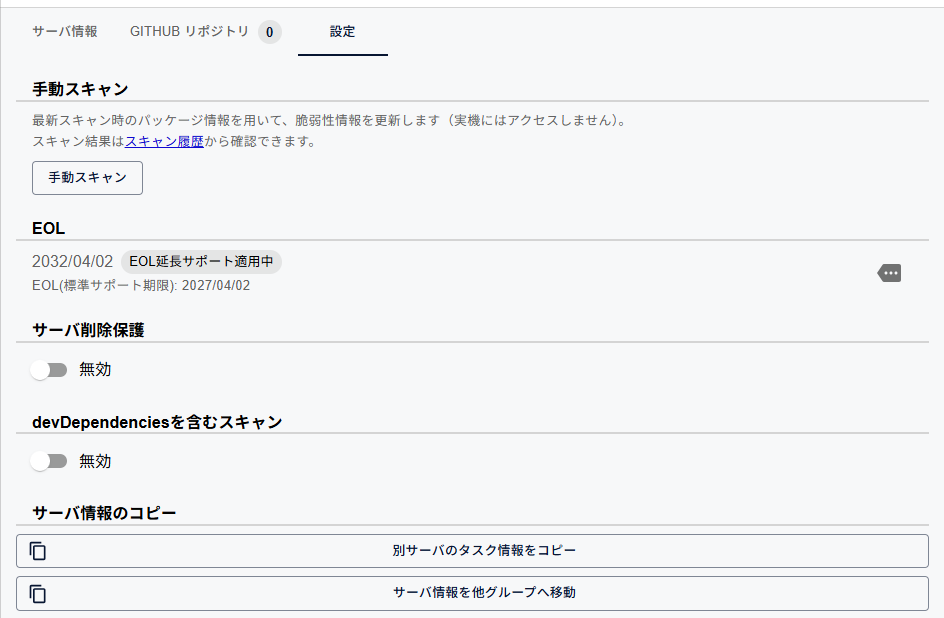
Manual Scan#
Updates vulnerability information using the software information from the latest scan (the actual machine is not accessed). For manual scans, please refer to "Scan Types and Processing Details".
For servers on AWS with SSM scanning configured, "Manual Scan with SSM" is also displayed. For details, please refer to "SSM Scan".
EOL#
Displays the End-of-Life (EOL) for the server's OS.
If you have a contract for extended support for an OS or software that offers it, you can use the extended support EOL date for detection.
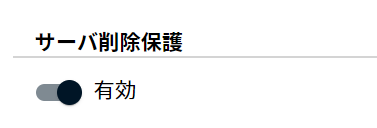
Server Deletion Protection#
This adds a restriction to the "Delete Server" operation. When enabled, server deletion operations from the FutureVuls screen or via the FutureVuls API are disabled.
Scan including devDependencies#
Enable or disable this setting to choose whether development dependencies (devDependencies) are included in scan results. For development dependencies, please refer to "Dependency Library Scanning".
Updating Configuration Information#
Displayed for Paste servers, and for container images and libraries scanned with Trivy.
You can update the registered configuration information from the Update Configuration Information button.
Copy Server Information#
You can perform the following operations.
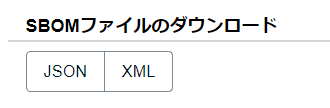
Download SBOM File#
From the download icon at the top right of "Server Settings," you can output an SBOM in "CycloneDX" format as a JSON or XML file. You can also output it without vulnerability information. Please refer to the manual for details.
Delete Server#
From the delete icon at the top right of "Server Settings," you can delete the server from the Server / Product list. If "Server Deletion Protection" is enabled, the server cannot be deleted.
If a server is deleted
Once a server is deleted, its task states cannot be restored. Scanning again with the same UUID will register it as a new server.
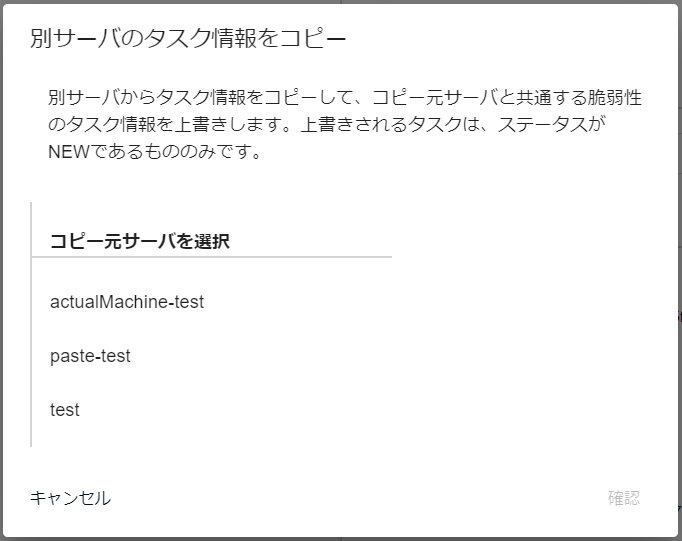
Copy Task Information from Another Server#
You can update a server's associated task information by copying it from another server within the same group. When you add a new server with a configuration similar to one already registered in FutureVuls, you can sync information such as statuses all at once.
If you want to copy server information from another group
If you want to copy across groups, please refer to "Move Server Information to Another Group".
If you have configured SSVC triggers
If the task status is automatically changed by the SSVC Triggers & Actions settings, tasks created on the destination (status NEW) may be overwritten with another status, preventing the task copy from being performed correctly.
For details on the settings, please check the SSVC Configuration Guide.
The tasks that are copied are those with a "status of NEW at the destination" and are associated with "vulnerabilities detected in common with the source server."
When tasks are copied, a comment documenting the changes is automatically added.
The following task information is copied:
- Status
- Primary Assignee / Secondary Assignee
- Priority
- Scheduled/Due Date
- Visibility settings
- Task comments
※ Please note that the following are intentionally not copied.
- The following system comments:
- "
~is no longer a detection target and has been removed from the related software." - "
~was detected and has been added to the related software." - "A patch for
~has been provided." - "Set to hidden because the related software is not a management target."
- "Registered as hidden because the package is set to \"Not managed\"."
- "The task content has been updated based on the trigger settings because the SSVC Priority changed to
~." - "SSVC Priority was changed to
~." - "The task content has been set based on the trigger settings because the SSVC Priority is
~."
- "
- SSVC Priority (because SSVC Priority is automatically calculated from the server's Decision Points (Exposure, Human Impact) and the CVE's Decision Points (Automatable, Exploitation))
Please follow these steps to copy tasks:
- Select the destination server from the Server / Product tab and open the details screen.
- Open the dialog from
Copy Task Information from Another Serverunder "Copy Server Information" on the Settings tab. - Select the source server, click
Confirm, and then clickStarton the confirmation screen.
Move Server Information to Another Group#
You can move information associated with a server to another group. You can move a server between groups where you have group administrator privileges.
If you want to copy server information within the same group
If you want to copy only the task information for a server within the same group, please use "Copy Task Information from Another Server".
The following information will be copied:
- Server Information
- Server detail information
- CPE information
- Task Information
- Status
- Primary Assignee / Secondary Assignee
- Priority
- Scheduled/Due Date
- Visibility settings
- Task comments
※ Please note that the following are intentionally not copied.
- The following system comments:
- "
~is no longer a detection target and has been removed from the related software." - "
~was detected and has been added to the related software." - "A patch for
~has been provided." - "Set to hidden because the related software is not a management target."
- "Registered as hidden because the package is set to \"Not managed\"."
- "The task content has been updated based on the trigger settings because the SSVC Priority changed to
~." - "SSVC Priority was changed to
~." - "The task content has been set based on the trigger settings because the SSVC Priority is
~."
- "
- SSVC Priority (because SSVC Priority is automatically calculated from the server's Decision Points (Exposure, Human Impact) and the CVE's Decision Points (Automatable, Exploitation))
If the relevant user is not in the destination group
If a user set as a Primary Assignee / Secondary Assignee does not belong to the destination group, the task's assignee setting will be cleared.
- Moving between organizations is not supported.
- You must have administrator privileges for both the source and destination groups to copy a server.
- For servers using a scanner, you must also change the scanner settings according to the on-screen dialog.
- The server in the original group is not automatically deleted.
- You cannot copy if a server with the same name exists in the destination group.
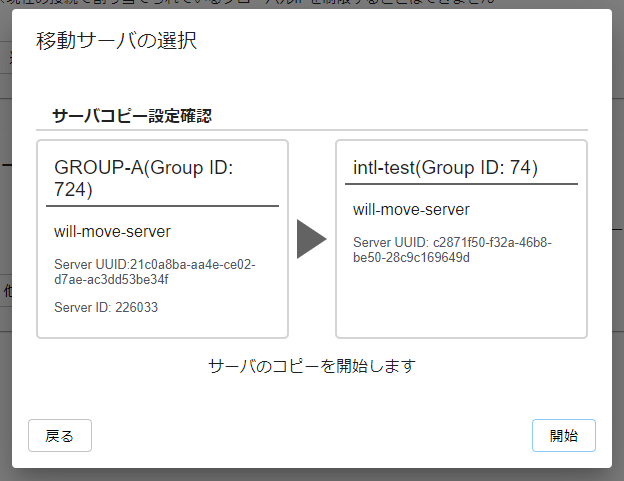
You can move server information using the following steps:
-
Select the server to move and the destination group to start copying the server information.
-
Next, the task information registered on the original server will be copied to the server after the copy.
- For a server registered from a scanner, follow the dialog to change the group ID and scanner token registered in the scanner, then run a scan.
- After the server copy is complete, a scan will run again with the copied information. After new tasks are created, the task information will be copied for tasks with a status of NEW.
- Once a message indicates that the copy is complete, please verify that there are no issues with the copy, and then delete the source server.
Caution Regarding Double Billing from Server Copying
The source server and the destination server have different UUIDs, which uniquely identify them. Therefore, in the month the server is moved, both servers will be billed, resulting in a double charge.
If you are on the Standard Plan, please contact us via the inquiry form and let us know that you have "copied server information to another group," along with the following information. We will deduct the cost of one extra server from that month's bill.
- Information to provide in your inquiry:
- The date and time (yyyy-mm-dd hh:mm) when "Copy server information to another group" was executed.
- UUID of the source server.
- UUID of the destination server.
CVE × Tasks#
Displays tasks and vulnerabilities related to the selected server. Both tabs display the same information, but in a different column order. Use whichever tab suits your needs.
Software#
All software installed on the server is displayed. Software without vulnerabilities is also displayed.
Please also see "Software" and "CPE" in the help pages.
Applications#
Displays applications imported from LockFiles or SBOM files imported to the server. You can add LockFiles for "Dependency Library Scanning". To register an SBOM containing applications or libraries, use "Add SBOM" on the "SBOM" sub-tab.
Applications that include development dependencies are marked with a [Dev Included] icon, indicating that scanning for development dependencies is enabled.
SBOM#
Displays a list of the SBOM files registered to the server. You can add Application SBOMs with the "Add SBOM" button.
Click an SBOM in the list to open SBOM Details, where you can check the type (Server SBOM / Application SBOM), SBOM specification, SBOM file format, SBOM tool, registration method, SBOM UUID, and included applications. From SBOM Details, you can download, update, and rename the SBOM file. You can also delete an Application SBOM (the delete button is disabled for a Server SBOM; to remove it, delete the server itself).
For details, see "Importing SBOM Files".
Advisories#
All "Advisories" associated with vulnerabilities detected on the server are displayed.
If the OS is Windows, the KBID will be displayed as an advisory.
Scan Imports#
Displays a list of external scan results added to the target server via "Importing External Scan Results".