User Settings#
User settings can be configured by clicking the icon in the upper right and selecting "Profile".
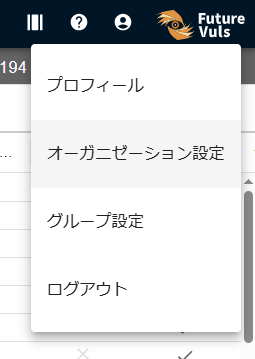
Profile#
You can change your display name, password, and other settings from here. The username set here is shared across all organizations and groups.
Deprecation of the Approval Workflow (Effective July 14, 2025)
The approval workflow for adding users to organizations/groups has been deprecated. Participation is completed immediately when an admin adds a user.
| Item | Description |
|---|---|
| User Name | Change the user name used for task management. |
| Latest login | Displays the user's 4 most recent login records. |
| Daily Report Email Delivery Weekly Report Email Delivery |
Configure email notification settings for "Daily/Weekly Report". |
| EOL Monthly Report Email Delivery | Configure email notification settings for "Monthly EOL Notification (Monthly EOL Report)". |
| Email Address | Displays your email address. As of March 2025, email addresses cannot be changed on this screen. If you wish to change your email address, please contact us via the FutureVuls Inquiry Form. |
| Password | Change your password (Reference: Password Policy). |
| Two-Factor Authentication | Configure Two-Factor Authentication. |
Email Address Verification#
For users who log in with a password, email address verification is required after the first login.
Navigate to User Settings > Profile and click the "Verify email address" button in the Email Address section.
A verification code will be sent to your registered email address. Enter it in the field provided.
If the email verification button is not displayed
If you are logged in using Google authentication or SAML, email verification is not available. Please try again after logging in with a password.
Two-Factor Authentication#
FutureVuls supports TOTP (Time-based One-time Password). Since vulnerability information is highly confidential, we recommend configuring TOTP.
Navigate to User Settings > Profile and click the "Activate" button in the Two-Factor Authentication section, and a TOTP QR code will be displayed.
Scan the QR code with an authenticator app such as Google Authenticator or IIJ SmartKey to complete the setup.
From the next login onward, TOTP authentication will also be required. To disable it, click the "Deactivate" button in the same way.
If you are using Google authentication
Accounts using Google authentication cannot perform two-factor authentication when logging in to FutureVuls. Please use Google's two-step verification process.
Recent Logins#
Recent Logins displays the last 4 login records. This shows the date and time of logins to FutureVuls, regardless of the specific organization or group.
If you are using Google authentication
Login information is not displayed for accounts using Google authentication.
Affiliation Information#
Affiliation Information displays a list of groups and group sets that you belong to within the current organization. The ID shown next to the organization name is the Organization ID. Clicking on a group name or group set name will take you to the vulnerability list screen for that group.
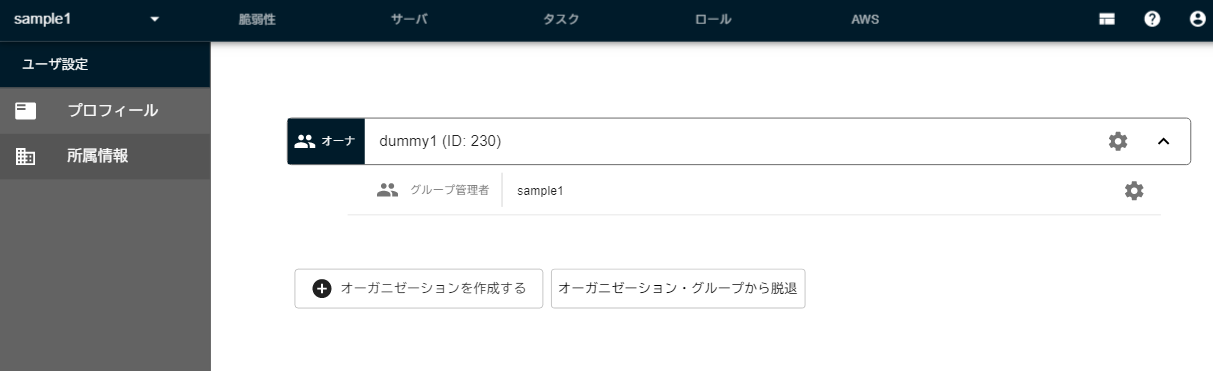
Click "Leave group or groupset" to leave a group or group set.
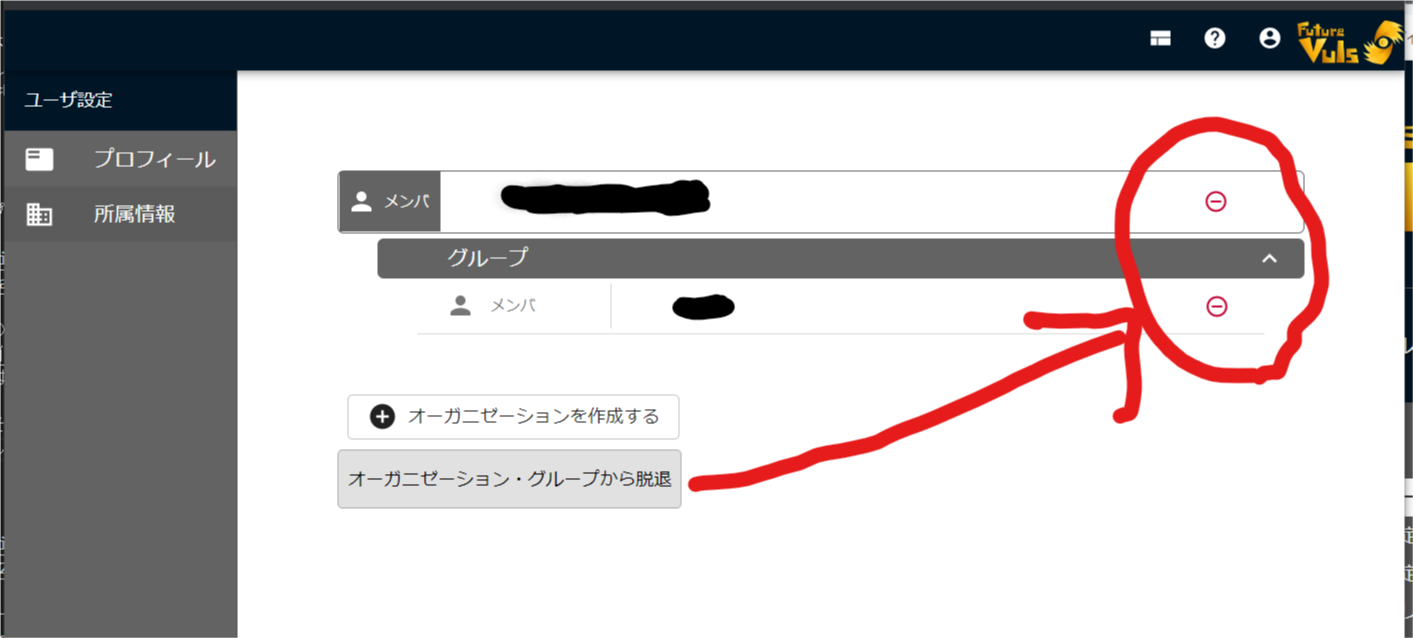
Behavior when belonging to multiple organizations (Effective July 14, 2025)
Users belonging to multiple organizations must select which organization to access at login. To switch organizations, you need to log out and log in again.
To view a different organization, log out and log in again.
Since FutureVuls uses URL-based page routing, you can navigate directly by entering the URL or saving a bookmark.