Preview
This guide is a preview. Its content may change.
Setup 2: Register Servers and Products#
For Everyone
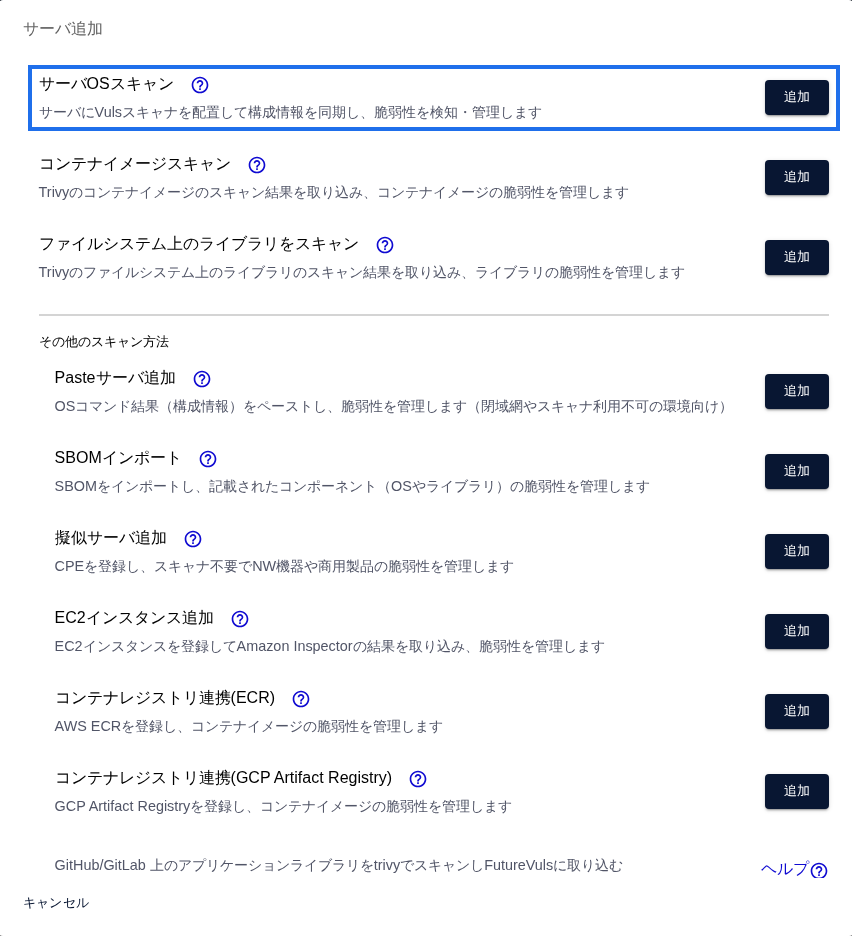
Register the servers and products you want to manage in your group. FutureVuls offers several ways to register them (scan methods). On this page, choose the method that fits your environment, then register on the page for that method.
Aim to finish this page by week 4 after signing your contract (ramp-up milestones).
How Scanning Works#
flowchart LR
    A["Target servers and products<br>Software information"] --> B["Scanners and tools<br>collect configuration information"]
    B --> C["FutureVuls matches it against<br>the vulnerability database"]
    C --> D["Vulnerabilities and tasks<br>appear in the console"]
How it works in detail (you can follow the steps without reading this)
FutureVuls collects information about the software installed on your servers (configuration information), matches it against the latest vulnerability database, and displays the relevant vulnerabilities in the console. Scan methods differ in how this configuration information is collected and sent.
The small program that collects configuration information is called a "scanner." The scanner collects a list of the software installed on a server and sends it to FutureVuls. It does not change OS or application settings or run heavy processing. Installation adds a user for running scans (vuls-saas), files under /opt/vuls-saas, a cron job for scheduled runs, and any required dependency packages. Vulnerability matching is done on the FutureVuls side. The scanner is a FutureVuls-specific program based on the open-source "Vuls," and its source code and processing are public. When your company reviews whether it can be installed, see Scanner Installation Requirements and Service Connectivity Requirements as well.
Some registration methods update configuration information automatically every day, while others require you to register again whenever the configuration changes. To reduce daily effort, choose a method with automatic updates whenever possible.
Choose a Method Based on What You Want to Manage#
First, find what you want to manage in the cards below, and consider the method marked with ☆ first. If the ☆ method can't be used in your environment, use one of the "Alternatives."
- Linux servers
☆Recommended: Local Scan
Alternatives: Remote Scan, Amazon Inspector integration, Paste Scan, SBOM import
Key considerations: Can you place a scanner on the server? Can you reach it over SSH? Is it on a closed network?
Notes: Paste Scan collects less information, and you have to paste again every time the configuration changes
- Windows servers
☆Recommended: Local Scan
Alternatives: Remote Scan, Paste Scan
Key considerations: Can the server reach Windows Update (directly or through WSUS)?
Notes: Third-party products such as Chrome are not detected by KB; they are detected by CPE
- Network devices
☆Recommended: CPE registration (pseudo server)
Alternatives: Network discovery (if the devices support SNMP)
Key considerations: Do you know each device's model number and version? If you have many devices and can use SNMP, also consider network discovery
Notes: When you register manually, identifying the CPE from the model number is prone to omissions and errors
- Application dependency libraries
☆Recommended: Local Scan (specify lockfiles)
Alternatives: LockFile Paste Scan, SBOM import, GitHub integration, Trivy
Key considerations: Are the lockfiles on the server or on your local machine?
Notes: For SBOM import, we recommend that each component has a PURL. Components without a PURL can still be imported using a CPE or a name. However, vulnerabilities are not detected for components that have neither a PURL nor a CPE until you assign one
- Commercial products and middleware (Oracle, JP1, downloaded Tomcat, etc.)
☆Recommended: CPE registration
Key considerations: Was the software installed outside the package manager?
Notes: Variations in CPE names can easily cause missed detections
- Container images
☆Recommended: Docker scan (Trivy, ECR/GAR integration)
Alternatives: SBOM import
Key considerations: Do you use CI/CD? Where are your images stored?
For Servers: If You're Unsure, Go Down the List in Order#
| Question | If "yes" | Updates | Page to read |
|---|---|---|---|
| 1. The server can connect to the internet, and you can place a scanner on it | Local Scan (start here; you can install it with a single command) | Automatic | Local Scan |
| 2. You can place a scanner on a relay server that can connect over SSH | Remote Scan | Automatic | Remote Scan |
| 3. It is an EC2 instance with Amazon Inspector enabled | Amazon Inspector integration | Automatic | Amazon Inspector Integration |
| 4. You can prepare an SBOM (software bill of materials) for the server | SBOM import | Manual | SBOM Import |
| None of the above (closed network, etc.) | Paste Scan | Manual | Paste Scan |
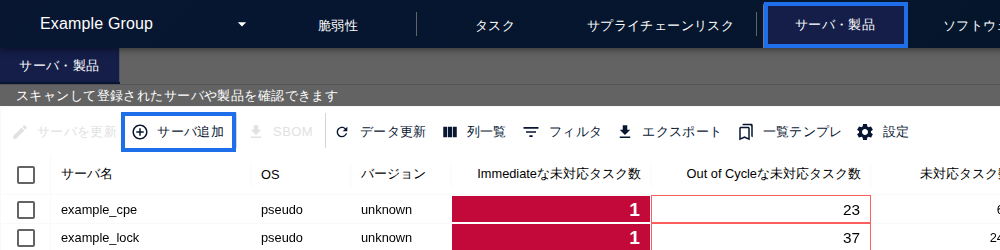
To register a server, start from "Add Server" on the Server / Product tab.
What to Know Before You Register#
If You Have Many Servers with the Same Configuration (AMI and Auto Scaling)#
Servers with the same configuration can be treated together as a single server. Install the scanner on a representative instance, run a scan once to generate a UUID, and then create an AMI. When you scale out using that AMI, the instances are treated as a single server with the same UUID, which saves licenses. If you create an AMI without scanning first, a separate UUID is issued for each instance, and each is registered as a separate server. For details, see "How do scan licenses work in scalable environments?"
Watch Out for Duplicate Server UUIDs#
FutureVuls identifies servers by UUID (an identifier for each server). If servers with different configurations scan with the same UUID, their information gets mixed together. This often happens when, for example, you create a new server by copying a server that already has the scanner installed, so be careful. If UUIDs have been duplicated, see "What to do if UUIDs are duplicated by mistake."
Decide on a Server Naming Convention#
The server name is the display name used to tell servers apart in FutureVuls. If you decide on a naming convention (for example, "system name-purpose-sequence number") before you start registering, it will be easier to find assignees and response status later. Renaming servers after you have many of them takes effort, so we recommend deciding before you register the first server.
After You Register All Servers in the Initial Scope#
Check the following two points in the server list.
- Are all servers in the initial scope listed?: Compare against the number of servers you wrote in the Onboarding Preparation Sheet.
- Are they updated every day?: For servers registered with a scanner, the scanner is running if "Last Configuration Sync" in the server list is updated every day (show this column from "Columns" above the list). For servers that have not synced for 24 hours or more, Last Configuration Sync is shown in red. "Last Detection Time" is updated by FutureVuls's nightly matching even when the scanner has stopped, so you can't use it to check whether the scanner is running.
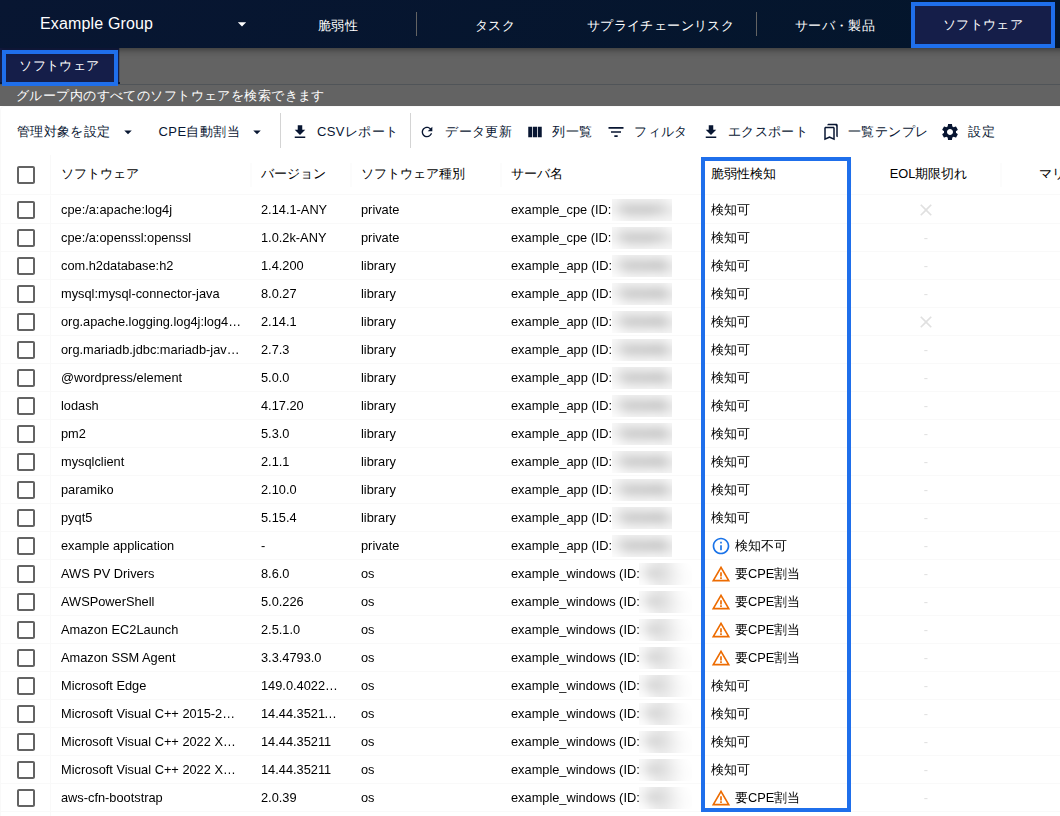
Also check the "Vulnerability Detection" column in the software list for any remaining "CPE required" entries to prevent missed detections. Newly registered software is shown as "Not evaluated" until it is evaluated at the next scan (Vulnerability Detection Column).
Learn More#
Next Page#
Once registration is complete, define the rules for sorting vulnerabilities. Go to Setup 3: Define Prioritization Rules.