Preview
This guide is a preview. Its content may change.
From Onboarding to Daily Operations: Initial Setup and Three Daily Steps#
Read First
Operating FutureVuls is divided into "setup you do only once at the start" and "three steps you repeat every day." This page explains the overall flow and what you do in each part.
Overall Flow#
We recommend first deciding "who sees which scope," and then registering the servers and products you want to manage. You can change the scope later. Once registration is complete, all you need to do is repeat three steps every day.
flowchart TB
    subgraph prep["Only once at the start"]
        direction LR
        P1["Setup 1<br>Structure Your Account"] --> P2["Setup 2<br>Register Servers and Products"]
        P2 --> P3["Setup 3<br>Define Prioritization Rules"]
        P3 --> P4["Setup 4<br>Set Assignees, Due Dates, and Notifications"]
    end
    subgraph daily["Repeat every day"]
        direction LR
        S1["STEP 1<br>Narrow Down the Vulnerabilities to Address"] --> S2["STEP 2<br>Decide Who Fixes What and by When"]
        S2 --> S3["STEP 3<br>Record the Results"]
        S3 --> S1
    end
    prep --> daily
Ramp-Up Milestones#
Plan to get up and running in the following three stages, over roughly 90 days from the start of your contract. Use these as milestones to check how far along you are.
| Approximate timing | Stage | What's in place | Main pages to read |
|---|---|---|---|
| By week 4 | Rollout | The servers in the first scope you decided on in the Onboarding Preparation Sheet (the initial scope) are registered and updated automatically every day | Setup 1, Setup 2 |
| By week 8 | Systematization | SSVC is producing priorities, and you've defined the "Important CVE" conditions based on your own criteria. Ideally, notifications to Slack or Teams are also set up | Setup 3, Setup 4 |
| By day 90 | Established operations | You consistently address vulnerabilities classified as "Immediate" (the most urgent SSVC level, meaning "respond immediately") without letting them pile up for more than a month | STEP 2, STEP 3 |
The milestones for week 8 and day 90 assume the CSIRT Plan or PSIRT Plan, which use SSVC (SSVC). On the Standard Plan, define the "Important CVE" conditions using CVSS scores, alert information (KEV), and similar criteria (Criteria for Important CVE). The milestone for day 90 is then that you consistently address vulnerabilities in "Important CVE" without letting them pile up for more than a month.
You don't need to register all of your company's servers from the start. First, complete the three stages with the initial scope, and then expand the scope.
Setup You Do Only Once at the Start#
Setup 1: Structure Your Account#
FutureVuls manages things in the following three units. Daily server registration and vulnerability response are done per "group," and you use a "group set" when you want to view the status of multiple groups together.
| Unit | Role | Examples |
|---|---|---|
| Organization | The unit of your contract. There is one for the entire company, and you manage members, permissions, and overall settings here in one place | Sample Corporation |
| Group | The unit of daily operations. Server registration, vulnerability detection, and task response are done per group | IT Systems, Production Management, Public Web |
| Group set | A unit that combines multiple groups for aggregation. It lets you see response status across the company or across departments | View all production systems together, view all public-facing servers together |
To see the groups and group sets in your organization, click the account icon in the upper right of the screen and open "Organization Settings".
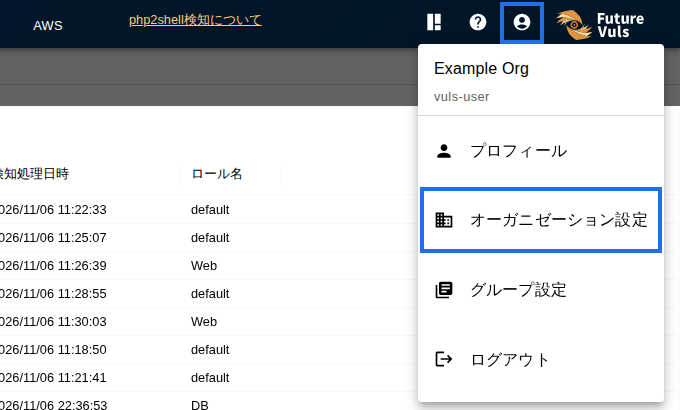

A single group can belong to multiple group sets. If you're unsure how to divide groups, the basic approach is to put each system into its own group.
For details, see Setup 1: Structure Your Account.
Setup 2: Register Servers and Products#
Select a group, and register servers and products using the scan method that suits your environment. Once registration is complete, configuration information and vulnerabilities are automatically kept up to date every day. However, some methods, such as Paste Scan and SBOMs imported from files, require you to re-register whenever the configuration changes. In addition, on the Standard Plan, servers registered by these methods are not covered by the daily vulnerability matching (periodic automatic scan). To reflect newly published vulnerabilities, run a manual scan from the screen (Periodic Automatic Scans).
To register a server, start from "Add Server" on the Server / Product tab.
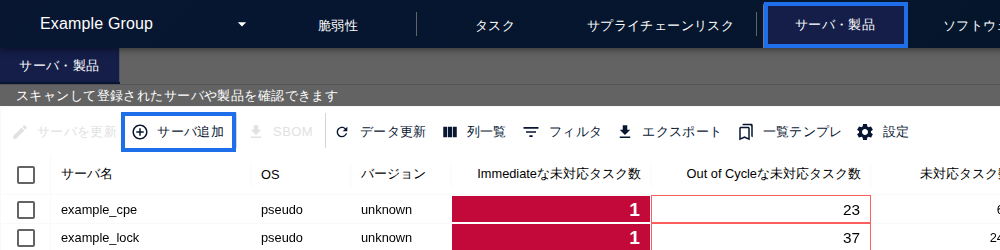
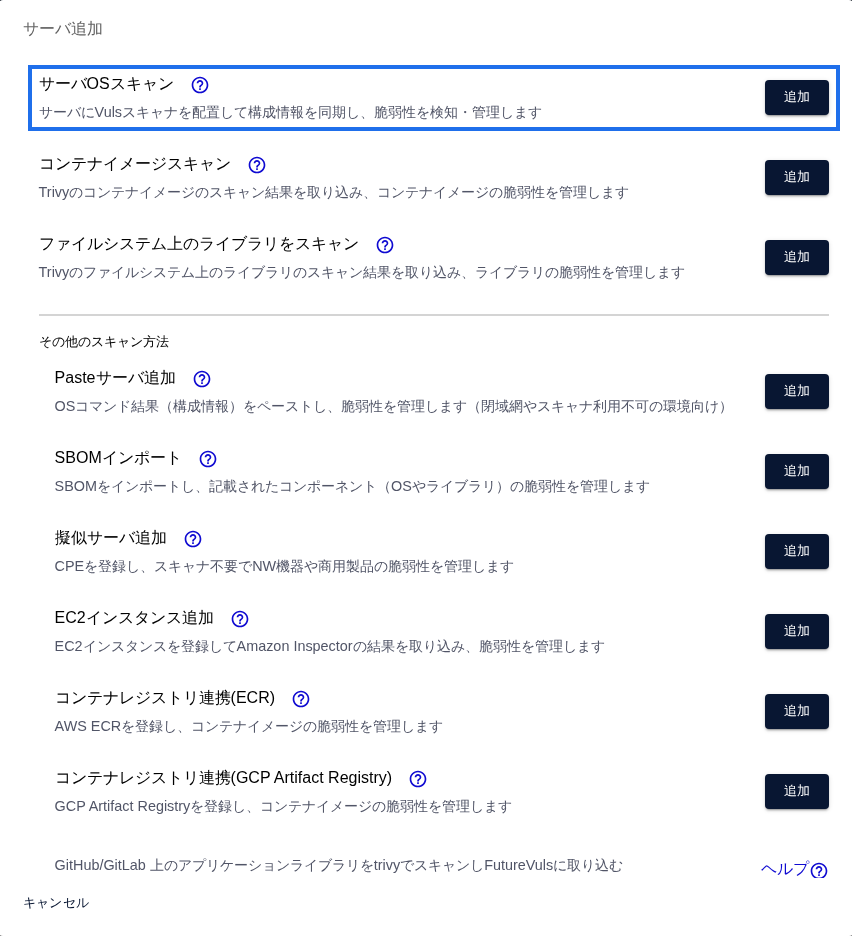
FutureVuls collects information about the software installed on your servers (configuration information), matches it against the latest vulnerability database, and lists the vulnerabilities that apply. The difference between scan methods is how this configuration information is collected and sent.
flowchart LR
    A["Target server<br>OS and package information"] --> B["The scanner<br>collects configuration information"]
    B --> C["FutureVuls<br>matches it against the vulnerability database"]
    C --> D["Vulnerabilities and<br>tasks appear on the screen"]
We recommend starting with Local Scan, which you can install with a single command. You can also register container images, libraries, network devices, and more. For how to choose a method, see Setup 2: Register Servers and Products.
Setup 3: Define Prioritization Rules#
Registration alone just lists every detected vulnerability. When you configure the SSVC inputs, the "Important CVE" conditions, and Auto Triage based on your own criteria, only the vulnerabilities you should address are sorted out automatically. For details, see Setup 3: Define Prioritization Rules.
Setup 4: Set Assignees, Due Dates, and Notifications#
Set things up so that assignees and due dates are filled in on tasks automatically, and configure notifications to Slack or Teams. This reduces the effort of making assignments every day. For details, see Setup 4: Set Assignees, Due Dates, and Notifications.
Three Steps You Repeat Every Day#
Daily operations are simply a matter of repeating three steps: "narrow down → decide → record."
| Step | What you do | Main person responsible | Screen used |
|---|---|---|---|
| STEP 1: Narrow Down the Vulnerabilities to Address | Among the vulnerabilities found in the daily scan, check the "Important CVE" list that the rules from Setup 3 sorted automatically | Administrator | "Important CVE" on the CVE tab |
| STEP 2: Decide Who Fixes What and by When | Select the vulnerabilities to address, and set assignees and due dates on their tasks. The assignees are notified | Administrator | CVE tab, Tasks tab |
| STEP 3: Record the Results | Open the tasks assigned to you and record your decisions, such as applying a patch, applying a mitigation, or accepting the risk, as statuses | Technical staff | "My Task" on the Tasks tab |
In addition to the three daily steps, deciding on weekly and quarterly reviews helps keep operations going. For details, see Set Your Operating Rhythm.
What Is a Task?#
In FutureVuls, responses are managed in units called "tasks." A task is a ticket for managing your response (assignee, due date, and status) to a vulnerability found on a server. When a vulnerability is found, one task is created for each server it was found on. Even for the same vulnerability, as many tasks are created as there are servers on which it was found. Tasks are created automatically by scans, so you don't need to create them manually.
flowchart LR
    X["Vulnerability X is found"] --> A["Server A (has vulnerability X)"]
    X --> B["Server B (has vulnerability X)"]
    A --> T1["Task 1<br>Server A × Vulnerability X"]
    B --> T2["Task 2<br>Server B × Vulnerability X"]
Troubleshooting#
If something isn't working, see Troubleshooting (FAQ). If that doesn't solve the problem, contact us through the support contact form.
Next Page#
- If you want to clarify within your organization why you're using FutureVuls, go to Planning 1: Define Your Goals
- If you want to get started right away, go to Setup 1: Structure Your Account