Preview
This guide is a preview. Its content may change.
STEP 3: Record the Results#
For Everyone
Assignees work on the tasks assigned to them and record how they addressed each one as a "status." Keeping a record helps prevent anything from slipping through and lets you explain later why a vulnerability was not addressed.
Once you maintain this consistently, you have reached the "operations established" stage, which is targeted for about 90 days after your contract starts (ramp-up milestones).
Two Ways to Open Your Tasks#
| Entry point | When to use it | What you see |
|---|---|---|
| Link in a notification email | When a task is assigned to you or updated | That single task |
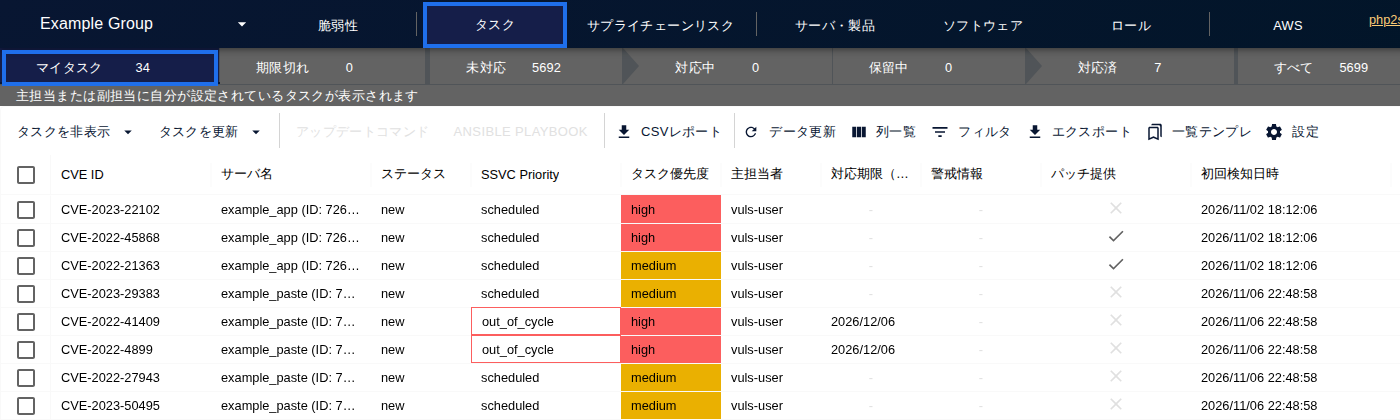
| "My Task" on the Tasks tab | At a set time, such as every morning | A list of your unfinished tasks |
How Statuses Progress#
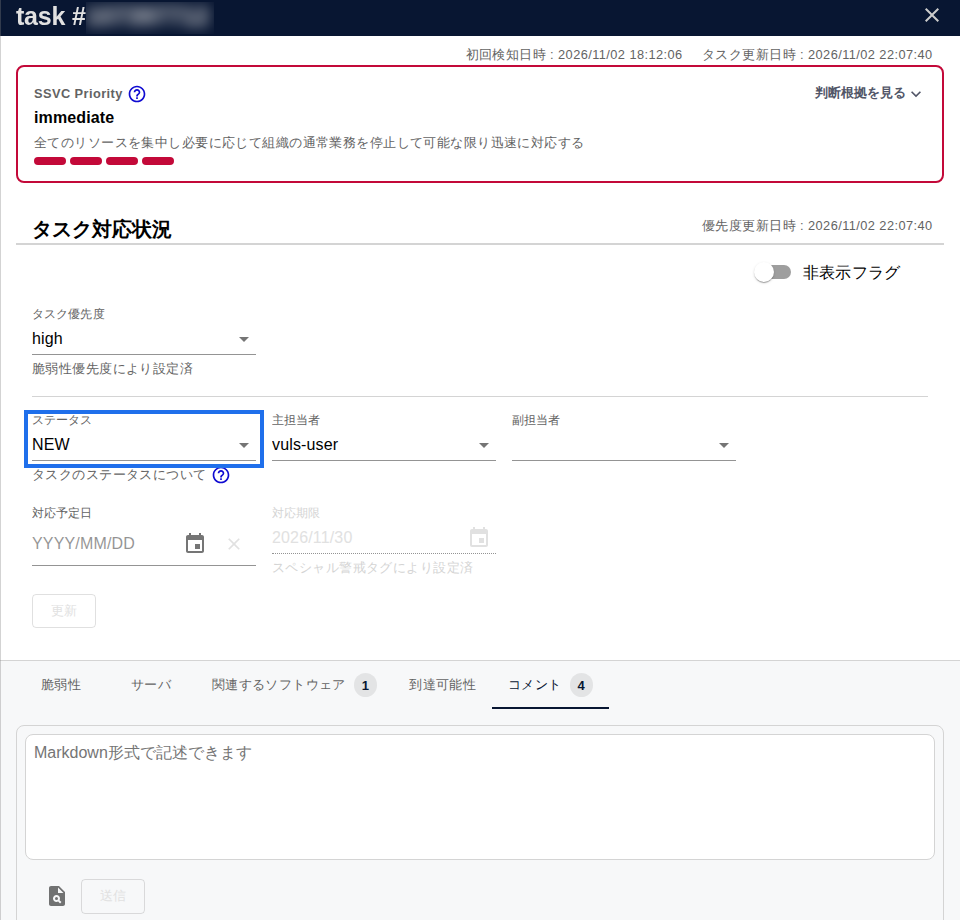
A task's status moves through three phases: "Open," "Ongoing," and "Resolved." Basically, only two statuses change automatically: "New" and "Patch Applied." However, if you set a status in the SSVC triggers and actions, the status can also change automatically to "Defer (DEFER)" or "Risk Accepted" (SSVC Status). All others are chosen and changed by the person handling the task.
flowchart LR
    N["New<br>NEW"] --> I["Investigating<br>INVESTIGATING"]
    I --> O["Ongoing<br>ONGOING"]
    O --> D["Resolved<br>(choose from 4 types)"]
    I --> F["Defer<br>DEFER"]
    F -.->|When you start addressing it| O
Open and Ongoing Statuses#
| Status | Meaning | When to use it |
|---|---|---|
| New (NEW) | The vulnerability has just been found | Set automatically when it is detected |
| Investigating (INVESTIGATING) | You are checking whether it affects your organization | Set it when you start investigating |
| Ongoing (ONGOING) | You have decided how to address it and are working on it | Set it when the investigation is complete and you start preparing or doing the work |
| Defer (DEFER) | You have decided not to address it for now | Set it when you decide to postpone because the impact is small or there is a reason it can't be fixed right now. You revisit this decision in the quarterly review |
Resolved Statuses (4 You Can Choose)#
"Patch Applied" is set automatically by a scan and can't be chosen manually. You manually choose from the remaining four.
| Status | When to choose it |
|---|---|
| Patch Applied (PATCH_APPLIED) | You fixed it with a patch or version upgrade (set automatically by a scan) |
| Alternative Resolution (ALT_RESOLVED) | You completely closed off the attack path by a means other than a patch, such as disabling a feature |
| Workaround (WORKAROUND) | You temporarily reduced the risk, for example by changing a setting (the vulnerability itself remains) |
| Not Affected (NOT_AFFECTED) | You confirmed that you don't use the affected feature and your environment is not affected |
| Risk Accepted (RISK_ACCEPTED) | Your organization decided not to fix it because the impact is small |
If you apply a patch, the task automatically changes to "Patch Applied" at the next scan. You don't need to change it manually. For servers registered with Paste Scan, the status changes after you paste the configuration information again and the scan runs.
Keeping "Immediate" from Piling Up#
To check whether operations are established, see whether any vulnerabilities rated "Immediate" (requires immediate action) have remained for more than a month. These two habits help keep them from piling up:
- Open "My Task" every morning: Check your unfinished tasks.
- Record your decision when you choose not to address something: If you decide not to fix a vulnerability, record it as "Risk Accepted" or "Not Affected" rather than leaving it unaddressed.
Common Issues#
| Symptom or question | Cause and solution |
|---|---|
| The task doesn't change to "Patch Applied" after an update | Check the "Patch Availability" column in the list. For vulnerabilities without fixed-version information, FutureVuls can't automatically determine whether the fix has been applied (see "Task does not change to PATCH_APPLIED after updating") |
| What status to use for a vulnerability that doesn't need to be addressed | If you can determine that it doesn't affect your organization, use "Not Affected (NOT_AFFECTED)." If you reduced the risk, for example by changing a setting, use "Workaround (WORKAROUND)" |
Troubleshooting#
- Not sure how to handle statuses or due dates: Managing Tasks (Statuses and Due Dates)
If that doesn't solve the problem, contact us through the support contact form.
Learn More#
Next Page#
You now have all three steps of daily operations in place. Next, decide what to review weekly and quarterly. Go to Set Your Operating Rhythm.