Preview
This guide is a preview. Its content may change.
Set Your Operating Rhythm#
For Everyone
In addition to the three daily steps, decide what to review weekly and quarterly. This makes it easier to spot overdue tasks and outdated settings, and keeps your operations running. Decide who checks what, when, and on which screen, and share it within your organization.
Operations Calendar#
Start with the table below, and replace the assignees to fit your organization's team.
| When | Who | Which screen | What to do |
|---|---|---|---|
| Daily | Administrator | "Important CVE" on the CVE tab | Decide which vulnerabilities to address and set assignees and due dates (STEP 1, STEP 2) |
| Daily | Technical staff | "My Task" on the Tasks tab | Work on assigned tasks and record the results as statuses (STEP 3) |
| Weekly | Administrator | "Expired" on the Tasks tab | Ask assignees why tasks are past their due dates, and either speed up the response or revise the due dates |
| Weekly | Administrator | Tasks tab (filtered by SSVC rating and first detection time) | Check that "Immediate" tasks are not piling up |
| Weekly | Technical staff | "Last Configuration Sync" in the server list | Check for servers shown in red to see whether any scanner has stopped |
| Quarterly | Administrator | "Deferred" on the Tasks tab | Review tasks set to "Defer (DEFER)" |
| Quarterly | Administrator | Automatic Ignore Settings and hidden tasks | Check that the hiding conditions are still appropriate |
| Quarterly | Administrator | "Important CVE" conditions in Group Settings | Check that the number of items is manageable each day, and revise the conditions |
| Quarterly | Administrator | Members and SSVC settings in Group Settings | Review members, assignees, and decision criteria to reflect personnel changes and system changes |
Weekly Checks#
Check Overdue Tasks#
The "Expired" tab on the Tasks tab lists tasks that are not yet resolved and are past their due dates. Ask the assignees why, and either address them quickly or, if there is a valid reason, revise the due date. Overdue tasks are also included in the Daily Report email sent every day (Tasks, Notification Feature).
Check That "Immediate" Isn't Piling Up#
The 90-day milestone is reached when you consistently address vulnerabilities rated "Immediate" without letting them pile up for more than a month (ramp-up milestones). Check this as follows:
- On the Tasks tab, select the "Open" tab.
- Click "Filter" above the list, select "SSVC Priority" as the column and "immediate" as the value.
- Sort by the "First Detection Time" column and check whether any tasks found more than a month ago remain.
- Check the "Ongoing" and "Deferred" tabs the same way.
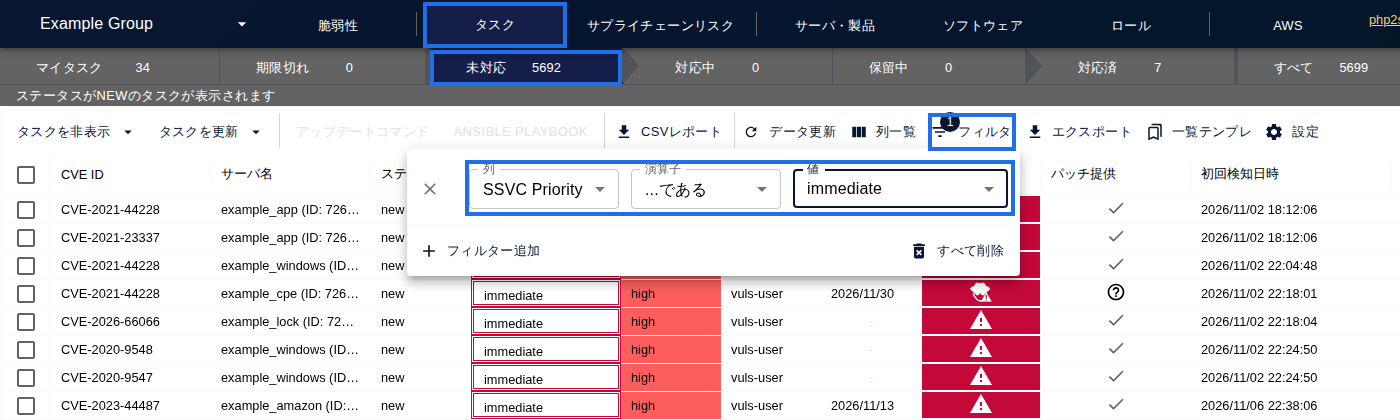
If any remain, check whether an assignee and due date are set, and why the work has stalled.
Check That Scans Haven't Stopped#
If a scanner stops and configuration information is no longer sent (for example, because cron stopped or the server is down), you will not receive a notification. The "scan error" notification is sent only when a scan runs and results in an error. That's why you check the server list every week.
- In the server list on the "Server / Product" tab, look at the "Last Configuration Sync" column. This applies to servers registered with a scanner. This column is hidden at first; to show it, select "Last Configuration Sync" in "Columns" above the list.
- For servers that haven't synced in 24 hours or more, the Last Configuration Sync value is shown in red. An "Out of sync" warning also appears in the server details.
- If any server is shown in red, check whether the scanner is running on that server and whether the server itself is down.
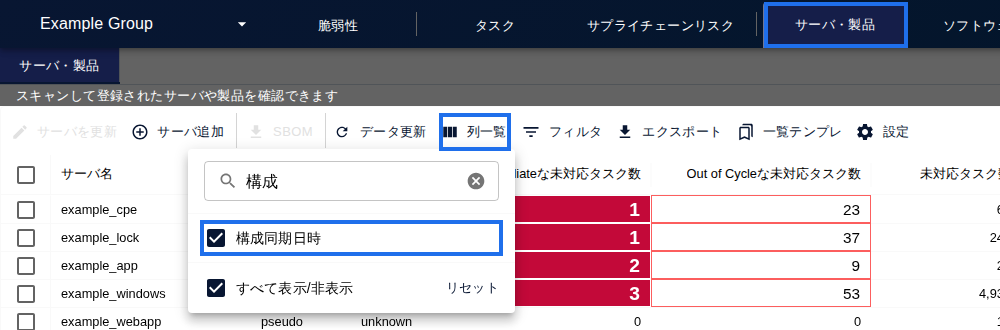
If you have many servers, you can also use the API to retrieve the server list periodically and check the last sync time (lastSyncedAt) to find servers that have stopped (FutureVuls API). You can retrieve the server list for a group with GET /v1/servers.
Quarterly Reviews#
Tasks Set to "Defer (DEFER)"#
Open "Deferred" on the Tasks tab and review the tasks set to DEFER. For tasks whose SSVC rating has gone up, or that you can address in the next regular maintenance window, change the status back and set an assignee and due date.
Hiding Conditions#
Review the conditions in your Automatic Ignore Settings and the tasks you hid manually. Check whether anything has changed, such as servers that were previously out of scope now being in scope (Task Ignore Settings).
"Important CVE" Conditions#
Check that the number of "Important CVE" items is manageable each day (as a guideline, 10 to 20 per person). If there are too many, narrow the conditions; if there are so few that you feel uneasy, broaden them (Setup 3: Define Prioritization Rules).
Team and System Changes#
If people have transferred or left, or systems have been added or retired, review the group members, the assignee for each server, and the SSVC decision criteria (Exposure and Human Impact) (Setup 1: Structure Your Account, Setup 4: Set Assignees, Due Dates, and Notifications).
Troubleshooting#
- Not sure how to handle statuses or due dates: Managing Tasks (Statuses and Due Dates)
- Not sure how to adjust the number of "Important CVE" items: Configuring and Understanding SSVC (Priority)
If that doesn't solve the problem, contact us through the support contact form.
Learn More#
Next Page#
Once your operating rhythm is set, use the Go-Live Checklist to confirm that you're ready.