Preview
This guide is a preview. Its content may change.
Register with SBOM Import#
Read Only the Method You Use
With this method, you import an SBOM (software bill of materials) file generated by a tool into FutureVuls, and FutureVuls checks each component for vulnerabilities. You can start managing vulnerabilities with only the SBOMs you already have, without installing the scanner on your servers. The same screens and features as other registration methods (EOL, licenses, malicious packages, and so on) are available.
How SBOM Import Works#
flowchart LR
    A["SBOM generation tools<br>Trivy, Syft, cdxgen,<br>Amazon Inspector, etc."] --> B["SBOM file<br>CycloneDX / SPDX"]
    B --> C["FutureVuls<br>Checks each component for vulnerabilities"]
How it works in detail (you can follow the steps without reading this)
Each component's identifier (PURL or CPE) is the key to detecting vulnerabilities. Components with neither a PURL nor a CPE are not subject to vulnerability detection (you can assign identifiers later).
Supported Formats and Tools#
Server SBOM or Application SBOM?#
| Item | Server SBOM | Application SBOM |
|---|---|---|
| When to use | Create a new server from an SBOM for a single container image or virtual machine | Add the dependencies of an application running on a server that has already been scanned |
| Information used | OS information, OS packages, and libraries (all of them) | Language libraries. OS packages are subject to detection only when the SBOM is added to an SBOM server (a server created from a server SBOM) whose OS has been identified. For an SBOM without OS information, its OS packages are imported as packages for the OS of the destination server |
| Per server | Only one | You can register multiple |
| Deletion | Can't be deleted per SBOM (only by deleting the server) | Can be deleted per SBOM |
A single SBOM can contain only one OS. If it contains multiple OSes, an error occurs.
Steps#
Register as a Server SBOM#
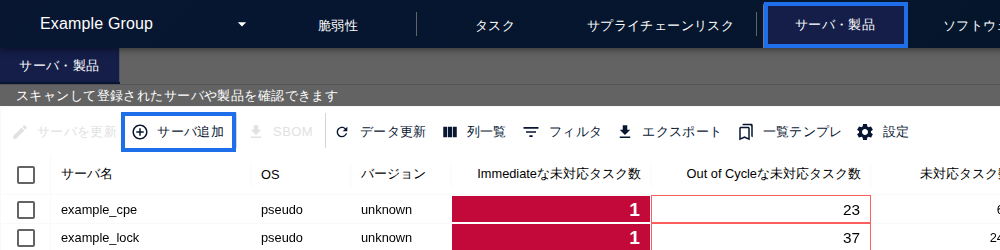
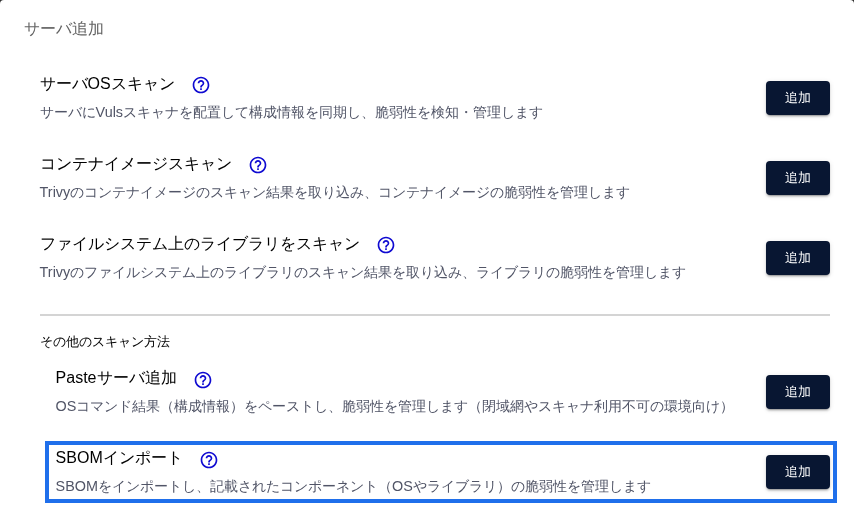
- On the Server / Product tab, click "Add Server", and then click "Add" under "Import SBOM".
- Enter a server name (the display name in FutureVuls), select the SBOM file, and submit it. The server is created when the upload completes. The SBOM file name is set to the name of the uploaded file (up to the first 50 characters).
- If you registered with a file, run a manual scan once after registration. (If you pasted the content as text, a scan runs automatically right after registration.)
Register as an Application SBOM#
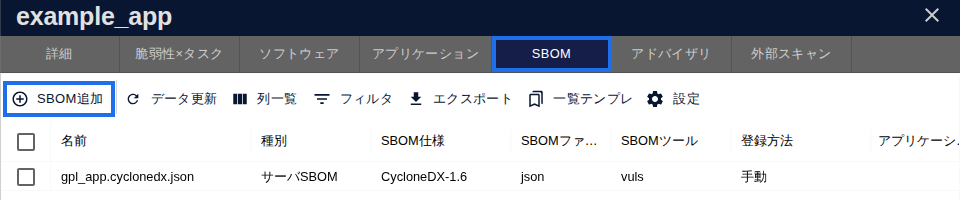
- On the "SBOM" tab in the server details, click "Add SBOM". You add, download, update, and rename SBOMs all from the "SBOM" tab.
- Select the SBOM file and submit it.
- Vulnerabilities are detected by a manual scan or by the next day's scheduled scan.
There are three ways to upload, and they are the same for both registration types.
| Method | When to use |
|---|---|
| File (recommended) | Select the SBOM file as is. The browser doesn't slow down even with large files |
| Text | Paste the contents of the SBOM. Suited for small files or for checking that things work |
| API | Register automatically from CI/CD (FutureVuls API) |
Check the Results#
How to tell it worked
- In "Scan History" under "Group Settings", check that the row with the scan type "SBOM Scan" shows success.
- Check that components appear on the "Software" tab in the server details and that they have a PURL or CPE.
- Detection results appear in the vulnerability list.
When Your Configuration Changes#
With SBOM Import, configuration information isn't updated automatically. When the configuration changes, update it with a new SBOM. You can download registered SBOMs at any time.
Common Issues#
| Symptom | Cause and solution |
|---|---|
| An error occurs during import | The error message shows the cause and how to fix it. For how to resolve each error, see Import Specifications > Troubleshooting. The two most common causes are an SBOM that contains multiple OSes and an SPDX file output in RDF (output it again in JSON) |
| An error occurs for an SBOM whose OS can't be determined | For an SBOM that contains OS packages but no OS information, or an SBOM for an OS that FutureVuls doesn't support, select "Ignore OS information" on the import screen to import it without the OS packages. The excluded packages are not subject to detection |
| Components appear but no vulnerabilities are shown | Those components may have neither a PURL nor a CPE. Assign an identifier with "CPE/PURL Assignment" in the software details to make them subject to detection |
| More vulnerabilities are detected after adding an application SBOM | OS packages included in an application SBOM are also subject to detection (only for SBOM servers whose OS has been identified). This is expected behavior |
| You want to update an SBOM | On the "SBOM" tab in the server details, select the SBOM you want to update and upload the file again. Detection results and tags for unchanged software are kept. The only exception is the first update after the October 2026 release of a server SBOM registered via the API or by pasting: because the OS packages are re-registered, manually assigned CPEs and tags are not carried over |
| An error occurs for OS packages with the same name | A server can have only one version of an OS package with a given name. Check the conflicting packages and SBOMs shown in the error |
Troubleshooting#
If something isn't working, see Troubleshooting (FAQ).
If that doesn't solve the problem, contact us through the support contact form. Including the SBOM format, the generation tool, and any error messages helps us investigate faster.
Learn More#
- Overview of SBOM Management
- Importing SBOM Files
- Import Specifications
- Server SBOM and Application SBOM
Next Page#
Once registration is complete, check your progress in the "After You Register All Servers in the Initial Scope" section of Setup 2: Register Servers and Products.