Preview
This guide is a preview. Its content may change.
STEP 1: Narrow Down the Vulnerabilities to Address#
For Everyone
This is the first step in your daily operations. Open "Important CVE", where vulnerabilities are automatically sorted according to the rules you defined in Setup 3, and decide which vulnerabilities to address first.
If you haven't yet set the conditions for "Important CVE" or configured SSVC, first complete Setup 3: Define Prioritization Rules.
"Important CVE" Is All You Need to Check Each Day#
The "All" view on the CVE tab shows every detected vulnerability. There are so many that this list alone doesn't tell you which ones to address first.
FutureVuls automatically sorts the vulnerabilities found by the daily scan according to the rules from Setup 3 and collects the ones you should address under "Important CVE". Opening "Important CVE" each day is all you need.
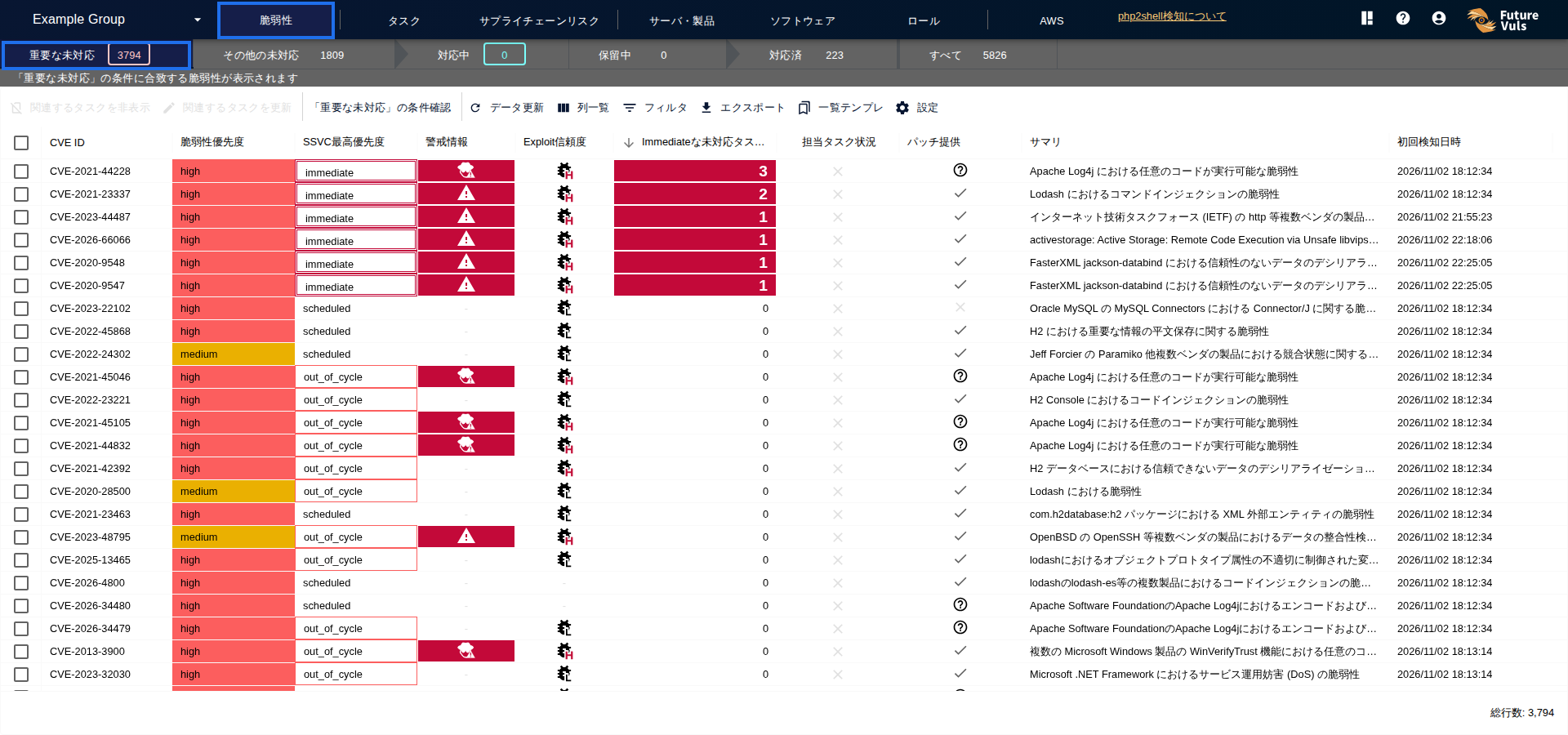
Vulnerabilities newly added to the catalog of actively exploited vulnerabilities (KEV) are reflected in tasks within about an hour, without waiting for a scan. If you use SSVC, the SSVC Priority and due date are also updated automatically (for servers registered via the scanner, paste, or SBOM, this is available on the CSIRT plan). However, the due date changes automatically only when certain conditions are met. Due dates set manually or by special alert tags are not overwritten by SSVC (Due Date). For tasks whose priority has gone up, also review any due dates you set manually. If you check "Important CVE" every day, you won't miss anything that needs urgent attention.
How to Do the Daily Check#
Set a fixed time, such as every morning, and check in the following order.
- Open "Important CVE" on the CVE tab.
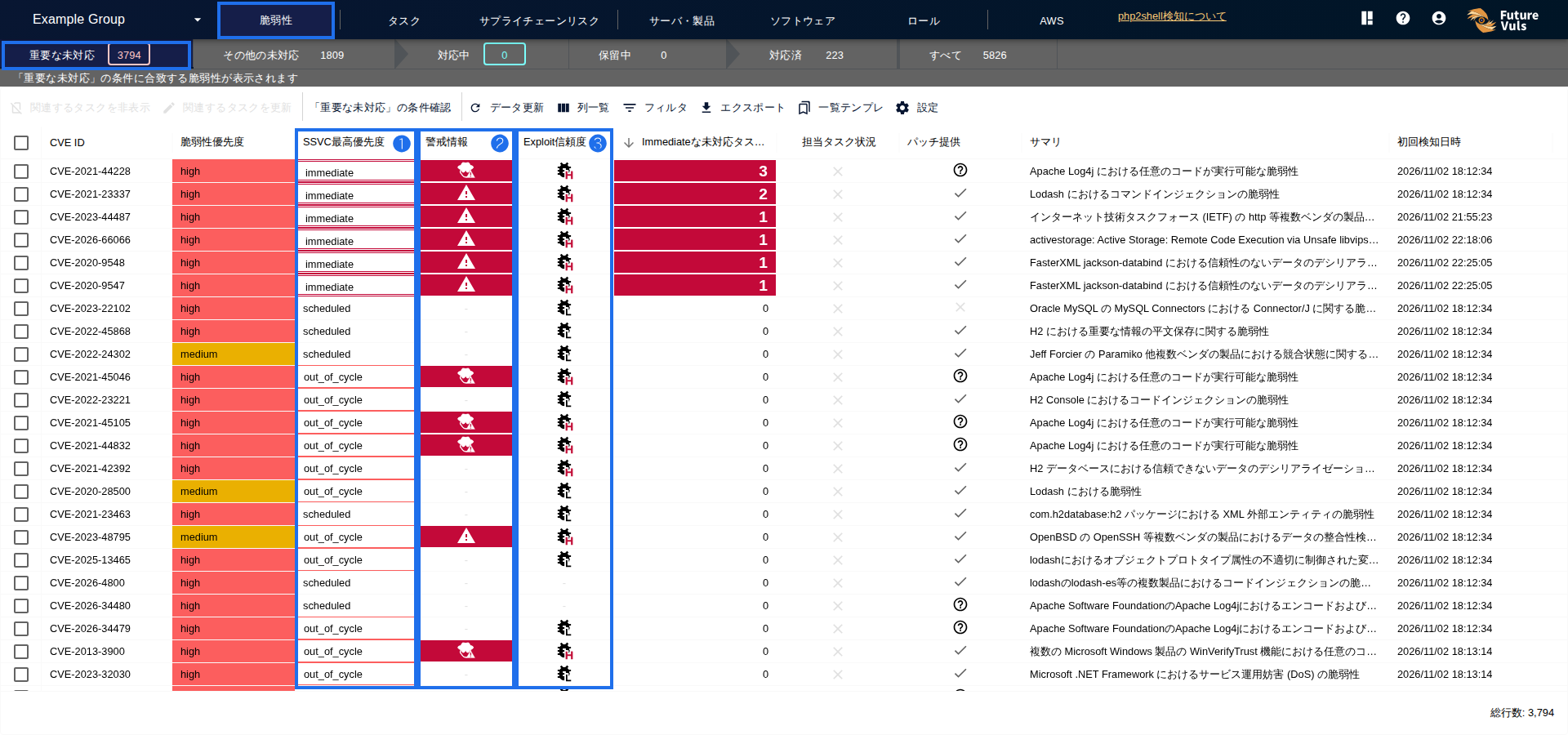
- Look at three columns in the list and review the most urgent items first.
- For the vulnerabilities you decide to address, set assignees and due dates in STEP 2: Decide Who Fixes What and by When.
| Column | What to look for |
|---|---|
| Highest SSVC Priority | Consider addressing items marked "Immediate" (respond right away) and "Out-of-Cycle" (respond outside your regular cycle) first |
| Alert information | A red icon signals a vulnerability that is drawing widespread attention |
| Exploit Reliability | Shows whether tools that can be used for attacks are already in circulation |
Looking at Each Vulnerability in Detail#
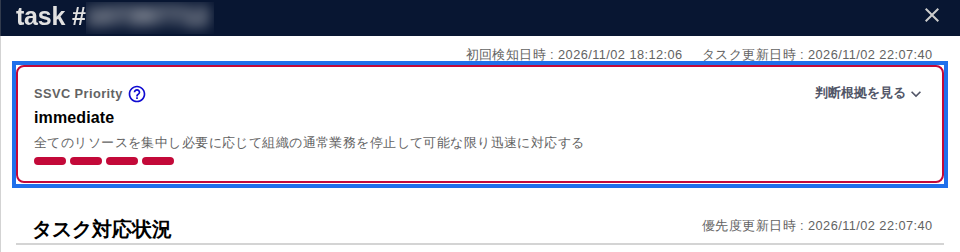
Click a vulnerability's row to open its details. Check the vulnerability summary, links to primary sources, whether a fixed version (patch) is available, and so on, and then decide how to respond. In the task details, the SSVC Priority is shown at the top of the screen.
Common Issues#
How to read detection results is one of the most frequent topics of inquiry. If something looks wrong, check the following first. In most cases, it is due to how the product is designed or how detection works.
| Symptom | Cause and solution |
|---|---|
| A task doesn't change to "Patch Applied (PATCH_APPLIED)" after you update | Check the "Patch Availability" column in the list. For vulnerabilities without fixed-version information or with missing KB information, FutureVuls can't automatically determine whether the fix has been applied ("Task Doesn't Change to PATCH_APPLIED After Updating") |
| A vulnerability that should already be patched is detected (Windows) | Starting with the October 2026 release, vulnerabilities are detected when FutureVuls can't confirm that the KB that fixes them has been applied. Older KBs that have been superseded by newer KBs are grouped under the latest KB on the Advisory tab (you can check them under "Merged KBs" in the advisory details). For KBs delivered as hotpatches, the URL of the support page is provided. Check the primary sources, and if there is no impact, set the task to "Not Affected" or "Workaround" (Advisories, "A Vulnerability That Should Already Be Patched Is Detected") |
| New vulnerabilities in Edge or Teams appear on Windows | Starting with the October 2026 release, FutureVuls also detects Microsoft products other than the OS, such as Microsoft Edge and Teams. This is expected behavior |
| The latest vulnerabilities aren't detected on Windows | The servicing stack update may be out of date. Update it to the latest version and scan again. For servers managed by WSUS, also check the synchronization and approval settings on the WSUS side ("Vulnerabilities Are Missed When Scanning Windows Managed by WSUS") |
| You want to export the list to CSV or create a report | There is no dedicated reporting feature. Generate a report with the "CSV Report" button in the task list and format it in Excel or a similar tool. When generation is complete, you're notified by email and can download the report from the same button. "Download Generated CSV Report" downloads the data as of the last generation, so generate the report again when you need the latest data. To export only the rows on the current page, you can also use "Export" in the list (CSV Report) |
| A task is resolved on the screen but shows as unresolved when retrieved via the API | By default, the API also retrieves hidden tasks. Add ?filterIgnore=true to match what is shown on the screen ("Resolved on the Screen… but Unresolved When Retrieved via the API…") |
Troubleshooting#
If something isn't working, see Troubleshooting (FAQ).
If that doesn't solve the problem, contact us through the support contact form. Including the CVE ID, the server, and what you expected to see helps us investigate faster.
Learn More#
- CVE Tab
- CVE Details
- Security Alerts and Advisories
- Publicly Available Exploit Code
- Conditions for Important CVE (Important Filter)
Next Page#
Set assignees and due dates for the vulnerabilities you've decided to address. Go to STEP 2: Decide Who Fixes What and by When.